
Freightools AI Studio turns a supplier's rate sheet into buying agreements in your Freightools account. You say who the rates are from and what they cover, add the file, check and fix the result on screen, then create the agreements.
Note: The header says Freightools AI Studio; the home screen and browser tab say Rate Loading Studio.
What it does for you
- Reads supplier rate sheets. The AI Studio method reads Excel, CSV, PDF, Word, email or text files up to 30 MB, or pasted rate text — see Troubleshooting and frequently asked questions for the full list. The other file methods need an Excel (
.xlsx) file. If your sheet is larger than 30 MB or in another format, save or export a copy as Excel, CSV or PDF, or split it and load each part. - Turns each lane into one buying agreement, with its charges, currency, prices and validity dates, plus the carrier, via port and transit time your sheet gives.
- Shows you everything before it is created. Values it could not find or match are clearly marked. Ready means nothing was flagged on the lane, not that the values match your sheet — before you create, open a few lanes from different parts of the file and check them against the rate sheet.
- Remembers each supplier, so the next rate sheet from them takes only a few clicks.
Important: The Buying / Selling switch is at the top right of the home screen. This help center covers buying agreements only, so keep Buying selected — the steps here don't match the Selling side.
How a load works
- Set up the load. Open the studio link your Freightools contact sent you — see Open your studio link and find your way around. On the home screen, click Load a rate sheet. Then pick the Supplier (and the carrier, if every rate is for one carrier — leave it empty when the sheet covers several, and each lane's carrier is read from your file), the service in Load, the part of the move in Move part, and the charges in Checklist. See Set up a load: supplier, service and route and Choose the charges to load (the checklist).
- Load the rate sheet. In File, add the file or paste the rate text, then pick a Method. With the AI Studio method, click Load the file and a progress page follows your file; a full tariff usually takes a few minutes. The other file methods open their own screen first. See Add your rate sheet and choose how to load it and Follow your load while it runs. If the load stops, fails, or finds no lanes, see Troubleshooting and frequently asked questions.
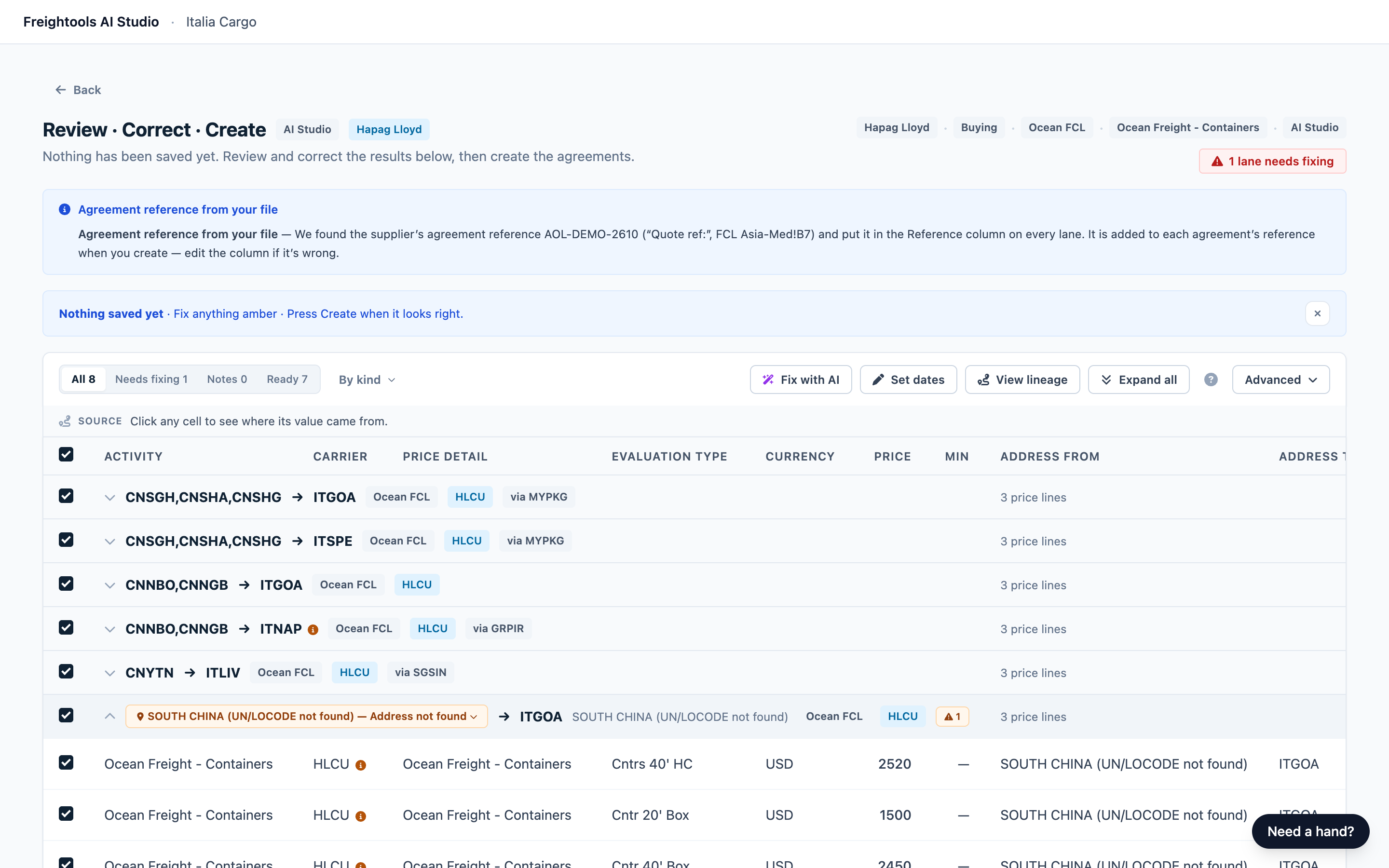
- Review and correct. The Review · Correct · Create screen lists every lane found. Filters group them as All, Needs fixing (can't be created yet), Notes (worth a look, can be created) and Ready. Lanes left out of the load appear under an Excluded filter. Check that the screen lists every set of rates you expect from your sheet. Edit most cells, match locations the studio couldn't find, leave out lanes, or, on AI Studio loads, describe a problem in plain words with Fix with AI. See Review your results, Correct lanes and prices before you create and Use Fix with AI and add charges found in your file.
- Create. Click the Create button in the bottom bar. Its label counts what will be created, for example Create 7 valid agreements now. A summary, "Here’s what will be created", opens; nothing is written until you press Create … now there. Lanes that still need fixing aren't created and stay on the review screen: fix them and press Create again — nothing is created twice. If the same lane appears more than once, Create waits until you keep one row — see Correct lanes and prices before you create. If an agreement fails, the result screen says why and lets you fix it. See Create your agreements in Freightools.
After a successful creation, your answers are kept as a saved configuration for that supplier; next time, click Load new file on it. See Saved configurations and loading a new file for a supplier.
Choose a loading method
Choose a method in the Method step, or click a card under Know what you want? Pick a method on the home screen. The line under that heading offers to skip the questions; a card doesn't skip them — it opens the same steps with that method already picked. Manual create opens its own form instead.
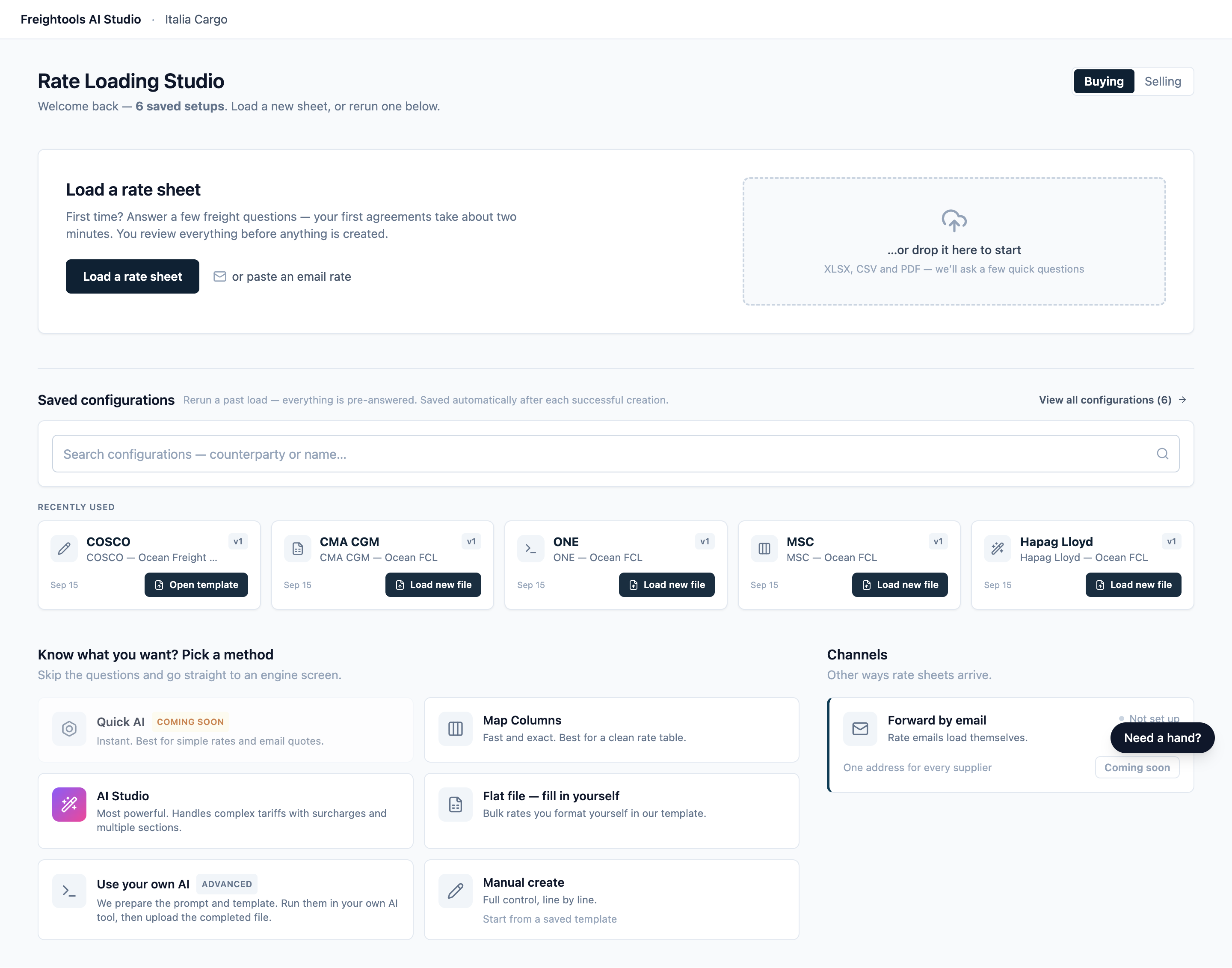
| Method | Best when | How your rates get in |
|---|---|---|
| AI Studio (marked Recommended in the Method step) | Most sheets, especially complex tariffs with surcharges or several sections, and PDF, Word or email rates | Reads your file and fills your charges for every lane. You can correct the result with Fix with AI. |
| Map Columns | A clean rate table on one Excel sheet | You pick which column holds each field. Your choices are saved for next time. See Load a rate sheet with Map Columns. |
| Use your own AI (Advanced) | You already use your own AI tool | The studio prepares a prompt and an empty template. Run them in your tool with the rate sheet, then upload the filled-in .xlsx. See Load a rate sheet with your own AI tool. |
| Flat file — fill in yourself | You'd rather enter the rates yourself | Download the template, fill in one row per lane in Excel and upload it. See Load a rate sheet by filling in the flat file template. |
| Manual create | One agreement, no file | Fill in the form, review it, then click Create agreement. See Create an agreement manually (no file). |
Cards marked Coming soon can't be selected.
Words used in this help center
| Word | What it means |
|---|---|
| Supplier | The company that sent you the rate sheet. Each buying agreement is with this supplier. |
| Lane | One From → To route, for example Shanghai → Genoa. |
| Price line | One charge on a lane, with its Price Detail (the charge), Evaluation Type (what the price is charged per, for example per container), Currency, Price and Min (the minimum amount charged). |
| Checklist | The charges you ask the studio to load. The review screen can suggest others found in your file. |
| Saved configuration | Your saved answers for one supplier. The home screen also calls them "saved setups". |
| Marker | Text shown in place of a value that could not be found or matched, such as "NO PRICE FOUND" or "(UN/LOCODE not found)". A marker is never written to Freightools as a value. For the markers you'll see most often, see Reference: review markers, statuses and issue types. |
| UN/LOCODE | The five-character UN location code, for example ITGOA for Genoa. A place with several codes shows them all, for example CNSGH,CNSHA,CNSHG for Shanghai; that is normal, and the review flags a location only when it needs fixing. |
When things are written to Freightools
No buying agreements are created in Freightools until you press Create: Create … now in the summary for a file load, or Create agreement in Manual create.
The summary also asks what to do with agreements that already exist for these lanes:
- Import all (the default) creates everything and leaves your existing agreements as they are, so old and new rates run side by side. Use it for a first load.
- Make existing agreements obsolete creates everything, then ends each matching agreement the day before the new rates start. Use it when this sheet replaces the supplier's old rates. It changes live agreements in Freightools and can't be undone.
- Ignore existing agreements creates only the lanes you don't already have. Use it when you're adding missing lanes.
Agreements created outside the studio are never changed.
Starting a load also adds an agreement template to your Freightools account; it carries no rates, so you can ignore it. See What starting a load writes to Freightools.
An amber FT test badge at the top right means a test link: what you create goes to your Freightools test environment. Go by the FT test badge; no other badge in the header tells you where agreements go.
Warning: Without the FT test badge, creating writes real buying agreements to your live Freightools.
Tip: Stuck? Click Need a hand? to ask about the screen you're on.
Related articles
- Open your studio link and find your way around
- Set up a load: supplier, service and route
- Choose the charges to load (the checklist)
- Add your rate sheet and choose how to load it
- Follow your load while it runs
- Review your results
- Correct lanes and prices before you create
- Use Fix with AI and add charges found in your file
- Create your agreements in Freightools
- Saved configurations and loading a new file for a supplier
- Load a rate sheet with Map Columns
- Load a rate sheet with your own AI tool
- Load a rate sheet by filling in the flat file template
- Create an agreement manually (no file)
- Reference: review markers, statuses and issue types
- Troubleshooting and frequently asked questions