
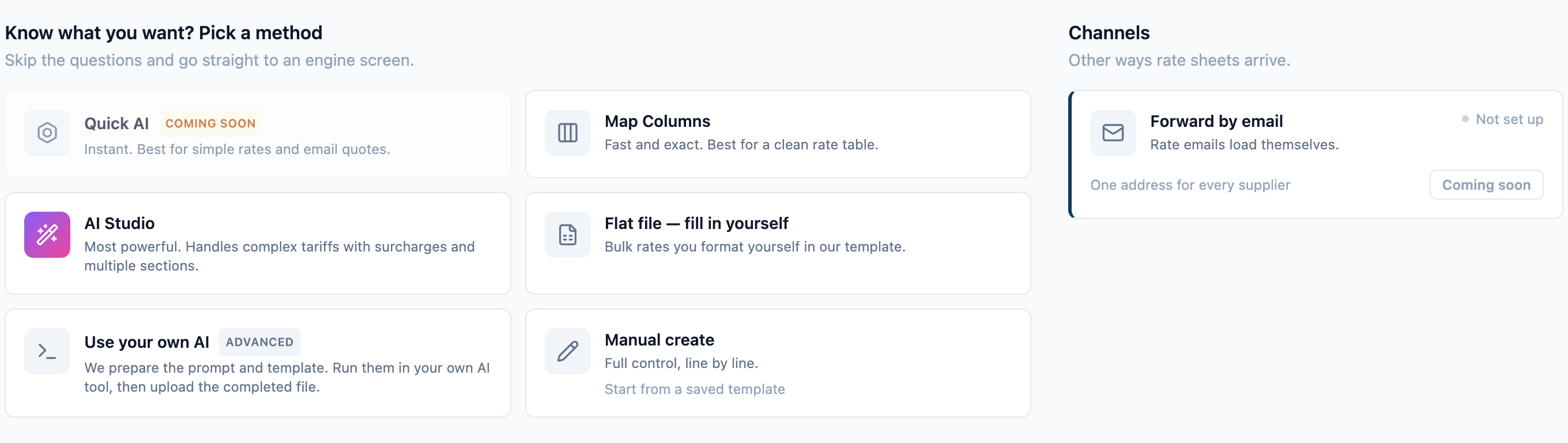
With the Flat file — fill in yourself method in Freightools AI Studio, you type the supplier's rates into an Excel template built from your charge checklist. The studio reads back what you typed and opens the review screen, where anything it could not match is marked for you to check.
Choose it when you want to control every value. To have the studio read the supplier's file instead, see Add your rate sheet and choose how to load it. You need a spreadsheet app that saves .xlsx files and each port's UN/LOCODE (the five-character UN location code), for example CNSHA.
No buying agreements are created in Freightools until you press Create.
Start a Flat file load
- On the studio home screen, check that Buying is selected.
- Under "Know what you want? Pick a method", click Flat file — fill in yourself. The load questions open with this method chosen.
> Important: Start from this card, so Flat file is already chosen. - Answer the Supplier step (the supplier, and a carrier if you know it), then Load and Move part. If your supplier is itself a carrier, the carrier is filled in for you — leave it as it is. See Set up a load: supplier, service and route.
- On Checklist, make the list match the supplier's charges: remove with ✕, add under Add a charge, or pick an agreement under Start from an existing agreement — optional, which replaces the list. Each way a charge is priced is its own row, so a price per 20' container and a price per 40' container are two rows — and two cells in your template. See Choose the charges to load (the checklist).
- On "Give us the file.", leave the drop area empty and click Continue.
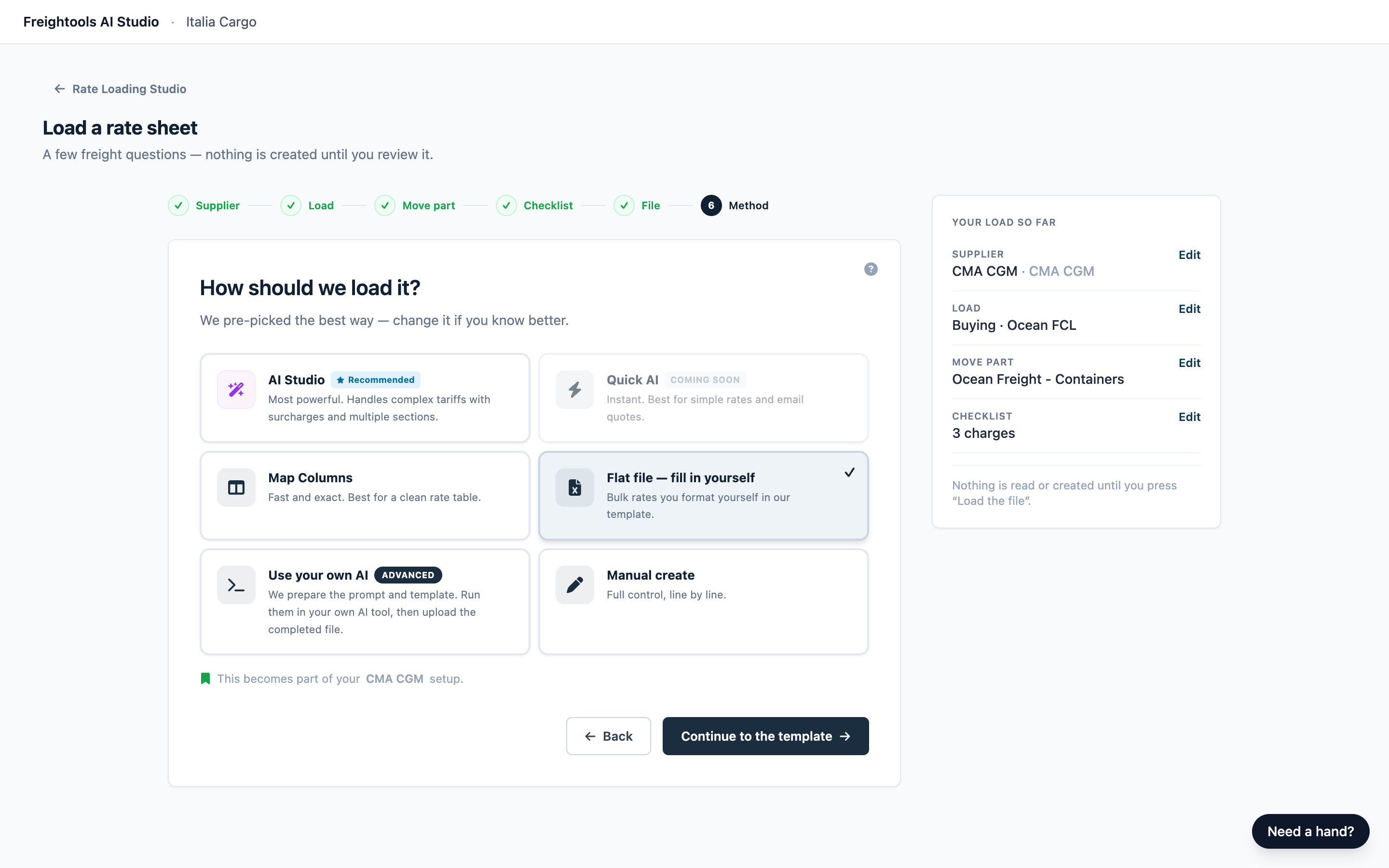
With this method you don't attach the supplier's rate sheet at all — nothing is read until you press Process file later. If you started from Load a rate sheet instead of the card, click Using your own AI tool? Continue without the file, then click Flat file — fill in yourself on the next step. If the rates came by email, you can attach it with Attach the email it came in (optional). - On "How should we load it?", check that Flat file — fill in yourself has a check mark.
- Click Continue to the template. The Flat file — fill in yourself screen opens.
Download the template
- In 1 · Import template, check the line "…pre-built for your <supplier> setup (N charges)". N is the number of charges you kept on the Checklist step. If it's wrong, click Checklist in the row of steps across the top, fix the list, come back and download again.
- Click Download template. Your browser saves
freightools-agreement-template.xlsx. Download a fresh one for every load.
Fill in the template
Open the file and work on its only sheet, Upload Me!. Leave row 1 as it is. Row 2 shows which cells belong to which charge — leave those cells as they are and type your first lane around them.
Write one row per lane:
- Enter the ports as UN/LOCODEs, for example
CNSHAandITGOA, and fill the via port only when the service runs through one. If you don't know a port's code, type the port's name instead. An unmatched location is flagged on the review screen, where you pick the right port before you create. - Fill the validity start and end dates on every lane row. Enter them as real Excel dates, or type them as
2026-10-01. A lane with empty date cells uses the fallback dates from the Load step. Either way, check the dates on the review screen before you create. - Enter the transit time as a whole number of days, without "days".
- Leave the carrier cell empty if you chose a carrier when you set the load up. Otherwise type the carrier's name — or, if you aren't sure how it is spelled, leave the cell empty and pick the carrier on the review screen before you create.
- Type prices as plain numbers, with a point for decimals and no thousands separator:
1450.50, not1,450.50. - Each container size or weight break is a charge of its own, with its own price cell. Fill only the sizes your supplier quotes and leave the rest empty. If a size you need has no cell, click Checklist in the row of steps across the top, add that charge, and download the template again.
- Fill a minimum cell only when your supplier quotes a minimum for that charge.
- In row 2, type your first lane and its prices into the empty cells. Leave the filled-in charge cells as they are.
- For each further lane, copy row 2 down, then replace the lane details and the prices. Clear any copied cell that doesn't apply, such as a via port, a carrier, a minimum or a price for a charge the lane doesn't have. Keep all of a lane's charges on its one row. Give each lane one row. If two rows describe the same lane, the review asks you to keep one.
- Save as an Excel Workbook (
.xlsx), with the sheet name and row 1 unchanged.
Upload the completed template
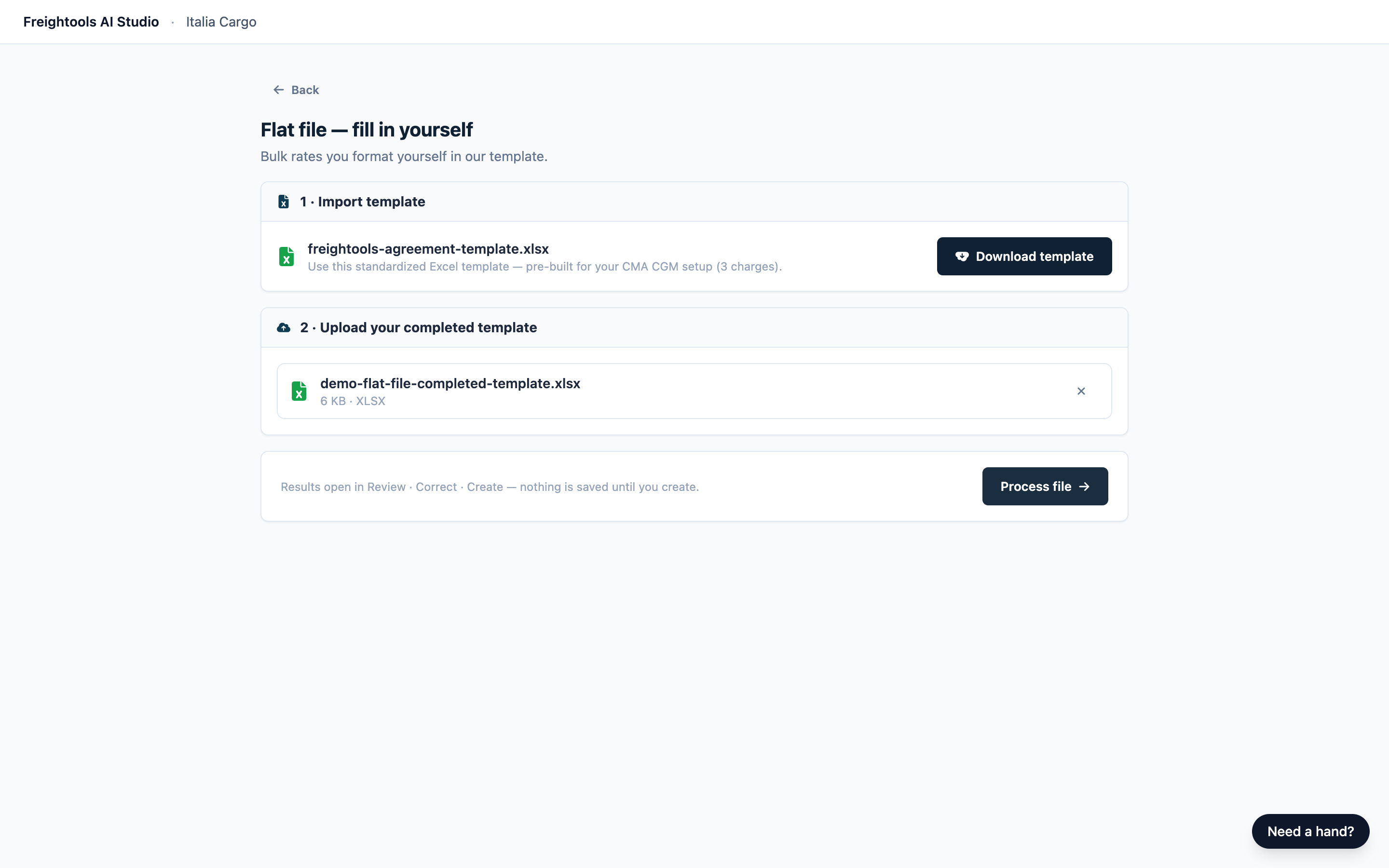
- In 2 · Upload your completed template, drag your file onto "Drop your filled template here or click to upload", or click that area. It must be
.xlsx, up to 30 MB. - Check the file row ("size KB · XLSX"). To change the file, click its X.
- Click Process file. The load page opens.
Review the results
- Stay on the page while the progress steps run. See Follow your load while it runs.
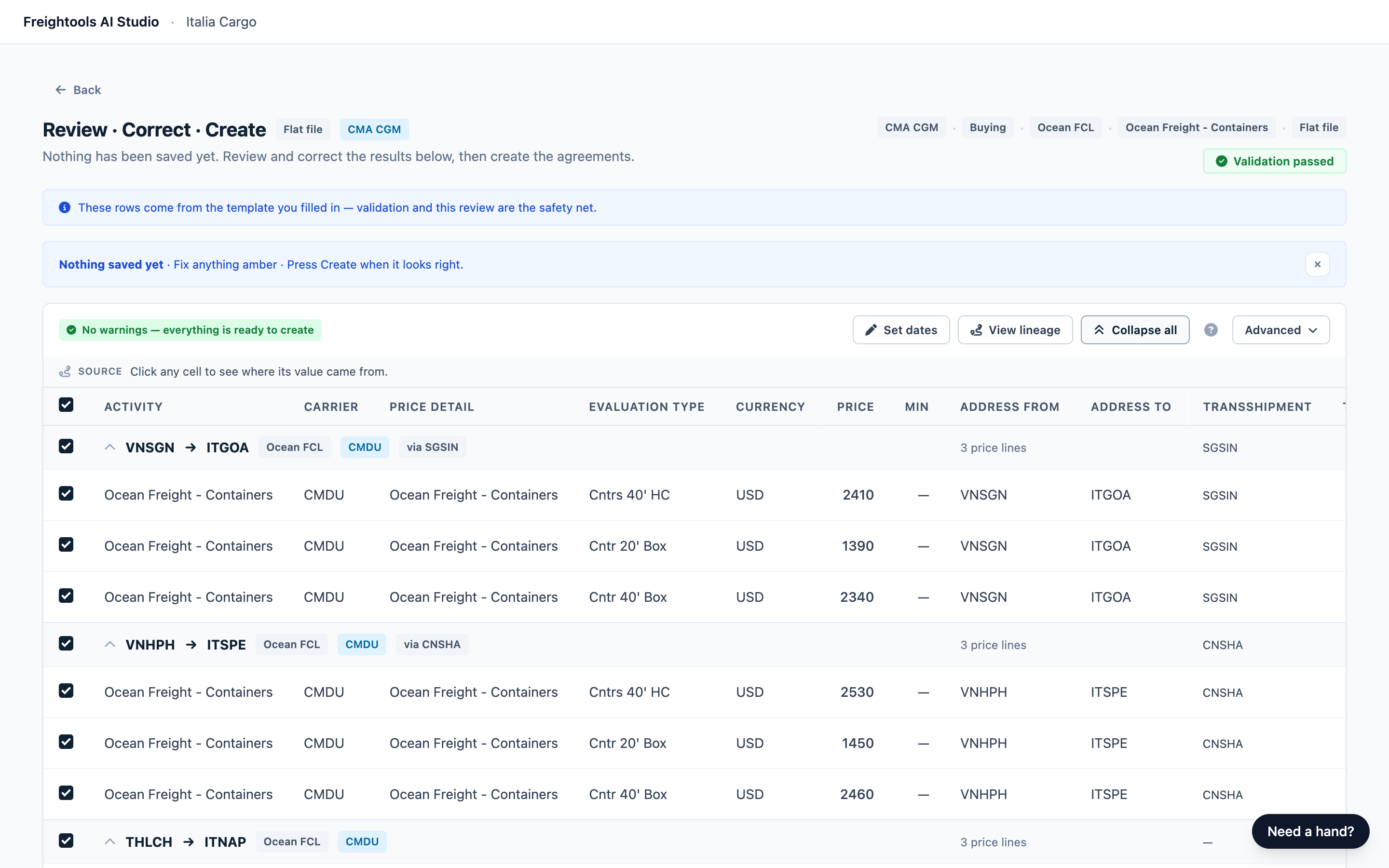
- On the review screen, check that the method chip says Flat file. A blue note reads "These rows come from the template you filled in — validation and this review are the safety net."
- Check that every lane is there and look at any marked cells. See Review your results.
- Correct anything wrong, then create the agreements. See Correct lanes and prices before you create and Create your agreements in Freightools. If more than a handful of rows are wrong, fix your template instead and start a new load from the Flat file — fill in yourself card: the load you leave creates nothing, because agreements exist only once you press Create.
Load the next file for the same supplier
- Click Load new file on the supplier's card under Recently used, or on its row in View all configurations (N). The questions open on the file step, with Flat file still chosen.
- Ignore "Pick the new file below" and click Continue, not "Continue without the file".
- Click Continue to the template and download a fresh template.
Important: Lanes with empty date cells use the fallback dates from the Load step, and a new load doesn't keep the dates you set last time. Click Load in the row of steps across the top, click Edit fallback, and set the right dates.
Good to know
Starting a load also adds an agreement template to your Freightools account. It isn't a buying agreement and holds no prices. See Add your rate sheet and choose how to load it.
Troubleshooting
| Problem | What to do |
|---|---|
| The file step's Continue is grayed out, or Try again / Try another load opens the questions with the AI Studio method chosen. | Start again from the Flat file — fill in yourself card on the home screen. |
| "How should we load it?" shows Use your own AI and Continue to your AI kit. | On that same step, click the Flat file — fill in yourself card, then Continue to the template. |
| "The completed template must be .xlsx…" or "That file is over 30 MB." | Save as an Excel Workbook (.xlsx), without images. |
| "That file could not be loaded". | The file wasn't accepted. Download a fresh template, paste your lane rows under its heading row, save as .xlsx, and start again from the Flat file — fill in yourself card. |
| "This load needs your attention". | The load stopped. Check that you uploaded the filled template as .xlsx, with a number in every price cell you meant to fill, then load it again from the Flat file — fill in yourself card. |
| A charge shows a missing price where you typed one. | Compare those rows with a freshly downloaded template: the filled-in charge cells unchanged, and a plain number — no currency sign, no words — in the price cell. Fix and load again, or correct the price on the review screen. |
| "Duplicated lanes — a choice is needed to create" on the review screen. | The same lane is on more than one row. On the review screen, keep the correct row ticked, untick the others, then create. See Correct lanes and prices before you create. |
| The dates aren't the ones you meant. | Lanes with empty date cells used the fallback dates from the Load step. Put the right dates on those lanes with Set dates on the review screen. |
| Any other message with "try again in a minute". | Wait a minute and try again. If it keeps happening, tell your Freightools contact. |