
You open Freightools AI Studio from a private web link that your company gets from Freightools. There is no username and no password: the link is your key.
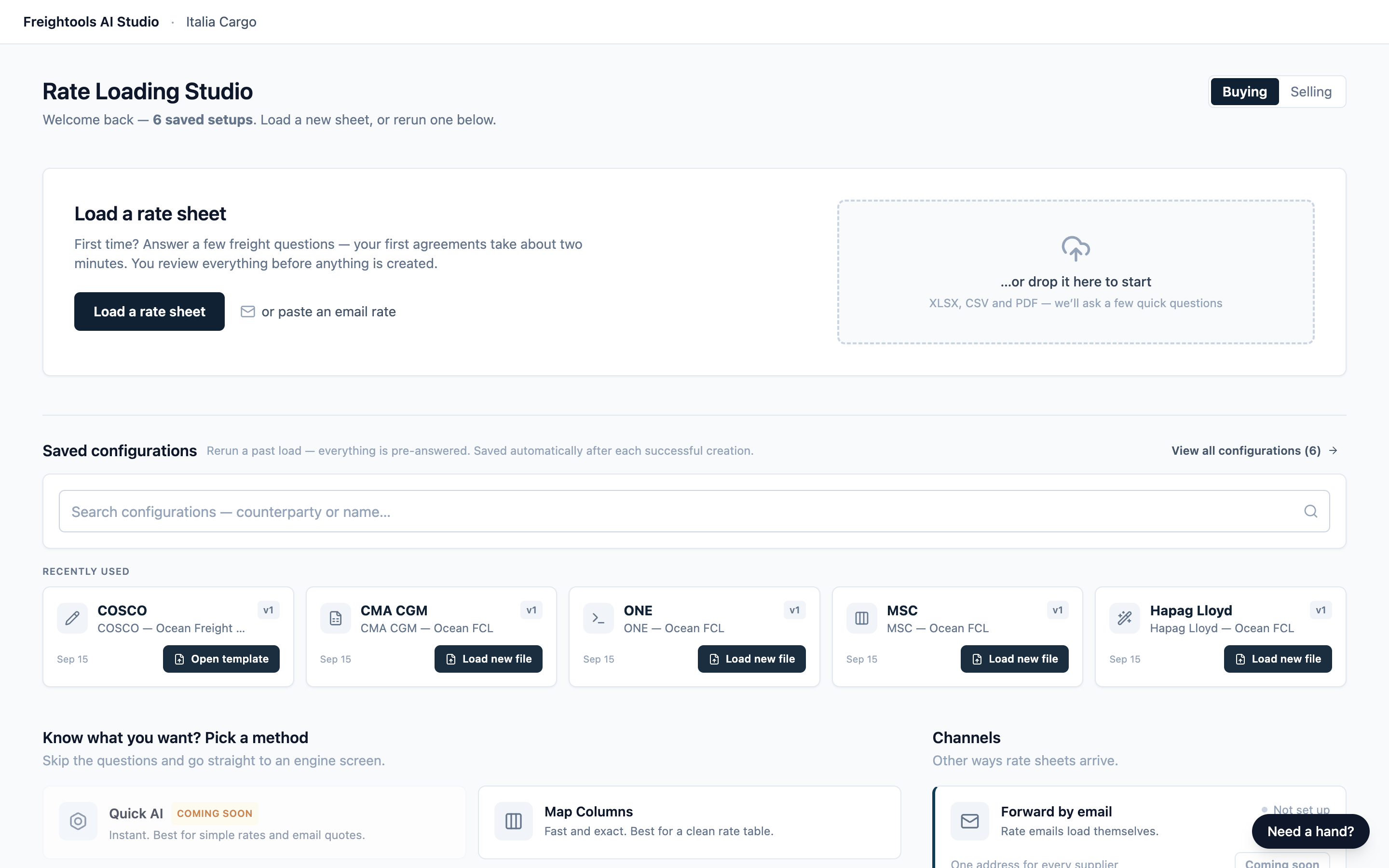
The screens are titled Rate Loading Studio, and the header says Freightools AI Studio. Both names mean Freightools AI Studio.
Before you start
- Get your studio link from your Freightools contact.
- Work on a computer, and maximize the browser window. In a narrower window you can still finish a load — you just lose the step names above the load questions, which show as numbers only, and the Your load so far panel, which is hidden.
Open your studio link
- Open the studio link you received. The home screen opens, with your company name in the header.
- Bookmark the page — on your own computer, not a shared or public one — so you can come back without looking for the link again.
Important: Treat your studio link like a password. Anyone who has it can load rates and create buying agreements for your company. If someone who shouldn't have it has seen it, ask your Freightools contact to replace it.
There is nothing to sign out of; close the tab when you're done. To get back to the home screen, click Rate Loading Studio at the top left of the load questions or the saved configurations list, Back on Manual create (the screen for typing in an agreement by hand), or Back to Rate Loading Studio after creating agreements. If you leave a load part-way through, attach your file again when you come back to it.
Check whether you're on a production or test link
Your company can have a production link and a test link. The header shows which one is open.
| Link | What the header shows | Where agreements go |
|---|---|---|
| Production link | "Freightools AI Studio · your company", with no FT test badge | Your live Freightools. The agreements are real. |
| Test link | The same, plus an amber FT test badge (shown as FT TEST) | Your Freightools test environment only |
Production and test are two separate links, and there is no switch inside the studio. If the header isn't the link you want, close the tab and open the other one. If you don't have it, ask your Freightools contact.
Warning: No buying agreements are created in Freightools until you press Create on the review screen — its label counts what will be created, for example Create 12 valid agreements now — or Create agreement on the Manual create screen. On a production link they are real, so check the header first.
Nothing else in the header tells you which link you're on, so check for the FT test badge before you start a load — including when you start one from a saved setup.
Tour the home screen
Keep Buying selected
The home screen opens on Buying, at the top right, and this Help Center assumes it. If your saved setups or a panel are missing, check that Buying is still the one selected.
Start a load
The Load a rate sheet panel gives you three ways to start. All three open the same load questions, explained in Set up a load: supplier, service and route.
| To start by | Do this |
|---|---|
| Answering the questions first | Click Load a rate sheet. |
| Pasting a rate from an email | Click or paste an email rate. You paste the text later, on the Give us the file screen, with Paste text instead. |
| Dropping your rate sheet | Drag the file onto …or drop it here to start, or click that box and choose it. The questions start at the beginning; your file waits on the Give us the file screen. |
Note: The drop box names XLSX, CSV and PDF, but other formats work too; see Add your rate sheet and choose how to load it.
Rerun a saved configuration
Once you have a saved setup, a Saved configurations section appears, and the line under the title changes to, for example, "Welcome back — 1 saved setup. Load a new sheet, or rerun one below." To load a new file for a supplier:
- Type part of the supplier's or setup's name in the search box (it says "counterparty" — that means the supplier), or look under Recently used.
- Click Load new file on a card, or click a search result. The load questions open on the Give us the file screen with a green "Repeat load from …" banner and every answer filled in from last time. You can change any of them with Back before you continue. For a Manual create setup, the button says Open template and opens the filled-in Manual create form.
- Add the new file.
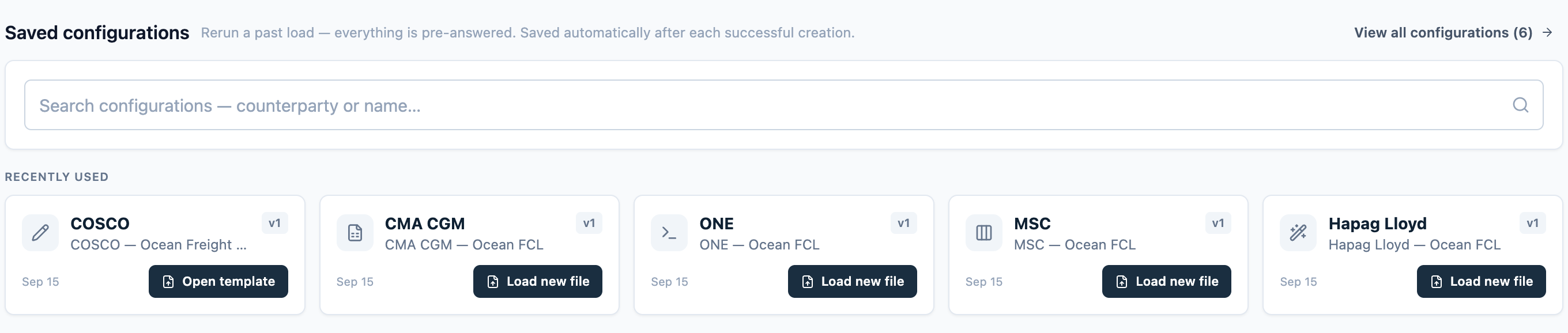
v1 on a card is the version of that setup; it goes up when your answers change. To see all your setups, click View all configurations (N); see Saved configurations and loading a new file for a supplier.
Go straight to a method
Despite the line above them, the cards under Know what you want? Pick a method don't skip the questions. You still answer them, and the method you clicked is already selected on the last step, How should we load it?, where you can change it.
| Card | Use it when |
|---|---|
| AI Studio | Most rate sheets, including PDFs, Word files, emails and pasted text. |
| Map Columns | Your sheet is a clean .xlsx table with a header row. |
| Flat file — fill in yourself | You'd rather type the rates into our Excel template. |
| Use your own AI (Advanced) | Your team already reads rate sheets with its own AI tool. |
| Manual create | You want to type in one agreement by hand, with no file. |
Not sure? Click Load a rate sheet and choose on the last step; see Add your rate sheet and choose how to load it.
Manual create opens its own empty form instead of the questions; see Create an agreement manually (no file). The "Start from a saved template" line on its card isn't a separate button; to start from a template, click Open template on its saved configuration.
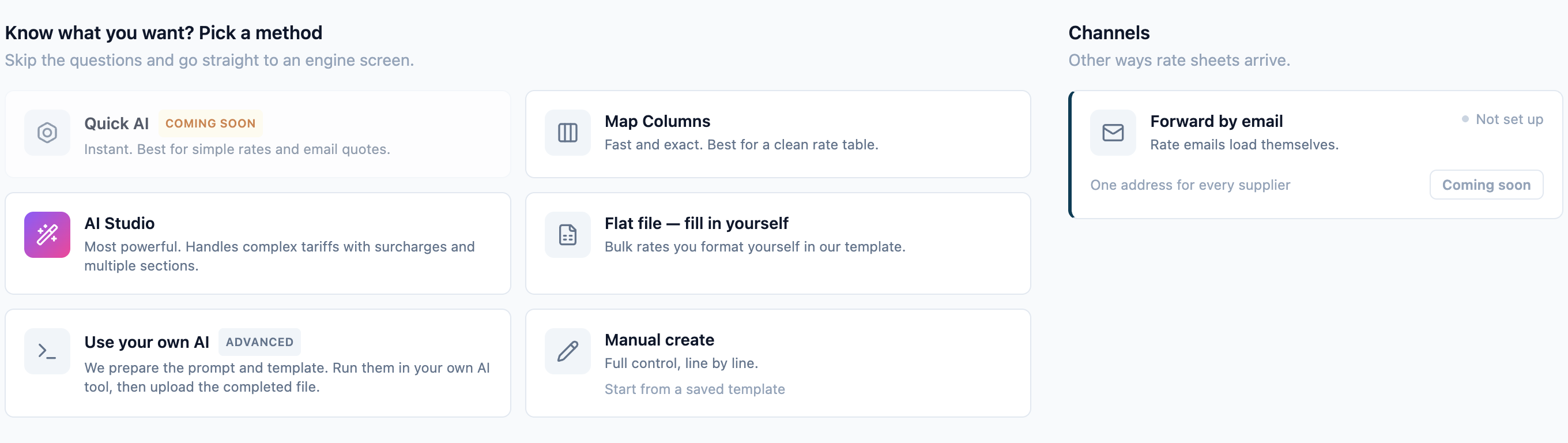
The Quick AI card is marked "Coming soon", and Forward by email in the Channels panel shows "Not set up" and "Coming soon". Neither is available yet.
Get help from the Need a hand? assistant
The assistant is on every studio page.
- Click Need a hand? at the bottom right, or press Ctrl+. (Cmd+. on a Mac). A panel opens on the right.
- Click a suggested question (it is sent straight away), or type your own in Ask a question… and click Send.
- Wait while "Thinking…" shows. The answer appears in the panel.
- To close the panel, click × or outside it, or press Ctrl+. (Cmd+.) again.
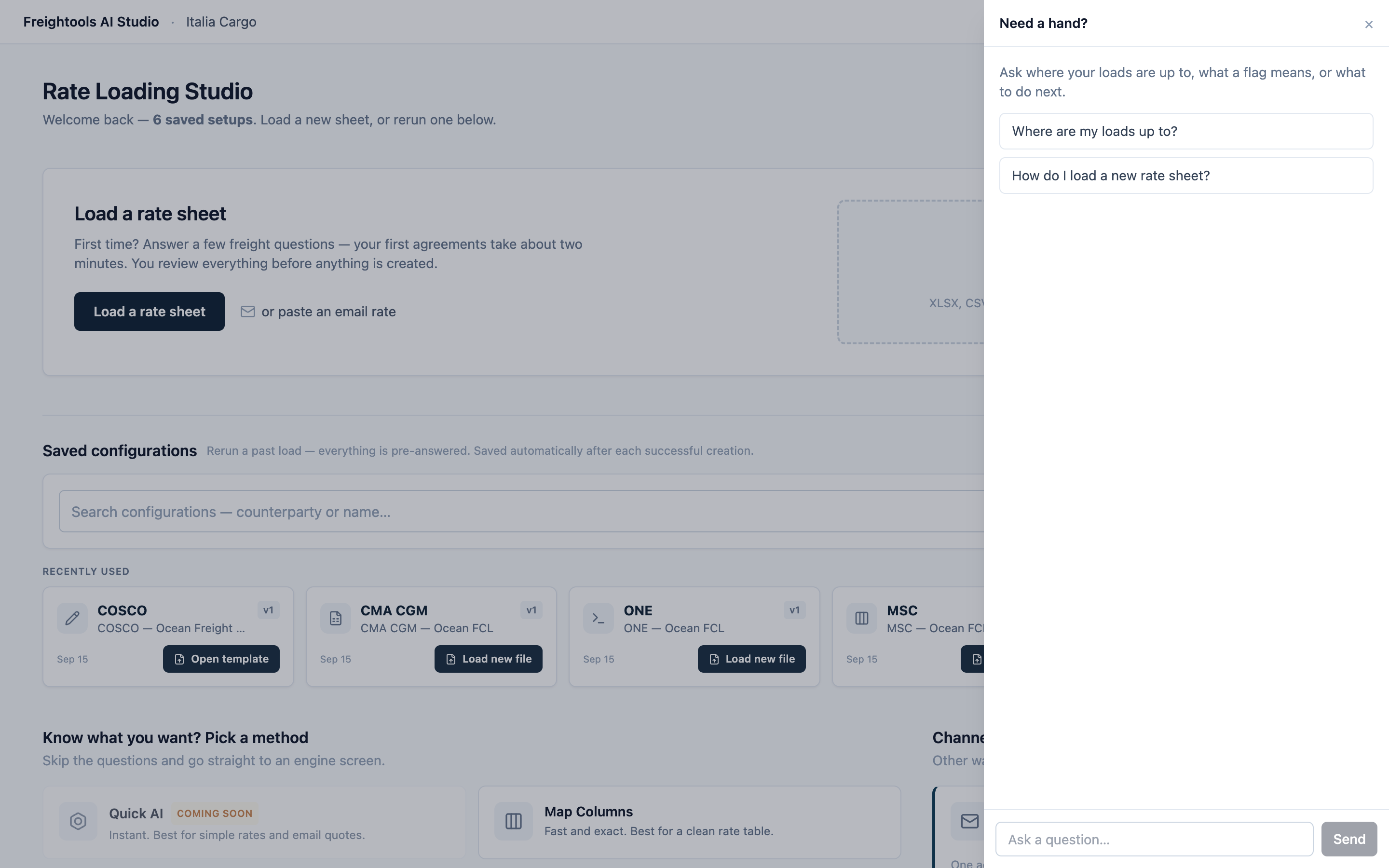
It answers questions about using the studio, and it can't change anything. Check anything important against the screen. To look up a marker or a status it mentions, see Reference: review markers, statuses and issue types.
Note: The assistant is optional, and its answers are written by AI.
Troubleshooting
| Symptom | What to do |
|---|---|
| Your link opens a plain page saying the page could not be found. | Copy the whole link again and try once more. If it was working earlier, wait a minute and reload. If it still fails, ask your Freightools contact for a new link. |
| The load questions don't open, and the studio says it isn't connected to your Freightools account yet. | Reload. If it stays, ask your Freightools contact to check the connection. |
| There's no Saved configurations section. | Check that Buying is selected. Setups are saved for you as you create agreements; see Saved configurations and loading a new file for a supplier. |
| A file you dropped on the home screen isn't attached. | Attach it on the Give us the file screen. Only one file is carried over from the home screen, and a file has to be under 30 MB — save a lighter copy if yours is bigger. |
| You chose Map Columns, but AI Studio is selected, or Map Columns is grayed out. | Map Columns works with .xlsx spreadsheets only. If your file is a CSV or a PDF, or you pasted the rates, use the AI Studio method. |
| The assistant says "That did not go through — try again." or "The assistant is unavailable right now." | Wait a moment, then ask again. You can keep loading without it. |
Related articles
- What is Freightools AI Studio?
- Set up a load: supplier, service and route
- Add your rate sheet and choose how to load it
- Saved configurations and loading a new file for a supplier
- Create an agreement manually (no file)
- Reference: review markers, statuses and issue types
- Troubleshooting and frequently asked questions