
Freightools AI Studio remembers how you loaded each supplier. After you create buying agreements, the studio saves your answers as a saved configuration. When the supplier sends new rates, click Load new file and add the new sheet, with every answer filled in.
Note: Three names are easy to mix up. A saved configuration is your saved answers for a supplier. Your checklist is the charges you chose to load. In Freightools, the agreement template is the agreement the studio fills in. The home page also calls saved configurations "setups", and on Manual create a saved configuration is called a template.
How a configuration is saved
You never save one yourself. The Created screen shows "Configuration saved — <name>", with Rename if you want a different name. The studio names it after the supplier and the service, for example "MAERSK — Ocean FCL". The first version is v1.
Important: Always reuse a configuration with Load new file. A new load from the home page asks every question again, can suggest charges you already added, and saves a separate configuration.
Find a saved configuration
- Open your studio link and keep Buying selected at the top right.
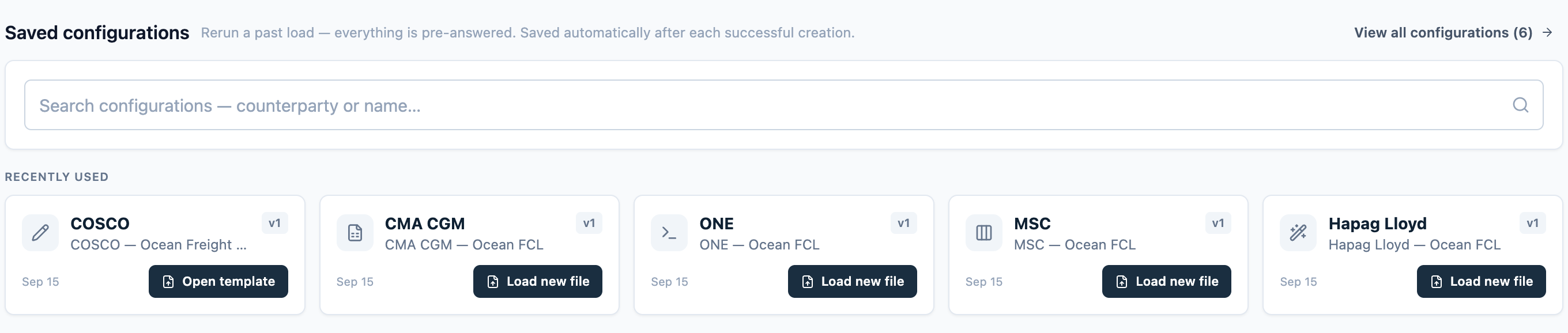
- Scroll to Saved configurations. It appears once you have at least one.
- On a Recently used card, or a row in View all configurations (N), click Load new file. A configuration from Manual create — an agreement you typed in without a file — shows Open template instead; see "Reopen a Manual create template" below.
- Or type in "Search configurations — counterparty or name…" (counterparty means the supplier) and click the configuration in the list that opens.
Load a new rate sheet for a saved supplier
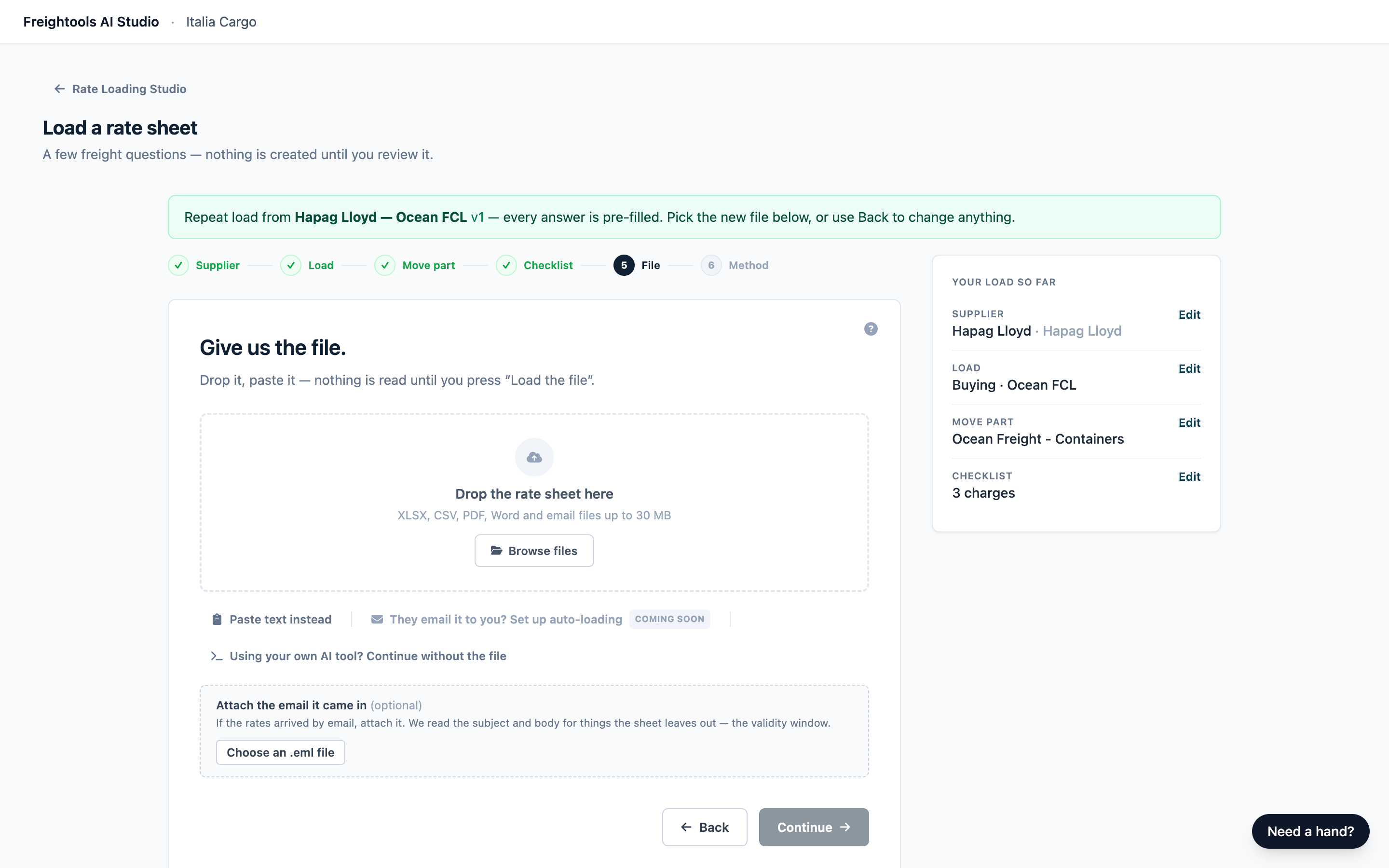
- Click Load new file. Load a rate sheet opens on the File step with the earlier steps ticked. A green banner reads "Repeat load from <name> v<N> — every answer is pre-filled. Pick the new file below, or use Back to change anything."
- Add the new rate sheet. See Add your rate sheet and choose how to load it.
> Tip: Every load starts with the default fallback dates, today through one month ahead. If your new sheet states no dates, set them to the period the new rates cover: click Load in the step bar (step 2), click Edit fallback, fill in both dates with the expiration after the validity date, then press Continue until you're back on File. Your other answers stay filled in. - Click Continue. The Method step opens with your saved method selected.
- Click its button, for example Load the file for the AI Studio method.
- Review and create as usual. See Review your results and Create your agreements in Freightools.
No buying agreements are created in Freightools until you press Create.
Everything you answered last time is already filled in: the supplier and carrier, the service and move part, the charges you chose — including any you added from "Found in your file — not in your template yet", which aren't suggested again — and your loading method. Corrections the studio remembered for this supplier are used again.
What you add each time is the new file (and any supplier email you attach with it), the dates, and any corrections this file needs. With Map Columns, check every dropdown on the mapping screen before you run. See Load a rate sheet with Map Columns.
Change answers on a new load
Use Back or click a ticked step.
| You change | What happens |
|---|---|
| The carrier, move part or charge checklist | After Create, the configuration saves your answers as a new version. |
| The loading method | After Create, a separate configuration is saved, so you'll have two for this supplier. Use the same method each time to avoid that; if it has already happened, see "The same supplier is listed twice" below. |
| The supplier or service | Don't — a configuration belongs to one supplier and one service. Start a new load from the home page instead. If you already changed them, click Rate Loading Studio at the top left of the page to leave without loading. Nothing is created. |
The review screen may show a "Since your last load" note comparing this file with the last load you created from. See Review your results.
Reopen a Manual create template
Click Open template. Manual create opens filled in, labeled "From template: <name>". Change what you need, click Review agreement, then Create agreement. The agreement is written to Freightools and the template gets a new version. See Create an agreement manually (no file).
Manage your saved configurations
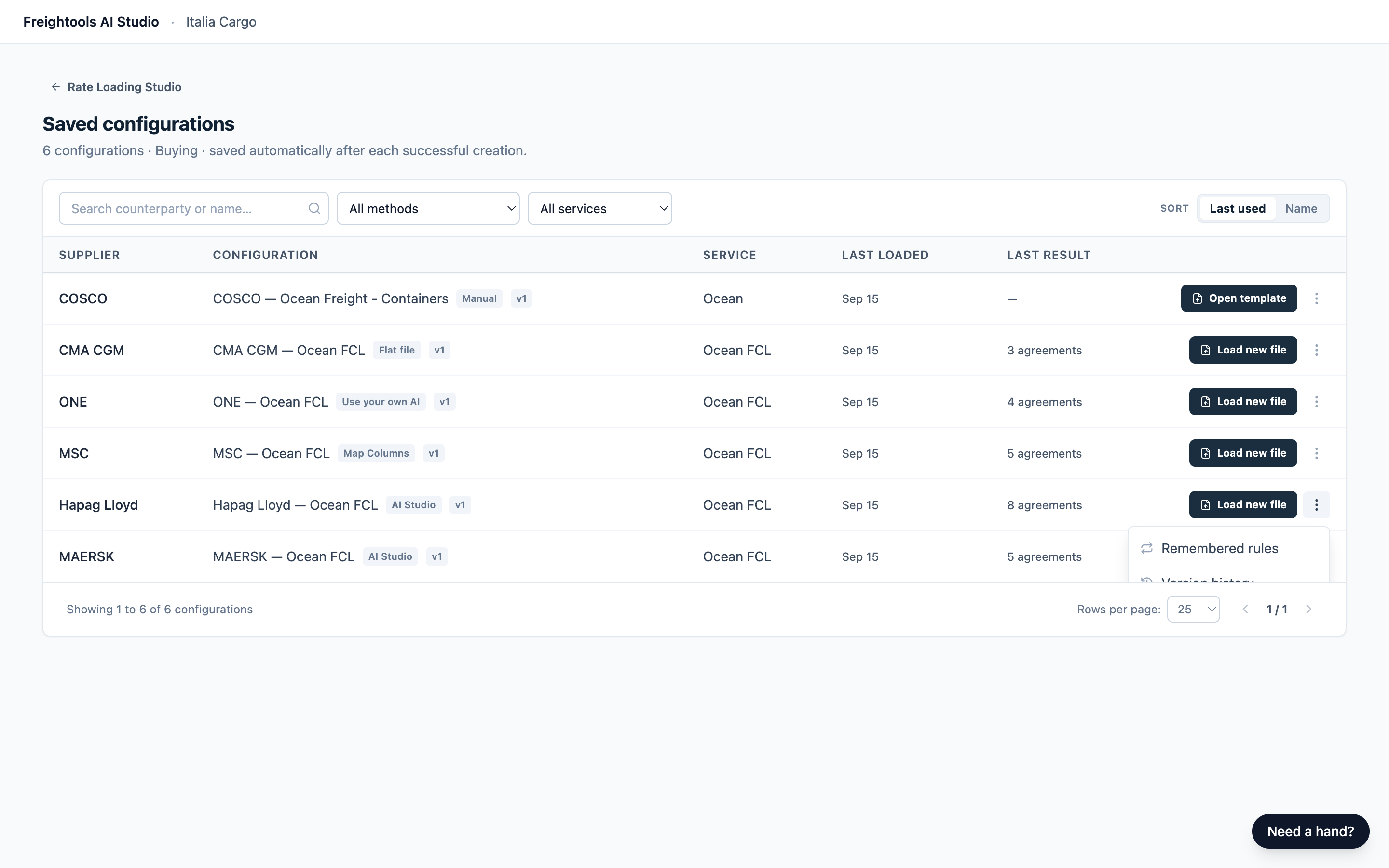
Click View all configurations (N) on the home page. Search, filter, sort, or click a supplier's name to show only that supplier. Last result shows the agreements the latest load created, or "—" if it created none.
Click More actions, the three-dot button, for Remembered rules, Version history, Rename and Archive.
Rename a configuration
- Click More actions, then Rename.
- Edit Configuration name and click Save. Supplier and Method can't be changed, and names must be unique across your company. If the name is taken, the dialog says "Another configuration already uses that name." and nothing is saved — pick a different name.
Go back to an earlier version
A version is the set of answers saved at that moment. Revert when a later load saved answers you don't want, and you'd rather your next load started from the earlier ones. It changes only what your next load is filled in with.
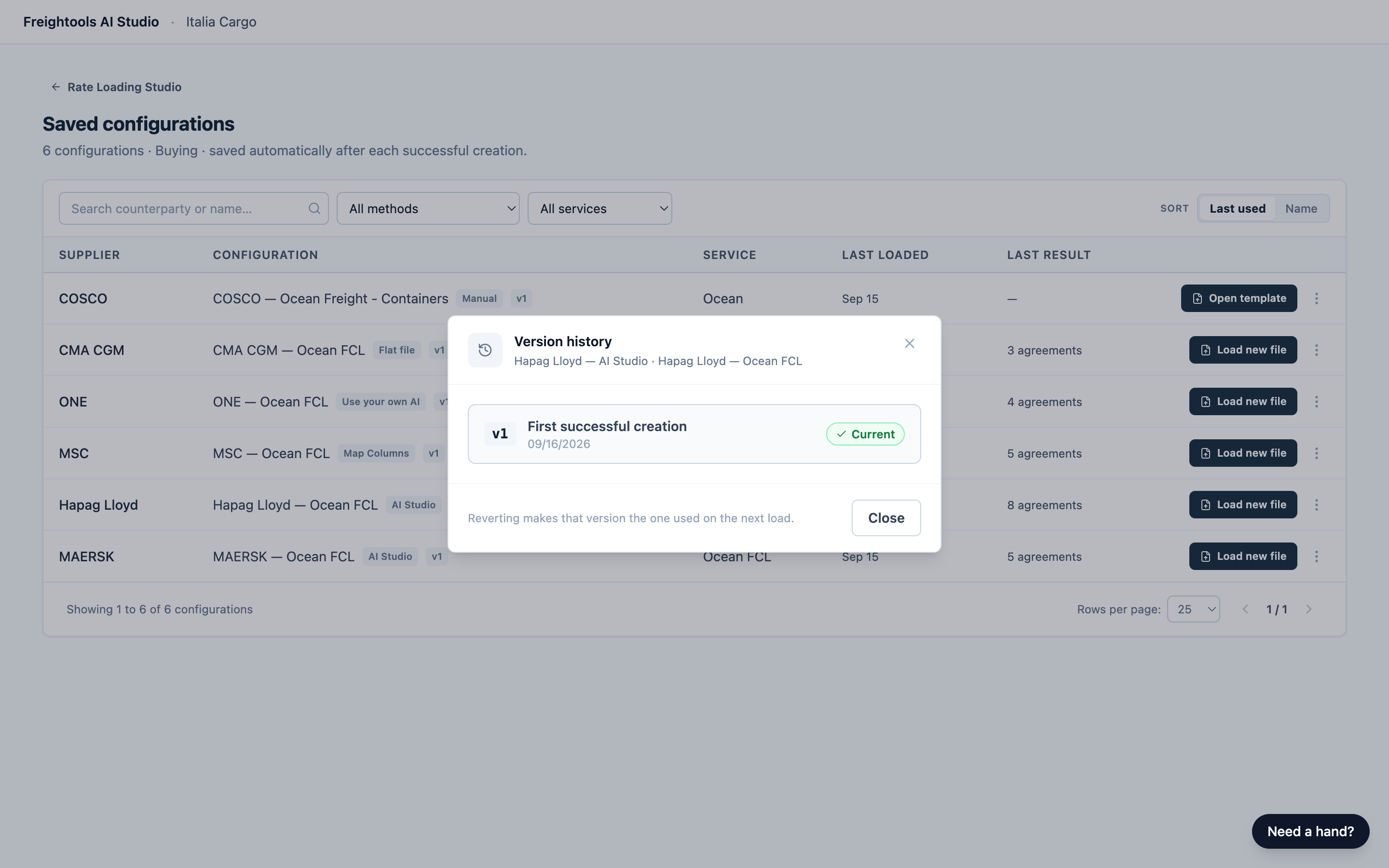
- Click the version next to the name (for example v2), or More actions, then Version history.
- Each version shows when it was added and what changed. Current marks the one your next load starts from.
- Click Revert on an older version. Those answers come back as a new version, and the earlier versions stay in the list.
Reverting doesn't change agreements you've already created, or the corrections the studio remembers for you.
Archive a configuration you no longer use
- Click More actions, then Archive.
- Click OK to confirm.
It leaves the list, the search and Recently used. Created agreements don't change.
Warning: You can't undo an archive. Its version history and remembered rules can no longer be seen, and its rules stop applying. If you still load this supplier, keep the configuration instead.
Names must be unique, so a new configuration for that supplier gets a slightly different one — use Rename to change it. There's no delete, restore or duplicate: start a new load from the home page instead.
Remember corrections for the next file
When you create, the studio can offer to remember some of the corrections you made, so you don't have to make them again — a place name it kept reading wrong, a carrier code, or a fee your sheet leaves blank.
- Press Create, then click Create N now in Here’s what will be created. If there are corrections to remember, the Created screen shows "Should we remember these corrections for next time?" with each one it can keep.
- Tick a correction only if it will still be right on this supplier's next sheets — for example, this supplier always writes "GENOA TERMINAL" for Genoa. Leave a one-off fix for this file unticked; if you make it again next time, you'll be offered it again. None are ticked at first.
- Click Remember these, or Not now. Remember these stays grayed out until you tick one.
What you keep is used again the next time you load a file for this supplier. It never changes agreements you've already created.
To remove one, click the blue label on the row showing how many rules it has (for example "1 rule"), or More actions, then Remembered rules. Click Remove, then Remove it. To change a rule, remove it and make the correction again on your next file.
Troubleshooting
| Symptom | What to do |
|---|---|
| Saved configurations doesn't appear on the home page. | Check that Buying is selected. A configuration is saved after you create agreements. |
| I can't find a configuration. | Set All methods and All services, clear the search, and click × on any supplier filter. If nothing matches, click Clear search & filters. Still missing means it was archived. |
| The same supplier is listed twice, one name with a short code after it. | A load was started from the home page, or the method was changed. Check Remembered rules on both, keep one and archive the other. |
| The review shows "The sheet’s structure changed since this setup was saved…" | Before you press Create, fix everything the review flags and spot-check a few lanes against the file: origin and destination, the base price and its currency, and each charge. If prices or lanes land in the wrong place, use Fix with AI, or click Back and load the file again — with Map Columns, map the columns again. See Review your results. |
| No "Since your last load" note. | There's none on a first load. You also get none if you started from the home page instead of Load new file, or if you changed your answers for this load. |
| My corrections weren't offered as rules. | Not every correction can be remembered. If one isn't offered, make it again on the next file. |
| "Those could not be saved just now…" after Remember these. | The rules weren't saved; your agreements are fine. The offer comes back the next time you create after making the same corrections. |
| Load new file opened with no green banner. | Reload the page and click Load new file again. If there's still no banner, the configuration was archived: start a new load from the home page. |
| A method card is grayed out and can't be picked. | Reload the page and try again. If it's Map Columns, the new file isn't an Excel file: attach an .xlsx file, or use the AI Studio method for this load. |
| Another message says something "could not be saved" or "could not be loaded". | Reload the list and try again. |