
Step 4 of Load a rate sheet is the charge checklist, titled "Here’s what we’ll load." Each row is one charge, with a gray tag showing how it's priced (the pricing basis) and the currency, for example "Cntr 20' Box · USD". Freightools AI Studio loads the charges on this list from your supplier's rate sheet.
| Situation | What happens |
|---|---|
| The charge is on the checklist and the sheet prices it | The price is loaded. |
| The charge is on the checklist but the sheet has no price for it | The price shows a marker such as "NO PRICE FOUND". Fix what the review flags, or leave that charge out on the review screen. |
| The sheet prices a charge that isn't on the checklist | It isn't loaded, but the review screen can suggest adding it. See Use Fix with AI and add charges found in your file. |
So remove any row this supplier never quotes — a 20' container price when the sheet only has 40' prices, say — or those rows come back marked and you have to fix them. See Reference: review markers, statuses and issue types.
Before you start
- Finish steps 1 to 3. See Set up a load: supplier, service and route.
- Check that Load in the Your load so far panel reads "Buying · <your service>". If it doesn't, go back to step 1 and choose Buying. In a narrow window the panel is hidden, so check Direction on step 1 instead.
Check the starter list
On a new load, the checklist starts with your Freightools account's default charges for this part of the move.
- Wait for "Loading the charge list…" to change to "From the Freightools starter list for <service> – <part of the move>."
- Open your supplier's rate sheet next to the checklist and compare them. Remove any charge this supplier never quotes, and add any charge the sheet prices that isn't listed — it's quicker to add it now than to fix it on the review screen afterwards.
- Check the count under the title, for example "We’ll fill 2 charges…". It counts rows, so one charge priced per 20' and per 40' container counts as two.
- Click Continue. Step 5 (File) opens.
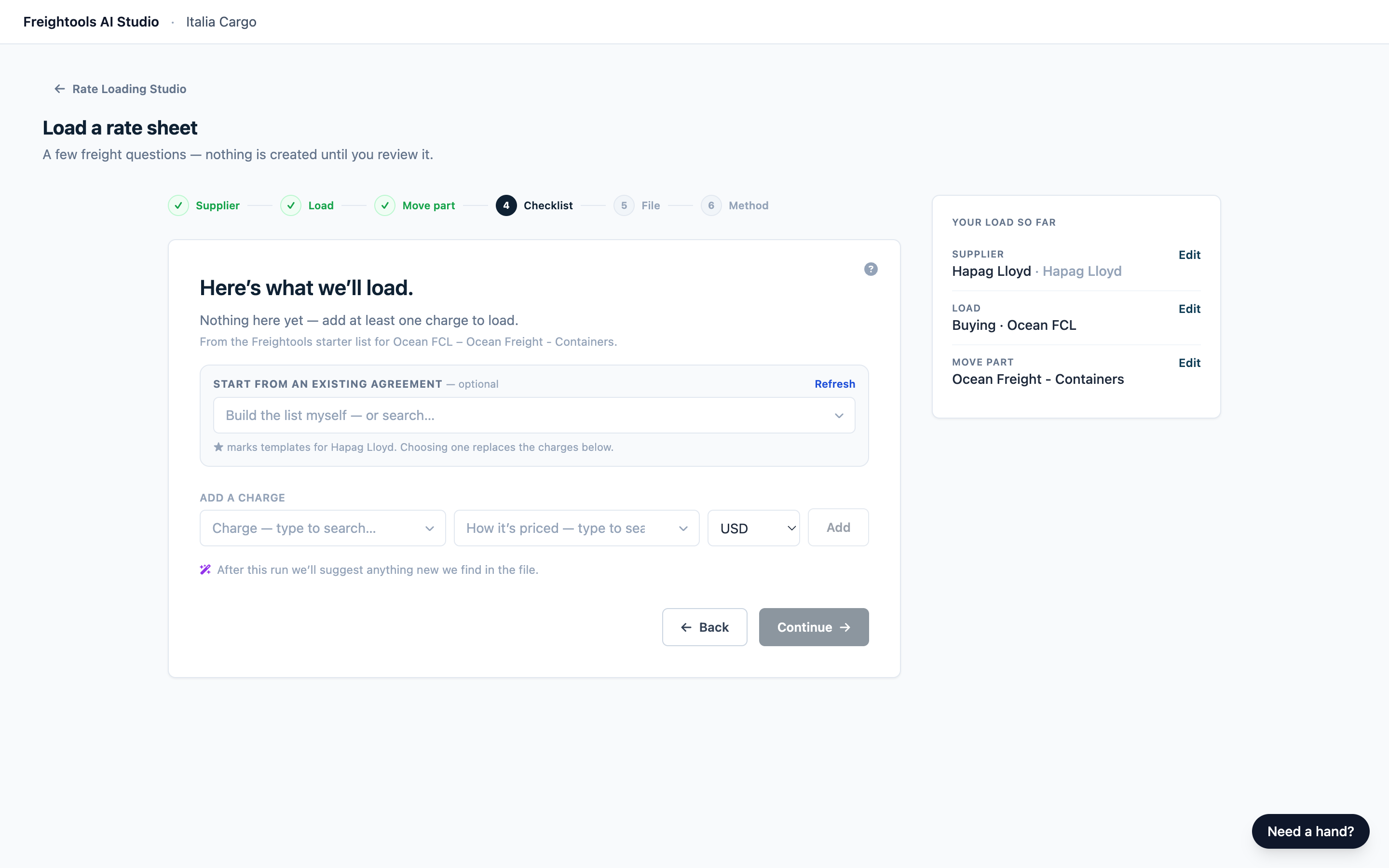
Note: With no default charges for that part of the move, the checklist starts empty. Add charges or start from a template.
Remove a charge
Click the ✕ at the right end of the row. There's no undo: add the charge again to get it back. With no charges left, the step reads "Nothing here yet — add at least one charge to load." and Continue stays grayed out.
On this step you either keep a charge or remove it — there is nothing to tick here. The tick boxes that decide what is created are on the review screen later.
Add a charge
- Click Charge — type to search…, type part of the charge name, and click the charge. If nothing matches, try a shorter or more general word — suppliers often have their own name for a standard charge.
- Click How it’s priced — type to search…, type part of the pricing basis, and click it.
- Choose the currency in the list next to it. It starts on USD, so check it before you add.
- Click Add. It stays gray until you have chosen both the charge and how it's priced. The row is added to the bottom of the checklist.
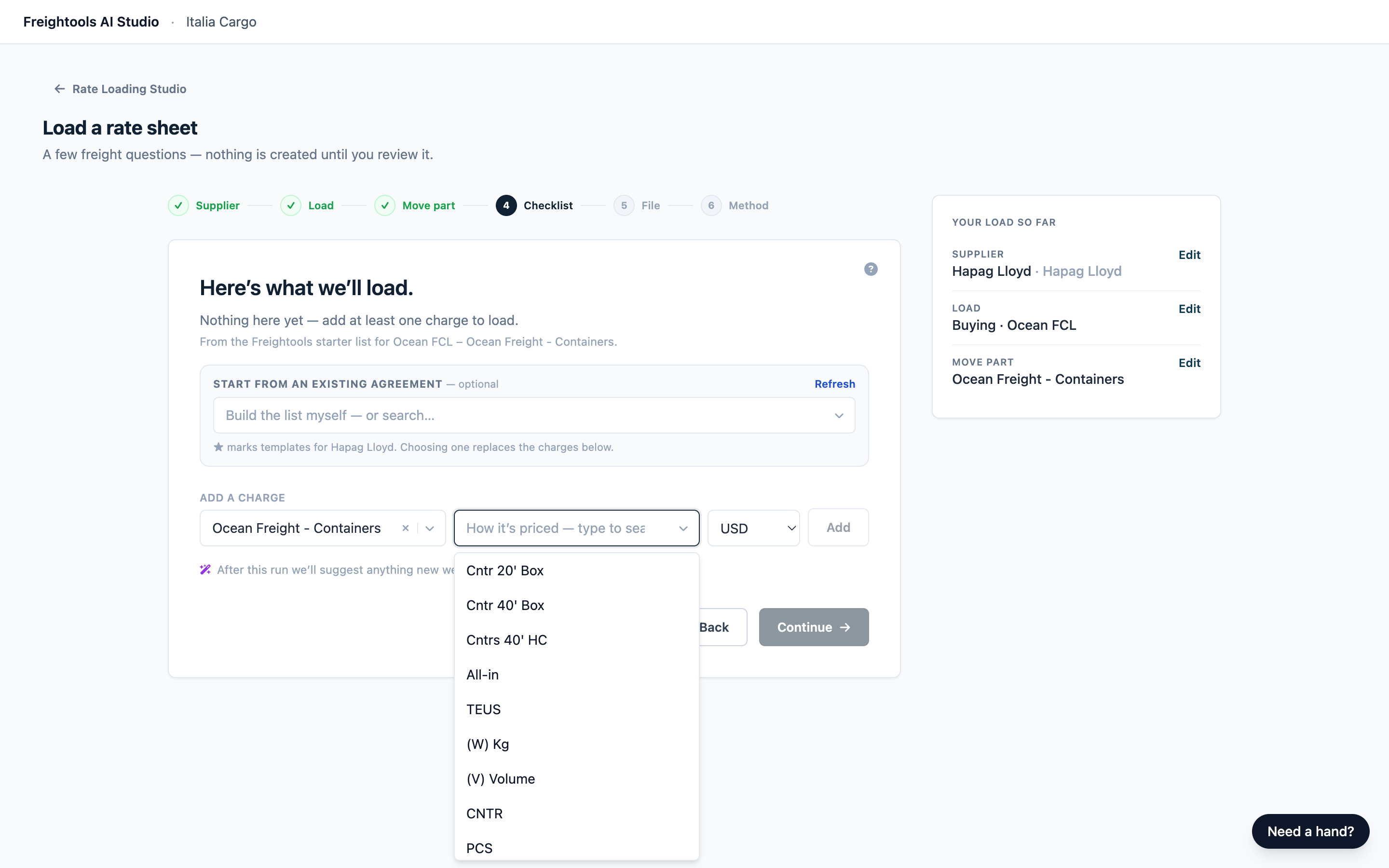
Add a charge once for each way your supplier prices it.
About the currency. You choose the currency as you add the row. You can't change it on a row that is already on the checklist, whether it came from the starter list, a template or an earlier Add: remove that row with the ✕, then add it again with the right currency.
If the charge isn't there. The search covers the charges set up in your Freightools account. If a charge your supplier quotes is missing, ask whoever manages your charges in Freightools to add it, then come back (see Troubleshooting).
Start from an existing agreement template
The step first shows "Loading your agreement templates…". On a first load for a part of the move, you'll usually see "No agreement templates found for this service yet." Build the checklist by hand. Once your company has templates for this part of the move, the Start from an existing agreement — optional panel appears above the checklist.
- Click Build the list myself — or search…. The list of templates opens. The line under the field reads "★ marks templates for <supplier>. Choosing one replaces the charges below."
- To narrow the list, type part of the supplier or carrier name, or the template number.
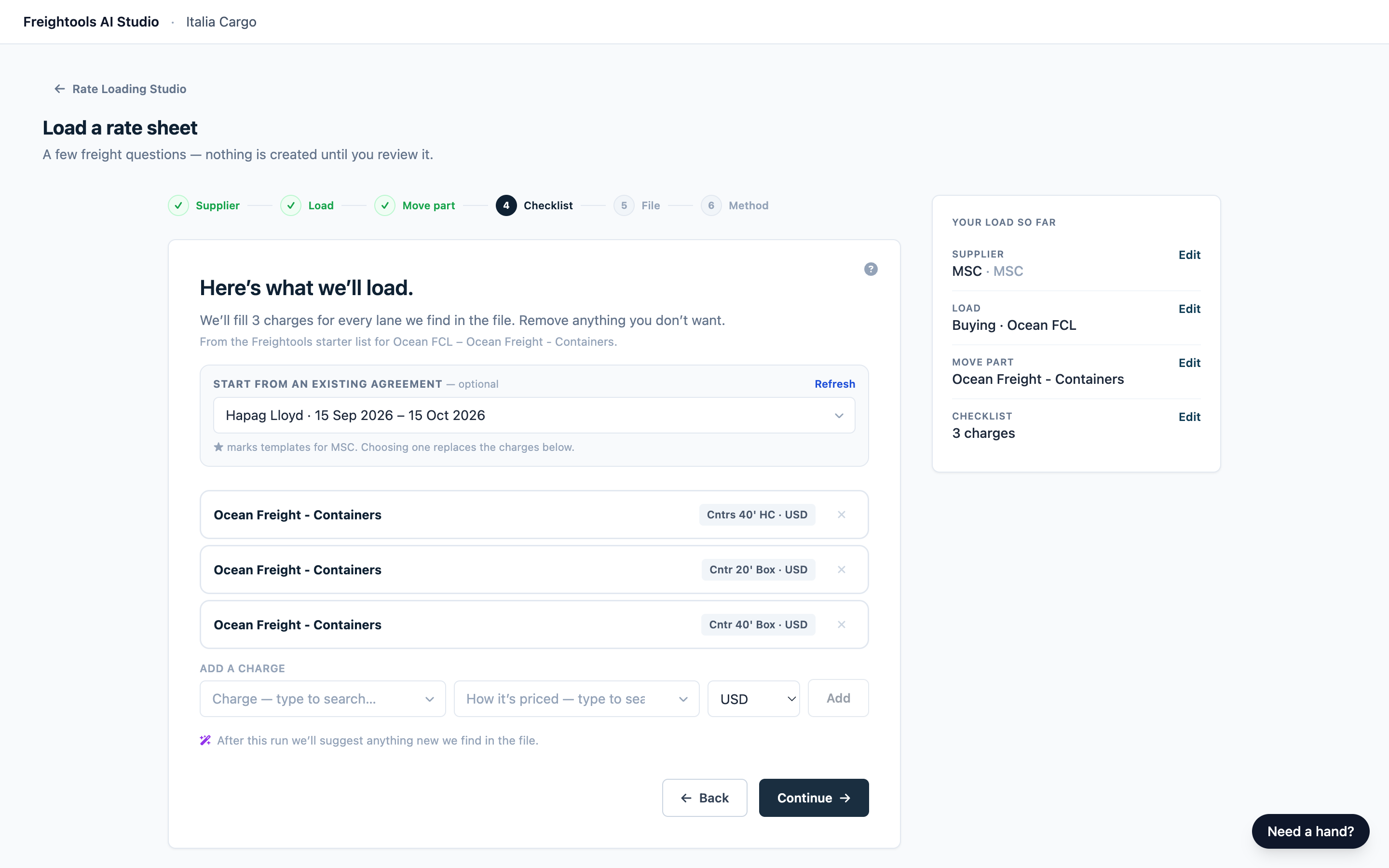
- Click the template. The field shows "Importing…", then the template's name and dates, and its charges replace the checklist.
- Check the new checklist, change it if needed, and click Continue.
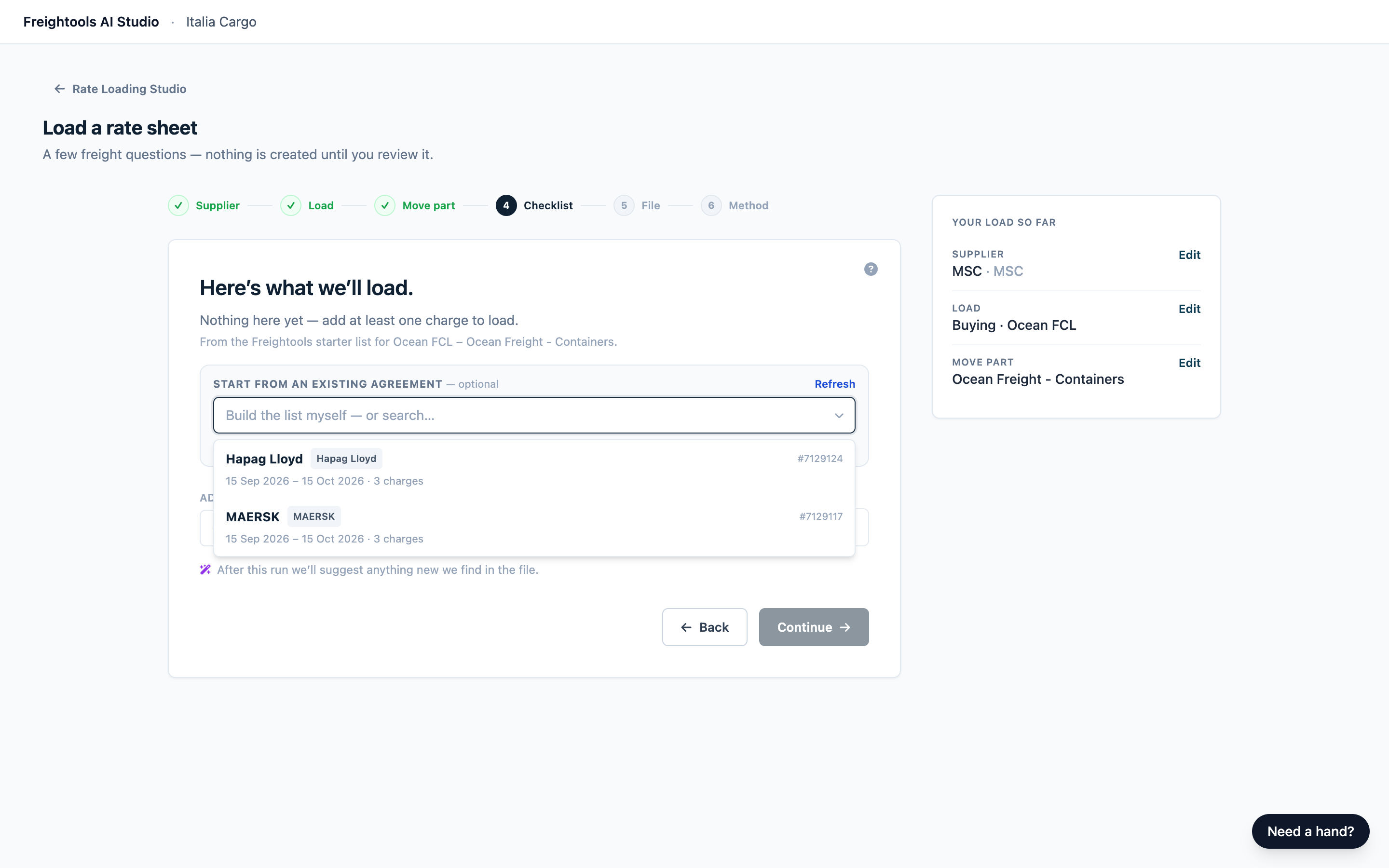
Each row shows the supplier, a carrier tag, the template's # number, validity dates and number of charges. ★ marks your supplier's templates, which come first. Yours marks your company's own templates.
Only the charges are copied. The dates, number and carrier help you recognize the row; they don't change your load, so an out-of-date template is fine to use. If several look right, pick the one whose charges are closest to this supplier's sheet — you can edit the list afterwards.
Important: Choosing a template replaces every charge on the checklist, including ones you added, and there's no undo. The template itself isn't changed. The rows below are the template's charges. To get the starter list back, go back to step 3, pick a different part of the move, then pick yours again.
The checklist on a repeat load
A load from a saved configuration opens on step 5 (File) with your saved charges. To change them, click Back, or Edit next to Checklist in Your load so far.
Leave the checklist as saved when your supplier's charges haven't changed. See Saved configurations and loading a new file for a supplier.
Good to know
- Changing an earlier answer resets the checklist. Going back and changing your answers refills it with the starter list, so edit the checklist last.
- You choose these charges once. Step 5 offers more than one way to read your file. Whichever you pick, it loads the charges on this checklist.
Warning: Starting the load also adds an agreement template to your Freightools account. No buying agreements are created until you press Create. See Add your rate sheet and choose how to load it.
Troubleshooting
| What you see | What to do |
|---|---|
| "Loading the charge list…" doesn't go away. | Click Back, then open the checklist again; your charges are kept. If it keeps happening, tell your Freightools contact. |
| A charge or template you just created in Freightools isn't listed. | Wait a moment, then look again: for a charge, click Back and open the checklist again; for a template, click whichever the panel shows — Refresh or Check again. |
| "No agreement templates found for this service yet. Just made one in Freightools?" | Normal on a first load. If you just made one, click Check again; it must be a buying template for this part of the move. |
| "We couldn’t load your existing agreement templates just now." | Click Retry, or build the checklist by hand. |
| "That template had no charges we could import — build the list below." | Your checklist hasn't changed. Pick a different template, or add charges by hand. |
| You clicked Add but no line appeared. | The same row is already on the checklist — check the rows above. |
| After you press Load the file, step 6 shows "Something went wrong on our side — nothing was created. Try again in a minute." | Try once more. If it happens again, see Troubleshooting and frequently asked questions. |