
With the Use your own AI method, Freightools AI Studio doesn't read the supplier's rate sheet for you. It gives you a ready-made prompt and an empty Excel template. You run them in your own AI tool with the rate sheet, then upload the completed template. The studio reads that file and opens the usual review screen.
Note: No buying agreements are created in Freightools until you press Create on the review screen.
When to choose this method
The method is marked Advanced because you are responsible for getting the rates into the template correctly. Choose it when:
- You already use an AI tool that can open, fill in and save an Excel file. The screen names Claude Code, Codex and Gemini CLI as examples.
- You would rather not upload the supplier's rate sheet. Only the completed template is uploaded, plus a covering email if you attach one.
If you want the studio to read the rate sheet, or want Fix with AI, use the AI Studio method. See Add your rate sheet and choose how to load it.
Before you start
- Get your charge checklist right. Only the charges on it can be loaded. See Choose the charges to load (the checklist).
- Check the fallback dates on step 2 (Load) before you copy the prompt, and click Edit fallback to change them.
Choose the method
- On the home screen, keep Buying selected and click Use your own AI under Know what you want? Pick a method, or click Load a rate sheet.
- Answer steps 1 to 4: Supplier, Load (the service), Move part and Checklist. If the supplier is a carrier, step 1 fills in the carrier for you. Clear it if the rate sheet covers several carriers. See Set up a load: supplier, service and route.
- On step 5 (File), click Continue if you picked the method on the home screen. Otherwise click Using your own AI tool? Continue without the file, below the drop area.
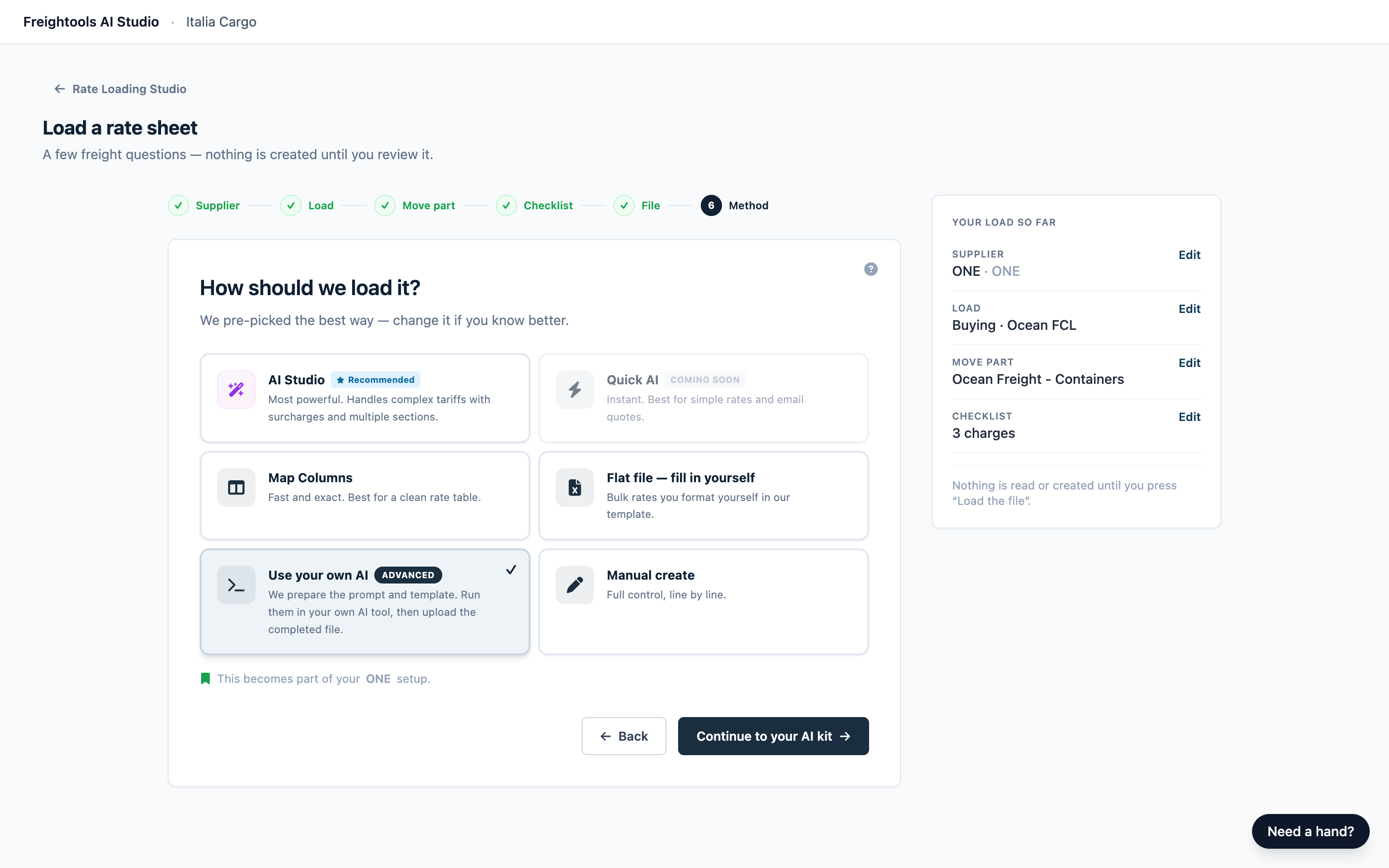
- On step 6, "How should we load it?", check that Use your own AI shows a ✓ (AI Studio keeps its Recommended badge). Click Continue to your AI kit.
If you already added a rate sheet on step 5, click Continue and pick Use your own AI on step 6. The screens mention "Load the file", but with this method the rate sheet isn't uploaded — only its name is shown, so you can see which sheet the load is for. To leave it out, click the ✕ on the file card first.
If the rates came by email, you can attach it on step 5 under Attach the email it came in (optional). Your validity dates still have to be in your file, or in the step 2 dates.
Get your prompt and template
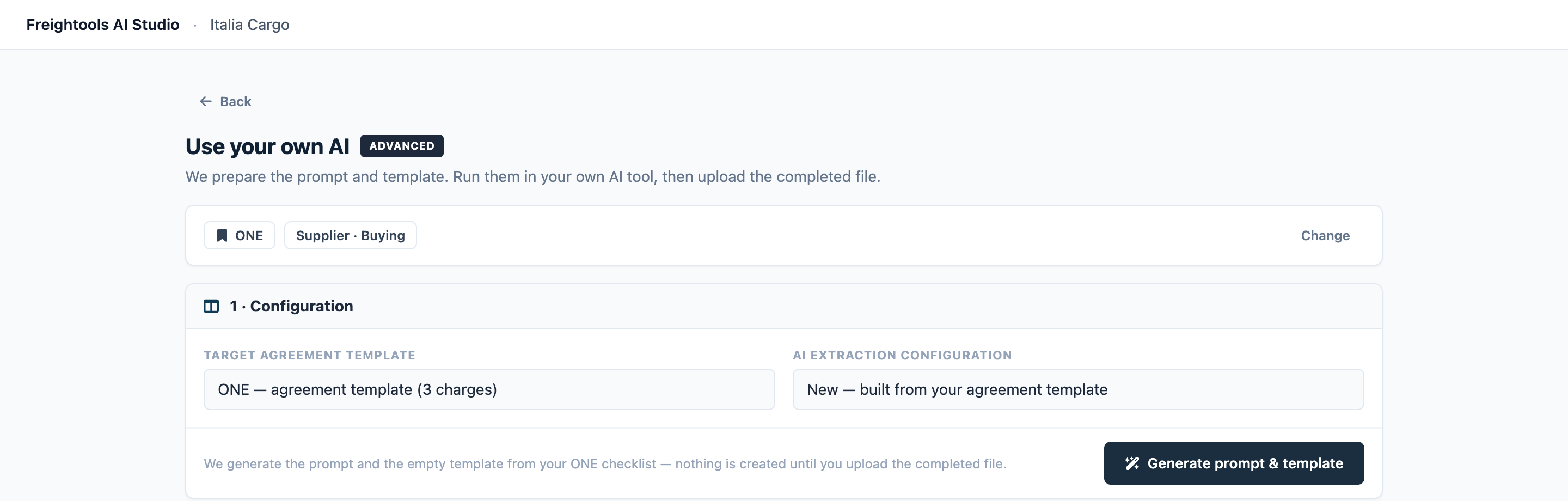
- Under 1 · Configuration, check Target agreement template. It names your supplier and the number of charges on your checklist. If that's not what you expect, click Back, then Checklist in the step bar, and fix it.
- Wait for the prompt to replace "Preparing your prompt…" under 2 · Run this in your own AI tool. If it doesn't appear, click Generate prompt & template in 1 · Configuration.
- Click Copy prompt. The button says "Copied" even if your browser blocked the copy — if nothing pastes in your AI tool, select the prompt text and copy it yourself.
- Under Empty template file, click Download template. Your browser saves
freightools-agreement-template.xlsx.
The template has one sheet, "Upload Me!". If you change anything in your setup, copy the prompt and download the template again.
Run the prompt in your own AI tool
The studio doesn't connect to your AI tool. Give your tool the prompt, the template and the rate sheet, and let it save the filled template as .xlsx.
Keep this tab open while your tool works. If it closes, you come back to this screen through step 6 — nothing your AI tool saves is affected. If you chose this method to keep the rate sheet off the internet, check with whoever approved your AI tool whether it sends the files you give it to an outside service.
Check the completed template
Open the completed template in Excel and check it before you upload. Rows 1 and 2 show which cells belong to which charge — leave those cells as they are, and put each lane's prices in the cells for that charge. If the rate sheet doesn't state a value, leave the cell empty; the review marks it. A guessed value can end up in your agreements unnoticed.
- Keep your lanes on the "Upload Me!" sheet and leave row 1 unchanged. Your first lane can go on row 2, over the example.
- Write one row per lane, with every charge for that lane on the row. If two rows describe the same lane, the review asks you to keep one.
- Leave each row's charge name, pricing basis and currency cells exactly as the template shows them. Change a currency only if the supplier prices that charge in another one.
Follow the formats the template asks for:
- Ports: UN/LOCODEs, for example
CNSHA. Never guess a code — if you don't know a port's code, leave the cell empty. The review marks the lane, and you pick the port there. - Dates:
YYYY-MM-DD. - Transit time: one whole number of days. For a range such as 18–21 days, write
18. - Prices: numbers only, for example
1500.00. - Carrier: leave the carrier cells empty if you chose a carrier when you set up the load. Otherwise write each lane's carrier in its own row's carrier cell, spelled as Freightools spells it. An unmatched carrier is marked on the review screen.
Important: Write dates asYYYY-MM-DD, for example2026-10-01, and check the validity dates on the review screen before you create.
Give every lane its dates. If a lane arrives without them, the review flags it: "Validity dates need attention — fix before creating". Add the dates with Set dates on the review screen. See Reference: review markers, statuses and issue types.
Upload the completed template
- Under 3 · Upload the completed file, click Drop the completed file here or click to upload and choose your file, or drop it there. It must be
.xlsxand 30 MB or smaller. - Click Review the results. The progress page opens.

Warning: Starting a load prepares an agreement template in your Freightools account for the studio to fill in. See Add your rate sheet and choose how to load it.
What happens next
- The progress page says a full tariff usually takes a few minutes. Stay on the page; the review opens by itself. See Follow your load while it runs.
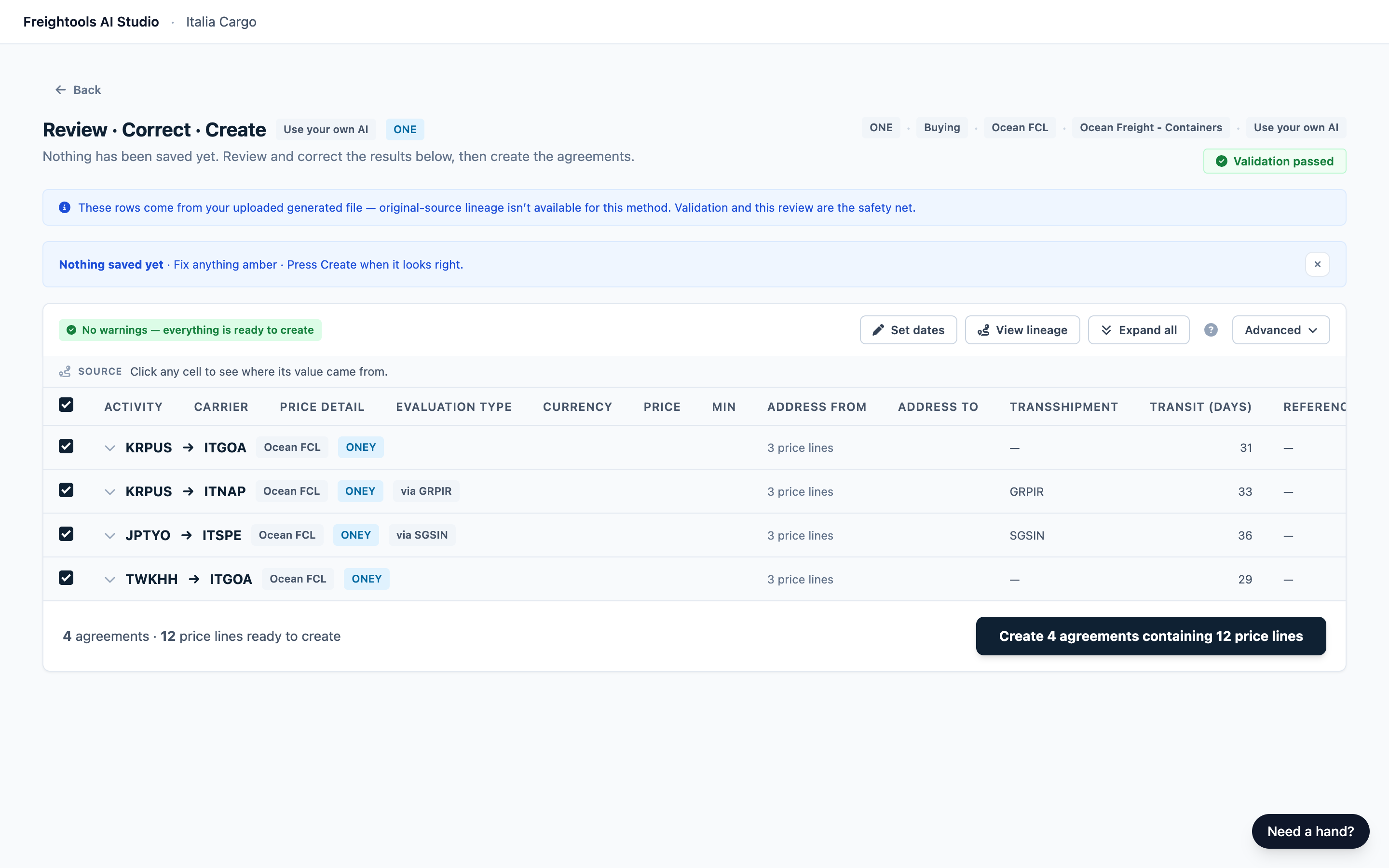
- The review screen shows a blue note saying these rows come from the file you uploaded. It can't show you where a value sat in the rate sheet, so open the rate sheet beside the review and check at least the base freight on your busiest lanes, one lane for every charge on your checklist, and any price that looks unusually high or low.
- Review and correct the lanes. Fix with AI isn't offered for this method. Change a few values on the review screen; to fix many rows, correct the template and start a new load — a load that has already run can't take a new file. See Review your results.
- Create the agreements. See Create your agreements in Freightools.
If the file cannot be loaded
A red card headed "That file could not be loaded" gives the reason.
| Reason | What to do |
|---|---|
| The file doesn't look like the template | The heading row was changed, or it's a different spreadsheet. Paste your lane rows under a fresh template's heading row. |
| "The completed template could not be read as a spreadsheet…" | The file had no readable rows. Put your lane rows under the heading row on "Upload Me!" and save as .xlsx again. |
If the reason isn't one of these, tell your Freightools contact and quote the wording on the card.
Then click Try again. It opens a new, empty load at step 1. Answer the setup again, or use Load new file on the supplier's saved configuration if it has one.
Load a new rate sheet for the same supplier
After your first successful creation, the setup is saved.
- Click Load new file on the supplier's saved configuration. The setup opens on step 5 with every answer filled in.
- Click Load in the step bar, click Edit fallback and set the dates, because they reset to a default range.
- Click File in the step bar, then Continue. You don't need a file here.
- On step 6, check that Use your own AI still shows a ✓, click Continue to your AI kit, then copy the prompt and download the template again.
See Saved configurations and loading a new file for a supplier.
Troubleshooting
| Symptom | What to do |
|---|---|
| Use your own AI shows Coming soon, or a message says loading isn't switched on for this workspace yet | Reload the page, then open your studio link again. If it stays, tell your Freightools contact. |
| "The prompt could not be generated right now." | Click Generate prompt & template in 1 · Configuration. If it keeps failing, tell your Freightools contact. |
| "The template could not be prepared right now — try again in a minute." | Wait a minute and click Download template again. |
| "The completed file must be .xlsx…" or "That file is over 30 MB…" | Save the file as .xlsx, remove extra sheets or pictures, and pick it again. |
| "That didn’t go through — nothing was created." | Wait a minute and click Review the results again. If it keeps happening, tell your Freightools contact. |
| The page reloaded and the Use your own AI screen is gone | On step 6, click Continue to your AI kit again and pick your completed file again. |
| A red card headed "Something went wrong on our side" | No buying agreements were created. Click Try again and load the file again. |
| An amber card headed "This load needs your attention" says "We did not find rates in this file — was it the right sheet?" | Check you uploaded the completed template, not the empty one, and that the price cells hold numbers. Click Try another load (a new load at step 1) and load it again. |
| A price is missing on the review screen although it is in the template | Check that the price cell holds only a number, and that the row's charge name, pricing basis and currency cells are still exactly as the template showed them. Fix the template and load it again, or type the price on the review screen. |
| The same lane appears several times, each copy holding only some of its charges | Your AI tool wrote one row per charge. Ask it for one row per lane, with all of that lane's charges on the row. |