
This is a lookup article for the Review · Correct · Create screen in Freightools AI Studio. Use it to look up the badges, chips and markers you'll see most often, and what to do about each.
No buying agreements are created in Freightools until you press Create. Nothing described here writes anything to Freightools.
For a tour of the screen, see Review your results. For step-by-step corrections, see Correct lanes and prices before you create.
Understand what a marker means
When the studio can't find a value in your rate sheet, or can't match it to something in Freightools, it doesn't guess. It writes a marker in the cell instead, mostly in capital letters, for example "NO VALIDITY FOUND". A marker tells you one thing: this value was not found.
- A marker is never sent to Freightools as a value.
- Most price lines whose price is a marker are left out when you create.
- A lane whose origin, destination or validity start date is a marker can't be created until you fix it.
- To clear a marker, type or pick the real value. The cell gets a green outline ("Edited by you — click to change").
Markers not listed here name the value that was not found — fix that value, or leave the line out.
A lane needs a real freight price before it can be created. Other charges that are still marked are simply left out — before you create, check that every lane shows a real freight price.
You can also leave something out instead of fixing it. Untick the checkbox at the start of a price line (or click the ⃠ at the end of it) to leave that charge out, and untick the checkbox on the lane row to leave the whole lane out. Excluded lines and lanes aren't created and don't block anything.
If many lanes are affected and you used the AI Studio method, try Fix with AI. See Use Fix with AI and add charges found in your file.
Read the overall status
The badge in the header sums up the whole file. Excluded lanes are not counted.
| Badge | Color | What it means | Can you create? |
|---|---|---|---|
| "Validation passed" | Green | No included lane needs fixing, and none has notes. | Yes, every included lane. |
| "1 lane needs fixing" / "N lanes need fixing" | Red | These lanes are Blocked. Click the badge to show only them; click again to show every lane. | Only the ready lanes. The button reads "Create N valid agreements now". |
| "1 lane has notes" / "N lanes have notes" | Blue | These lanes have something worth a look. Click the badge to show only them. | Yes, as they are. |
| "Duplicated lanes — a choice is needed to create" | Red | The same lane appears more than once with different values, so the choice of which row to keep is yours. This badge replaces the others. | No. Keep one row of each lane first. See Correct lanes and prices before you create. |
The red and blue badges can show side by side. When no lane has an issue, the filter bar above the grid is replaced by a green chip: "No warnings — everything is ready to create".
Read a lane's status
Every lane row ends with a status pill. Apart from All, each lane appears under exactly one filter.
| Pill | Color | Filter | What it means | Created? |
|---|---|---|---|---|
| Valid | Green | Ready | No issues. | Yes |
| Warning | Amber | Notes | At least one note. | Yes, as it is |
| Blocked | Red | Needs fixing | Something must be fixed first. | No. It stays in the review. |
| Excluded | Gray | Excluded | You unticked the lane, or it was unticked for you. Its issues don't count. | No |
Warning, "notes" and the blue header badge all mean the same lanes — three words for one thing.
A "⚠" badge with a number on the lane row counts what still needs a look on that lane. A Blocked lane can have no badge, so use Needs fixing to find every one. Click a lane row to open or close it.
Important: Before you create, click Excluded and check that nothing you need is there. Excluded lanes aren't created, and they aren't counted in the header badge, so a green "Validation passed" doesn't mean every lane in your file is going.
Fix a Blocked lane
A lane is Blocked when something on it couldn't be read or matched. Open the lane, fix everything flagged on it, and the pill turns Valid.
Look up an issue chip
The filter bar above the grid can list issues by kind. Each chip counts lanes, not cells, and the counts go down as you fix things.
- In the filter bar, click By kind. A chip appears for each kind of issue, for example "Location needs a match · 1". The numbers count lanes in the group you selected (All, Needs fixing or Notes).
- Click a chip. The grid shows only the lanes with that issue.
- Click the chip again, or click Clear filter, to show every lane again.
The filter only changes what you see. Create covers every ticked lane that is ready, including lanes the filter hides.
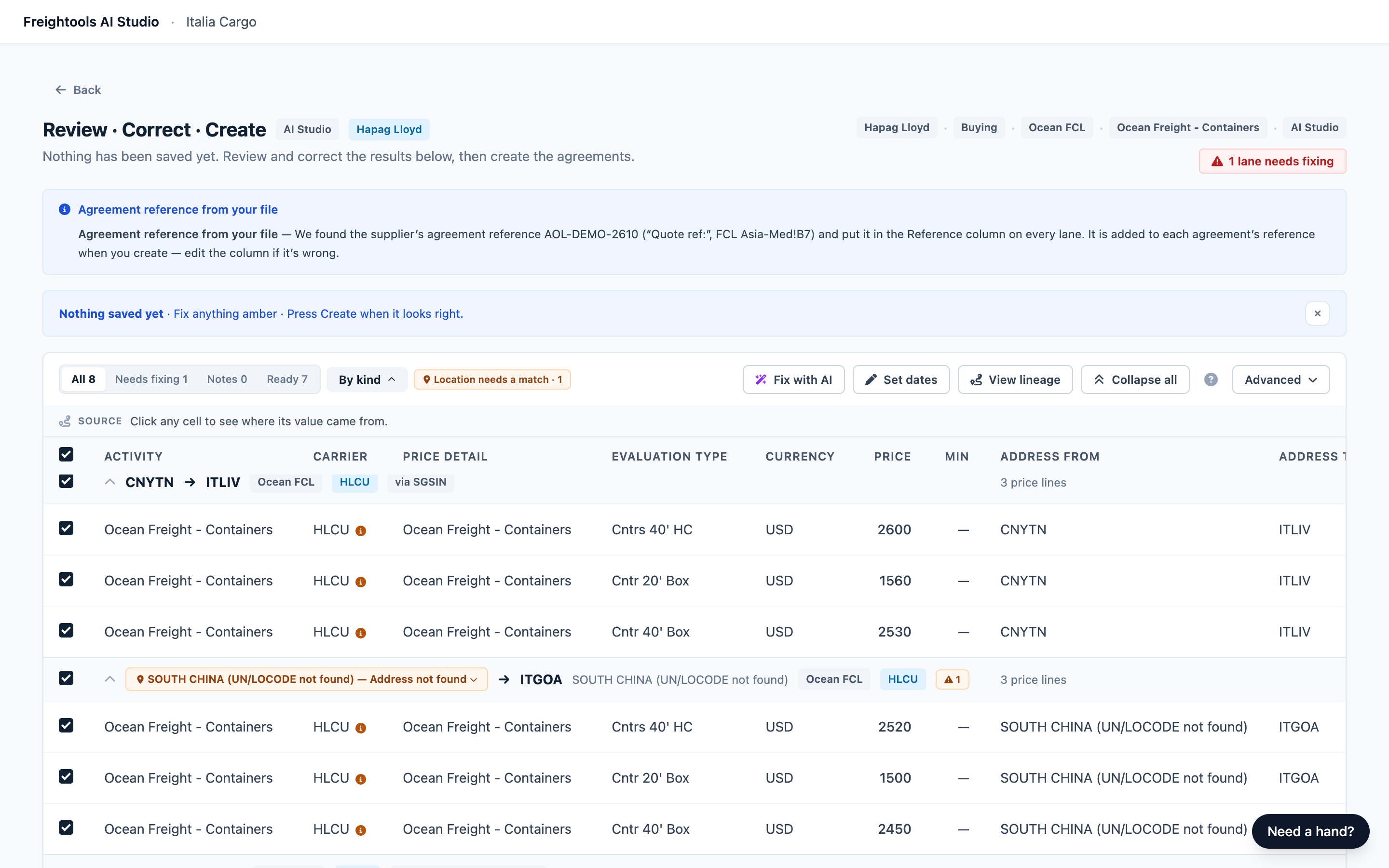
Color shows how serious the issue is. Red stops the lane. Amber is worth a look — some amber chips still have to be fixed before you create, and the table below says which. Blue is information only.
| Chip | Color | What it means and what to do |
|---|---|---|
| "Validity dates need attention — fix before creating" | Red | No usable validity start date, or an expiration date that isn't a date. Type the date as YYYY-MM-DD. |
| "Missing origin" / "Missing destination" | Red | Your file gives no origin or destination for this lane. Click the location chip on the lane row and pick the port. |
| "Missing price" | Red | A price line says "NO PRICE FOUND". Type the price, or exclude the price line. |
| "One cell holds prices for several destinations" | Red | Type the amount for this lane, or exclude the price line. |
| "Location needs a match" | Amber | A From or To location couldn't be matched. The lane is Blocked. Click the "… — Address not found" chip, pick the location and click Save match (see the Locations table below). |
| "Missing price for a charge" / "Price isn’t a number" | Amber | The line is left out when you create. Type the price if your rate sheet has one. |
| "Currency not recognized" | Amber | Fix it before you create. See "UNRESOLVED CURRENCY" below. |
| "Container type unclear" / "A % surcharge has no base price" | Amber | The line is left out when you create. See the Prices table below. |
| "A charge didn’t match your template" | Amber | Your file lists a charge that isn't one of the charges chosen for this load, so it wasn't loaded. To load it, see Use Fix with AI and add charges found in your file. |
| "Missing supplier" | Amber | Nothing to do. The supplier you chose for the load is used on every lane. |
| "Missing carrier" | Amber | A Carrier cell says "NO CARRIER FOUND". See the carrier note below. |
| "Worth a second look" | Amber | A value needs checking, for example "CHECK VALUE: …". Compare it with your rate sheet. Less common notes also show here: open the lane, hover the amber (i) to read what your file said, and check that value against your rate sheet. |
| "Missing dates (fallback shown)" | Blue | Expiration Date says "NO VALIDITY FOUND": no expiry date was found for this lane. Type one if your rate sheet has it; otherwise the agreement has no expiration date. |
Note: Not every blocked lane has a red chip. Click Needs fixing to see every blocked lane, whatever the reason.
Look up a marker in a cell
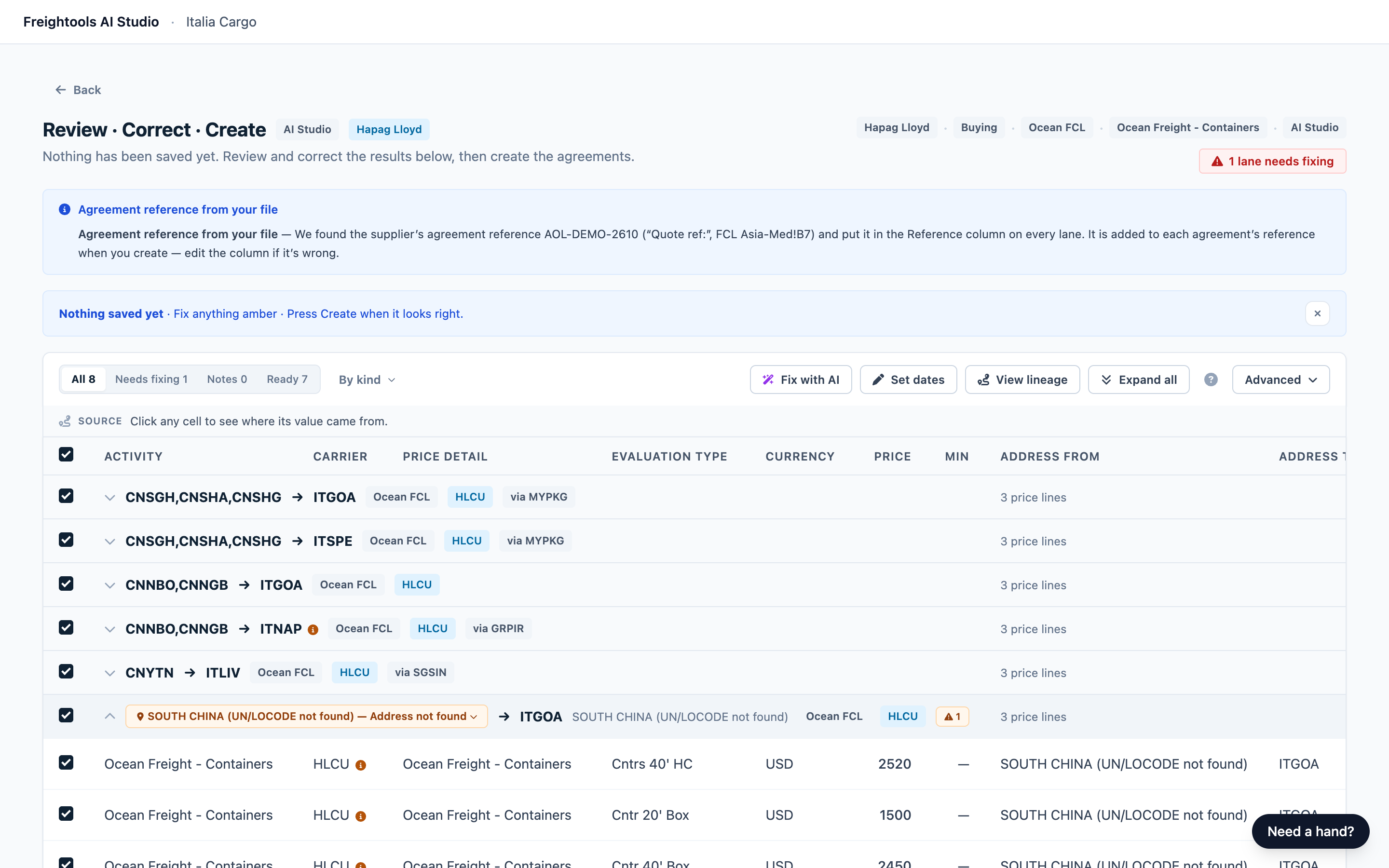
Markers appear in the cells of an open lane. In the Price and Currency columns they sit in an amber badge with a "⚠". Elsewhere they show as plain text. Open the lane and read its cells. Text and charge stand for the words from your file and the charge name.
Dates and transit time
| Marker | Column | What it means and how to fix it |
|---|---|---|
| "NO VALIDITY FOUND" | Validity Date | No start date was found for this lane. A red notice above the grid reads "N lanes have no validity dates". Type the date as YYYY-MM-DD. |
| "NO VALIDITY FOUND" | Expiration Date | No expiry date. Type it if the rate sheet has one; otherwise the agreement has no expiration date. |
| A marker in Transit (days) | Transit (days) | The transit time isn't a single number of days, for example "about 4 weeks". Type a whole number of days, or clear the cell and the agreement is created with no transit time. |
Lanes can also arrive with the fallback validity dates from your load setup already filled in. Those carry no marker, so check the Validity Date and Expiration Date columns before you create. A lane that shows "NO VALIDITY FOUND" in Validity Date needs a date typed in.
Important: The review shows dates as month/day/year, for example 10/31/2026 for 31 October 2026. Always type dates asYYYY-MM-DD(2026-10-31).
Important: Two buttons open Set the validity dates: Set dates in the toolbar above the grid, and Set the dates for all lanes on the red notice. Its **Apply to all N lanes** button puts one period on every ticked lane and replaces dates already read from your file, so use it only when all lanes share one validity period.
A date cell can also hold your file's own text, for example "Q4 2026". Retype it as YYYY-MM-DD.
Locations
| Marker | Column | What it means and how to fix it |
|---|---|---|
| "text (UN/LOCODE not found)" | Address From or Address To | The location couldn't be matched to a UN/LOCODE (the five-character UN location code, for example ITGOA). Click the "… — Address not found" chip on the lane row. In Match this location, search and pick the port, choose how far the match reaches, and click Save match. Keep "Every lane where the file says this name" when that text always means the same place in your file; choose "Only this lane" when the same text means different places on different lanes. Your file's text stays beside the port in gray. For a door address with a ZIP code, the chip ends "door delivery, geo area needed (ZIP zip)": pick the geo area for a destination, or a port for an origin. |
| "NO GEOAREA FOUND FOR text" | Address From or Address To | A door lane whose geo area couldn't be matched — a geo area is a door delivery area in Freightools, defined by its ZIP codes. Fix it before you create: click the chip on the lane row, or the address cell on one of its price lines, and pick the location. |
| "NO ORIGIN FOUND" / "NO DESTINATION FOUND" | Address From / Address To | No origin or destination at all. Click the lane row chip and pick the port. |
| "text (UN/LOCODE not found)" | Transshipment | The via port couldn't be matched (amber "via …" chip). Click the Transshipment cell and pick the port, or the agreement is created without it. |
Prices
| Marker | What it means and how to fix it |
|---|---|
| "NO PRICE FOUND FOR charge" | No price for this charge on this lane. Type the price if your rate sheet has one, or leave the line out. |
| A marker saying the price isn't a number | Text was in the price cell, for example "INCLUDED". Type the price as a number, for example 1500.00, or exclude the line. |
| "NO PRICE FOUND" | Type the price, or exclude the price line. |
| A marker naming a charge or a price the studio couldn't use | Type the real price, or leave the line out. |
Important: A lane can look ready while a marked price line is still left out.
Currency, charges and other values
| Marker | What it means and how to fix it |
|---|---|
| "UNRESOLVED CURRENCY" (Currency) | The currency couldn't be matched. Fix it before you create: type the code, for example USD. |
| A marker naming a charge that isn't in your load | A charge your file lists that isn't one of the charges chosen for this load. It wasn't loaded and doesn't block. |
| "CHECK VALUE: text" | A value was found but needs checking. Compare with your rate sheet and type the correct value. |
Note: Click the Carrier cell to set a carrier for the lane.
Recognize other signs on the review screen
| Sign | What it means | What to do |
|---|---|---|
| "Missing — required" in Evaluation Type | Evaluation Type says how the charge is counted — per container, per shipment, and so on. Freightools requires it, so the lane is Blocked. | Click the cell and type it, spelled exactly as in Freightools. The quickest way is to copy the wording from another price line, or from your agreement template in Freightools. Or exclude the price line. |
| "X of Y agreements are valid · P price lines — N still need fixing" (bottom bar) | Some included lanes are Blocked and won't be created. | Click **Show the N to fix**. |
| Green outline on a cell, or a green location on the lane row | You changed this value, or matched this location. | Nothing. |
| Faded row | Excluded. It won't be created and doesn't block anything. | Tick it again to bring it back. |
| Amber (i) beside a value | Your file said something here that the studio couldn't use as it stands, for example a carrier name it couldn't match. | Hover to read the note and your file's text. Check the value, and click the cell to pick the right one if needed. |
Troubleshooting
| Problem | What to do |
|---|---|
| The reminder says "Fix anything amber", but amber lanes can be created. | Amber means worth a look. Still fix an amber location chip and an amber "Currency not recognized" chip before you create. |
| After Create, a lane failed with a message saying it has no prices to create. | Every price on that lane was a marker. Type at least one price, or exclude the lane, then press Create again. |
| After Create, a lane failed because its origin or destination "is not a known location". | The location cell still held a marker, for example "NO GEOAREA FOUND FOR …". Pick the location and press Create again. |