
On the review screen of Freightools AI Studio, two tools read your rate sheet again:
- Fix with AI: you describe in plain words what was read wrong.
- The "Found in your file — not in your template yet" panel: you add charges the file has but your checklist doesn't.
Both replace the current review, and the corrections you made by hand are not carried over. Use them first, then correct cells by hand. No buying agreements are created in Freightools until you press Create.
Choose the right tool
| What is wrong | What to use |
|---|---|
| A mistake that repeats across many lanes: a sheet or block of lanes skipped, a column misread, prices under the wrong container size | Fix with AI |
| A charge in the file that is not on your checklist, so it was never loaded | The "Found in your file" panel. Use it before Fix with AI: it reads the file again too, so doing it first saves you one wait. If you have already used Fix with AI, you can still use the panel — you just wait through a second re-read. |
| A few prices, a currency, a date, a carrier or an unmatched location | Correct it by hand. See Correct lanes and prices before you create |
Fix with AI appears only when the small label beside the Review · Correct · Create title says AI Studio, the method the file was loaded with. The panel can appear on loads made with any method.
Fix a reading problem with Fix with AI
Write a good note
- Say what is wrong and where: the sheet name, column heading or row text exactly as the file shows them.
- Say what right looks like: the lanes, container sizes or charges the value belongs to.
- Keep to one problem. If the result is still wrong, send a second, more specific note.
- To load a charge that isn't on your list, use the panel below instead.
| Too vague | Better |
|---|---|
| "Prices are wrong." | "On the sheet Asia-Med, the column headed 40HQ holds the 40' high cube price. It was loaded as the 40' price." |
| "Wrong origin." | "Rows that start with 'Ex Ningbo' belong to origin Ningbo, not Shanghai." |
Send the note
- In the toolbar above the lanes, click Fix with AI.
- In the box that says "What should we fix?", type your note. Re-read the file stays grayed out until you type.
- Click Re-read the file. The dialog shows "Working on your note — this usually takes a minute or two. Keep this window open." It can take a few minutes. Don't close the dialog. If your browser closes anyway, open your studio link again to see where the load got to, and don't send the same note twice before you have looked.
- The dialog shows "On it — re-reading your file now. This page will refresh." The page reloads by itself.
- The progress screen shows "Re-reading your file with your note…" and "0% Complete". Keep waiting; a large rate sheet takes a few minutes. If nothing has changed after a long wait, reload the page once; if it still hasn't moved, tell your Freightools contact.
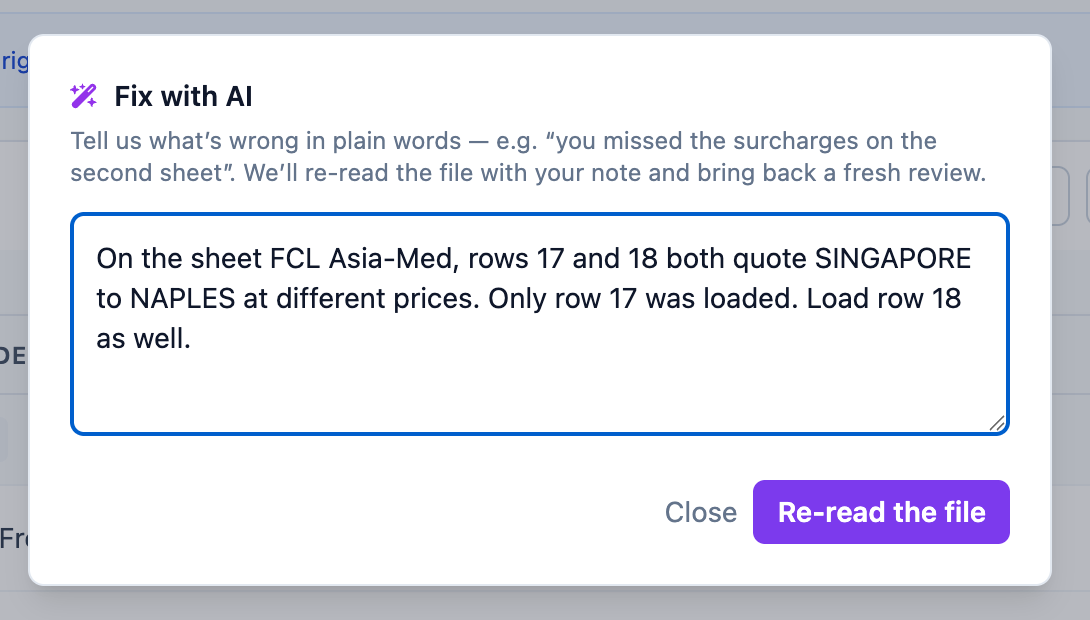
- When the new review appears, check the lanes you wrote about, then the rest.
Important: A re-read replaces the review you had, and you can't go back to it. If the new one is worse, send another, more specific note, or load the file again from the supplier's saved configuration.
Add charges found in your file
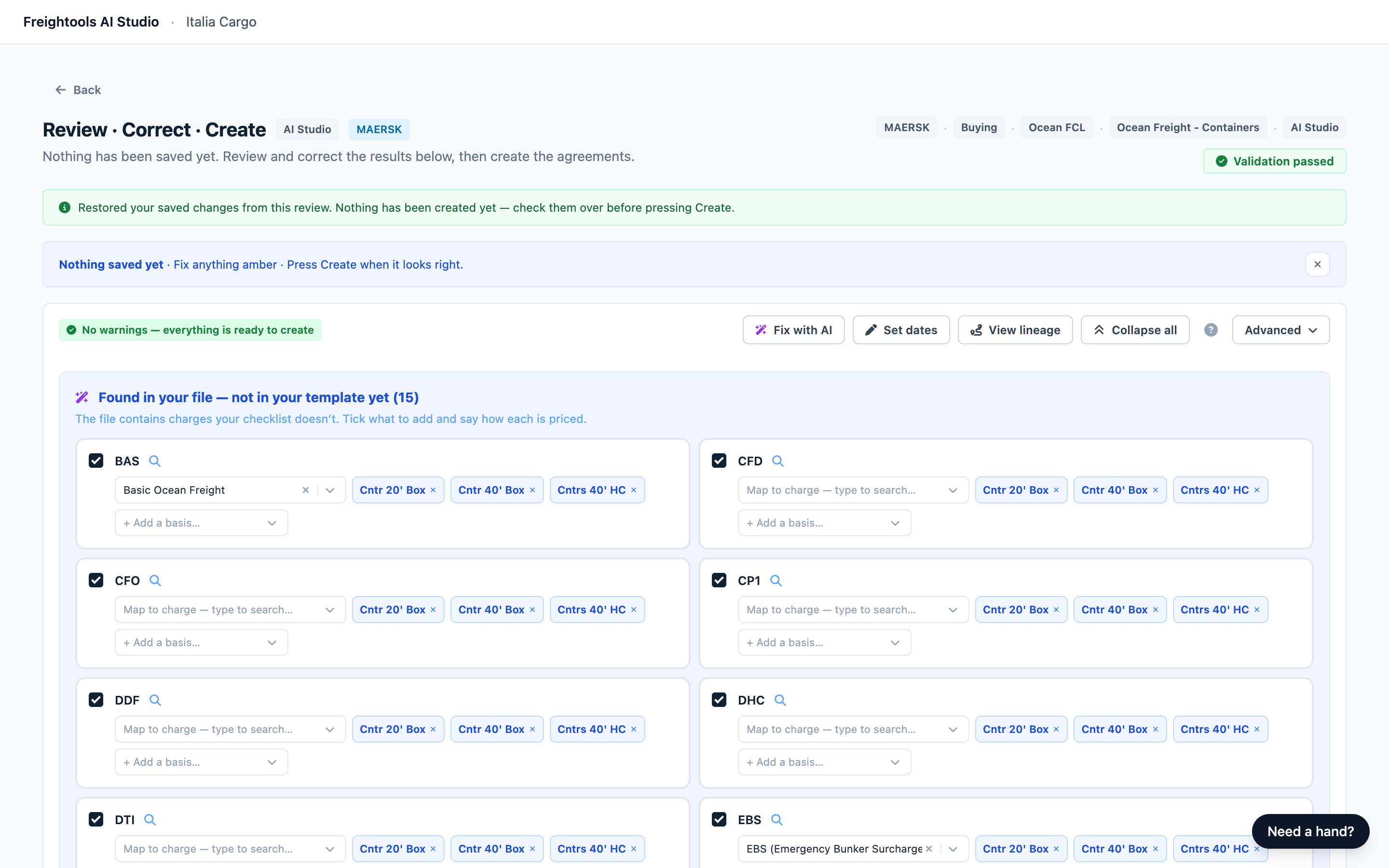
When the studio recognizes charges in your file that aren't on your checklist, the "Found in your file — not in your template yet" panel appears above the lanes, with a count such as "(15)". These are charges your file prices that aren't on the list you chose for this load. Adding them here adds them for this supplier from now on.
The panel doesn't list every charge in your file. Compare the cards with the charges in your file. A charge the panel missed can't be added here — see the Troubleshooting row below for how to add it on a new load.
| On each card | What it is |
|---|---|
| Charge name and tick box | The charge as the file writes it. Every card starts ticked. |
| Magnifier | Shows where in your file the charge was found. It isn't shown for every file; then check the charge name against your own copy of the file instead. |
| Map to charge — type to search… | The Freightools charge the price is loaded under. Some cards come with a charge already filled in — check it. |
| Pricing basis chips | How the charge is priced. Cards start with bases already filled in, and they may not match how your file prices the charge. Remove with ✕; add with + Add a basis…. |
Add the charges
- Check each card is a real charge. Click the magnifier, where a card has one, to see where it is in the file. Untick anything you don't want, such as a remark or a charge you don't buy.
- On each ticked card, check Map to charge — type to search…. If it is wrong or empty, type part of the name and pick the right charge. If nothing suitable comes up, try a shorter or more common word, such as "security" instead of "ISPS". If there is still no match, untick that card, add the rest, and tell your Freightools contact which charge is missing.
- Keep one basis for each way the file prices the charge, and remove the rest. Read the file to decide:
- One price per 20' and another per 40': keep the 20' and 40' container bases.
- One price for the whole shipment, or per bill of lading: keep the per-shipment basis only.
- A price per cubic metre or per 1,000 kg: keep that basis.
- If the file gives one price and you can't tell what it covers, ask your supplier before you add the charge.
- Check the numbers on the button: the first counts the cards you left ticked, the second how many price lines they add. If the first number is lower than the cards you ticked, one of them still has no charge or no basis.
- Click Update template & re-run the file. The page reloads and the progress screen runs again.
- In the new review, check the added charges show your file's prices.
Warning: Update template & re-run the file changes your agreement template in Freightools straight away, and you can't undo it from this panel. It does not create buying agreements. If you add a charge or a pricing basis by mistake, ask your Freightools contact to take it off the supplier's agreement template.
To skip the charges, click Keep as is. The panel hides. To bring it back, open the load's page address again.
What a re-read keeps and what it replaces
A re-read brings back a fresh review.
- Do again: every price, currency, date, carrier and other cell you corrected by hand, and which lanes and price lines you ticked or unticked.
- Kept: your load answers (supplier, service and route), your checklist and any charges you added through the "Found in your file" panel. Check your location matches — some may need doing again.
Check the whole review before you create.
Troubleshooting
| What you see | What to do |
|---|---|
| No Fix with AI button | The file was loaded with a different method. Correct by hand. |
| "Fix with AI isn’t available for this run right now." | Correct by hand, or load the file again. |
| "We couldn’t apply your note this time and nothing was changed — please try again." | Your review is as it was. Send the note again. If it fails again, make it shorter and more specific. |
| "Something went wrong on our side" after a re-read | Nothing was created in Freightools. Load the same file again, from the saved configuration if there is one. Charges you added through the panel stay added for this supplier. If it keeps happening, tell your Freightools contact. |
| Corrections gone, or a notice says earlier changes "have been left alone" | Expected after a re-read: your earlier corrections were not carried into this new review. Make them again here. |
| The panel is missing, or lacks a charge you need | The panel doesn't list every charge. After Keep as is, open the load's page address again. For an unlisted charge, click Load new file on the supplier's saved configuration (or start a new load if there is none) and add the charge on the Checklist step. See Choose the charges to load (the checklist). |
| Update template & re-run the file is grayed out, with both numbers on it at zero | Each charge needs a ticked card, a Map to charge choice and a basis. |
| "That didn’t go through — try again in a minute." | Wait a minute and try again. The charges may already have been added, so check the new review before you add them again. If it keeps failing, tell your Freightools contact. |