
When Freightools AI Studio has finished reading a supplier's rate sheet, the load page turns into the Review · Correct · Create screen.
No buying agreements are created in Freightools until you press Create. Opening lanes, correcting cells and ticking lanes change nothing in Freightools.
Before you start
- Let the load finish. See Follow your load while it runs.
- Keep the load page open, or bookmark it. That address is how you come back to this review.
- Your corrections are saved as you go — there is no save button. Come back to the same address and they are waiting for you.
Read the header and overall status
- Read the title row: Review · Correct · Create, with chips for the loading method and the supplier.
- Check the gray chips on the right. The direction chip should say Buying. If it doesn't, start the load again and choose Buying — see Set up a load: supplier, service and route.
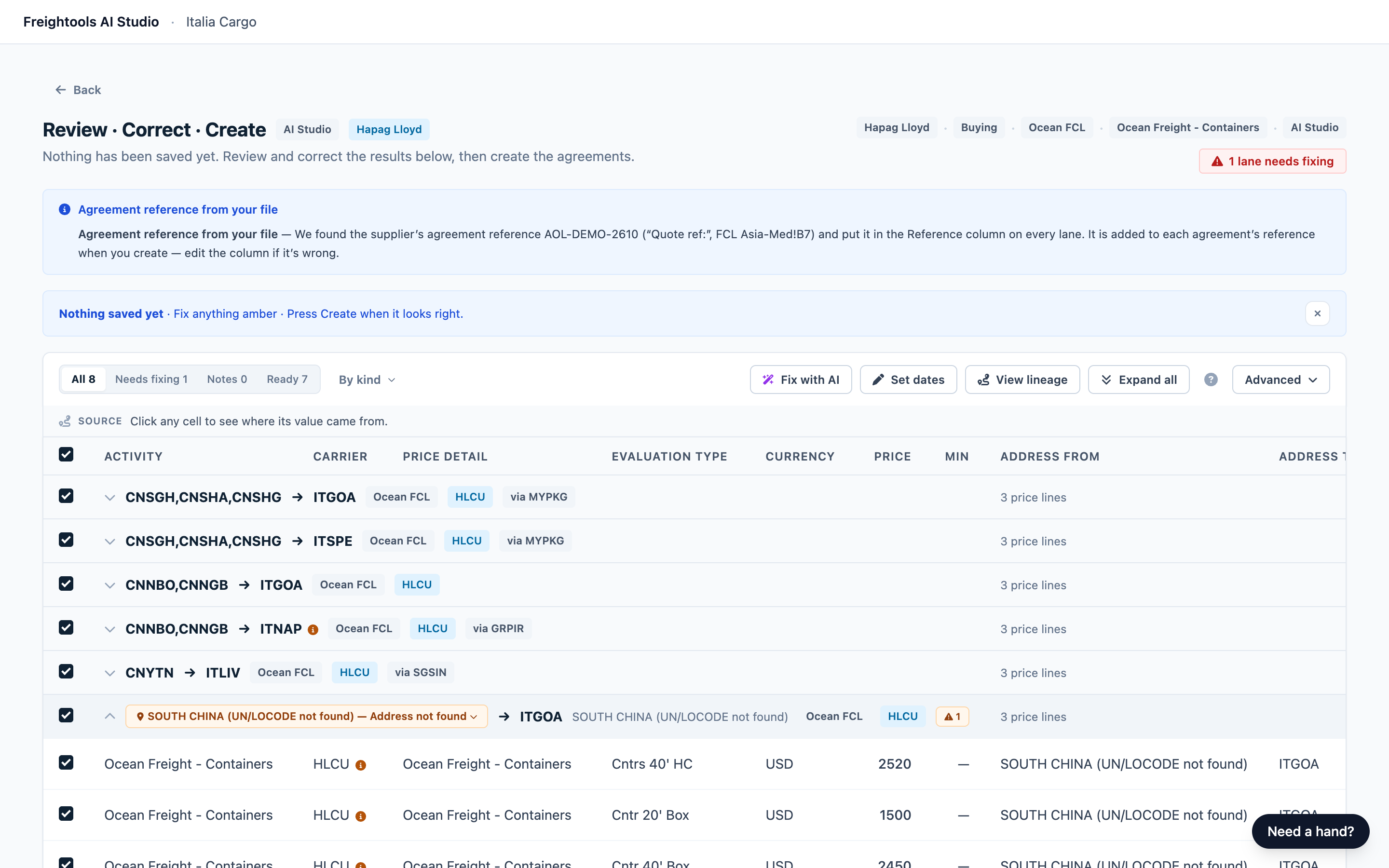
- Read the status badge under the chips.
| Status badge | What it means |
|---|---|
| "Validation passed" (green) | No lane needs fixing and no lane has notes. |
| "1 lane needs fixing" or "N lanes need fixing" (red) | These lanes can't be created until they are fixed. Click the badge to show only them. |
| "N lanes have notes" (blue) | Worth a look, but these lanes are created as they are. |
| "Duplicated lanes — a choice is needed to create" (red) | The same lane came out more than once. Create waits until you keep one row of each lane the notice above the grid lists. See Correct lanes and prices before you create. |
Back, above the title, returns to the studio home screen.
Read the notices above the grid
Each notice appears only when it applies.
| Notice | What to do |
|---|---|
| Green "Restored your saved changes from this review…" | Your earlier corrections were put back. Check them over. |
| Blue "One duplicate row … has been excluded for you…" | A repeated row was set aside. Click Excluded in the filter bar to see it, and tick it back on if you disagree. |
| Red "This run produced the same lane more than once…" | Keep one row of each lane the notice lists, and Create becomes available again. See Correct lanes and prices before you create. |
| Red "N lanes have no validity dates…" | Every agreement needs a start date. Open those lanes and type it as YYYY-MM-DD. Set the dates for all lanes is quicker, but it replaces the dates on every ticked lane, including dates read from your file. |
| Red "N lanes have dates we couldn’t read…" | Open those lanes and retype the date as YYYY-MM-DD. |
| Blue "Nothing saved yet · Fix anything amber · Press Create when it looks right." | A reminder. "Nothing saved yet" means you haven't corrected anything yet. Click X to hide it. |
Important: The color of a mark doesn't decide what is created. Each lane's status pill does. Open every lane showing Blocked and fix what is flagged on it. Warning lanes are created as they are, once you have looked at them.
If your file has charges your checklist doesn't cover, a **Found in your file — not in your template yet (N) panel appears below the toolbar. Those charges aren't on the list you chose for this load. Click Keep as is** to leave them out — the agreements are created without them — or add them. See Use Fix with AI and add charges found in your file.
Warning: Update template & re-run the file changes your agreement template in Freightools straight away, and you can't undo it from the panel. It does not create buying agreements. You then get a fresh review, so corrections you have already made have to be made again.
Read the notes about your file and what changed since your last load
On any load, a box above the grid can say what the studio took from the file itself:
- "Agreement reference from your file": your supplier's own reference is in the Reference column of every lane. To change it, open a lane, click its Reference cell and type.
- "Agreement reference left blank": type your own in Reference if you want one.
- "From the email you attached": some values came from the email rather than the sheet. Open a lane and check them against the email before you create.
With more than one note, the headline is "About this file".
If you have loaded this supplier's sheet before, the box also points out what is different from your last load. Nothing in it stops Create. Open each change it lists and compare the lane with your rate sheet. If the studio has misread the sheet, use Fix with AI; if the supplier really has re-priced, carry on.
Work through the lanes with the filter
The filter bar shows one group of lanes, or one kind of issue, at a time.
Important: The filter only changes what you see. Create covers every ticked lane, including hidden ones. While a filter is on, the header checkbox ticks or unticks only the lanes on screen.
- Click Needs fixing, or the red "N lanes need fixing" badge.
- Click By kind. A chip appears for each kind of issue, for example "Location needs a match · 1".
- Click a chip to show only those lanes. Click it again to clear it.
- Open a lane and correct it. See Correct lanes and prices before you create.
- When the last lane is fixed, the grid shows "Nothing left to fix here". If a By kind chip is still selected, it shows "No lane matches this filter" instead. Click the chip to clear it.
- Click Clear filter. If Notes shows a number above 0, click it and check those lanes; they are created as they are. A green "No warnings — everything is ready to create" means nothing is left to check.
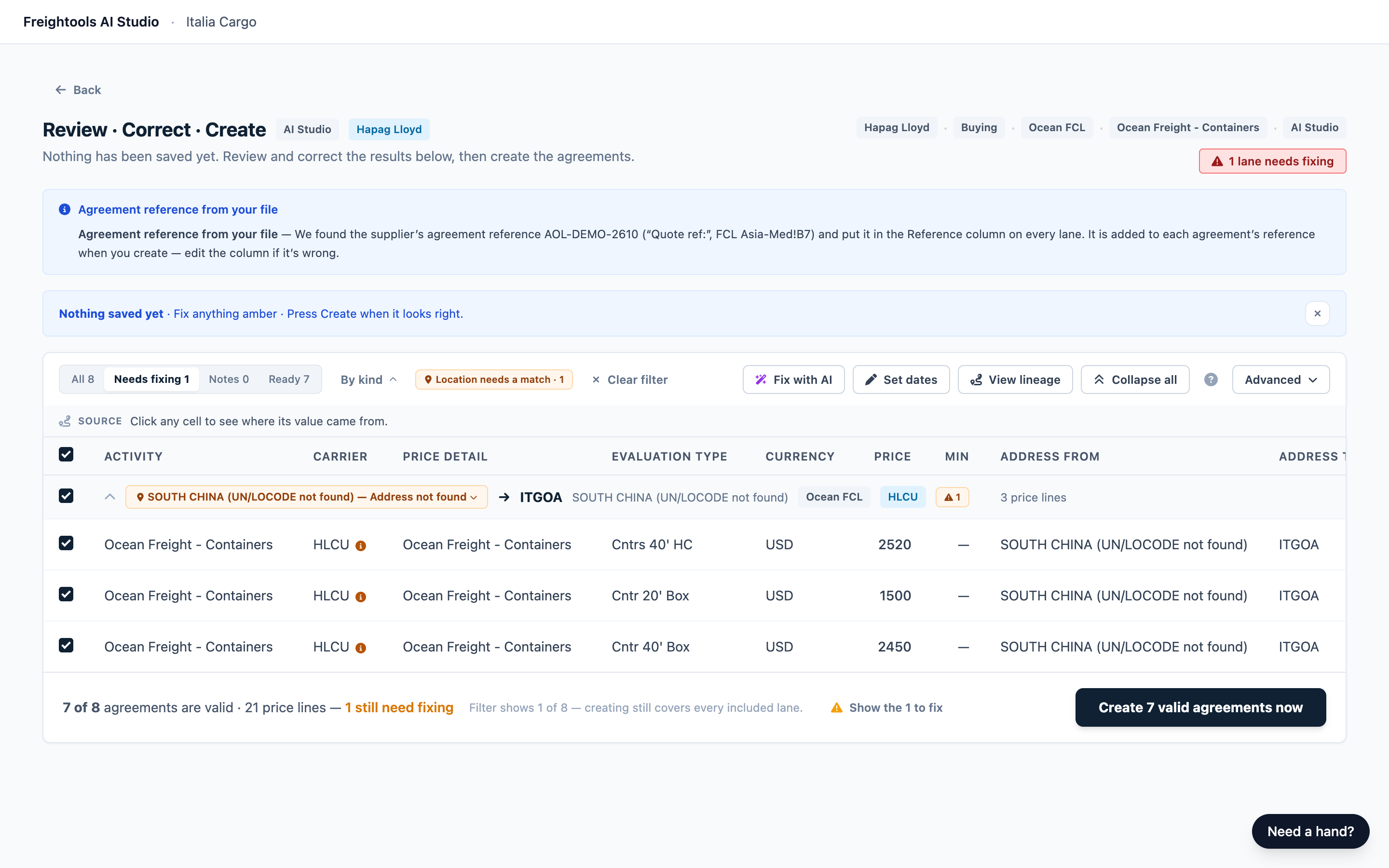
The other groups are All, Ready (nothing flagged), Notes (worth a look, created as they are) and Excluded (unticked lanes).
The rest of the toolbar:
| Button | What it does |
|---|---|
| Fix with AI | Describe what's wrong and have your file read again with your note. Not available on every load. See Use Fix with AI and add charges found in your file. |
| Set dates | Puts one validity period on every ticked lane, replacing the dates already on them. See Correct lanes and prices before you create. |
| View lineage | Opens your file next to the results. See View your file side by side with the results. |
Expand all opens every lane on screen, and the ? button opens a short guide to the screen.
Read a lane
Each row is one lane: a route you are about to create. Click a row to open or close it.
| Part of the row | What it tells you |
|---|---|
| Checkbox | Only ticked lanes can be created. An unticked lane fades and moves to Excluded. |
| From → To | The UN/LOCODE (five-character UN location code) of each end. Some ports have more than one code and you may see them together — that's normal, and you don't have to choose between them. |
| "name (UN/LOCODE not found) — Address not found" (amber, with a pin) | The location couldn't be matched, so the lane is Blocked. Click the chip to match it. |
| Blue carrier chip, for example HLCU | The carrier this agreement is for. |
| "via code" chip | The transshipment port. |
| ⚠ N · "N price lines" | Open issues, and how many charges are ticked. |
| Status pill | Valid (green), Warning (amber, created as it is), Blocked (red, not created until you fix it), or Excluded (gray, not created). |
Read the price lines
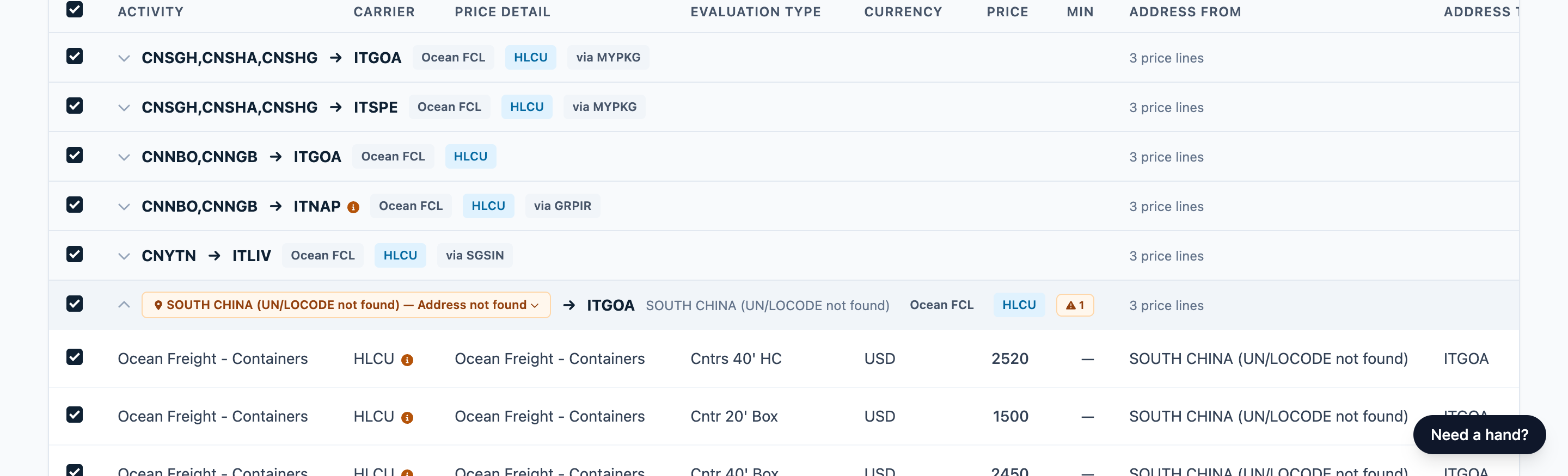
Each price line is a charge, for example the freight for a 40' container. Untick the checkbox at the start of a price line to leave that charge out.
| Sign | What it means |
|---|---|
| Amber stripe, or "⚠ marker" in Currency or Price | A flagged value you haven't corrected yet. |
| "Missing — required" in Evaluation Type | Blank. The lane can't be created until you fill in how the charge is counted — per container, per shipment, and so on — spelled as in Freightools. See Correct lanes and prices before you create. |
| Green outline on a cell | You changed this value. |
| Amber (i) in a cell | Hover to see what your file said. |
Where a value is missing, the cell shows a marker in its place, for example "NO PRICE FOUND". The lane's status pill tells you whether the lane can still be created. Correct every marker before you create, including one on a currency: click By kind and use the "Currency not recognized" chip to list those lanes.
For the markers, statuses and issue chips you'll see most often, see Reference: review markers, statuses and issue types.
See where a value came from
- Open a lane and click a price, currency, charge or date cell. A text box opens: type the new value and press Enter, or press Escape to close it unchanged. Some cells open a picker instead; close it with Cancel. To put one value on several lanes at once, see Correct lanes and prices before you create.
- Read the Source strip, the gray bar above the grid. It names the place in your file the value came from.
View your file side by side with the results
View lineage isn't available on every load.
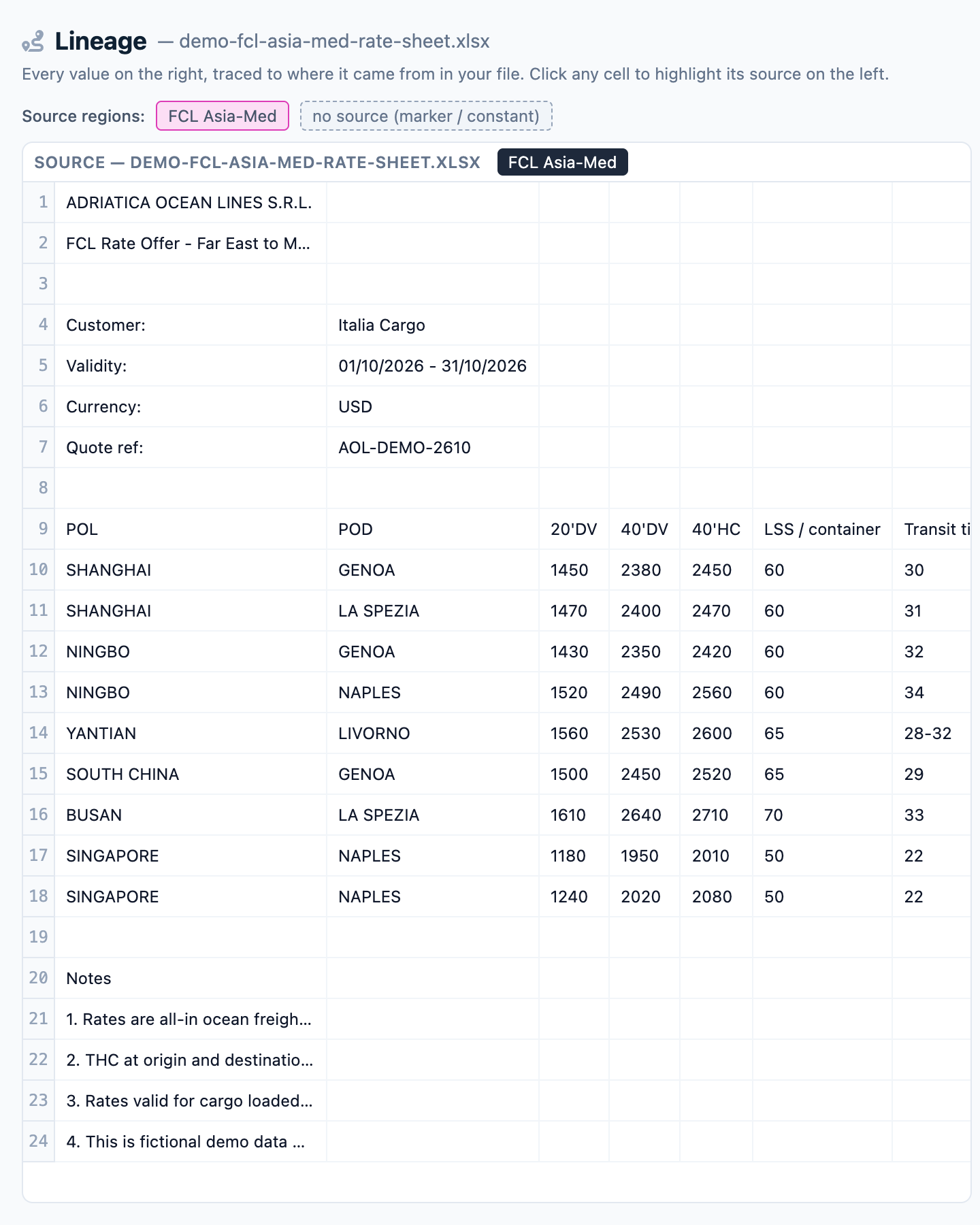
- Click View lineage. Your file is on the left under Source, with a tab for each sheet. The results are on the right, one row per lane.
- Click a cell on the right. The part of your file it came from is highlighted on the left, and a small panel shows the value. Click ✕ in the panel to close it.
- Click the X at the top right of the screen to go back to the review.
This view shows what was read from your file. A value you corrected still shows its original here; your correction is safe in the grid.
Check what is ready to create
The bottom bar counts what is ready and what needs fixing. **Show the N to fix filters to those lanes and opens By kind**.
The create button says how many agreements it will create. It opens a summary first, and nothing is written to Freightools until you confirm there. If the button is grayed out, a notice above the grid says what to settle first.
Lanes you haven't fixed are left out, and nothing about them is lost: fix them on this same page afterwards and press Create again to add them. You don't have to load the file a second time. See Create your agreements in Freightools.
Troubleshooting
| Problem | What to do |
|---|---|
| A lane shows Blocked, but nothing is red. | Open it and look for an amber mark on the row or in its cells, and fix what is flagged. |
| "The review could not be loaded right now." | Reload the page. If it keeps happening, tell your Freightools contact. |
| Amber "The sheet’s structure changed since this setup was saved…" | Check the results before you create: open half a dozen lanes spread through the list and compare From, To and the freight price with your sheet. If values are landing in the wrong place, use Fix with AI rather than correcting lane by lane. |
| Amber "We have saved changes from an earlier review…" | Those corrections don't apply here. Redo the ones you need. |
| Amber "This review was also saved in another tab…" | Close this tab and carry on in the one you opened first. If you're not sure which that is, close them all, open the load page again, and redo any corrections you made here. |
| View lineage is missing, highlights nothing or says "Failed to load preview data". | Not every load has this view, and that isn't a fault. Check the value against your original file. |