
This article covers the last two steps of Load a rate sheet in Freightools AI Studio: File and Method.
Before you start
- Load a rate sheet has six numbered steps in the bar across the top: 1 Supplier, 2 Load, 3 Move part, 4 Checklist, 5 File, 6 Method. A narrow window shows the numbers without the names. This article covers steps 5 and 6.
- Finish steps 1 to 4 first. Steps 1 to 3 are in Set up a load: supplier, service and route, step 4 in Choose the charges to load (the checklist).
- Buying is the setting at the top of step 1. Leave it as it is.
- Have the rate sheet on your computer.
Add your rate sheet
The File step is titled "Give us the file." and says "Drop it, paste it — nothing is read until you press “Load the file”."
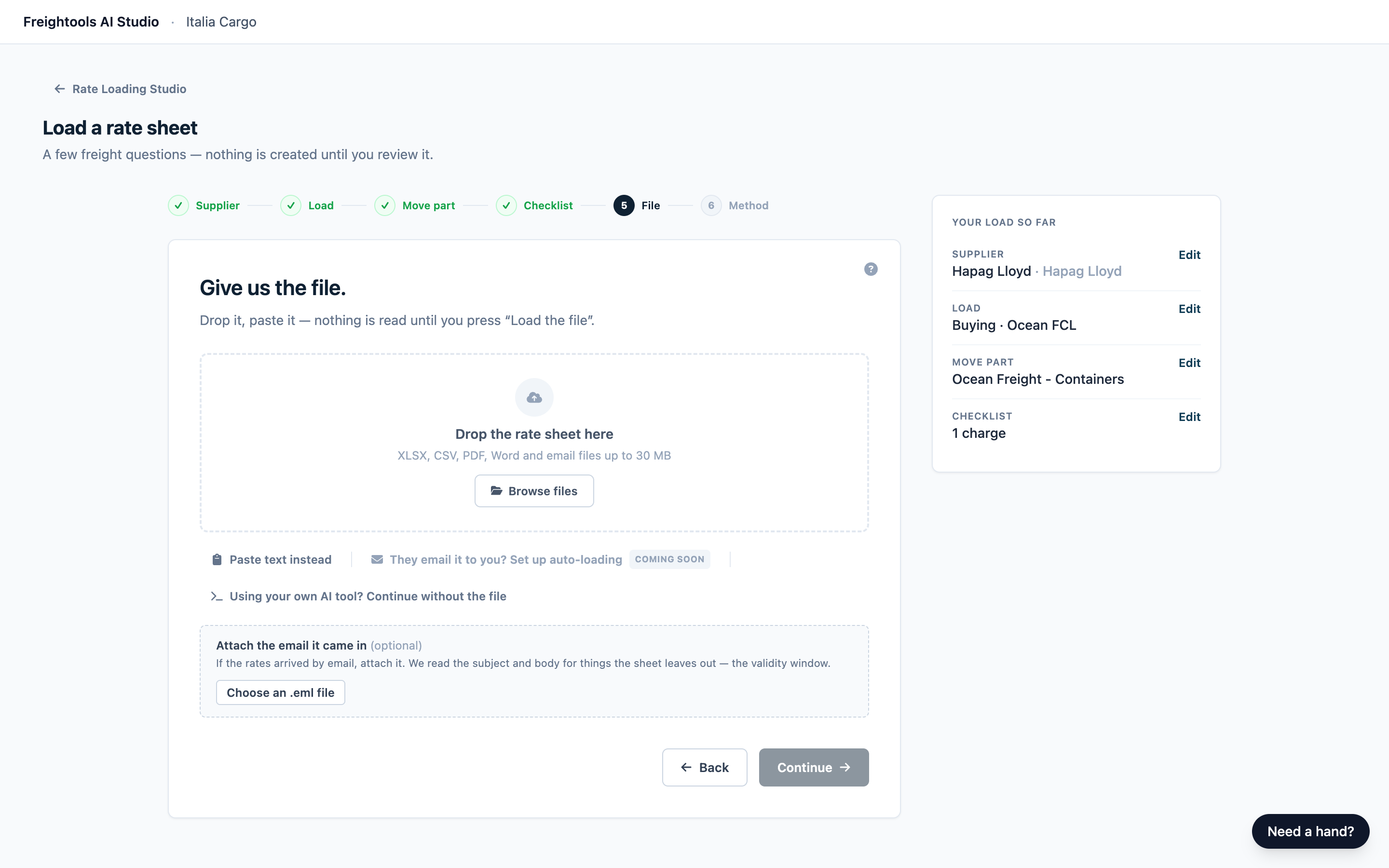
- Drag your rate sheet onto Drop the rate sheet here, or click Browse files and pick it. A card with the file name and size replaces the box.
- Check the card. To swap the file, click Replace. To remove it, click the ✕. This also removes any email you attached.
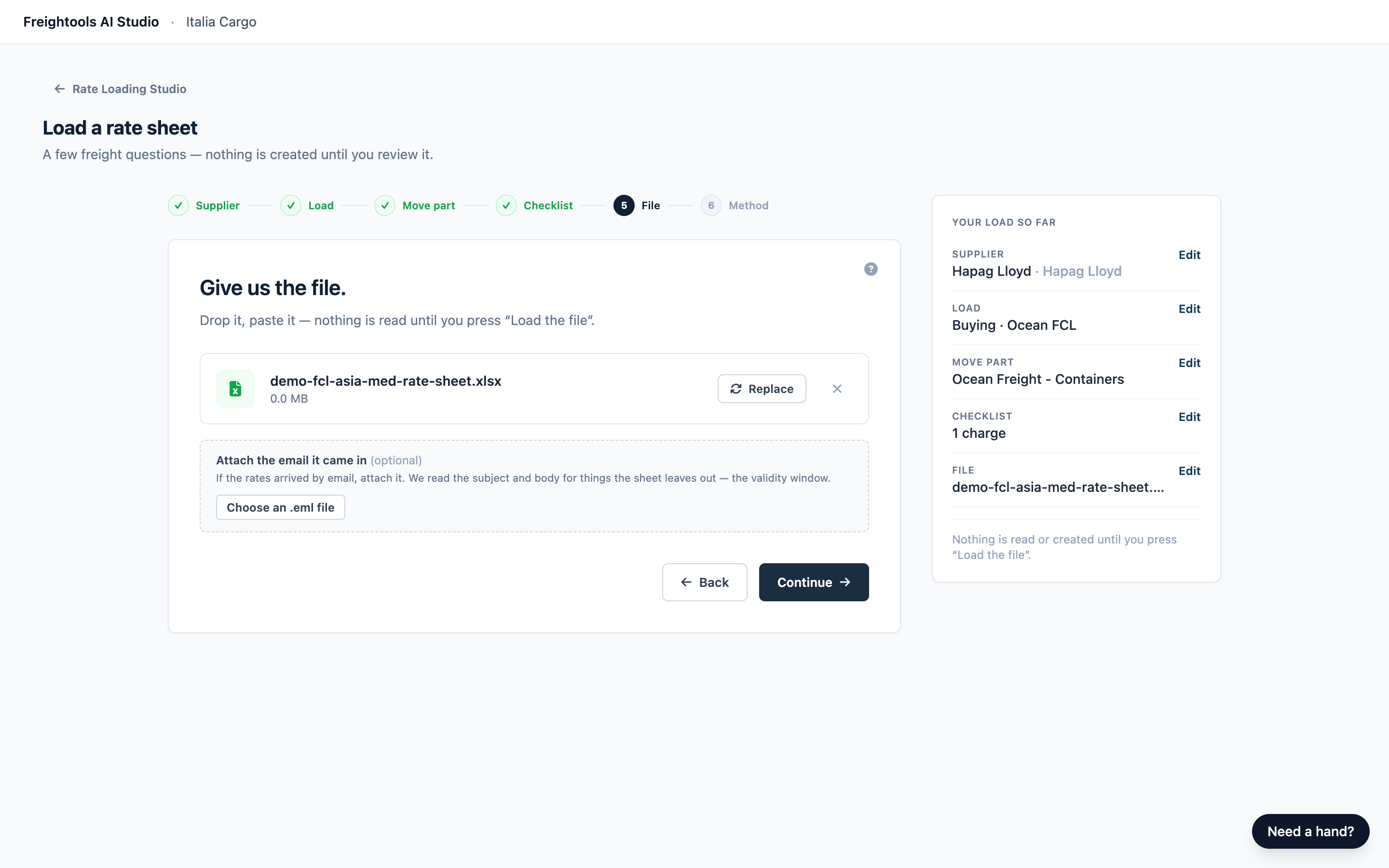
You can attach one file per load, up to 30 MB: Excel, CSV or tab-separated, PDF, Word (.docx), email (.eml) or plain text. A file you dropped on the studio home page is already attached.
Note: Outlook.msgfiles can't be read. Save the message as.eml, or paste the rates instead.
The They email it to you? Set up auto-loading link under the drop box is marked "Coming soon", so there is nothing to set up — attach your file yourself each time.
Paste the rates instead
If you clicked or paste an email rate on the home page, the paste box is already open — start at step 2 below.
- Click Paste text instead.
- Paste the rates into the box.
- Click Use this text. A Pasted rate text card appears, and the Your load so far panel lists it as "Pasted email" — it says that whatever you pasted, including rows copied from a spreadsheet. Click Edit to change the text, or the ✕ to clear it.
To switch back while the paste box is open, click Attach a file instead. This also removes any email you attached.
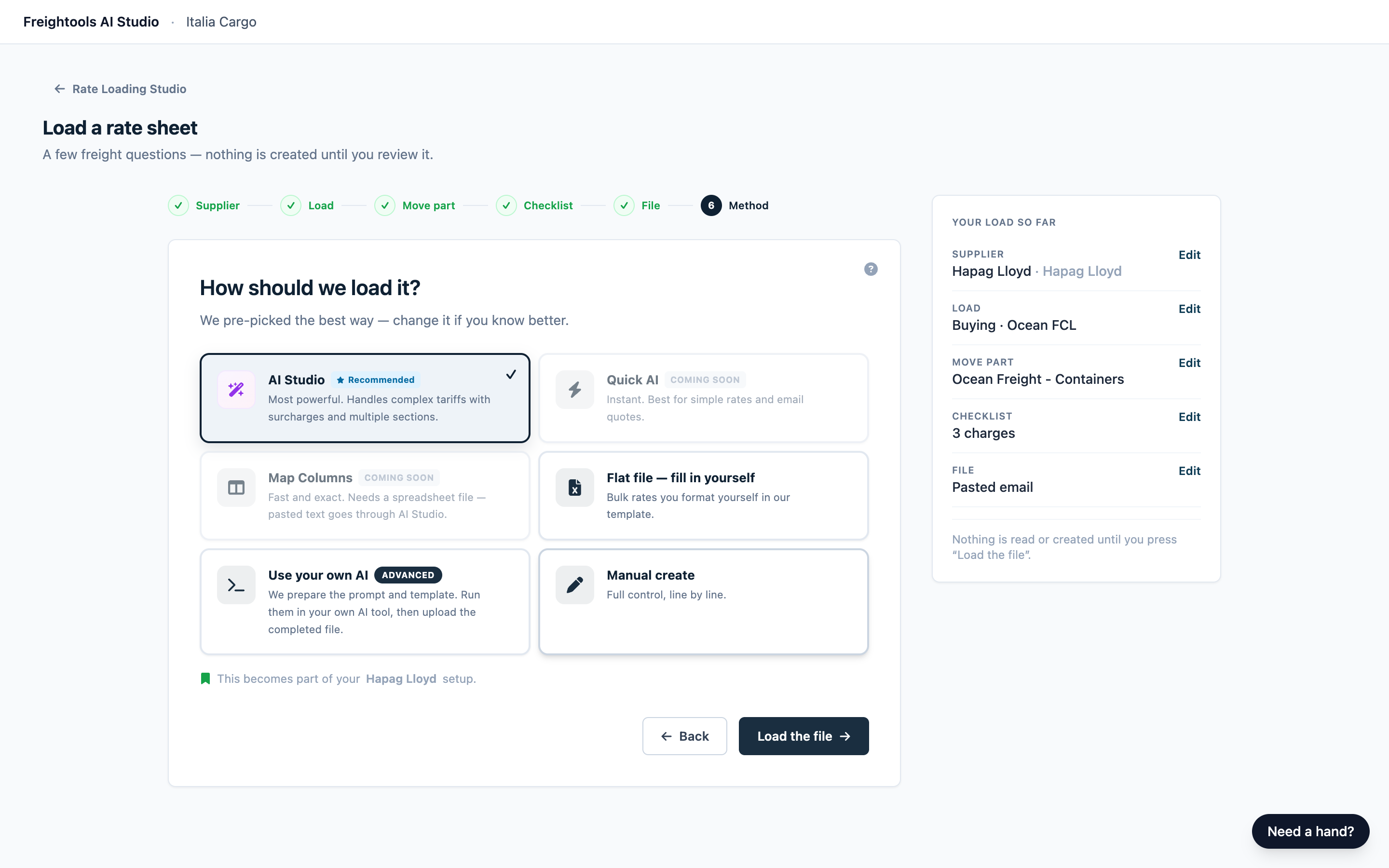
Important: Only the AI Studio method reads pasted rates. Map Columns needs a spreadsheet file, and the other cards give you our template to fill in, or an empty form.
Attach the email the rates came in (optional)
- In your mail app, save the supplier's email as an
.emlfile, up to 10 MB. If it is bigger, save a copy without attachments. - In the Attach the email it came in (optional) panel, click Choose an .eml file and pick it. Its name appears in the panel. Click the ✕ next to it to remove it.
If the file is too big or isn't an .eml, the panel says so — "That email is over 10 MB — attach the message without its attachments." or "Attach the email as a .eml file — export it from your mail app." — and no email is attached. The load still runs.
Attach the email only when the whole rate sheet runs for one period. The studio uses its dates for lanes your sheet doesn't date, and the review tells you what it used in a note titled "From the email you attached". See Review your results.
Go to the method step
Click Continue. It becomes available once a file is attached or rates are pasted.
Use your own AI and Flat file — fill in yourself give you our Excel template to fill in yourself, so they don't need your supplier's file. If you started from the Use your own AI or Flat file — fill in yourself card on the home page, or from a saved configuration that uses one, Continue works with no file attached. Otherwise, click Using your own AI tool? Continue without the file, then keep Use your own AI or click Flat file — fill in yourself on the method step. That link shows only while no file is attached and no rates are pasted.
Note: A repeat load from a saved configuration opens on this step with every answer pre-filled. See Saved configurations and loading a new file for a supplier.
Choose how to load it
The Method step is titled "How should we load it?" The AI Studio method is pre-picked unless you came from another method's card, link or saved configuration.
- Click the card for the method you want. A ✓ marks the selected card.
- Click the button at the bottom right, labeled as in the table.
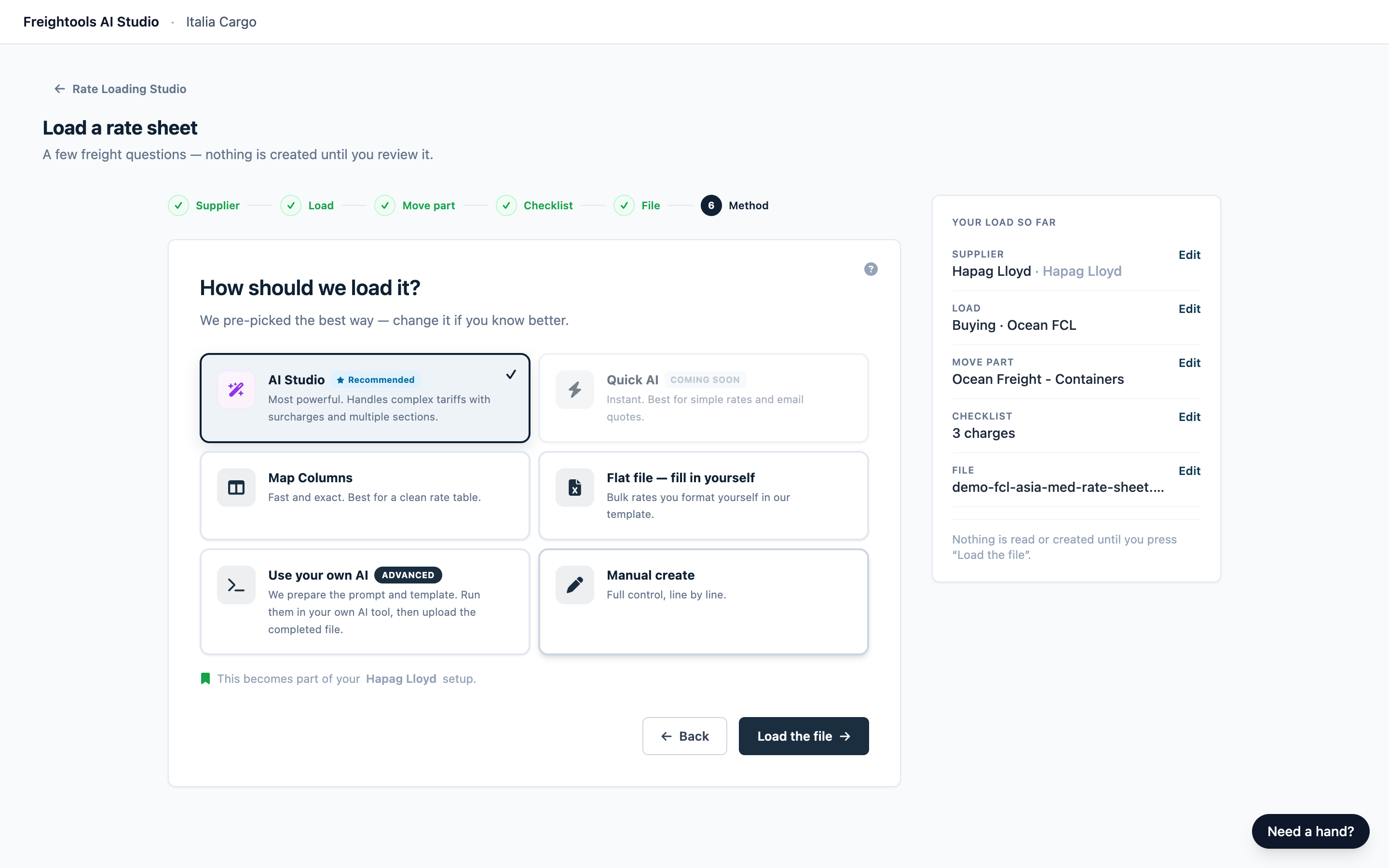
| Card | Choose it when | Button |
|---|---|---|
| AI Studio (Recommended) | Most rate sheets, including PDFs, Word files, emails and pasted text. | Load the file |
| Map Columns | Your rate sheet is an Excel spreadsheet with a header row. See Load a rate sheet with Map Columns. | Continue to mapping |
| Flat file — fill in yourself | You want to type the rates into our Excel template. See Load a rate sheet by filling in the flat file template. | Continue to the template |
| Use your own AI (Advanced) | Your team reads rate sheets with its own AI tool. See Load a rate sheet with your own AI tool. | Continue to your AI kit |
| Manual create | You want to enter an agreement by hand. See Create an agreement manually (no file). | None. The card opens the screen. |
Manual create opens its own screen straight away and leaves this load. Your file and your answers aren't used there, and nothing is created in Freightools until you save the agreement yourself.
The Quick AI card is marked "Coming soon". The line "This becomes part of your … setup.", with your supplier's name in it, means the method you pick is remembered for this supplier once you create agreements. You can still pick a different method on a later load.
When Map Columns is grayed out
Map Columns needs an Excel file — the message on the card says why, naming your file type ("Map Columns needs an Excel file — this is a PDF. Use AI Studio for this one."). Use the AI Studio method, or click Back and attach an .xlsx file.
Start the load
With the AI Studio method:
- On wider screens, check your answers in the Your load so far panel on the right, and click Edit to change one. If you don't see the panel, widen the window or click a finished step's number in the step bar.
- Click Load the file. The button reads Loading…, then the progress screen opens. See Follow your load while it runs.
If the button goes back to Load the file and a message appears under the cards, the load didn't start. See Troubleshooting below.
What starting a load writes to Freightools
Warning: Starting the load prepares an agreement template in your Freightools account for the studio to fill in. It is not a buying agreement and holds no prices. No buying agreements are created in Freightools until you press Create on the review screen.
A load that doesn't finish can leave an empty template behind. It holds no prices and no lanes, so it is safe to ignore — ask your Freightools contact if you want it removed.
Troubleshooting
| Symptom | What to do |
|---|---|
| "That file is over 30 MB — export a lighter copy and try again." | Save a lighter copy, for example without images or unused tabs. Or split it into two sheets and load them one after the other — each load takes one file, and both loads can go to the same supplier. |
| Continue is grayed out on the File step, or the file or email has disappeared. | Attach the file again or paste the rates, then attach the email after the rate sheet. |
| Load the file is grayed out. | An earlier step isn't complete, often because the file is missing. Click that step's number in the step bar, or Back, and complete it. |
| After Continue to mapping: "Map Columns reads .xlsx spreadsheets. For this file, use AI Studio instead." | Save the sheet as .xlsx and attach it again, or use the AI Studio method. |
| Only AI Studio is offered, or the email panel is missing. | Wait a few seconds. If nothing changes, reload the page and attach your file again. |
| A message says loading isn't ready, or isn't switched on for this workspace yet. | Wait a minute and try again. If it comes back, open your studio link again and tell your Freightools contact. |
| "Something went wrong on our side — nothing was created. Try again in a minute." (or a similar message on another method's screen) | Wait a minute and press the button again without reloading the page. If it fails again, click step 2 (Load) in the step bar, click Edit fallback and check that Fallback Validity Date and Fallback Expiration Date are both filled in, with the expiration after the validity date. Then start the load again. If it still fails, tell your Freightools contact. |