
When Freightools AI Studio has finished reading your supplier's rate sheet, the Review · Correct · Create screen shows every lane and price it found. This article shows how to correct them before you create.
No buying agreements are created in Freightools until you press Create. Corrections change only the review.
For how to read the screen, see Review your results. For Fix with AI and the "Found in your file" panel, see Use Fix with AI and add charges found in your file.
Before you start
- Wait until the Create button no longer reads Loading lanes… before you use Set dates or apply a value to many lanes. Until then, the all and ticked buttons (for changing many lanes at once, below) are hidden.
Find what needs correcting
When the studio can't find or match a value, it leaves a visible mark. A mark is only a note to you: it is never sent to Freightools, and a price line still showing one is left out when you create. Lane rows name ports by UN/LOCODE (the five-character UN location code), for example CNSHA → ITGOA.
To list only lanes that need work, click Needs fixing above the grid (or Show the N to fix at the bottom). Filtering changes only what you see: every ticked lane is still created, on screen or not.
| What you see | Go to |
|---|---|
| An amber chip ending in "— Address not found", or "(UN/LOCODE not found)" in an Address From or Address To cell | "Match a location" |
| An amber chip ending in "— door delivery, geo area needed (ZIP …)" | "Match a door delivery to a geo area" |
| An amber chip "via … (UN/LOCODE not found)". It doesn't block the lane; a gray "via …" chip is already matched | "Set the via port" |
| "NO VALIDITY FOUND", an empty date, or a red banner about dates | "Set validity dates" |
| "Missing — required" in Evaluation Type, or "NO PRICE FOUND FOR …" in Price | "Edit a cell", or leave the price line out |
| An empty Carrier cell | "Set the carrier" |
| An amber (i) icon | Hover over it to see what your file said |
Each lane ends with a status: Blocked, Warning (created as it is), Valid or Excluded. A Blocked lane you can't fix today simply isn't created, and the others still are: the create button then reads "Create N valid agreements now". See Reference: review markers, statuses and issue types.
Edit a cell
- Open the lane by clicking its row, or click Expand all.
- Click the cell. An input opens.
- Type the new value and press Enter, or click elsewhere. Press Escape to cancel.
The cell gets a green outline, and its tooltip reads "Edited by you — click to change".
| Column | What to type |
|---|---|
| Price, Min | Digits with a dot for decimals and no thousands separator: a file showing 1.500,00 is typed 1500.00. Min is the minimum charge for that price line |
| Currency | The code as in Freightools, for example USD |
| Price Detail, Evaluation Type | The charge name, and how the charge is counted (per container, per shipment, and so on), spelled exactly as in Freightools. Copy the wording from another price line, or from your agreement template in Freightools |
| Transit (days) | A whole number of days |
| Validity Date, Expiration Date | YYYY-MM-DD, for example 2026-10-01 |
| Reference | Any text. The note "Agreement reference from your file" above the grid tells you if the studio filled in your supplier's own reference |
| Carrier, Address From, Address To, Transshipment | Nothing: a picker opens. See "Match a location", "Set the via port" and "Set the carrier" below |
Important: The grid shows dates as month/day/year: 10/01/2026 is October 1, 2026. Type dates as YYYY-MM-DD.
Important: Freightools checks typed names, codes and prices when you press Create. A lane with a value that doesn't match isn't created, and the result screen says why.
Apply one value to many lanes
The checkbox at the left of each lane row is the same checkbox that decides which lanes are created. To change only some lanes, first make sure exactly those lanes are ticked. Then, under the input, next to "apply to":
- all N writes the value into this column on every lane that has it.
- ticked N writes it only on lanes whose checkbox is ticked.
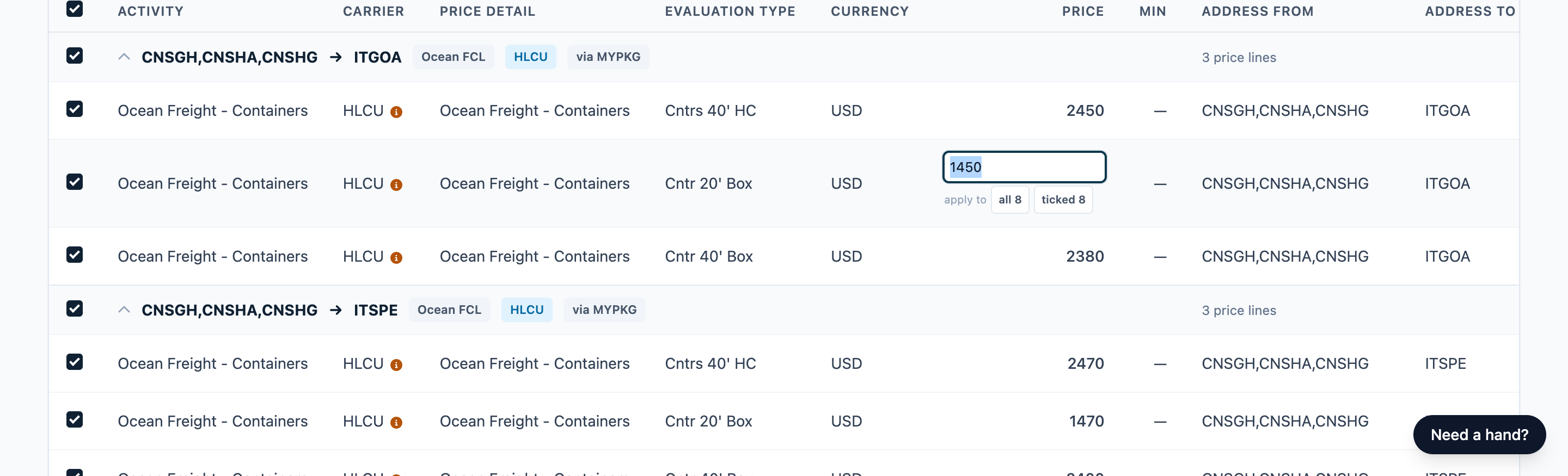
Important: all N includes lanes you unticked, and it ignores the filter. Check the value and the ticks before you click: to put an old value back you have to type it again. If you unticked lanes only to narrow a ticked change, tick them again afterwards, or they won't be created.
Set validity dates
Every agreement needs a start date. If lanes have none, a red banner starts "N lanes have no validity dates".
- Click Set dates in the toolbar, or Set the dates for all lanes on the banner.
- In the Set the validity dates dialog, choose Valid from, and optionally Expires (optional).
- Check the amber note, if shown: "N dates already read from your file will be replaced." It counts start and expiry dates separately. Go ahead only if the dates in your file are wrong or missing — to see which lanes already have dates, close the dialog and look at the Validity Date column first.
- Click Apply to all N lanes (it reads Apply until you choose a start date).
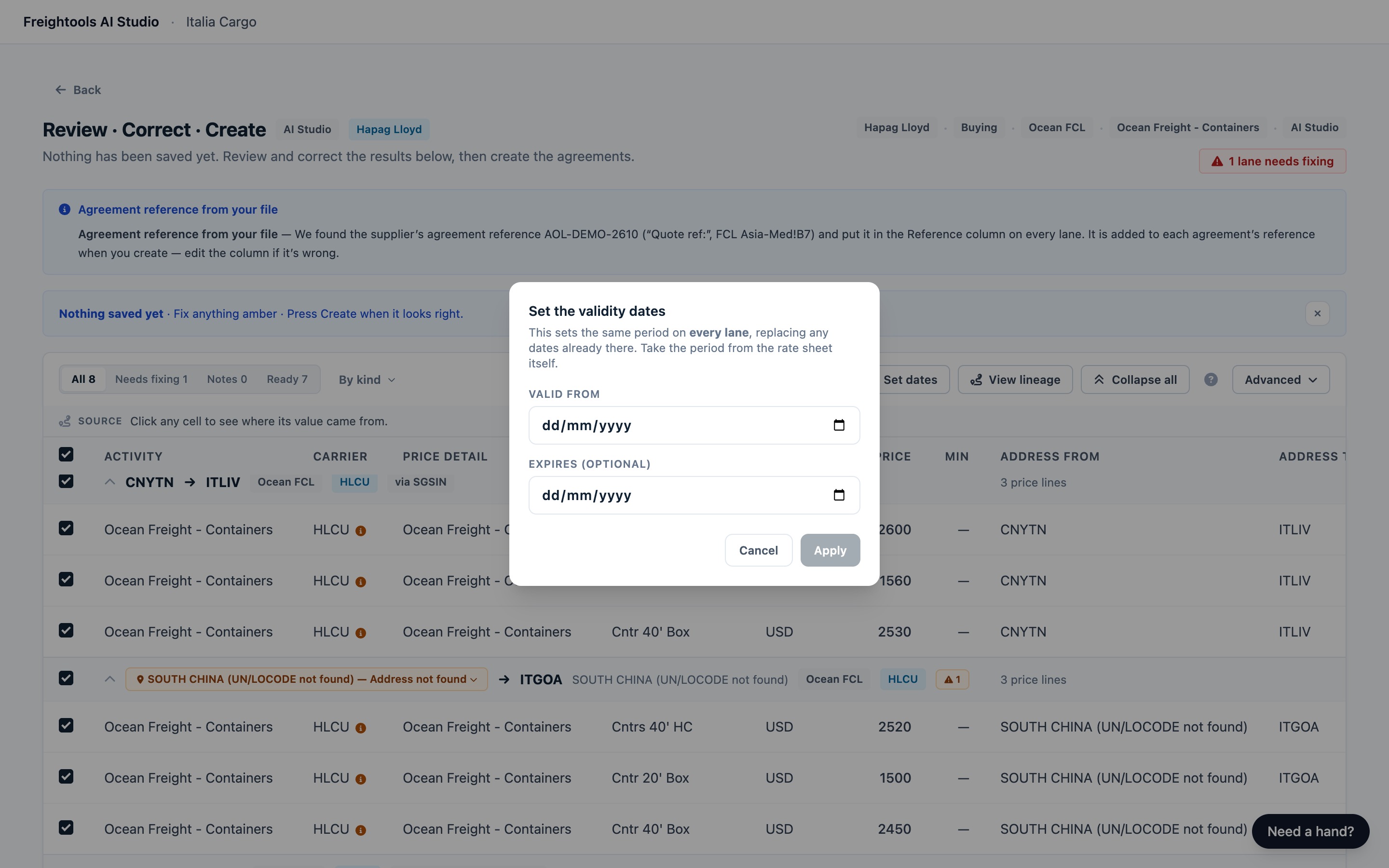
Set dates changes the ticked lanes only. The start date replaces the start dates on those lanes. An expiry date, if you chose one, replaces the expiry dates too; otherwise the existing expiry dates stay. If you untick lanes only to limit which ones get the dates, tick them again straight afterwards, or they won't be created.
If a banner says "N lanes have dates we couldn’t read", retype those dates as YYYY-MM-DD. Click Needs fixing to find the lanes, or use Set dates to put one period on every ticked lane.
Match a location
- Click the amber chip ending in "— Address not found". The Match this location dialog opens.
- The dialog already lists suggestions for the name in your file. If none is right, search by name, city or code.
- Click the right port, for example "Port of Shenzhen" (CNSZX). A city can appear as both a sea port and an airport, so read the whole entry before you click. It appears as a green chip; you can add more.
- Choose Every lane where the file says this name or Only this lane.
- Click Save match (Save matches (N) if you picked several ports).
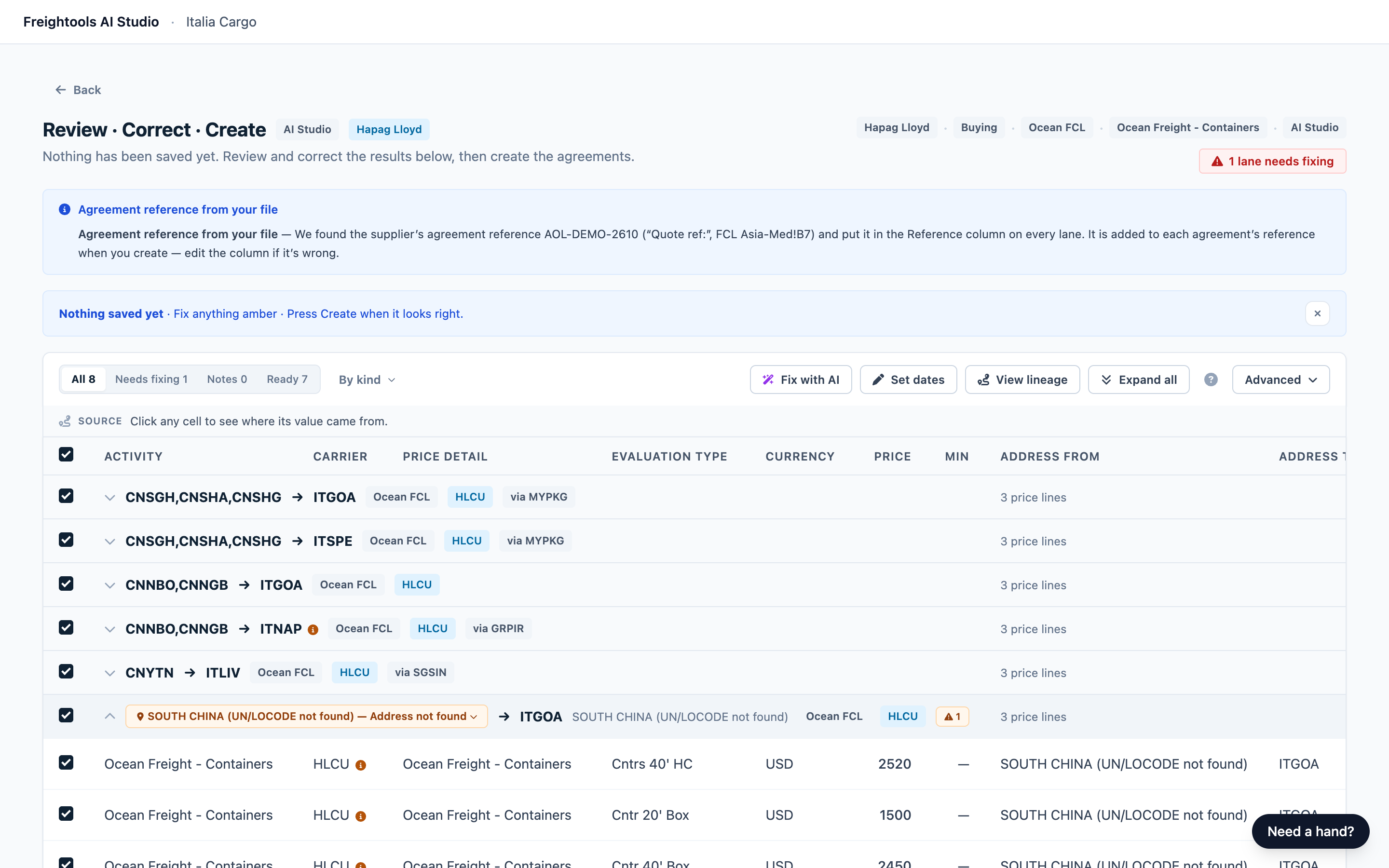
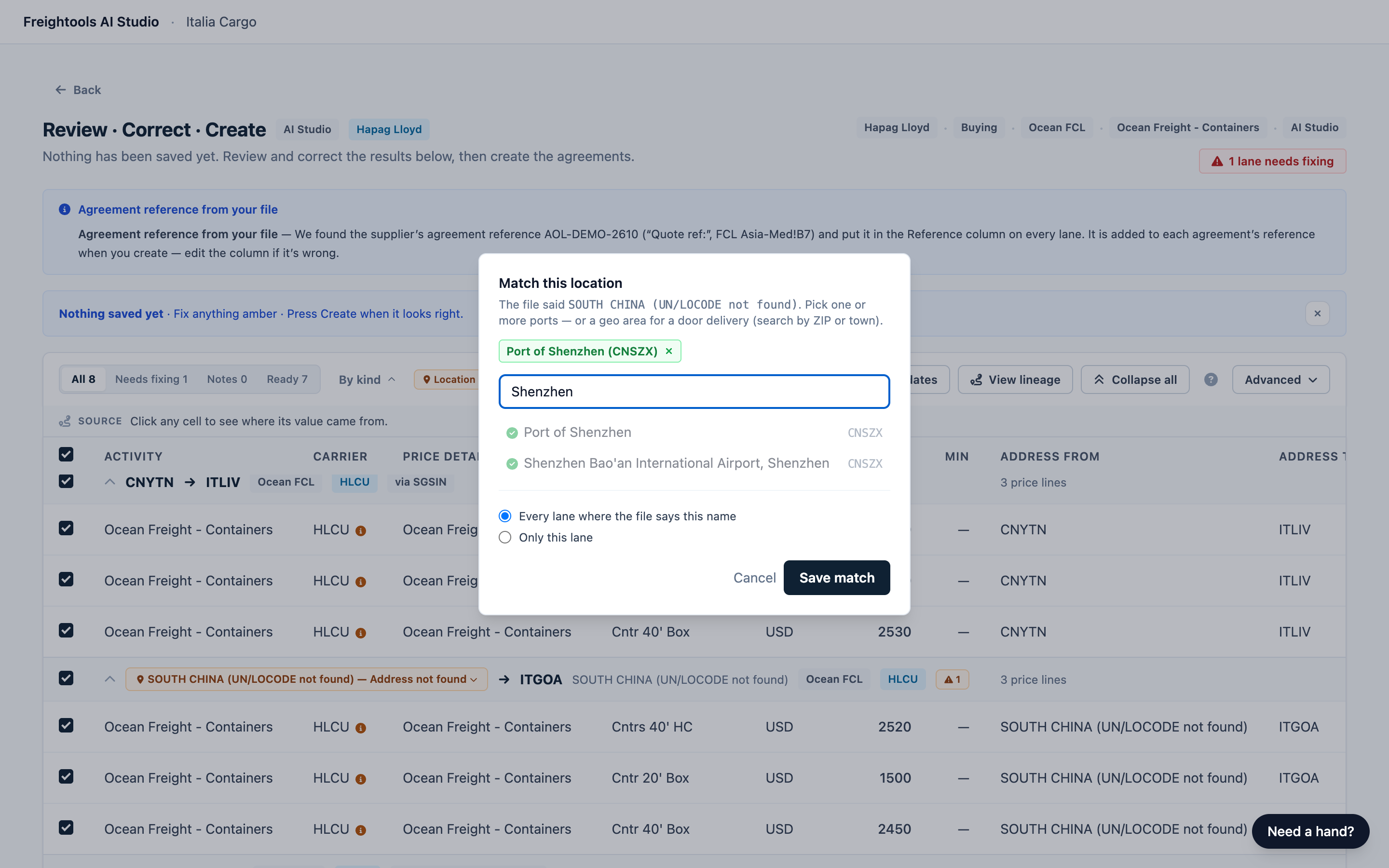
The chip turns green. To change it, click it again. To change one lane only, click that lane's Address From or Address To cell. To undo, open the dialog and click Clear match — back to the file’s value.
An amber (i) beside a port shows what your file said in that place. If that doesn't fit the port — a different city, or the wrong country — click the lane's Address From or Address To cell, pick the right port, and choose Every lane where the file says this name.
Match a door delivery to a geo area
A door address needs a geo area (an area defined by ZIP code and country) instead of a port, and only at the delivery end. Some are matched for you; otherwise click the chip, pick a geo area under Geo areas — door deliveries, and click Save match. For a door pickup at the origin end, pick a port instead.
If none exists, and the dialog offers Create a new geo area for this door, use it: check the country, click Use geo area with the ZIP code, then Save match. The geo area is created in Freightools only when you press Create. If nothing matches and the dialog doesn't offer to create one, untick the lane and ask your Freightools contact to add the area.
Set the via port
Click the amber "via … (UN/LOCODE not found)" chip on the lane row, or open the lane and click the Transshipment cell of a price line. The Match this location dialog opens with Only this lane selected. Pick the port and click Save match. An unmatched via port doesn't block the lane; the agreement is created without it.
Set the carrier
- Open the lane and click its Carrier cell. The Carrier for this lane dialog opens.
- Choose Only this lane, All N lanes or The N lanes ticked on the left (the checkboxes that decide which lanes are created).
- Click the search box (it shows the lane's current carrier, if any), type part of the name, and click the carrier.
The carrier is applied straight away. To change it, click the cell again and pick another. The list shows your Freightools carriers. An amber (i) on the cell shows what your file said in that place — sometimes a rate term such as FAK rather than a carrier name.
Set a carrier here when the agreement is with a named carrier. See Set up a load for the carrier you choose at the start.
Leave lanes or price lines out
- A lane: untick its checkbox. It fades, shows Excluded, and won't be created.
- A price line: untick its checkbox, or click the ban button (⃠) at the end of the line. The agreement is created without that charge.
Tick a checkbox again to bring it back. If you leave out every price line of a lane, the lane isn't created.
Resolve duplicate lanes
Sometimes the review produces the same lane more than once. A note tells you if a repeated row was set aside for you. Otherwise you're asked to keep one row: a red banner reads "This run produced the same lane more than once with DIFFERENT values — keep the correct row of each, and creating resumes.", and Create reads, for example, "Keep one row of CNSHA → ITGOA to create".
- Read the lanes listed in the red banner, for example "CNSHA → ITGOA — 2 rows with different prices. The system cannot tell which is right: keep one, exclude the other (the ⃠ button on the row)."
- Compare those rows with your rate sheet. Open each one and check the price lines side by side: charge, container size, currency and price.
- Keep the correct row ticked, and untick the lane checkbox of each other row. This is quicker than the ⃠ button the banner mentions, which sits on each price line.
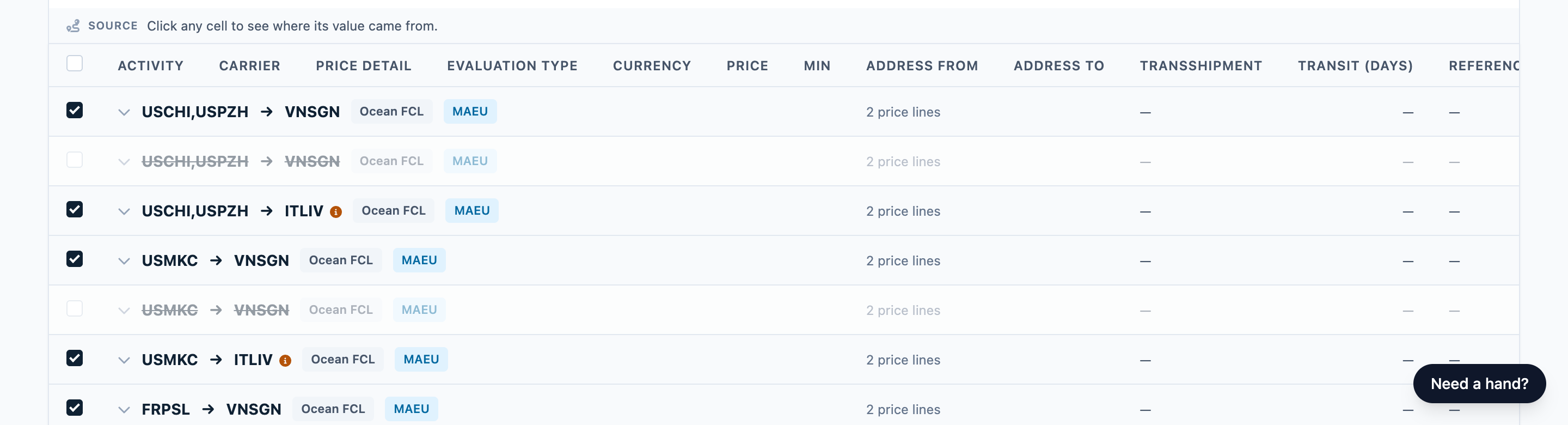
If your file prices the same lane more than once, compare the rows against your sheet, keep the one this load should create, and check that lane before you press Create. For loading another file for this supplier, see Saved configurations and loading a new file for a supplier.
When one row of each lane remains, Create is enabled again. The red banner clears, or changes to "This run produced duplicated rows — the extras are excluded, so creating the remaining rows is fine."
If the banner line says "your file sells this lane on N carriers we could not verify", don't untick anything: set the carrier on each row (see Set the carrier).
Keeping your corrections
Your corrections are saved as you go — there is no save button. If you reopen the review, a green banner starts "Restored your saved changes from this review". If that banner doesn't appear, open a lane you corrected and check it before you redo anything.
Fix with AI and Update template & re-run the file read your file again, and you get a new review. Make your corrections again on it.
Tip: If you plan to use Fix with AI, do it before you make many cell-by-cell corrections.
Warning: None of the corrections above reach Freightools until you press Create. Any new geo area for a door delivery is created then too. The Update template & re-run the file button in the "Found in your file" panel is different: it changes your agreement template in Freightools straight away.
Troubleshooting
| Problem | What to do |
|---|---|
| all and ticked are missing, or the carrier dialog offers only Only this lane | Wait until Create no longer reads Loading lanes…. If it reads "Only X of Y lanes loaded", reload the page. If the count is still partial, load the file again |
| I cleared a marked price, but the lane is still Blocked | An empty price still counts as missing. Type the price, or untick the price line |
| My corrections weren't restored when I reopened the review | Open a lane you corrected and check before redoing anything. If the same review is open in more than one tab, close the extras and work in one |
| Save match is grayed out | Pick at least one port or geo area. If you reopened an existing match, change the pick or the scope first |
| The picker says "No ports or geo areas match." | Try a shorter name, the city or the UN/LOCODE |
| The carrier I need isn't in the list | Check the spelling. If it's missing from Freightools, tell your Freightools contact. You can create the other lanes now and load these once the carrier is there |
| My corrections are gone after Fix with AI or Update template & re-run the file | Expected: the file was read again. Make them again on the new review |
For more help, see Troubleshooting and frequently asked questions.