
After you start a load, Freightools AI Studio opens a progress page. It shows how far the studio
has got reading your rate sheet, and it turns into your review when the load is done.
Note: No buying agreements are created in Freightools until you press Create on the
review screen.
Watch your load run
- Start the load. Each method has its own button: AI Studio — Load the file;
Map Columns — Run with this mapping; Flat file — fill in yourself —
Process file; Use your own AI — Review the results. The button shows "Loading…"
or "Starting…", then the progress page opens. - Leave the page open to watch it. The load keeps running even if you close the tab — but
bookmark this page now, because it is your way back to this load. - Follow the timeline. The step running now has a blue spinning circle, and finished steps get
a green tick. - Wait. A large rate sheet takes a few minutes. Your review appears on the same page.
Continue with Review your results.
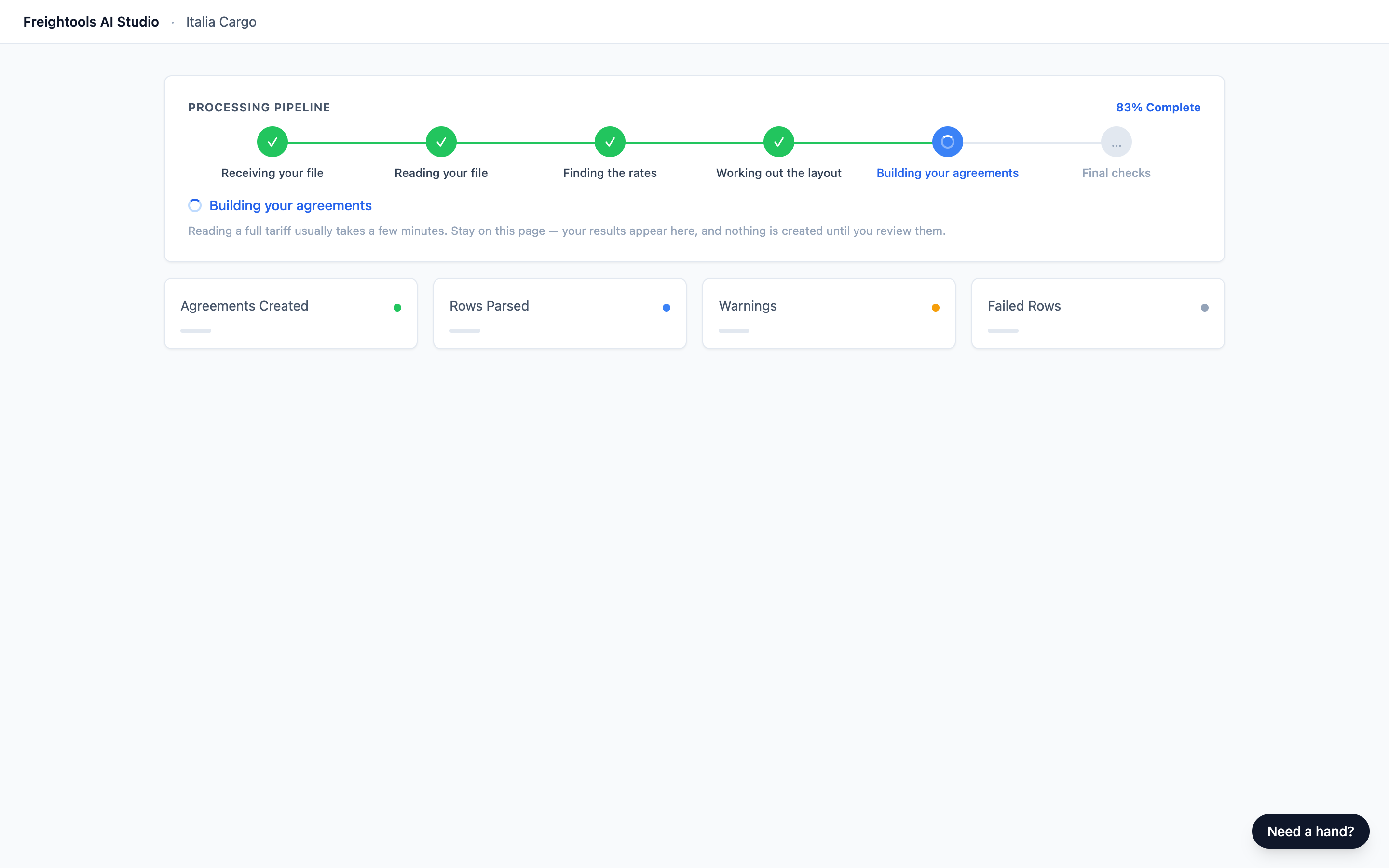
The boxes under the bar stay empty — your results open a moment later on the same page.
A load that doesn't finish creates no agreements. See
Add your rate sheet and choose how to load it.
Start again when a load stops or fails
An amber "This load needs your attention" card means the studio could not get usable rates out of
your file. Its button is Try another load.
| What the card says | What to do |
|---|---|
| "We could not read that file. Re-save it (e.g. as .xlsx) or try another copy." or "We did not find rates in this file — was it the right sheet?" | Load the rate sheet itself, not a cover letter, saved again as .xlsx if needed, and start the load again. |
| "Your template could not be reached — re-open the studio and try the load again." | Open your studio link again and start the load again. |
| Any other reason | Do what the card says, then load the file again. If the same reason comes back, tell your Freightools contact and quote the wording on the card. |
A red card means the load stopped. No buying agreements were created. Its button is Try again.
| Heading | What to do |
|---|---|
| "That file could not be loaded" | The file you filled in yourself (Flat file — fill in yourself or Use your own AI) could not be used. The card names what was wrong — often a changed or missing heading row, or no rate rows. Fix it in your own spreadsheet, save it as .xlsx, then load the corrected file. |
| "Something went wrong on our side" | Load the file again. If it fails again, tell your Freightools contact. |
Important: Both buttons open a new, empty load: answer the questions again and pick the
same method. If the supplier has a saved configuration, use its Load new file instead. See
Saved configurations and loading a new file for a supplier.
Follow a re-read after Fix with AI or added charges
When the studio reads your file again from the review, the progress page comes back.
- In Fix with AI (AI Studio method only), type what is wrong and press
Re-read the file. - Keep the window open through "Working on your note — this usually takes a minute or two."
The page reloads by itself. - The page shows "Re-reading your file with your note…" and can sit at 0% for a while.
Keep waiting.
- Your updated review opens on the same page. Check that what you asked for has changed — see
Review your results. Corrections you made by hand aren't carried
over — make them again on the updated review.
If you ticked charges under "Found in your file" on the review, Update template & re-run the
file adds them and reads your file again — the progress page comes back, exactly as above. See
Use Fix with AI and add charges found in your file.
Get back to a load after closing the tab
Your load keeps running whether the page is open or not.
- Bookmark the page as soon as it opens: it is your way back to this load. Anyone with that
address can see your supplier's rates, so keep it inside your team, like your studio link. - If you have lost it, look in your browser history first.
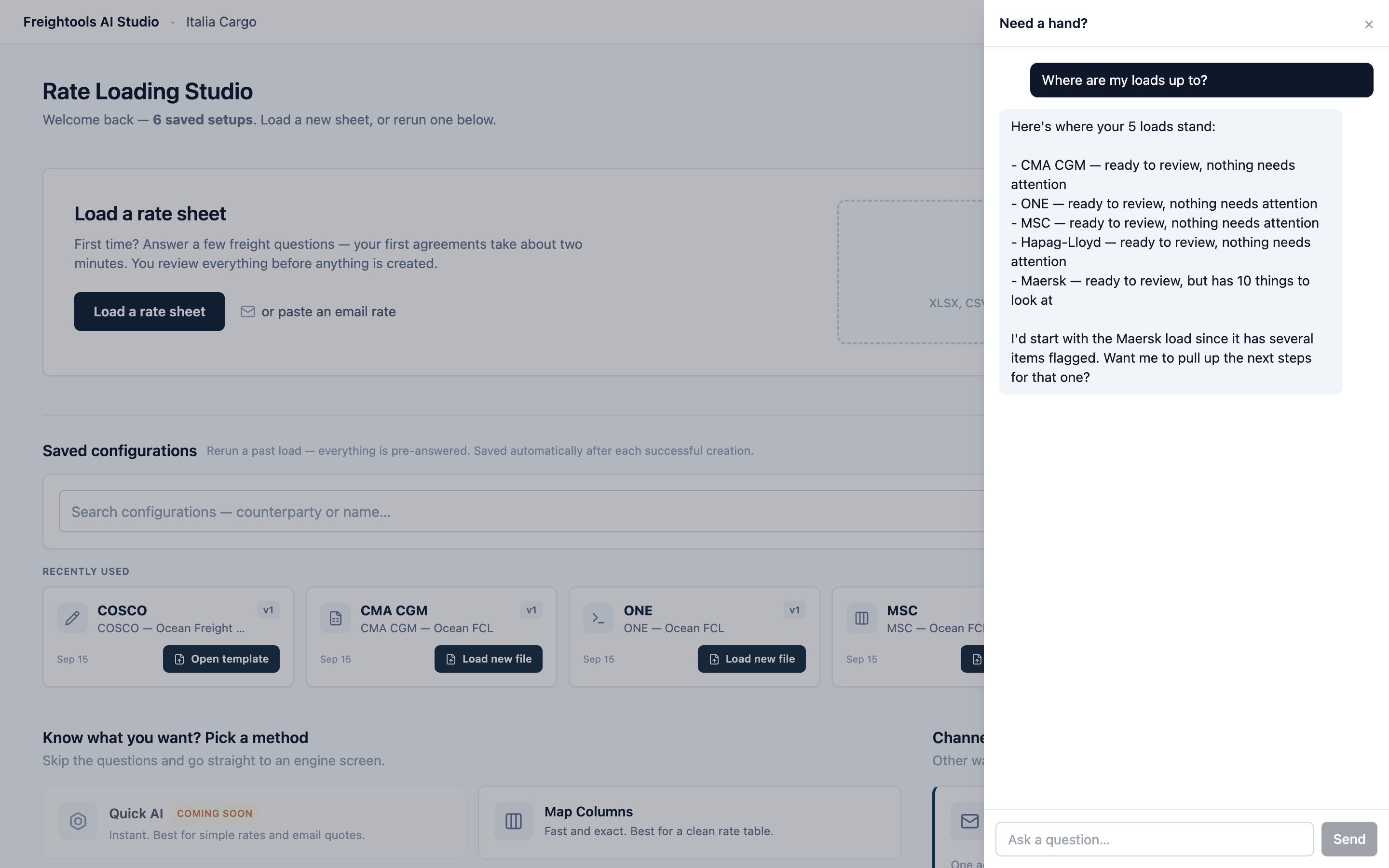
- Press Need a hand? (bottom right) and ask "Where are my loads up to?". It lists recent
loads by supplier as "still working on your file", "ready to review" or "that file could not
be loaded". It lists only recent loads, and it can't open one for you.
If you can't find the address, load the same file again. That creates nothing on its own — no
buying agreements exist until you press Create on a review.
Troubleshooting
| Symptom | What to do |
|---|---|
| "Getting in line…", or one step lasts a long time | Keep waiting; a large rate sheet takes a few minutes. If nothing has changed after a long wait, reload the page once. If it still hasn't moved, tell your Freightools contact and give them the page address. |
| A message sits at 0% for a while | Your load is still running. Keep waiting. |
| "The review could not be loaded right now." or the page never changes | Reload the page. Reloading is safe and doesn't lose the load. |
| The review opens under "The sheet’s structure changed since this setup was saved…" | Check a few lanes against your file before you press Create: the origin and destination, the base price, the currency, and any charge cell left empty where your file has a value. See Review your results. |
| Before the progress page opens: "Something went wrong on our side — nothing was created…" or "That didn’t go through — nothing was created…" | The load didn't start. Wait a minute and press the button again. If it repeats, ask your Freightools contact. |