
Every rate sheet you load in Freightools AI Studio starts with a six-step setup. This article covers starting a load and steps 1 to 3: Supplier, Load (the service) and Move part. Steps 4 to 6 are in Choose the charges to load (the checklist) and Add your rate sheet and choose how to load it.
These steps write nothing to Freightools, and no buying agreements are created there until you press Create on the review screen at the end.
Before you start
- The supplier must already be an active supplier in Freightools. The setup can't add a new company.
- Your Freightools administrator manages suppliers, services and routes. Your Freightools contact helps when the studio isn't working.
Start a load
- On the Rate Loading Studio home screen, make sure Buying is selected.
- Click Load a rate sheet. The setup opens on step 1, or where you left off if this browser tab has an unfinished setup.
Other ways in:
| You use | What happens |
|---|---|
| …or drop it here to start | A file of 30 MB or less is held for step 5. A bigger file isn't carried over, and no message says so — attach a lighter copy on step 5. See Add your rate sheet and choose how to load it. |
| A card under Know what you want? Pick a method | The setup still opens on step 1, with that method already chosen on step 6. Manual create, for typing one agreement in by hand, opens its own screen instead — see Create an agreement manually (no file). To come back, click Rate Loading Studio above the page title. |
| Load new file on a saved configuration | The setup opens on step 5 with every answer pre-filled. See Saved configurations and loading a new file for a supplier. |
On every step:
- Finished steps show a green ✓ in the step indicator.
- Continue stays grayed out until you answer the field marked with a red *.
- Your load so far, on the right, lists your answers, each with Edit. It and the step names show only in wide windows. In a narrow window, widen or maximize the browser to get them back, or use Back and Continue to step through your answers.
Step 1: choose the supplier
The step asks "Who sent you this rate sheet?"
- Under Direction, keep Buying selected. Selling is for rate sheets you give your customers and isn't covered here; it clears your supplier and lists customers instead. If you click it by mistake, click Buying and choose your supplier again.
- Click the Supplier field ("Type to search…").
- Type part of the name. Only active suppliers are listed. Type more of the name to narrow a long list.
- Click the supplier. A gray "carrier" label means the supplier is linked to a carrier, and the carrier field fills in for you. Check that the carrier it filled in really is the shipping line on your sheet — if your supplier is a forwarder or agent, clear it with ×.
- Choose the carrier if you need one (see below).
- Click Continue. Step 2 opens.
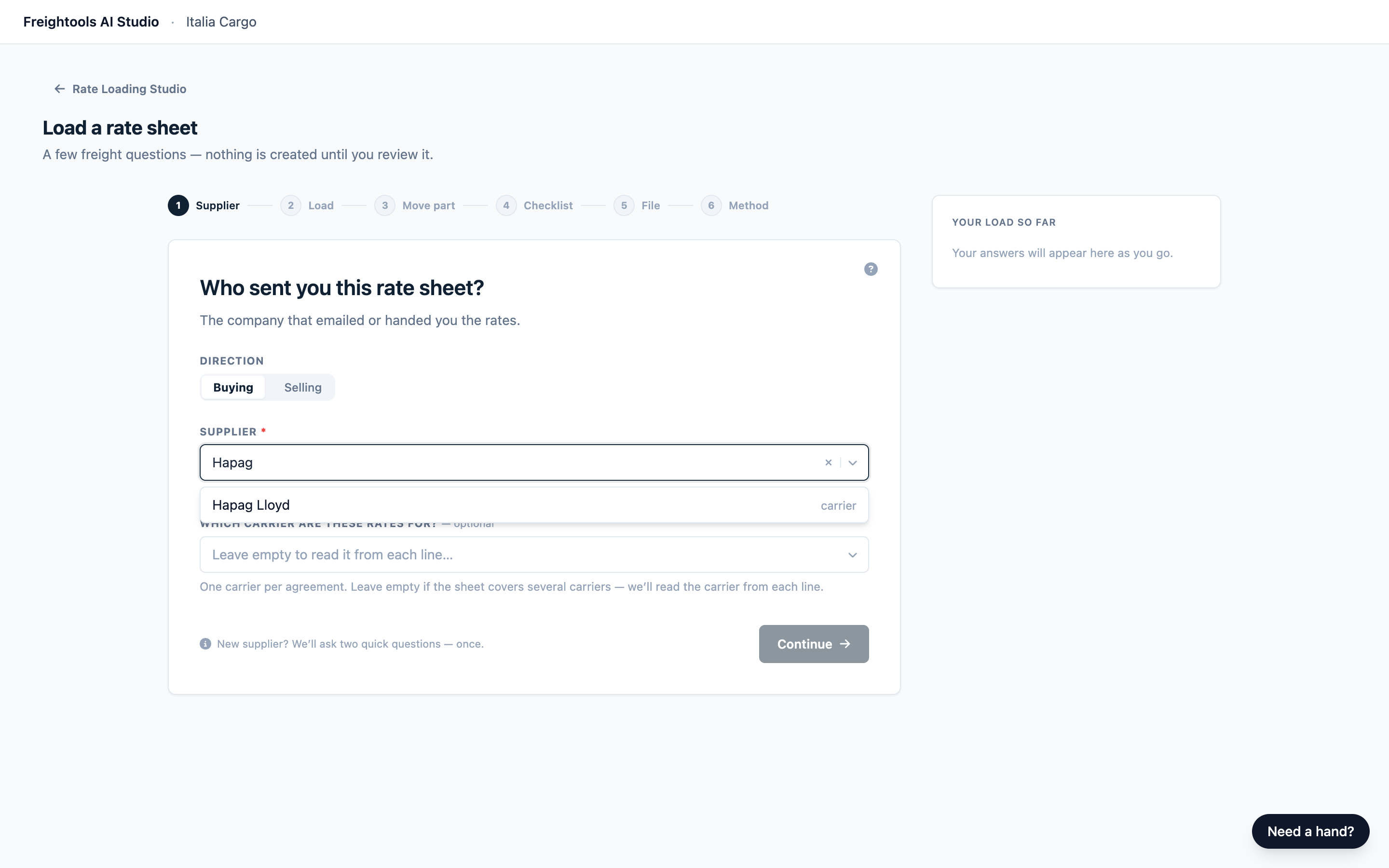
Note: Step 1 shows the line "New supplier? We’ll ask two quick questions — once." Just continue: the next two steps ask what you're loading and which part of the move it prices. There are no extra steps, and you can change both answers with Back or Edit.
If your supplier isn't listed
If your supplier is missing, try a shorter part of the name, then check the line under the field:
| You see | What to do |
|---|---|
| A line saying your suppliers are still being imported | Wait a few minutes, then click Check again. If it never clears, ask your Freightools administrator. |
| "Searching your N suppliers. Missing someone? Re-import all" | Your list is ready. Inactive suppliers aren't listed. Click Missing someone? Re-import all. If it's still missing, ask your Freightools administrator to activate it in Freightools. |
Note: Re-import all changes nothing in Freightools.
Choose the carrier (optional)
Pick a carrier when every rate is for one shipping line or airline. Leave it empty when the sheet covers several carriers.
- Click Which carrier are these rates for? ("Leave empty to read it from each line…").
- Type part of the carrier's name or its short code, then click the carrier.
- To remove it, click ×.
If you don't pick one here, the review marks each lane's carrier, and you can set it there — see Reference: review markers, statuses and issue types.
Only ocean and air carriers are listed, so on a Road FTL or Road LTL load leave the carrier empty and continue: the rates still load against your supplier. If you change the supplier, check the carrier field before you continue.
Note: In Your load so far, the Supplier row shows the supplier and the carrier side by side, so the same name twice is normal when your supplier is the shipping line.
Step 2: choose the service
The step asks "What are we loading?"
- Click the service card: FCL, LCL, Air, Road FTL or Road LTL. It gets a ✓ but doesn't move you on.
- Check the date line under the cards. These dates are used only for lanes your sheet doesn't date; click Edit fallback to change them.
- Click Continue. Step 3 opens.
Set the dates to use when the sheet has none
The line reads like "Dates come from the rate sheet. If they’re missing we’ll use 15/09/2026 → 15/10/2026." (day/month/year).
- The dates in your rate sheet are used whenever it states them. The fallback dates, by default today to one month ahead, are used when the sheet states no dates.
- The review screen flags what it couldn't date, and you can set those dates there. See Correct lanes and prices before you create.
To change them:
- Click Edit fallback.
- Set Fallback Validity Date (the first day).
- Set Fallback Expiration Date (the last day). These fields use your browser's date format, so check which part is the day.
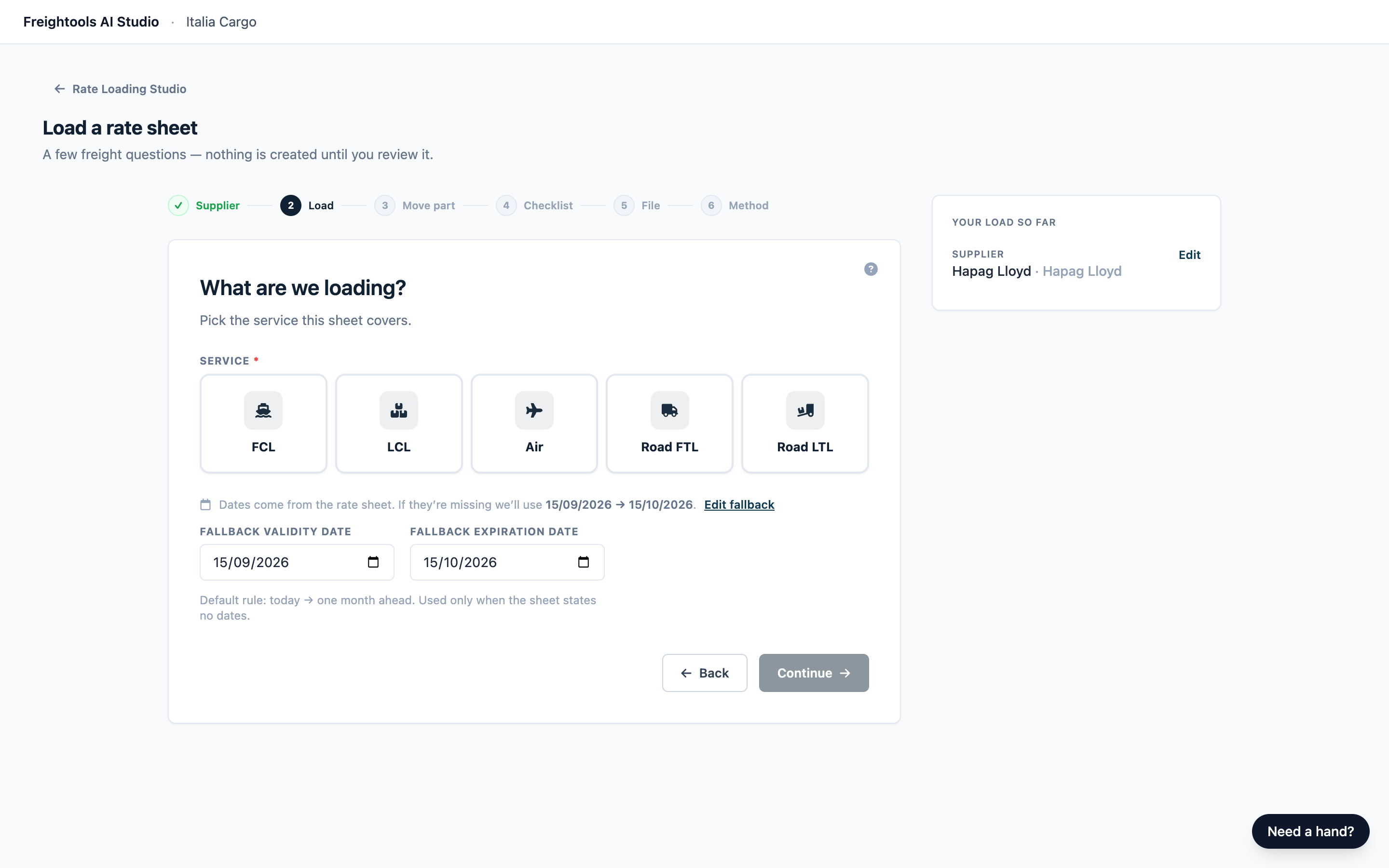
Important: Keep both dates filled in, with the expiration after the validity date. Check the Validity Date and Expiration Date columns on the review screen before you create, and correct them there if they're wrong. An empty date stops the load from starting, with "Something went wrong on our side — nothing was created."
Step 3: pick the part of the move
The step asks "Which part of the move?" A rate sheet usually prices one leg of a door-to-door move.
- Wait a few seconds for the route. It shows the route set up in Freightools for the service, usually from ORIGIN to DESTINATION, with a card on each part it covers. Some stops have no card — there is nothing to choose there. If a service field appears instead, see below.
- Click the card for the leg your sheet prices, such as the ocean freight card for a port-to-port sheet. The setup moves to step 4 by itself.
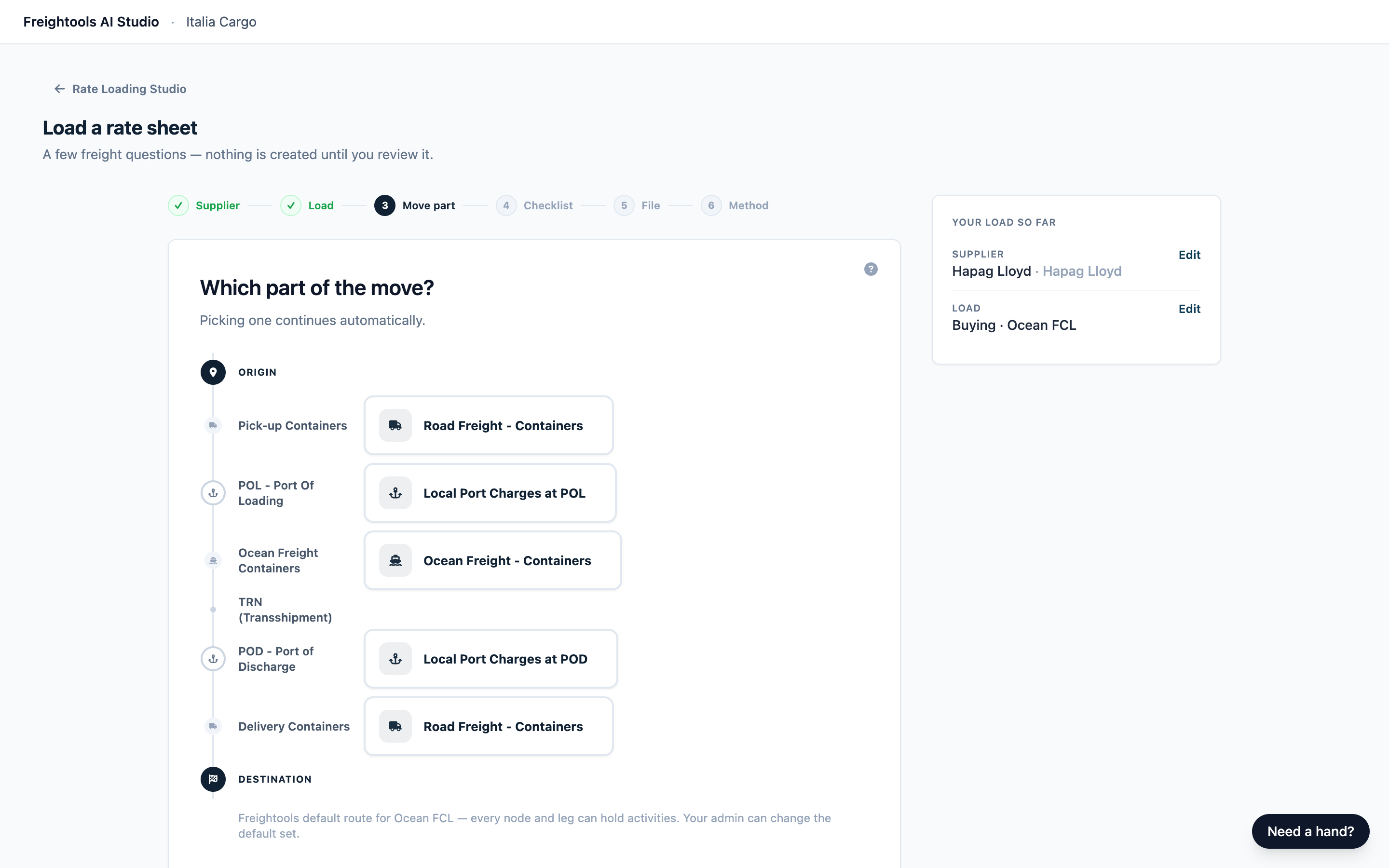
Pick the leg the main freight charge belongs to. A port-to-port sheet that also prices local charges at both ports is still one ocean freight load: click the ocean freight card, then add the local charges on the next step, where you can add any charge your sheet prices wherever it sits on the move. See Choose the charges to load (the checklist). Your choice decides what the agreement covers, so check it before you go on.
If the route doesn't appear, step 3 shows a Which service is this rate sheet for? field instead ("Start typing — e.g. Ocean Freight") — type part of the service name and click it. The list shows names only, so if two entries look the same, ask your Freightools administrator which one your sheet belongs to. To try the route again, click Back, then Continue. If the field keeps appearing, ask your Freightools administrator to set up the default route.
Go back and change an answer
Click Back, a green ✓ in the step indicator, or Edit in Your load so far. The step indicator only goes back; to go forward, click Continue, or Edit next to a later answer.
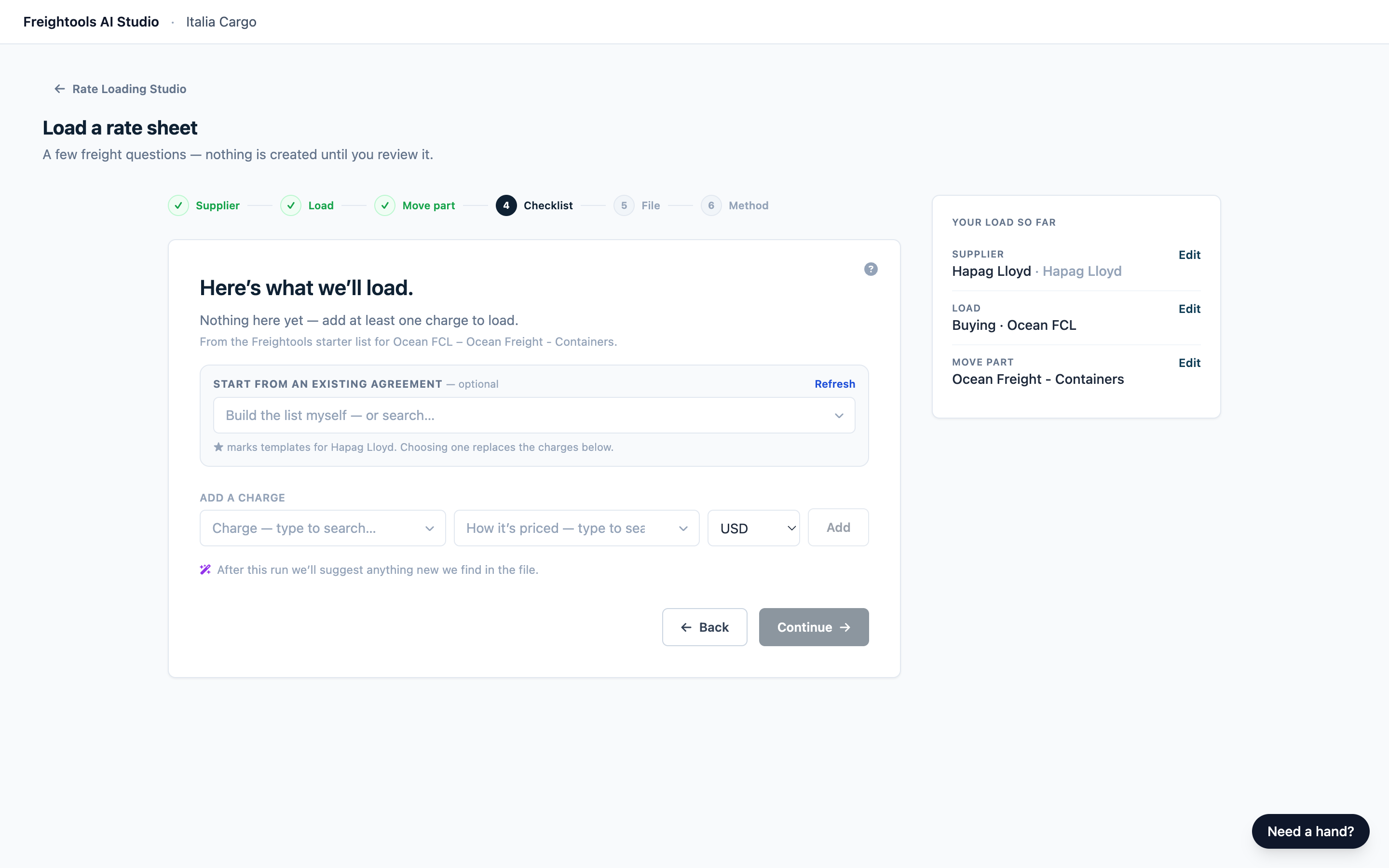
Going back clears nothing. Changing an answer means answering the steps that follow it again:
- Change the supplier: choose the service, the part of the move and the charges again.
- Change the service: choose the part of the move and the charges again.
- Change the part of the move: choose the charges again.
Your load so far shows what is still filled in. In a narrow window, click Continue through the steps to check them.
Leave and come back
- Click Rate Loading Studio above the page title, or reload the page. Nothing is created.
- In the same browser tab, click Load a rate sheet. Your answers come back, including Buying / Selling.
- Attach your file again on step 5. Files aren't kept.
Closing the tab, or opening a new one, starts a fresh setup.
Troubleshooting
| Problem | What to do |
|---|---|
| The carrier field filled in with your supplier's name | That's correct when your supplier is the shipping line itself, for example Hapag Lloyd. Keep it. If the supplier is a forwarder or agent, pick the right carrier, or clear it with ×. |
| A service card is grayed out ("Not available for your account") | Your company has no active Freightools service of that kind. Ask your Freightools administrator. |
| On step 3: "No services found for your account — ask your admin to check the Freightools setup." | Reload once. If it stays, ask your Freightools administrator to set up the default route and activities. |
| "Something went wrong on our side — nothing was created." after editing dates | Your answers are kept. Go back to step 2, click Edit fallback and fill in both dates, with the expiration after the validity date. Then click Continue through to step 6 and start the load again. |
| "Almost there" ("This workspace isn’t connected to your Freightools account yet…") | The studio couldn't load your supplier list. Reload the page. If it stays, ask your Freightools contact. |