
This article covers problems in Freightools AI Studio, in the order of a load, then common questions and how to get help. Messages are quoted word for word, so search the page (Ctrl+F, or Cmd+F on a Mac) for a few words of yours. The screens spell the name "Freightools".
Note: Retrying a step, correcting the review or starting a new load never creates a buying agreement on its own. See Is anything written to Freightools before I press Create?.
Note: Two controls leave things out of a load: the checkbox at the start of a lane row leaves out the whole lane, and the ⃠ (ban) button at the end of a price line leaves out only that charge or size. Tick a checkbox again to bring it back.
Everything here assumes Buying is selected, at the top right of the home screen. To tell your test link from your production link, see the question below.
Your studio link doesn't open
| What you see | Why it happens | What to do |
|---|---|---|
| A plain "404" page | The link was copied incompletely, replaced or switched off, or your company's access is paused. | Copy the whole link again, from beginning to end. Otherwise wait a minute and reload, then ask your Freightools contact for a new link. |
For more, see Open your studio link and find your way around.
Your supplier or carrier isn't listed
| What you see | Why it happens | What to do |
|---|---|---|
| A card "Almost there": "This workspace isn’t connected to your Freightools account yet. …" | Your company's Freightools connection isn't finished. | Reload once. If it stays, ask your Freightools contact to finish the connection. |
| "Importing your suppliers …" or "No match yet — your suppliers are still importing." | Your supplier list is still coming from Freightools. | Wait, then click Check again. |
| Your supplier isn't found, even one just added in Freightools | Selling is selected, the spelling differs, the import isn't finished, or the company isn't an active supplier. | First check that Buying is selected at the top right, not Selling: the list changes with it. Then type part of the name, or click Re-import all and search again. If it's still missing, make the company an active supplier in Freightools. |
| The carrier isn't in Which carrier are these rates for?, or "The carrier list is unavailable — …" | That carrier isn't in the Freightools carrier list. | Leave the field empty and set the carrier on each lane in the review. |
For more, see Set up a load: supplier, service and route.
Services, the route or the checklist don't load
| What you see | Why it happens | What to do |
|---|---|---|
| A service card is grayed out: "Not available for your account" | Your company has no active Freightools service of that kind. | Ask your Freightools administrator to activate it. |
| "We couldn’t reach Freightools to load your services." or "No services found for your account — …" | Freightools didn't answer, or has no service of that kind set up. | Click Retry or reload once. If it stays, contact your Freightools administrator. |
| On the step where you say what is being moved (Move part: port to port, door to port, and so on), a Which service is this rate sheet for? search box | The studio couldn't fill this in for you. | Search for the activity the sheet prices, for example Ocean Freight. |
| "Loading the charge list…" doesn't go away, or "We couldn’t load your existing agreement templates just now." | The starter checklist or your templates couldn't be loaded. | Click Retry, or build the checklist with Add a charge. |
| "No agreement templates found for this service yet. Just made one in Freightools?" | Not an error: there's no existing agreement to start from. | Build the checklist with Add a charge. If you just made one, click Check again. |
| Continue is grayed out, or "Nothing here yet — add at least one charge to load." | A required answer is missing. | Answer the field marked *. On the Checklist step, add at least one charge. |
For more, see Choose the charges to load (the checklist).
Your file is refused or the load won't start
| What you see | Why it happens | What to do |
|---|---|---|
| "That file is over 30 MB — export a lighter copy and try again." | The rate sheet is over 30 MB. | Save a copy without images or unused tabs, or split the file. |
| "Attach the email as a .eml file — …" or "That email is over 10 MB — …" | The covering email isn't .eml, or it's too large. | Save the message as .eml, without its attachments. |
| Your file is no longer attached | The page was reloaded. Files are never kept, only your answers. | Attach the file again on the File step. |
| Map Columns is grayed out with "Map Columns needs an Excel file — …" | The file isn't an Excel file, or you pasted text. | Use the AI Studio method, or attach an .xlsx file. |
| "Loading is almost ready — this workspace can’t process files just yet." | The studio couldn't start a load from this link. | Wait a minute and press the button again. If it comes back, tell your Freightools contact. |
| "Something went wrong on our side — nothing was created. Try again in a minute." | The load couldn't start. No buying agreement was created. | Wait a minute and press the button again without reloading. If you changed the fallback dates under Edit fallback on the Load step, check that both are filled in, with the end after the start. |
For more, see Add your rate sheet and choose how to load it.
Your load stops or needs your attention
| What you see | Why it happens | What to do |
|---|---|---|
| "Getting in line…", or one step stays active a long time | The studio is still working. A large rate sheet takes longer. | Keep the page open. It updates by itself. If nothing has changed after a long wait, reload the page once. If it still hasn't moved, tell your Freightools contact. |
| "This load needs your attention" with "We could not read that file. …" or "We did not find rates in this file — was it the right sheet?" | The studio couldn't find rates in the file. It may be damaged, empty or protected, be the wrong sheet, or — with Use your own AI or Flat file — fill in yourself — be an empty template. | Check the file opens, isn't protected, and is the one with the rates on it. Save it again as .xlsx, or fill in the template's prices. Press Try another load. |
| "That file could not be loaded" | The template you filled in was changed, or a different file was uploaded. | Use the template exactly as you downloaded it and fill in rows only. If in doubt, download it again and paste your rows into it. Then press Try again (or Load new file on the saved configuration). |
| A red card: "Something went wrong on our side" | The load failed for a reason that isn't your file. Nothing was created. | Press Try again. If it fails again, tell your Freightools contact. |
| After Fix with AI, the review is still unchanged after a long wait | The studio hasn't finished. | Reload in a few minutes. If it's still unchanged, send your note again. |
| The review has fewer lanes than your file | Some rows in your file couldn't be read as rates. | Compare the review against your file. Add what's missing by typing it in the review, with Fix with AI (AI Studio method only), or with Create an agreement manually (no file). The lanes that did come through can still be created. |
Important: Try again and Try another load open a new, empty load. If the supplier has a saved configuration, use Load new file on it instead, so your answers are filled in.
For more, see Follow your load while it runs.
The Create button is grayed out
| The button or screen shows | Why it happens | What to do |
|---|---|---|
| Keep one row of CNSHA → ITGOA to create (your own lane is named) | The same lane appears more than once. | See Duplicate lanes and agreements. |
| Create 0 valid agreements now | Every included lane still needs fixing. | Press Show the N to fix and fix at least one lane. |
| A lane shows Blocked, but nothing looks red | Something on the lane still needs fixing, in a column you can't see. | Press Show the N to fix to filter to those lanes, then scroll the lane's price lines sideways: a missing main freight price, a marker such as "NO PRICE FOUND", or a missing date is often just off the screen. See Reference: review markers, statuses and issue types. |
| "N lanes have no validity dates" | Those lanes have no start date in your file. | Click Set the dates for all lanes (or Set dates), or type a date in the lane. |
| "N lanes have dates we couldn’t read" | The cells hold text that isn't a date. | Retype each date as YYYY-MM-DD. |
Lanes that need fixing never stop the rest: Create N valid agreements now — the number changes as you fix lanes — creates only the ready lanes. See Correct lanes and prices before you create.
Create failed or Freightools didn't confirm
The results screen lists each lane that couldn't be created, with its reason. Press Fix the remaining in the canvas to go back to the review — or Back to the review to fix them when nothing was created — fix those lanes and create again. Lanes already created are not created again.
Important: The results screen isn't saved. Note the failed lanes and their reasons before you reload or leave.
| The reason says | What to do |
|---|---|
| "The connection to Freightools dropped mid-create — this lane MAY have been created. …" or "Freightools did not confirm the last attempt for this lane — …" | Check Freightools first: look for the supplier's agreement for that lane. If it's there, exclude the lane. If it isn't, create it with Create an agreement manually (no file). |
| "Freightools rejected this agreement — …" | Its reason follows the dash. Correct the lane, or the setup in Freightools, and create again. |
| "charge “…” is not in your charge list", or a basis, currency or price isn't recognized | Correct the value in the review, or leave out that price line. |
| "This lane was already created with different values — the existing agreement was NOT changed. …" | You edited the lane after its agreement was created. Agreements can't be updated from the studio: change it in Freightools, or exclude the lane. |
Tip: Type prices as digits with a dot decimal, for example 1500.00.
For every reason, see Create your agreements in Freightools.
Duplicate lanes and agreements
| What you see | Why it happens | What to do |
|---|---|---|
| A red Duplicated lanes — a choice is needed to create badge | The same lane appears more than once, and you're asked to keep one row. | Compare the rows against your file and keep the one this load should create ticked, unticking the others with their lane checkboxes. If your file really needs both, add the other afterwards with Create an agreement manually (no file). If you can't tell which is right, ask your Freightools contact before you create. If the notice says "your file sells this lane on N carriers we could not verify", untick nothing: set the carrier on each row. |
| "One duplicate row was identical to the row above it and has been excluded for you …" | A repeated row was set aside for you. | Nothing. One copy is kept. |
| After Create: "This lane is an identical duplicate of another selected row — it was not created twice. …" | A second copy of the lane was included. | Press Fix the remaining in the canvas, untick the extra copy and create again. |
| Your file prices the same lane more than once, and the review shows it once | The review has one row for that lane. | Check that lane against your file before you create, and correct the price if it isn't the one you expect. If your file really needs both prices, add the second one with Create an agreement manually (no file). |
| You loaded the same sheet again as a new load | You're loading rates an earlier load already created. | In Here’s what will be created, choose Ignore existing agreements to skip lanes already created, or Make existing agreements obsolete to replace them. Don't use Import all: it creates every lane again, so the supplier ends up with a second agreement for lanes an earlier load already created. |
A location or carrier is wrong or not found
A UN/LOCODE is the five-character UN location code Freightools uses for ports, for example CNSHA for Shanghai.
| What you see | Why it happens | What to do |
|---|---|---|
| A chip with your file's text and "(UN/LOCODE not found) — Address not found", for example "SHANGAI (UN/LOCODE not found) — Address not found" | The location couldn't be matched to a Freightools port. | Click the chip. In Match this location, pick the right port, choose how widely to apply it and click Save match. |
| "NO ORIGIN FOUND" or "NO DESTINATION FOUND" | No origin or destination was found for that lane. | Click the marker and pick the port in Match this location, as above — or exclude the lane if your file has none. |
| A port looks wrong, with an amber (i) | The studio wasn't sure about this port. | Click Address From or Address To and pick the right port. |
| An empty Carrier cell | No carrier was matched. Your file may have a rate term there rather than a carrier name. | Click the cell and pick the carrier. |
| After Create, a note that an agreement was created without a via port or carrier | That port or carrier wasn't found in Freightools. | Add it on the agreement in Freightools. Agreements can't be changed from the studio, so don't edit the lane here. |
For door deliveries and more, see Correct lanes and prices before you create.
Charges are missing or have no price
| What you see | Why it happens | What to do |
|---|---|---|
| "NO PRICE FOUND" on a charge | No price for that charge on that lane. The lane is still created, without that charge. | If your file has the price, type it, or use Fix with AI (AI Studio method only). |
| The main freight price shows a marker, or you cleared it, and the lane is Blocked | A lane needs its main freight price before it can be created. | Type the price, leave out that price line with the ⃠ button, or exclude the whole lane. See Reference: review markers, statuses and issue types. |
| A charge from your file isn't on the review | It isn't on your checklist. | In "Found in your file — not in your template yet", tick it, pick Map to charge, and pick the basis your supplier prices that charge on — per container, per shipment, or by weight or volume, as your file states it. Then click Update template & re-run the file. If the panel doesn't list the charge, use Load new file and add it to the checklist. |
Tip: Fix with AI and Update template & re-run the file replace the current review, and cell edits you've made aren't carried over. Use them first, then correct cells by hand. See Use Fix with AI and add charges found in your file.
For problems on a method's own screens, see the Troubleshooting section of Load a rate sheet with Map Columns, Load a rate sheet with your own AI tool, Load a rate sheet by filling in the flat file template or Create an agreement manually (no file).
Corrections or saved configurations are missing
| What you see | Why it happens | What to do |
|---|---|---|
| "Restored your saved changes from this review. Nothing has been created yet — check them over before pressing Create." | You reopened a review you had already corrected. | Check your earlier edits, and which lanes are ticked, before you press Create. |
| "We have saved changes from an earlier review of this supplier, but they were made against a different version of the file — …", or corrections gone after Fix with AI or Update template & re-run the file | Your earlier corrections don't apply to this review. | Make the ones you need again. |
| No Saved configurations on the home screen | Configurations appear after your first successful load. | Finish a first load, with Buying selected. |
| The same supplier appears twice | A second configuration was made instead of reusing the first. | Keep the one whose service, route and charge list match the rate sheets you load for this supplier: open each with Load new file to check, then archive the other. |
For more, see Saved configurations and loading a new file for a supplier.
Frequently asked questions
Is anything written to Freightools before I press Create?
No buying agreements are created until you press Create and confirm Here’s what will be created. An empty agreement template can appear in Freightools while the studio works on your file; it holds no prices, so you can leave it.
Two things do write to Freightools before Create:
- Update template & re-run the file adds the charges you ticked to that template straight away. See Use Fix with AI and add charges found in your file.
- On Manual create, Create agreement writes that single agreement straight away.
Warning: Creating can't be undone from the studio, and neither can Make existing agreements obsolete, which stops the agreements it replaces from applying.
What's the difference between my test link and my production link?
A test link shows an amber FT test badge in the header and creates agreements in your Freightools test environment. A production link has no FT test badge and creates real agreements. Go by the FT test badge, not by any other badge in the header.
Can I close the tab?
| Where you are | What happens |
|---|---|
| Answering the load questions | Your answers are lost, and the file is never kept. |
| While the load runs | It keeps running. To come back, reopen the load's page address from your browser history, or on the home screen ask Need a hand? "Where are my loads up to?". |
| On the review | Corrections are saved as you work. Reopen the same address. |
| While agreements are being created | Keep it open. If it closes, reopen the load and press Create again. Nothing is created twice. |
| On the results screen | The results are gone. |
Can I undo a created agreement?
Not from the studio. Change or remove it in Freightools. To find them, look at the supplier's buying agreements in Freightools and read the Reference. Editing the lane and pressing Create again doesn't update the agreement.
Can I delete a saved configuration?
There's no delete, but you can archive one:
- On the home screen, click View all configurations (N).
- On its row, click ⋮ (More actions) to the right of Load new file, then Archive.
- In the browser's message "Archive “…” — …? It no longer appears in Saved configurations.", click OK.
Archiving can't be undone from the studio. Created agreements aren't affected.
Which file types can I load?
| Method | What you give the studio |
|---|---|
| The AI Studio method | One rate sheet up to 30 MB: .xlsx, .xls, .xlsm, .csv, .tsv, .pdf, .docx, .eml or .txt, or pasted text |
| Map Columns | An .xlsx file up to 30 MB, rates on one sheet |
| Use your own AI and Flat file — fill in yourself | The completed .xlsx template, up to 30 MB |
| Manual create | No file |
The home screen's drop zone names only the most common types; the others work too. You can also attach the covering email, up to 10 MB, to supply validity dates your rate sheet doesn't state. Save Outlook .msg messages as .eml first: the email box accepts only .eml.
Get help
On the review, the ? button opens a short guide to the screen.
Ask the Need a hand? assistant
- Click Need a hand? at the bottom right, or press Ctrl+. (Cmd+. on a Mac).
- Click a suggested question, or type in Ask a question… and click Send. The suggestions change with the page. On the review, one is "What do the flags on this screen mean?".
- The answer appears after "Thinking…".
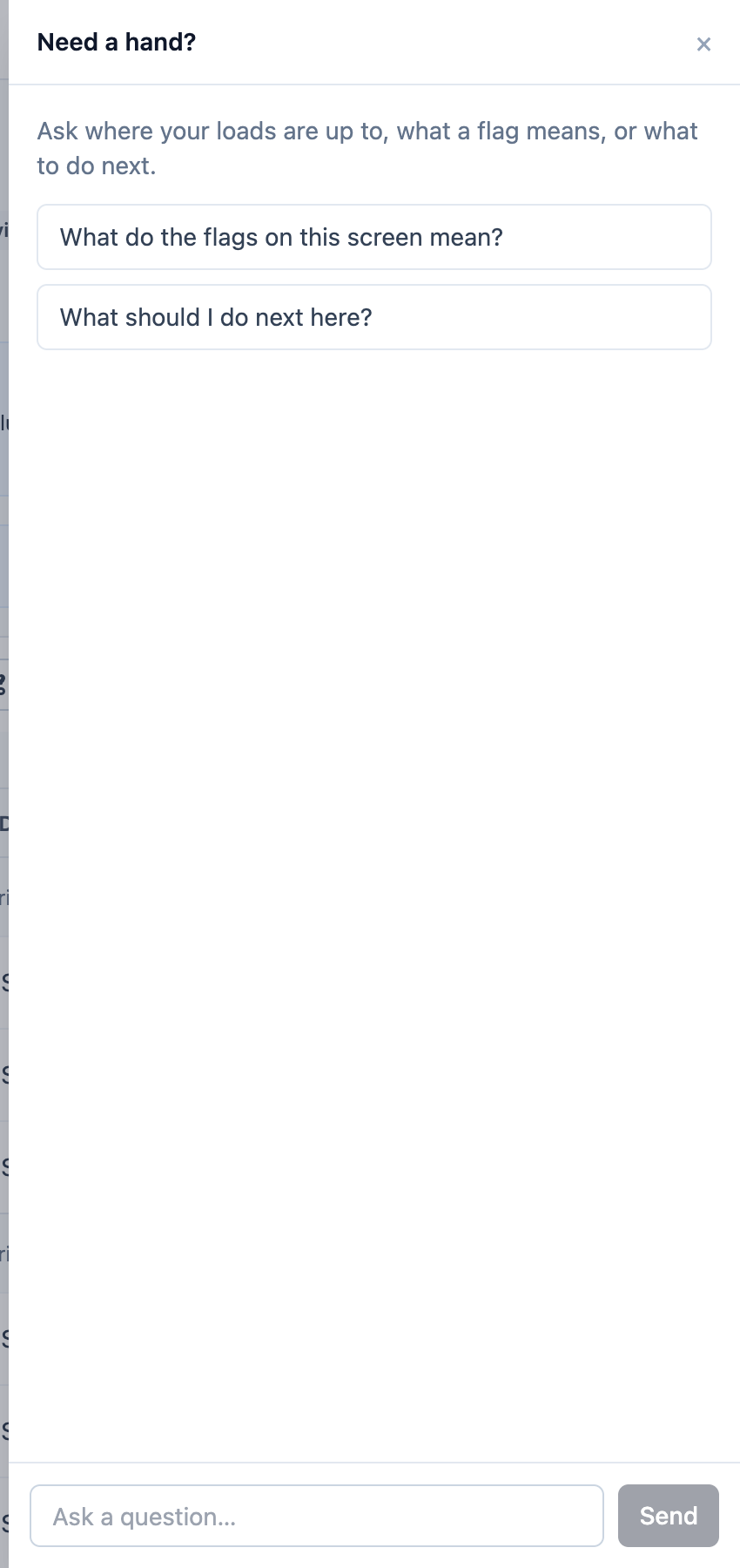
The assistant can't change anything or open your rate sheet, and its answers are written by AI, so check anything important on screen. If it says "The assistant is unavailable right now.", try again in a moment.
Ask your Freightools contact for help
When a problem persists, or a message tells you to, send your Freightools contact:
- Which link you used: test (FT test) or production.
- The supplier, service, method and file name.
- The exact message, copied or as a screenshot without the address bar.
- For a create problem, the failed lanes and their reasons.
- The date, time and time zone, and what you did just before.
Important: Treat your studio link like a password. Don't send it, or a page address that contains it, to anyone.