
This article covers the last step of a load in Freightools AI Studio: creating buying agreements from your reviewed lanes and reading the results.
No buying agreements are created in Freightools until you press Create. Even then, you first see a summary, and nothing is written until you confirm it.
Note: A new agreement template may appear for this supplier in Freightools. It isn't a buying agreement and you don't need to do anything with it.
Before you start
Finish reviewing and correcting your lanes. See Review your results and Correct lanes and prices before you create.
Warning: If your header shows no FT test badge, you're on a production link: Create writes real buying agreements to Freightools, and the studio cannot delete them afterward.
Check that Create is ready
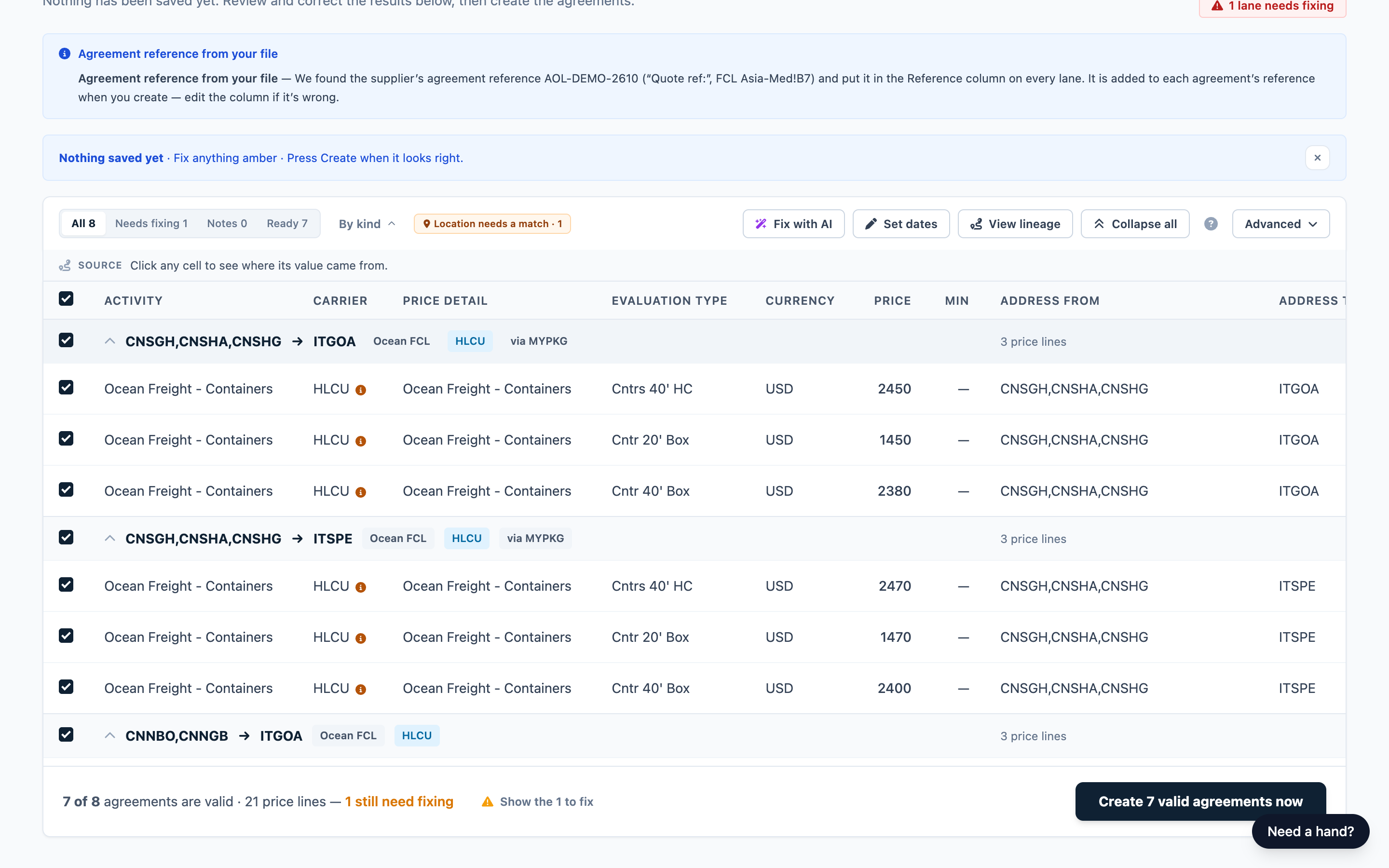
The Create bar at the bottom of the Review · Correct · Create screen counts what is ready, for example "12 of 15 agreements are valid — 3 still need fixing". Press Show the 3 to fix to filter the grid to those lanes.
Each included lane becomes one agreement. A lane is included when its tick, at the left of its row in the review grid, is on. Lanes that still need fixing are left out and don't stop the rest. A filter doesn't change what is created.
| The button reads | What to do |
|---|---|
| **Create N agreements** | Every included lane is ready. Press it. |
| **Create N valid agreements now** | Only the ready lanes are created; the others stay in the review. Press it, or fix the rest first. |
| Create 0 valid agreements now (grayed out) | Every included lane still needs fixing. Fix at least one. |
| Create 0 agreements (grayed out) | You excluded every lane. Tick at least one lane back on. |
| **Keep one row of the lane to create** (grayed out) | The same lane appears more than once. See the next section. |
When the same lane appears more than once
When one lane appears on more than one row, the studio doesn't choose for you. A red Duplicated lanes — a choice is needed to create badge and a red notice appear, and the Create button is grayed out.
The notice names each lane and what it needs. Usually that is one of two things:
- Keep the row you want to load and exclude the others. This is also what to do when your file prices the same lane twice, for example under two rate labels.
- When the rows differ by carrier, set the carrier on each row instead of excluding any.
See Correct lanes and prices before you create for how.
Create the agreements
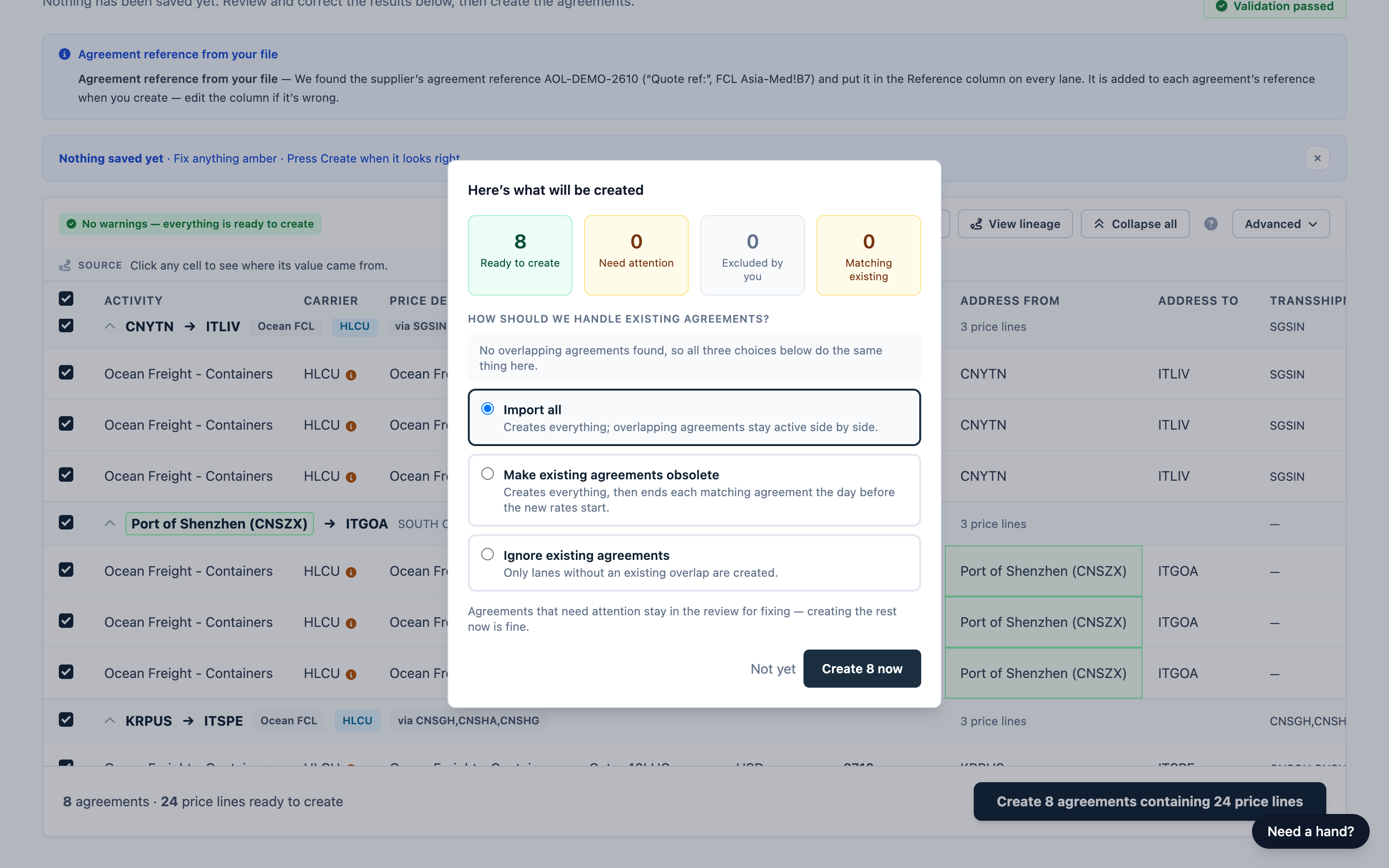
- Press the Create button. The summary Here’s what will be created opens. Nothing has been written yet.
- Check the four tiles: Ready to create, Need attention (stays in the review), Excluded by you and Matching existing — lanes that already have an agreement from an earlier load. What happens to those depends on your choice in the next step. If a tile is still showing "—", or the summary says it couldn't check your existing agreements, see "Troubleshooting" below.
- Under How should we handle existing agreements?, choose an option. See the table below.
- If the summary says "Also creates a new geo area in Freightools: …", check the ZIP codes it names against the door area your supplier quoted. A geo area is a door delivery area defined by its ZIP codes. If any are wrong or missing, press Not yet and correct or exclude that door lane in the review first — once the geo area exists in Freightools it stays, and the studio can't remove it.
- Press Create N now. Keep the page open until it finishes, or you lose the results list.
- When the create finishes, the results screen opens.
To back out, press Not yet before step 5. Once a create has started, you can't cancel it.
Choose how to handle existing agreements
The Matching existing tile counts lanes you already have an agreement for from an earlier load in the studio, so you know how many before you confirm.
| Choice | What happens | When to use it |
|---|---|---|
| Import all (default) | Everything is created, and the agreements you already have stay active alongside the new ones. | A first load, or old and new rates should both stay active. |
| Make existing agreements obsolete | Everything is created, and each matching agreement is ended so the new rates take over. | The new rate sheet replaces the old one. |
| Ignore existing agreements | Only lanes you don't already have an agreement for are created. | You're adding missing lanes. |
When nothing matches, the summary says "No overlapping agreements found, so all three choices below do the same thing here." If your supplier also has agreements created outside the studio, the summary says so. Agreements created outside the studio are never changed.
Warning: Make existing agreements obsolete changes the expiration date of live agreements in Freightools, and the studio cannot undo this.
Read the results
| Heading | What it means |
|---|---|
| 12 agreements created | At least one agreement was created. "2 could not be created — the details are below." means some lanes failed. |
| Nothing was created | Every lane was refused, or already covered (with Ignore existing agreements). If it says "refused or unconfirmed", press Create again — nothing is created twice. |
| Stopped before anything was created | A problem stopped the create, and nothing was written. Fix what the reason below it names, then press Create again. |
| We couldn’t confirm this run | The connection dropped. Some lanes may exist in Freightools; pressing Create again is safe. |
Below the heading, only the panels that apply are shown:
| Panel | What it tells you |
|---|---|
| **Stopped after N of N lanes** (amber) | The reason it stopped, with a Continue creating button. |
| 2 agreements were created with changes (blue) | The agreements were created and are usable, but one value from your file was not saved with them. The panel names it — add it on the agreement in Freightools, as correcting the lane here won't put it back. |
| 3 existing agreements were ended (amber) | Each agreement that was ended, and its new expiration date. |
| 4 lanes left alone (gray) | Lanes already covered, so skipped. |
| Should we remember these corrections for next time? (blue) | Tick any corrections you want reused for this supplier, then press Remember these or Not now. See Saved configurations and loading a new file for a supplier. |
| New geo area created in Freightools (blue) | The door delivery areas the studio created from the ZIP codes in your file. They stay in Freightools. |
| **Configuration saved — supplier — *service*** (green) | Your setup, saved for this supplier's next file. |
| 1 agreement could not be created: (amber) | Each failed lane and its exact reason. See "Troubleshooting" below. |
Back to Rate Loading Studio takes you home.
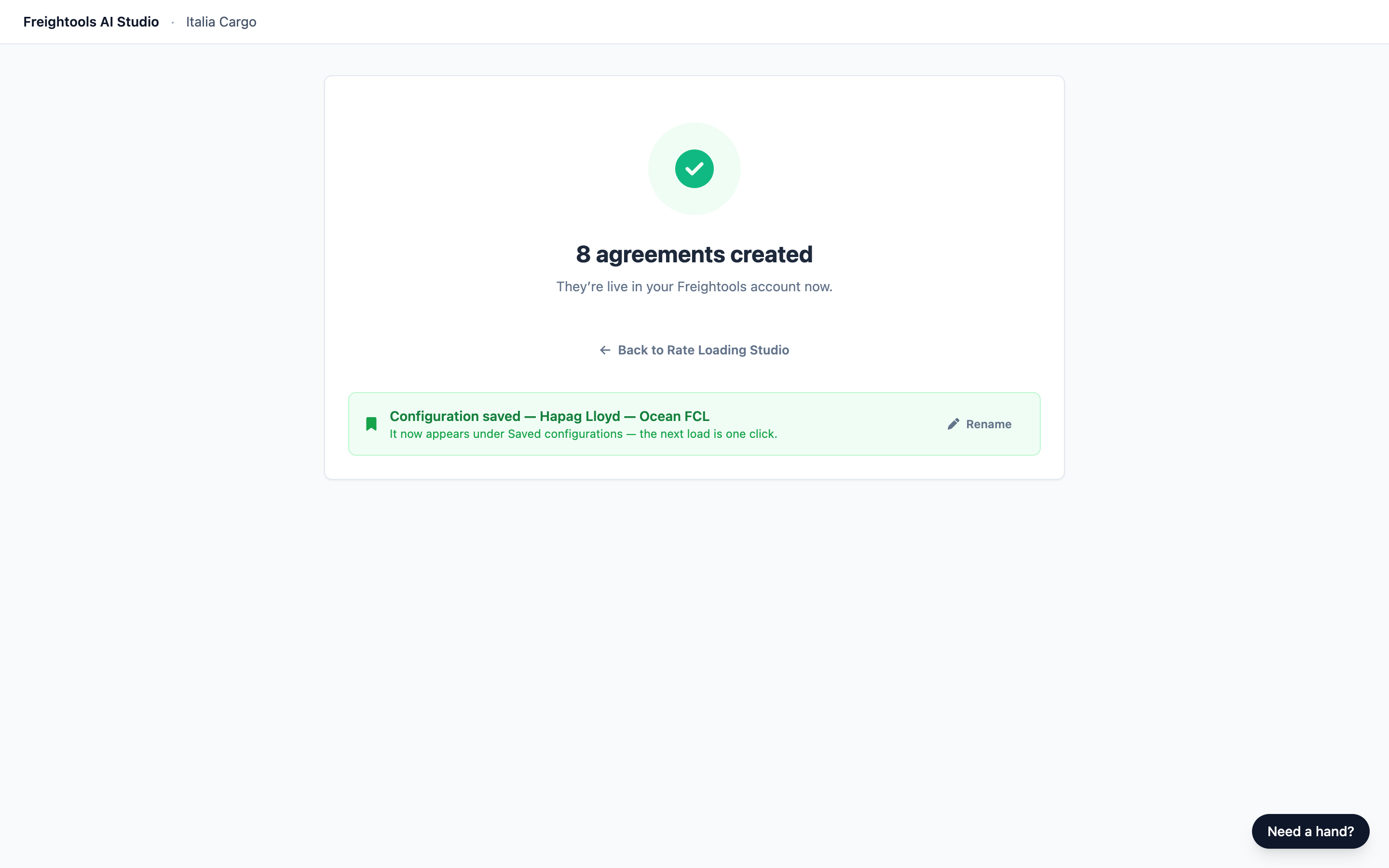
Important: The results screen can't be reopened. Before you leave it, copy or take a screenshot of the lanes that failed and of anything listed under "created with changes".
Fix lanes that could not be created
- Copy the failed lanes and their reasons, or take a screenshot. The review does not mark which lanes failed.
- Press Fix the remaining in the canvas to go back to the review. (If nothing was created, the button reads Back to the review to fix them.) Your corrections are kept.
- Correct or exclude each lane. See "Troubleshooting" below.
- Press the Create button again and confirm the summary.
Create again safely
Pressing Create again, or Continue creating, is safe — nothing is created twice. A lane that has already been created can't be changed from the review: make the change on its agreement in Freightools.
Continue creating carries on with the lanes that are left. If the stop reason asks you to fix lanes or choose Import all, reload the page to return to the review (your corrections are restored), then press Create and choose again.
What each agreement contains in Freightools
The studio writes the lane's route, carrier, dates and priced charges into the agreement. It also fills the agreement's Reference, and adds whatever you typed in the lane's Reference cell.
To find your agreements later, look at the supplier's buying agreements in Freightools and read the Reference. The studio has no page that lists them.
Good to know
- Use the Reference column for anything you want to tell apart later in Freightools, for example a rate label such as FAK or spot. Whatever you type there ends up on the agreement.
- Loading the same file again as a new load? Choose Ignore existing agreements to skip lanes this studio already created, or Make existing agreements obsolete to replace them. Don't use Import all. Fix anything the review flags first.
Troubleshooting
| Symptom | What to do |
|---|---|
| A lane failed for a missing validity start date, a date that couldn't be read, a transit time that isn't a number of days, or a price that isn't in a supported format | Fix the cell in the review: dates as YYYY-MM-DD, transit as a number of days, prices like 1500.00. |
| A lane failed because a charge, basis or currency wasn't recognized | Use a charge from your Freightools charge list and a currency code as Freightools spells it, for example USD, or exclude that price line. If the charge your supplier quotes isn't in your list, ask whoever manages charges in Freightools to add it. |
| A lane failed because its origin or destination is not a known location in Freightools, or is missing | Pick a location in the review, or exclude the lane. |
| A lane failed because there is no price on it | Your file has no price for this lane. Type one, or exclude the lane. |
| "Freightools rejected this agreement — …" | If the reason after the dash names something you can change in the review — a date, a price, a location — fix it and press Create again. If it doesn't, note the lane and the exact wording and ask whoever administers your Freightools account. |
| A lane failed as a duplicate, or because it was already created | Exclude the extra row. If you changed a lane that was already created, make the change on its agreement in Freightools instead, or exclude the lane. |
| A lane failed because Freightools couldn't be reached, or the attempt wasn't confirmed | Press Create again — nothing is created twice. If the lane still fails, look in Freightools for that lane's agreement: if it's there, exclude the lane; if not, use Create an agreement manually (no file). |
| The summary says "We couldn’t check your existing agreements just now — …" | The three choices are hidden and everything in your file is created. Reload the page to get the choices back before you create. |
| With Make existing agreements obsolete or Ignore existing agreements, the create stops with a message saying it could not check your existing agreements | If the create stopped partway, some lanes may already have been created. Reload the page to return to the review. Then fix the lanes, or press Create and choose Import all. Lanes already created are not created twice. |
| An ended agreement shows "Left untouched — …" or "Its expiry date could not be changed — …" | It keeps its original dates. If its replacement lane failed, fix it and press Create again; otherwise set its expiration date in Freightools yourself. |
For more messages, see Troubleshooting and frequently asked questions.