
Share Quote is where a rate option you found in Instant Quote turns into a quotation with a customer's name on it. This article covers opening that screen from a result and reading everything on it; editing the route, the cargo and the prices comes after.
Before you start
- You need results on screen in Instant Quote. See How to search Instant Quote manually.
- Pick the option first. Share Quote opens on the option you clicked, so compare them before you open it — see How to compare quotation options before sharing.
- Know which customer you are quoting. The CUSTOMER field reads "Search Customer…" and has a chevron on the right.
- Your Freightools administrator is who to ask about customers, carriers and the prices behind the option. Your Freightools contact helps when the screen itself misbehaves.
Open Share Quote from a result
- In the Instant Quote results, find the option you want to quote.
- Click Share on that option. Share Quote opens over the results.
- Read the whole screen top to bottom before you change anything. The service, carrier, route and equipment came from the option you clicked.
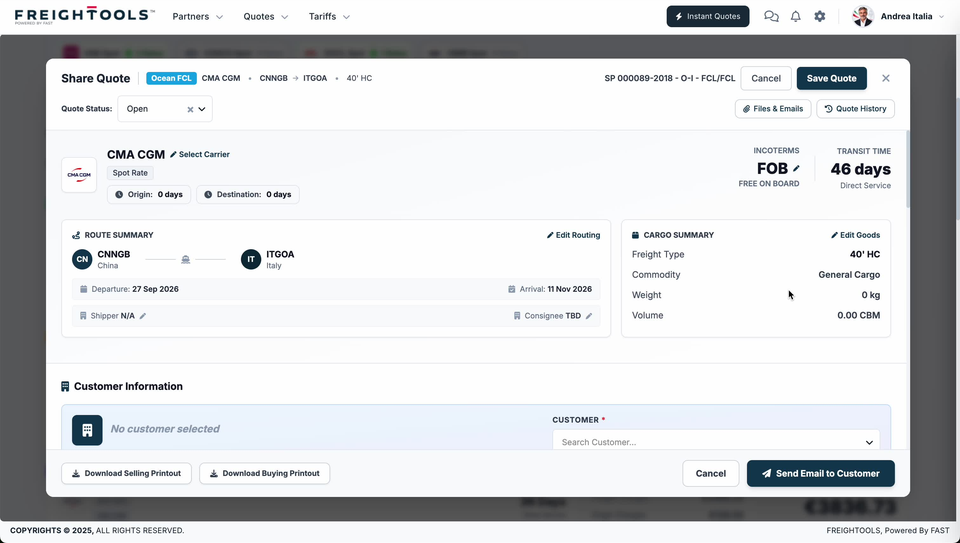
Read the header
The top two rows say what you are quoting and give you the quotation's own reference.
| Part of the header | What it tells you |
|---|---|
| Ocean FCL (blue chip) | The service the option was priced for. |
| The carrier chip | The carrier on the option. |
| The route chip | Origin first, then destination, as UN/LOCODEs (five-character UN location codes). |
| The equipment chip | The equipment the price is for. |
| The SP number | The quotation's reference. Quote it when you talk to a colleague about this quotation rather than describing the route. |
| Quote Status | The status this quotation is in. |
| Files & Emails, Quote History | Both open from the right of the status row. |
Read the carrier card
Under the header, the carrier card carries the commercial terms that go on the quotation.
- The carrier's logo and name sit on the left, with Select Carrier beside the name to change it.
- A gray Spot Rate label sits under the name. See Where Instant Quote prices come from.
- Origin and Destination free-day chips sit on the same card.
- INCOTERMS reads the Incoterm for the quotation — FOB, with "FREE ON BOARD" spelled out under it — and has a pencil to change it. Check it before you send: it decides which legs your customer expects to be paying you for.
- TRANSIT TIME gives the days for this option, with the service under it. For the sailings behind that number, see How to view departures and sailings for a quotation option.
Read the route summary
ROUTE SUMMARY is the left-hand card.
- The two location circles are the ends of the route: origin on the left, destination on the right, each with its country under the code.
- Departure and Arrival are the dates on the option. They are what your customer will plan around, so check them against what the customer asked for.
- Shipper and Consignee sit on the bottom row, each with a pencil to set it.
- Edit Routing, at the top right of the card, is where the route itself changes. See How to edit the routing of a quotation.
Read the cargo summary
CARGO SUMMARY is the right-hand card: Freight Type, Commodity, Weight and Volume.
Weight and Volume sit on this card. Edit Goods, at the top right of it, opens the cargo details, where you enter them — see How to edit cargo details on a quotation, or How to fill cargo details with AI Fill when the figures are sitting in the customer's email.
Add the customer
Customer Information is the section under the two summary cards. With no customer picked it shows "No customer selected".
- Click the CUSTOMER field, which reads "Search Customer…".
- Search for the customer and pick them.
Important: CUSTOMER is marked with a red *. See How to select a customer and check the quotation margin.
What each button does
| Button | What it does |
|---|---|
| Save Quote (header, top right) | Saves the quotation. |
| Download Selling Printout | Downloads the selling copy of the quotation. |
| Download Buying Printout | Downloads the buying copy. |
| Cancel (bottom bar), Cancel and × (header) | Leave the screen. |
| Send Email to Customer | The email step. See How to send a quotation to your customer by email. |
Before you send, price the quotation — see How to edit quotation pricing before sending — and, if you want the customer to choose between several options, see How to build a multi-option customer quotation.
If something goes wrong
| You see | What to do |
|---|---|
| "No customer selected", and CUSTOMER is empty | Search for the customer in CUSTOMER. See How to select a customer and check the quotation margin. |
| Weight 0 kg and Volume 0.00 CBM, and you expected figures there | Open Edit Goods and enter them — see How to edit cargo details on a quotation. |
| Shipper "N/A" or Consignee "TBD" | Use the pencil beside each one to set it. |
| The carrier on the card is not the one you meant to quote | Click Select Carrier next to the carrier name. |
| The route or the dates are not what the customer asked for | Click Edit Routing on the route summary card. See How to edit the routing of a quotation. |
| The header names the wrong service, route or equipment | You shared the wrong option. Close Share Quote and click Share on the right one in the results. |
Related articles
- How to compare quotation options before sharing
- How to edit the routing of a quotation
- How to edit quotation pricing before sending
- How to send a quotation to your customer by email
- What the customer receives when you share a quotation