
AI Fill reads cargo out of text you already have — a packing list, a booking email, a spreadsheet — and returns cargo lines for a quotation's Cargo Details screen. Use it instead of typing each row when the customer has already written the shipment down somewhere. The quotation itself carries the change when you press Apply Changes to Quote at the foot of Cargo Details.
Before you start
- Open the quotation and open Cargo Details from it. The header reads "Cargo Details" followed by the quote reference in brackets, as in "Cargo Details (Quote: SP 000089-2018 - O-I - FCL/FCL)".
- Have the text to hand and be able to copy it. AI Fill reads text you paste into a box.
Open AI Fill
- In the Cargo Details header, click AI Fill. It sits at the right-hand end of the header, to the left of the kg / cm and lb / in toggle and the close ×.
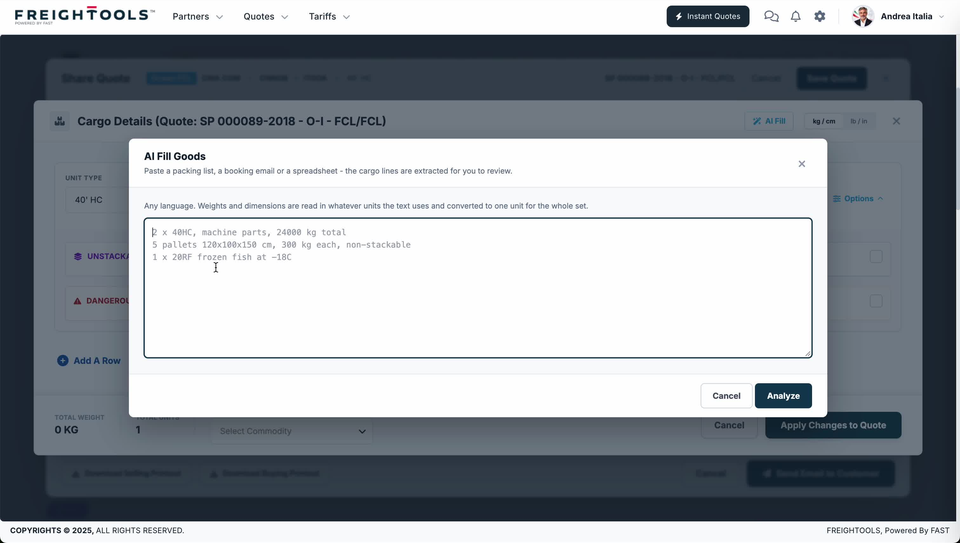
- The AI Fill Goods box opens over Cargo Details. Under its title it says "Paste a packing list, a booking email or a spreadsheet - the cargo lines are extracted for you to review.", and above the paste area, "Any language. Weights and dimensions are read in whatever units the text uses and converted to one unit for the whole set."
Note: You don't have to translate the customer's text first, and you don't have to convert their units: any language is accepted, and mixed units are converted for you.
Write the text you paste
Paste the customer's own words. One cargo line per line of text is what the box's own example shows:
2 x 40HC, machine parts, 24000 kg total
5 pallets 120x100x150 cm, 300 kg each, non-stackable
1 x 20RF frozen fish at -18C
Read across that example and you can see what is worth keeping in your own text: the count and container type ("2 x 40HC"), the commodity ("machine parts"), whether a weight is a total or per unit ("24000 kg total" against "300 kg each"), dimensions as they were written ("120x100x150 cm"), and a handling or temperature condition ("non-stackable", "at -18C").
Analyze and check what comes back
- Click Analyze. The cargo lines are extracted for you to review.
- Check every line that comes back against the text you pasted, row by row. The UNIT TYPE column shows values such as "40' HC".
- Check the totals at the foot of Cargo Details — TOTAL WEIGHT and TOTAL UNITS — against what the customer told you. They are the quickest way to catch a line that was read as one unit instead of five, or a per-unit weight read as a total.
- Fill in by hand anything that came back empty. Select Commodity sits at the foot of the screen, beside the totals; set it if it still reads "Select Commodity". Correcting rows by hand is covered in How to edit cargo details on a quotation.
- Click Apply Changes to Quote to carry the cargo onto the quotation.
Important: The lines are read out of text a customer wrote, not out of a Freightools rate or a booking. Check them before you apply them — a wrong weight or a wrong container count is carried onto the quotation.
If something goes wrong
| You see | What to do |
|---|---|
| No AI Fill button | Look in the Cargo Details header, at the right-hand end, to the left of the kg / cm and lb / in toggle. |
| The lines don't match the text you pasted | Correct the rows by hand in Cargo Details — see How to edit cargo details on a quotation. |
| You don't want to keep what you typed into the box | Click Cancel, or the × in the top right of AI Fill Goods. |
| A row needs adding by hand | + Add A Row sits under the rows on Cargo Details. |