
When an Instant Quotes search finishes, the rates found for your route are listed underneath it as option cards. This article is about reading those cards and narrowing them down, so the option you put in front of your customer is the one you meant to send.
Before you start
- Run a search first. See How to search Instant Quote manually.
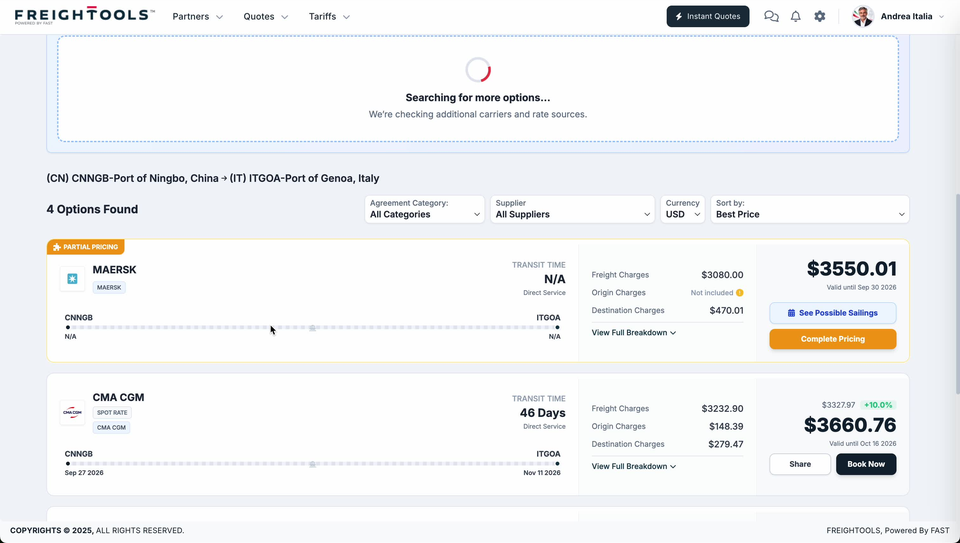
- Let the search finish. While it is still running, a dashed panel above the list says "Searching for more options…" with "We're checking additional carriers and rate sources." underneath, and the count above the list keeps climbing until that panel goes. Compare too early and you are comparing part of the list.
- If options you expected never appear, the gap is usually in the rates behind the search, not on this screen. See Why Instant Quote returns no rates and Why a buying agreement is not available in Instant Quote. Agreements and rate sources are set up by your Freightools administrator. If the results screen itself misbehaves, tell your Freightools contact.
Narrow the list before you compare
- Check the route line above the list. It names both ends with their UN/LOCODEs. Every option below it is priced for that lane.
- Read the count on the left. That is the number of options you are about to work down, and it is final only once the searching panel has gone.
- Use the four controls to the right of the count — Agreement Category, Supplier, Currency and Sort by. What each one does is in the table below.
| Control | What it does |
|---|---|
| Agreement Category | Filters the list by agreement category. All Categories leaves every option in it. |
| Supplier | Filters the list by supplier. All Suppliers leaves every option in it. |
| Currency | The currency selector above the list. Every price on the cards below it is printed in the currency it shows. |
| Sort by | Orders the list. Under Best Price the options run lowest printed total first. |
Important: An option badged PARTIAL PRICING can sit at the top of the Best Price list with a charge left out of its total — see "Check what the total actually includes" below. Do not read a position in the list as "cheapest shipment" without checking what each total covers.
Read an option card
Every option is laid out the same way, left to right, so you can read straight down the list.
| Part of the card | What it tells you |
|---|---|
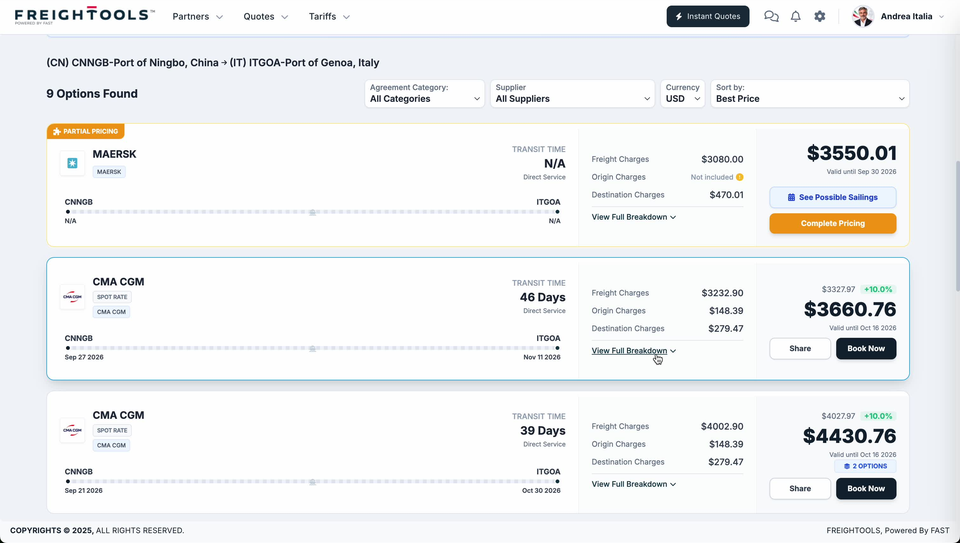
| Carrier name and logo | The carrier the rate is for. |
| Chips under the name | One chip repeats the carrier name. A SPOT RATE chip sits beside it on a spot rate. |
| TRANSIT TIME | The transit time printed for this option, or N/A when the option came back without one. Direct Service sits underneath it. |
| The route bar | The origin and destination codes, with a date under each. Both dates read N/A on an option with no transit time. |
| Freight Charges, Origin Charges, Destination Charges | The three parts of the price. A part that is not in the rate reads "Not included" with an amber ! beside it instead of an amount. |
| View Full Breakdown | A link under the three charge lines. |
| The total, and Valid until | The price you are comparing, and the date the rate expires. Two options with the same total are not equal if one expires in two weeks. |
| The buttons | What you can do with this option. They differ between a fully priced option and a partial one — see "Choose the option to share" below. |
Check what the total actually includes
Before you compare two totals, check that they cover the same thing.
An option carrying an orange PARTIAL PRICING badge has at least one charge line reading "Not included", and its total is the charge lines that are included, added up — the missing part is missing from the total too, not estimated into it. So a partial option can sit above a fully priced one on Best Price and still be the dearer shipment once the missing charge is added.
Such an option may also come with no transit time and no dates, and its buttons read See Possible Sailings and Complete Pricing rather than Share and Book Now.
Warning: Do not put a PARTIAL PRICING total in front of a customer as a full price. Complete it first, or tell them plainly what it excludes. See Understanding partial pricing in Instant Quote and How to complete a quotation when part of the route has no price.
Compare the options against each other
- Scroll the list. The charge lines sit in the same place on every card, so you can read one line down the column instead of card by card.
- Compare the totals with the transit times beside them. The difference between two totals is what the days saved are costing.
- Find where a difference comes from. Read the three charge lines of the two options against each other rather than the totals alone: knowing which line moved is what lets you answer the customer when they ask why the faster option costs more.
- Read the smaller grey figure and the green percentage above the total, on the options that have one. The total printed below them is that figure with the percentage added on top. See How to select a customer and check the quotation margin.
Where the prices themselves come from is covered in Where Instant Quote prices come from.
Choose the option to share
| Button | What it does |
|---|---|
| Share | On a fully priced option, this is the one that takes the option forward into a customer quotation. See How to create and share a quotation from Instant Quote. |
| Book Now | Sits beside Share on a fully priced option. |
| See Possible Sailings | On a PARTIAL PRICING option, in place of Share. See How to view departures and sailings for a quotation option. |
| Complete Pricing | The orange button on a PARTIAL PRICING option, in place of Book Now. |
If more than one option is worth sending, you do not have to choose for the customer. See How to build a multi-option customer quotation for how a quotation carrying several options reads before you send it.
If something goes wrong
| You see | What to do |
|---|---|
| "Searching for more options…" is still on screen | Wait. The count above the list is not final while that panel is up, and the options you are comparing are only part of the list. |
| Fewer options than you expected, or none | The search itself ran. The gap is usually in the rates behind it rather than on this screen. See Why Instant Quote returns no rates. |
| A supplier you buy from is missing from Supplier | Their agreement may not be usable on this search. See Why a buying agreement is not available in Instant Quote. |
| An orange PARTIAL PRICING badge on the option you want | Check the charge lines for "Not included" before you quote the total: the total is the included charges added up, with nothing for the missing one. See Understanding partial pricing in Instant Quote. |
| TRANSIT TIME reads "N/A" and the route bar dates read "N/A" | That option gives you no transit time or dates to compare. Where the card offers See Possible Sailings, use it to look for departures instead — see How to view departures and sailings for a quotation option. |
| The rate you want expires sooner than your customer will answer | Read the Valid until date under each total before you share, and say so in the quotation. |