
Cargo Details is the window behind Edit Goods on a quotation in Share Quote. This article covers telling the quotation what you are shipping — the rows, the conditions on a row and the commodity — which comes after the route is settled and before you price the quotation. For the route itself, see How to edit the routing of a quotation.
What you type here reaches the quotation when you press Apply Changes to Quote.
Before you start
- You need a quotation open in Share Quote. See How to create and share a quotation from Instant Quote.
- Have the weights and the number of units in front of you. Weight 0 kg in the quotation's CARGO SUMMARY means no cargo figures are on it yet.
- AI Fill, at the top right of the window, is the other way to fill these rows in — see How to fill cargo details with AI Fill.
- Your Freightools contact helps when the window itself misbehaves.
Open Cargo Details
- On the quotation, find the CARGO SUMMARY card.
- Click Edit Goods at the top right of that card. Cargo Details opens over the quotation.
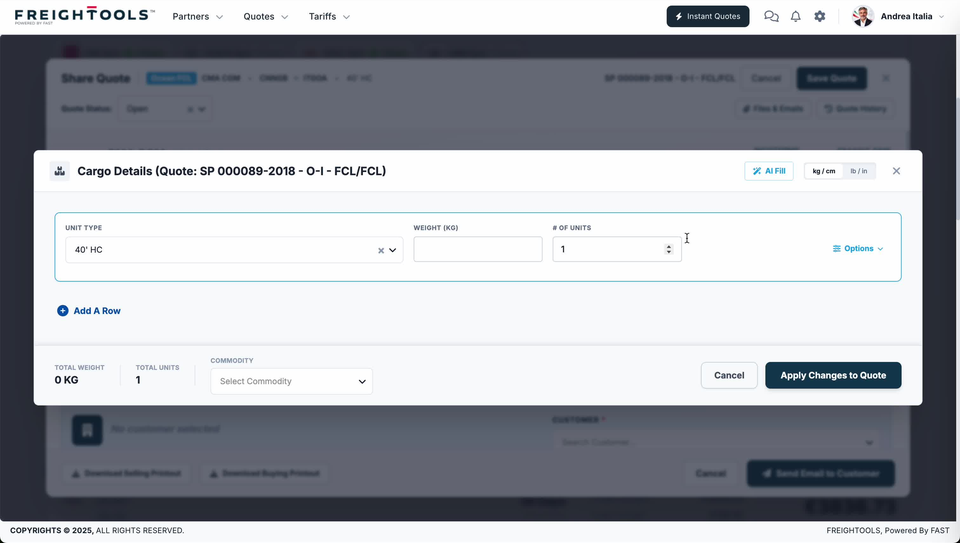
- Read the window's title before you type anything. It carries the quotation's own reference, so you can see at a glance that you are editing the right quotation.
Choose the units you work in
The kg / cm and lb / in pill at the top right sets the units for the window. The field labels follow it: with kg / cm selected the weight field reads WEIGHT (KG) and the oversized condition reads OVERSIZED DIMENSIONS (CM).
Fill in a cargo row
- UNIT TYPE names what the row is counting, and can arrive already filled from the quotation. An × and a chevron sit at the right-hand end of the field.
- WEIGHT (KG) takes the weight for the row.
- # OF UNITS is how many of that unit type the row covers. Type over what is there, or use the arrows at the end of the field.
- Click Add A Row for another line, and fill it in the same way.
TOTAL WEIGHT and TOTAL UNITS in the bottom bar are your check on the rows. Read them before you apply: if they don't match what the customer told you, a row is wrong or one is missing.
Record conditions under Options
Options sits at the right-hand end of a cargo row. Click it and the row opens out into five conditions, each with its own checkbox: UNSTACKABLE, TEMPERATURE, INSURANCE, DANGEROUS GOODS and OVERSIZED DIMENSIONS (CM). Tick only what is true of this cargo.
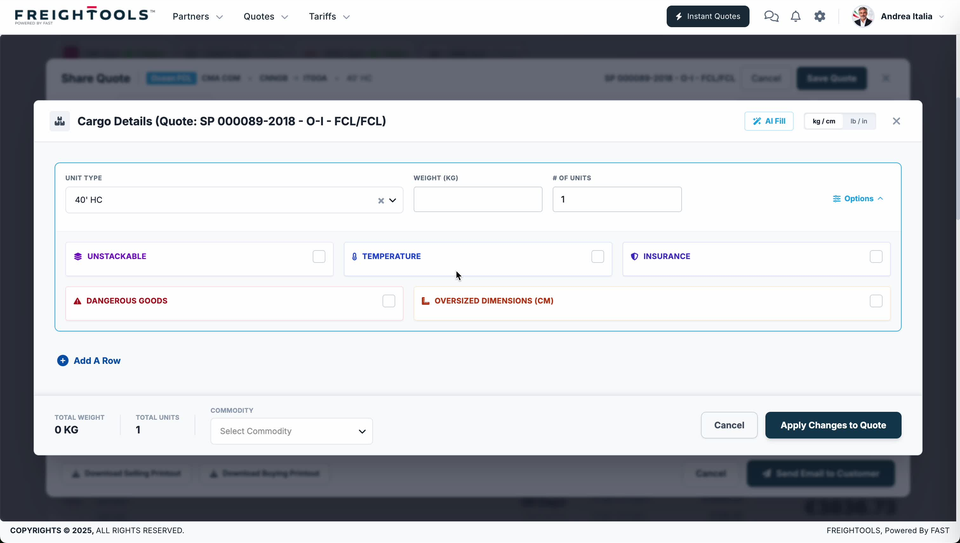
The panel opens inside the same bordered card as the row it belongs to, and the row's fields stay visible above it.
Choose the commodity
COMMODITY is in the bottom bar beside the totals rather than on a row. Pick it from the Select Commodity dropdown.
Apply the cargo to the quotation
Click Apply Changes to Quote in the bottom bar. That is the control that puts the rows on the quotation. Cancel, beside it, and the × at the top right of the window are the other two ways out.
With the cargo on the quotation, put the customer on it and then price it: see How to select a customer and check the quotation margin, then How to edit quotation pricing before sending.
If something goes wrong
| You see | What to do |
|---|---|
| TOTAL WEIGHT still reads 0 KG after you filled the rows in | Check WEIGHT (KG) on every row; one left empty keeps the total down. |
| The labels read WEIGHT (KG) and OVERSIZED DIMENSIONS (CM), but your figures are in pounds and inches | Select lb / in on the pill at the top right. |
| UNIT TYPE is not the equipment you are quoting | Change it on the row before you apply — the field carries an × and a chevron at its right-hand end. |
| The cargo figures are in the customer's email and retyping them is slow | Use AI Fill at the top right — see How to fill cargo details with AI Fill. |
| It is the route, not the cargo, that is wrong | Close this window and use Edit Routing on the ROUTE SUMMARY card — see How to edit the routing of a quotation. |