
A quotation carries a route as well as a price. The Route Builder shows that route twice — as a list of stops down the left and as a map on the right — and it is where you fill in the addresses the quotation doesn't have yet. You open it from the quotation.
Before you start
- Have the quotation open. See How to create and share a quotation from Instant Quote.
- Have the addresses to hand. An empty stop reads "Click to add address".
- Cargo is a separate job. Edit Goods and the Cargo Details window are covered in How to edit cargo details on a quotation — nothing on this page changes weights, units or commodity.
Open the route builder
- Open the quotation.
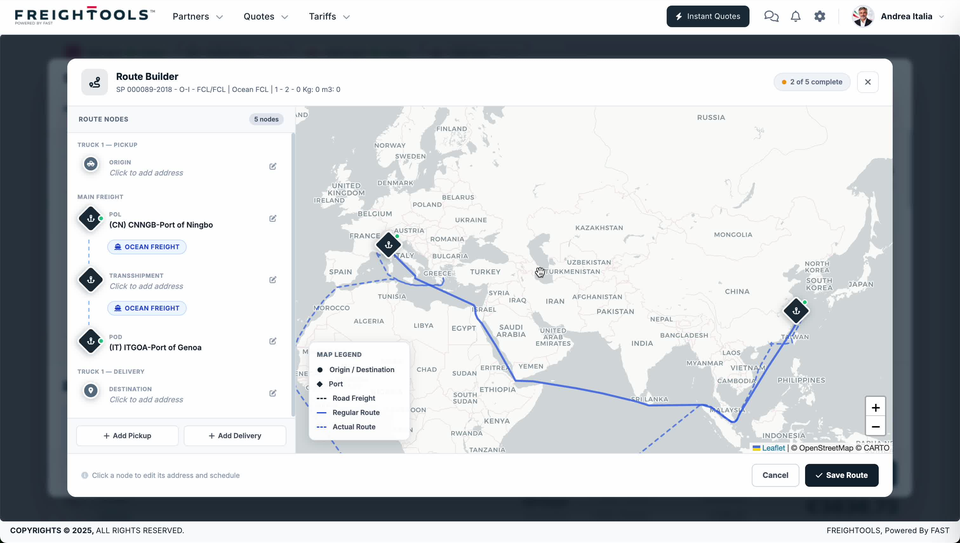
- Click Edit Routing on the route summary card. The Route Builder window opens over the quotation, with ROUTE NODES on the left and the map on the right.
- Check the line under the title before you change anything. It carries the quotation's reference, its service and its cargo summary, so you can tell which quotation the window belongs to.
Read the route nodes
The left panel is the route as a list. Read it before you touch the map — each stop's row says whether it has an address yet.
| Part of the panel | What it tells you |
|---|---|
| ROUTE NODES and the node-count pill | How many stops the route is made of. Each stop is named by type — ORIGIN, POL, TRANSSHIPMENT, POD and DESTINATION. |
| TRUCK 1 — PICKUP | The group heading over ORIGIN — the road leg into the port of loading. |
| MAIN FREIGHT | The group heading over POL, TRANSSHIPMENT and POD — the sea leg. |
| TRUCK 1 — DELIVERY | The group heading over DESTINATION — the road leg out of the port of discharge. |
| A stop with a place name under it | That stop has an address. A small green dot sits on its marker. |
| A stop reading "Click to add address" | That stop is still empty. |
| The OCEAN FREIGHT chip between two stops | The mode of the leg that runs between those two stops. |
| The completion pill in the header | How many of the route's stops already carry an address, out of the total number of stops. |
Note: A quotation can reach this window with the sea leg already filled in and the pickup, transshipment and delivery stops still empty. An empty stop is not an error on the window; it is work still to do.
Fill in a stop
The hint at the foot of the panel reads "Click a node to edit its address and schedule".
- Click the stop you want to change.
- Enter its address and schedule.
- Repeat for every stop that still reads "Click to add address".
Add another pickup or delivery
Two buttons sit under the list: + Add Pickup and + Add Delivery.
Read the map
The map draws the same route as the list, and the Map legend in its lower left names the marker shapes and the line styles.
| Legend entry | What it marks |
|---|---|
| ● Origin / Destination | A round marker — the road ends of the move. |
| ◆ Port | A diamond marker — POL, TRANSSHIPMENT and POD. |
| Road Freight | A black dashed line. |
| Regular Route | A solid blue line. |
| Actual Route | A blue dashed line. |
Tip: Use the + and − controls in the map's lower right to zoom. The map is for checking that the stops you entered landed where you expected.
Save the route or leave the window
- Click ✓ Save Route at the foot of the window to keep the route.
- Click Cancel, or the × in the top right, to leave the window.
Once the route is right, carry on with the quotation — see How to edit quotation pricing before sending.
If something goes wrong
| You see | What to do |
|---|---|
| "Click to add address" on a stop you thought you had filled | That stop has no address. Click it and enter one. A stop that carries an address shows the address in place of that line, with a green dot on its marker. |
| A TRANSSHIPMENT stop you didn't expect on the route | Leave it unless you know the routing is wrong. Sailings for an option are read in the Instant Quote results — see How to view departures and sailings for a quotation option. |
| A leg on the quotation with no price against it | That is a pricing question rather than a routing one. See How to complete a quotation when part of the route has no price. |
Related articles
- How to create and share a quotation from Instant Quote
- How to edit cargo details on a quotation
- How to edit quotation pricing before sending
- How to view departures and sailings for a quotation option
- How to complete a quotation when part of the route has no price