
Edit Pricing is where a quotation stops being a rate you found and becomes a price you are prepared to stand behind: what the shipment costs you on the Buying side, what you charge for it on the Selling side, and the margin between the two. This article covers reading those figures and changing them, and it comes before the quotation goes out to the customer.
The header and the bottom bar carry the same three totals, and Save Pricing in the bottom bar is the last thing you click.
Before you start
- Have a quotation open. Edit Pricing opens from the quotation you are working on — see How to create and share a quotation from Instant Quote.
- Pick the customer first where you can. The margin on this screen is the number you will be asked to defend — see How to select a customer and check the quotation margin.
- Know the figure you are working to before you open the screen. Edit Pricing tells you what your prices add up to; it does not tell you whether they are right.
- Ask your Freightools administrator about the suppliers offered on the Buying tab. Tell your Freightools contact if the screen itself misbehaves.
Read the header before you change anything
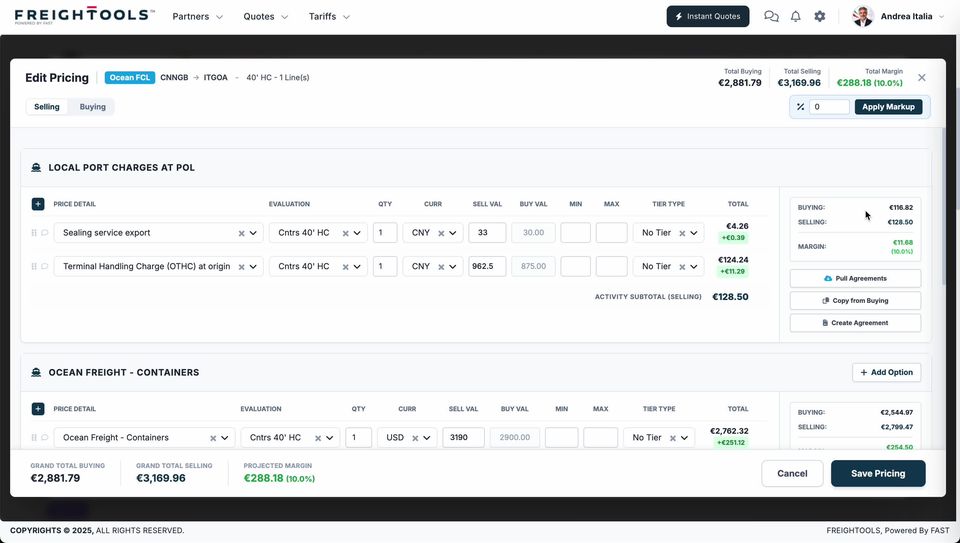
The top bar names the quotation this pricing belongs to and carries the three figures the whole screen is about.
| Part of the header | What it tells you |
|---|---|
| Ocean FCL (blue chip), CNNGB → ITGOA, 40' HC | The service, the route as UN/LOCODEs (five-character UN location codes) and the equipment this pricing is for. If any of them is wrong, you are on the wrong quotation. |
| Total Buying | What the shipment costs you across every activity. |
| Total Selling | What the customer is being charged. |
| Total Margin | The difference, in green, with a percentage beside it. |
The title strip also carries a Line(s) count, after the equipment.
The bottom bar repeats the same three figures as GRAND TOTAL BUYING, GRAND TOTAL SELLING and PROJECTED MARGIN, and it stays in view while you scroll, so you can read the margin without scrolling back to the top.
Important: The percentage beside the margin is the margin measured against the buying total, not against the selling total. €288.18 on €2,881.79 of buying is the 10.0% shown; the same €288.18 measured against €3,169.96 of selling would read 9.1%. Read it as a markup on your cost, not as a share of what your customer pays.
Choose which side you are editing
Selling and Buying are two tabs under the screen title, and the tab you are on decides what you can type and what the figures mean. Both tabs list price lines with SELL VAL and BUY VAL side by side in the same row — the ocean freight line is listed on each.
| On the Selling tab | On the Buying tab |
|---|---|
| SELL VAL is editable, BUY VAL is greyed out | BUY VAL is editable, SELL VAL is greyed out |
| The TOTAL on a line is its selling total — €2,762.32 on the ocean freight line | The TOTAL on the same line is its buying total — €2,511.20 |
| The activity footer reads ACTIVITY SUBTOTAL (SELLING) | The same footer reads ACTIVITY SUBTOTAL (BUYING) |
| The % box and Apply Markup sit at the top right | There is no markup control |
| No supplier field on an activity | Each activity header carries SUPPLIER and Ask Suppliers |
| The middle button in an activity's side panel reads Copy from Buying | The same button reads Copy from Selling |
The green figure beside each line's TOTAL does not change with the tab: the ocean freight line shows +€251.12 on both sides, because that is the line's margin, not its price.
Set your selling prices
Prices are grouped into activities that follow the route — LOCAL PORT CHARGES AT POL at the loading port, OCEAN FREIGHT - CONTAINERS for the sea leg, and LOCAL PORT CHARGES AT POD at the discharge port.
- Click Selling if you are not already on it.
- Find the activity holding the charge you want to change.
- Click the line's SELL VAL box and type the new value. The box takes a plain number with a dot for decimals — 962.5, 15.4, 27.5 — and shows up and down arrows while it has focus.
- Read the line's TOTAL and the green figure under it before you move on. Both follow the value in the box.
- Check the activity's own SELLING and MARGIN figures in the panel on the right, then the totals in the bottom bar.
Read a price line
| Column | What it holds |
|---|---|
| PRICE DETAIL | The charge — Sealing service export, Terminal Handling Charge (OTHC) at origin, Ocean Freight - Containers. Each is a picker, with a × and a chevron at the end of the box. |
| EVALUATION | What the charge is counted per: Cntrs 40' HC on the container charges, All-in on the manifest fee. |
| QTY | How many of those units. |
| CURR | The currency the line is priced in — CNY on the origin port charges, USD on the ocean freight. |
| SELL VAL, BUY VAL | What you charge and what you pay, in the line's CURR. One is editable and the other greyed out, depending on the tab. |
| MIN, MAX | Two further value boxes on the line, between BUY VAL and TIER TYPE. |
| TIER TYPE | A picker with a × and a chevron, reading No Tier where no tier applies. |
| TOTAL | The line converted into the quotation's currency, with the line's margin in green underneath. |
Every line also starts with a six-dot handle (⠿) and a speech-bubble icon.
Note: Values are typed in the line's own currency but the TOTAL column and every subtotal are in euro on this quotation: a SELL VAL of 33 CNY becomes €4.26, and 962.5 CNY becomes €124.24.
Read the margin the screen is giving you
The green figure under a line's TOTAL is that line's margin in the totals currency: €4.26 selling against €3.87 of buying is the +€0.39 shown, and €124.24 against €112.95 is +€11.29. Add the lines up and you get the activity's MARGIN in the panel on the right, then the Total Margin in the header.
That chain is worth following when a number surprises you. If the quotation's margin is thin, the line that is thin is on screen — you do not have to work it out from the totals.
Apply a markup to the selling side
The % box and the Apply Markup button sit at the top right of the Selling tab only.
- Type a percentage into the % box.
- Click Apply Markup, then read the line totals, the activity MARGIN figures and the bottom bar to see what moved.
Warning: Do not assume Apply Markup leaves prices you typed by hand alone. Read every SELL VAL you set yourself before you save.
Check what you are paying
The Buying tab is the same grid read from your side of the deal.
- Click Buying.
- Set SUPPLIER on an activity that needs one. It is a picker reading "Select Supplier" until a supplier is chosen, and carrying a × and a chevron once one is set.
- Type into the BUY VAL boxes, which are the editable ones on this tab.
- Read each activity's BUYING, SELLING and MARGIN in the panel on the right.
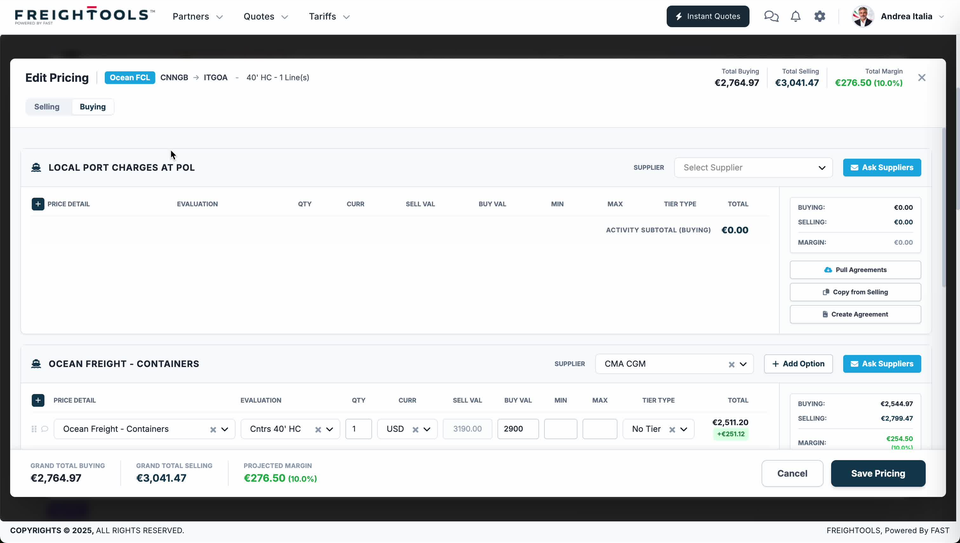
An activity holding no price lines reads ACTIVITY SUBTOTAL (BUYING) €0.00, and its BUYING, SELLING and MARGIN in the panel on the right all read €0.00 as well. Open it and read its lines before you save.
The buttons beside each activity
Ask Suppliers is the blue button in an activity header, and it is on the Buying tab only. The side panel carries three buttons on both tabs: Pull Agreements, then Copy from Buying or Copy from Selling — always naming the side you are not on — and Create Agreement. For an agreement built from scratch rather than from an activity, see How to create a buying agreement manually.
Add, change and remove a price line
An activity can hold several charges, each on its own line with its own margin, and together they make the ACTIVITY SUBTOTAL.
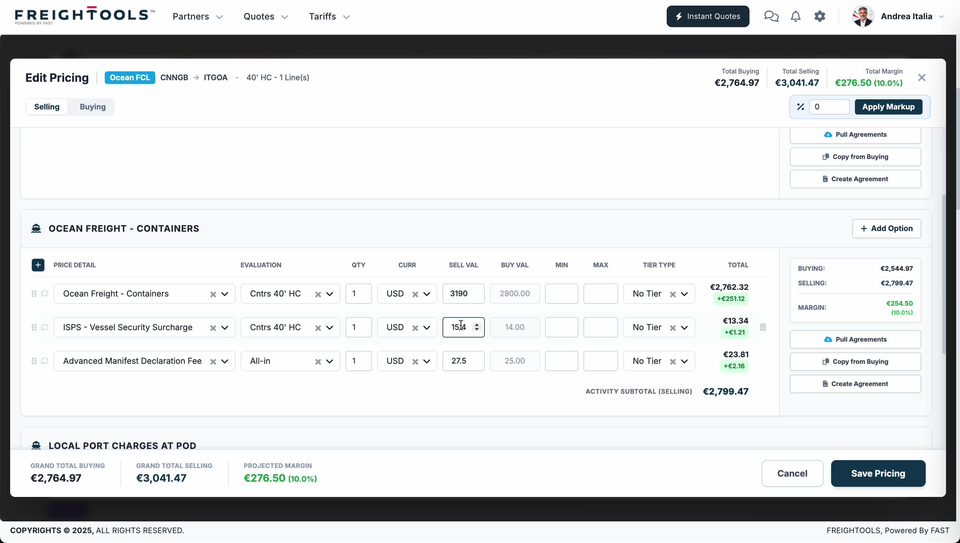
- To change a line: click the box you want and type. A focused value box gains a dark outline and a pair of spinner arrows.
- To remove a line: a faint bin icon sits at the end of the row.
- To add a line: a dark + square sits at the left of each activity's column headings.
A quotation can also carry more than one priced option for the customer to choose between — see How to build a multi-option customer quotation for how to read and compare the options once they are on the quotation.
Finish the pricing
- Read GRAND TOTAL BUYING, GRAND TOTAL SELLING and PROJECTED MARGIN in the bottom bar one last time.
- Click Save Pricing, at the bottom right. It is the last thing you do on this screen.
Cancel sits next to it. Both stay in view wherever you have scrolled to.
Once the pricing is right, the quotation goes to the customer — see How to send a quotation to your customer by email, and What the customer receives when you share a quotation for what lands in their inbox.
If something goes wrong
| You see | What to do |
|---|---|
| The box you want to type in is greyed out | You are on the other tab. SELL VAL is editable on Selling, BUY VAL on Buying. |
| An activity shows ACTIVITY SUBTOTAL (BUYING) €0.00 and MARGIN €0.00 | Open the activity and read its price lines before you save, rather than reading past the zero. |
| No % box or Apply Markup button | You are on the Buying tab. Click Selling. |
| No SUPPLIER field on the activity | You are on the Selling tab. SUPPLIER and Ask Suppliers are on Buying. |
| Total Margin is not the percentage you expected | The percentage is measured against Total Buying, not Total Selling. Check the green figure on each line to find where the margin actually is. |
| A TOTAL does not look like the value you typed | The value is in the line's CURR and the TOTAL is in the quotation's currency — 33 CNY shows as €4.26. Check CURR on the line. |
| Part of the route has no price at all | The screen shows you the gap but not its cause. See How to complete a quotation when part of the route has no price and Understanding partial pricing in Instant Quote. |
| A buying price is not the one you agreed with the supplier | Type the agreed figure into BUY VAL here. If the stored rate itself is wrong, see How to add or edit rates and charges in a buying agreement and Where Instant Quote prices come from. |