
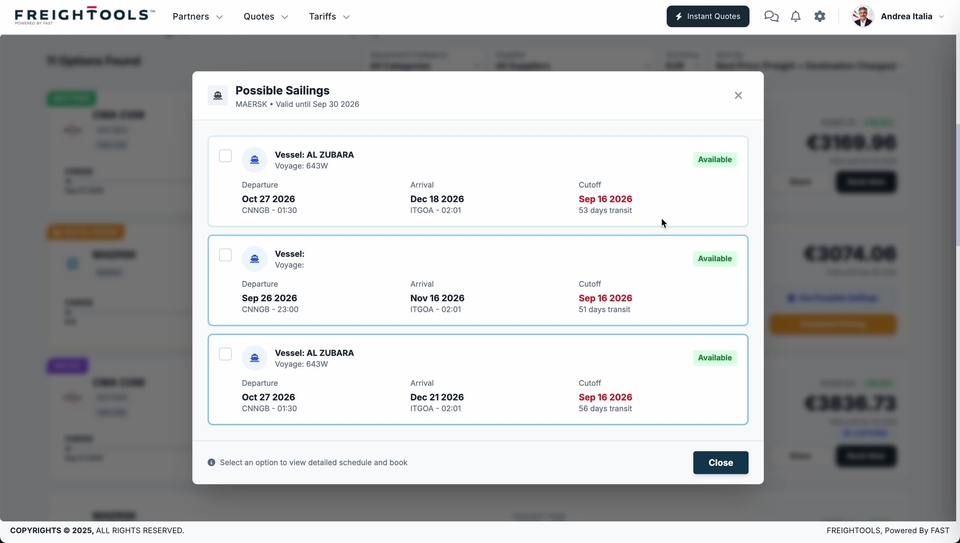
A price on its own doesn't tell your customer when the box leaves. The Possible Sailings window lists the departures behind one option in your Instant Quote results, with the dates for each one and the vessel where the card names one. You open it from the option itself, after a search has returned its options and before you build the quotation.
Before you start
- Run a search so the results list is on screen. See How to search Instant Quote manually.
- Know which option you want sailings for. You open each list from one option, and the window is headed with a single carrier.
- Not every option carries a See Possible Sailings button.
Open the sailings for an option
- Find the option you want in the results list.
- Click See Possible Sailings on that option. The Possible Sailings window opens over the results.
- Read the line under the title. It names the carrier and a validity date — "MAERSK • Valid until Sep 30 2026".
- Read the cards. Each card carries its own departure, arrival and cutoff dates.
Important: The Valid until date in the header and the Cutoff date on a card are different dates.
Read a sailing card
| Part of the card | What it tells you |
|---|---|
| Vessel | The ship for this departure, for example "AL ZUBARA". |
| Voyage | The carrier's voyage number for that ship, for example "643W". |
| Green Available pill | The availability shown for this sailing. |
| Departure | The sailing date, then the origin port code and a time — "CNNGB - 01:30". |
| Arrival | The arrival date, then the destination port code and a time — "ITGOA - 02:01". |
| Cutoff | A date shown in red, under which the window prints the transit time for that sailing, for example "53 days transit". |
| Checkbox at the start of the card | Selects that sailing. See Choose a sailing. |
Two cards with the same Departure date, port and time can still end on different Arrival dates and different transit times. Read the arrival, not just the departure, before you promise a transit time.
Choose a sailing
- Tick the checkbox on the card you want — the note at the foot of the window reads "Select an option to view detailed schedule and book".
- Click Close, or the × in the top right, to go back to the results and carry on with the option. See How to create and share a quotation from Instant Quote.
If something goes wrong
| You see | What to do |
|---|---|
| Vessel and Voyage with nothing after them | A card can carry both fields blank and still have its Departure, Arrival and Cutoff filled in. Don't name a vessel the card doesn't show. |
| No See Possible Sailings button on the option you want | Not every option carries one. Compare that option on price and transit time instead — see How to compare quotation options before sharing. |
Related articles
- How to search Instant Quote manually
- How to compare quotation options before sharing
- Understanding partial pricing in Instant Quote
- Where Instant Quote prices come from
- How to create and share a quotation from Instant Quote