
A quotation needs a customer's name on it, and you need to know what you are making on it. Both live one under the other on Share Quote: Customer Information, then Price Breakdown & Margin.
Sending is a separate button: Send Email to Customer, at the bottom right of Share Quote.
Before you start
- You need a quotation open in Share Quote. See How to create and share a quotation from Instant Quote.
- The customer has to exist in Freightools already. CUSTOMER searches a list ("Search Customer…") rather than taking whatever you type.
- Your Freightools administrator looks after the customer list. Your Freightools contact helps when the screen itself misbehaves.
Select the customer
- Find Customer Information — the first block of Share Quote, under the Quote Status row. Until you pick someone, the panel on the left reads "No customer selected".
- Click CUSTOMER ("Search Customer…") on the right of that panel. The list opens downwards, with a search box at the top of it and your existing entries listed underneath.
- Type in the search box to narrow the list, or click a name straight out of it. Several entries can look alike — read the name you click.
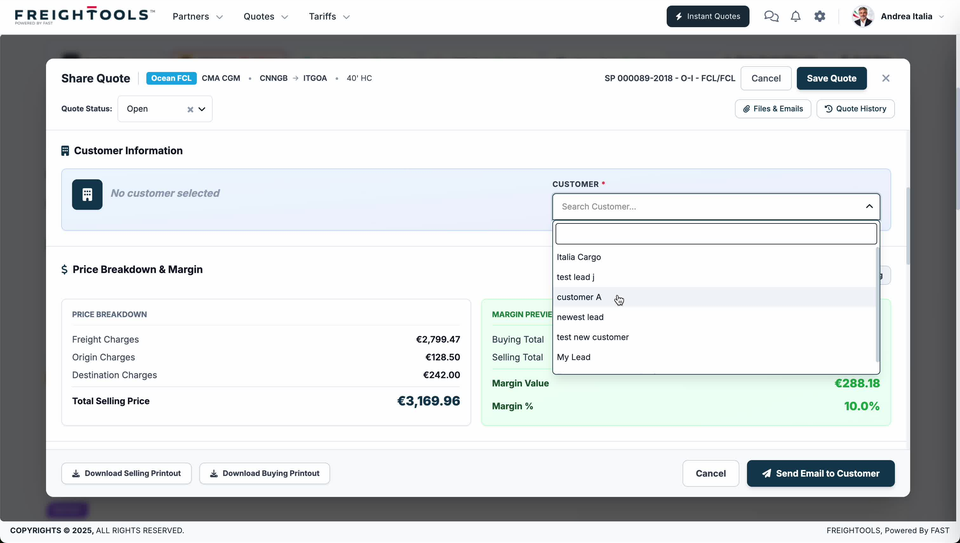
Important: CUSTOMER is marked with a red *. A quotation is not complete without one.
Read the price breakdown
PRICE BREAKDOWN is the white card on the left of Price Breakdown & Margin. It lists three charge lines and, under them, their total.
| Line | What it is |
|---|---|
| Freight Charges | The freight part of the selling price. |
| Origin Charges | The origin part. |
| Destination Charges | The destination part. |
| Total Selling Price | The total printed under the three lines above. |
To change any of these figures, see How to edit quotation pricing before sending.
Check the margin
MARGIN PREVIEW is the green card on the right of the same section. It puts your cost and your price side by side, which is why it is worth reading before you price anything or send anything.
| Line | What it tells you |
|---|---|
| Buying Total | What the shipment costs you. |
| Selling Total | What you are selling it for. |
| Margin Value | Your margin in money. |
| Margin % | Your margin as a percentage. |
Important: If the margin is thinner than you want, change the pricing before you send — see How to edit quotation pricing before sending.
To take a copy of the figures, use the two buttons at the bottom left of Share Quote, opposite Cancel and Send Email to Customer on the right: Download Selling Printout and Download Buying Printout.
When the figures are right, carry on to How to send a quotation to your customer by email, or, if the customer should choose between several prices, to How to build a multi-option customer quotation.
If something goes wrong
| You see | What to do |
|---|---|
| "No customer selected" in Customer Information | Nobody has been picked yet. Open CUSTOMER and choose from the list. The red * on the field means the quotation is not complete without one. |
| Margin % is lower than you expected | The figures are not changed on this screen. Edit the pricing — see How to edit quotation pricing before sending. |
| The route, the equipment or the carrier in the header is not what you meant to quote | The figures on this screen belong to that option. Go back and share the right one — see How to compare quotation options before sharing. |