
One quotation can carry more than one priced option, so your customer chooses between them instead of you choosing for them. This article covers checking that a quotation really is carrying several options, switching between them in Share Quote, and reading the price and margin of each one before you send.
Switching between the option tabs only changes which option you are looking at; it sends nothing. Send Email to Customer, in the bottom bar, is where sending the quotation to your customer starts — see How to send a quotation to your customer by email.
Before you start
- Have the quotation open in Share Quote. See How to create and share a quotation from Instant Quote.
- Pick the customer first where you can. The margin on each option is the number you will be asked to defend. See How to select a customer and check the quotation margin.
- Carriers, agreements and the prices behind each option are set up by your Freightools administrator. If this screen itself misbehaves, tell your Freightools contact.
Check that the quotation is carrying more than one option
- Look at the chip row in the Share Quote header, beside the service, carrier, route and equipment chips.
- A purple Multiple Options chip there means this quotation has more than one option on it.
- Scroll down to Price Breakdown & Margin. One tab per option sits to the right of the heading.
Note: The chips to the left of Multiple Options are the service, a carrier, the route and the equipment.
Switch between the options
- In Price Breakdown & Margin, click the tab for the option you want to read. The selected tab is filled dark; the others are outlined.
- Read the PRICE BREAKDOWN and MARGIN PREVIEW cards underneath. They show the option whose tab is selected.
- Click the next tab and read the same two cards again. This is how you compare what your customer is being offered, one option at a time.
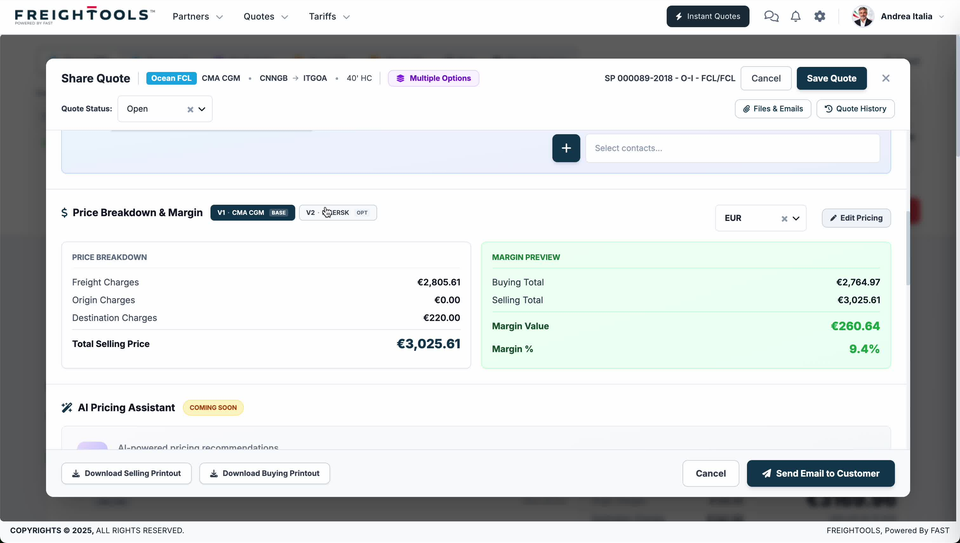
| Part of the tab | What it tells you |
|---|---|
| The version label | Which option the tab is — V1, V2 and so on. |
| The carrier name | The carrier that option is priced with. |
| The badge | A short label on each tab, such as BASE or OPT. |
Read the price and margin of one option
PRICE BREAKDOWN, on the left, is the selling side of the option.
| Line | What it is |
|---|---|
| Freight Charges | The freight leg of this option. |
| Origin Charges | The origin leg. |
| Destination Charges | The destination leg. |
| Total Selling Price | The three lines added up. |
MARGIN PREVIEW, the green card on the right, is your side of the same option: Buying Total, Selling Total, Margin Value and Margin %.
Two things are worth checking as you read across:
- Selling Total in the green card is the same number as Total Selling Price in the white one. If the two disagree, you are not reading what you think you are reading.
- Margin Value is Selling Total minus Buying Total. Margin % is Margin Value over the Buying Total, not over the Selling Total, so it reads higher than a margin taken on the selling price.
Important: Both cards belong to the selected tab only. A healthy margin on one option tells you nothing about the next — read the margin of every option before you send, or you can give your customer a free choice between a shipment you make money on and one you don't.
The currency selector
The currency selector sits between the tabs and Edit Pricing. Every amount in both cards is shown in the currency it names.
Before you send
- To change what an option costs, use Edit Pricing at the right of the tab row. See How to edit quotation pricing before sending.
- AI Pricing Assistant, the section under the two cards, carries a COMING SOON badge and offers "AI-powered pricing recommendations". There is nothing to use there yet.
- Carry on with the sales proposal and the email. Every option on the quotation appears in the customer-facing email preview. See How to send a quotation to your customer by email.
If something goes wrong
| You see | What to do |
|---|---|
| No Multiple Options chip in the header, and one tab only | One tab means one priced option to read. |
| A tab you did not expect, for a carrier you did not mean to quote | Read its PRICE BREAKDOWN before you send. |
| Total Selling Price and Selling Total disagree | Stop and check which tab is selected before you trust either figure. |
| Margin % far lower on one option than another | Compare the options' Buying Total and Selling Total figures side by side — the difference can sit on either side. See How to select a customer and check the quotation margin. |
| A charge line reading €0.00 on an option you are about to quote | Check what that option is actually meant to include before you send it. |