
Instant Quotes is where you search live rates for one shipment. This article covers filling in the Ocean FCL search form by hand, from the service tabs down to Get Prices; reading what comes back is covered in How to compare quotation options before sharing.
Before you start
- Open Instant Quotes from the top bar.
- Have the route, the container type and how many containers, and the date the cargo is ready. The form asks for all of them.
- If you want to know where the prices you get back come from, see Where Instant Quote prices come from.
Pick the service
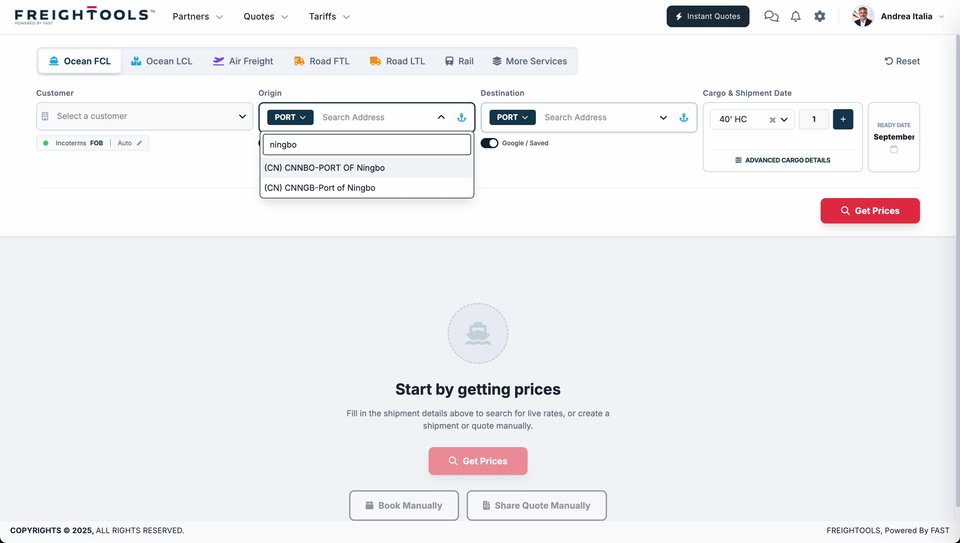
- Click Ocean FCL in the row of service tabs. The row also holds Ocean LCL, Air Freight, Road FTL, Road LTL, Rail and More Services. The rest of this article describes the Ocean FCL form.
Note: Reset sits at the right-hand end of the same row.
Choose the customer
- Click the Customer field ("Select a customer") and choose the customer, when the search is for a customer you already have in Freightools.
- Under the field, a chip shows Incoterms — for example FOB — beside Auto and a pencil icon.
The customer also has to be set on the quotation itself — see How to select a customer and check the quotation margin.
Set the origin and destination
- In Origin, click the address-type button and choose the kind of address the cargo starts from.
- Click Search Address and type part of the place name.
- Click the entry you want. Each line gives the country in brackets, then the code and the name, as in "(CN) CNNBO-PORT OF Ningbo". Read the code before you click: the same city can appear more than once under different codes, and those are separate entries.
- Do the same in Destination: set the address type, search, and pick the entry.
Note: An anchor icon sits at the right-hand end of both the Origin and Destination address fields.
Set the containers and the ready date
- Under Cargo & Shipment Date, click the container field — for example 40' HC — and choose your container type. An × sits inside the field, beside the chevron.
- Set how many containers in the box beside it — for example 1. A + button sits at the end of that row.
- Open Ready Date and set the date the cargo is ready. The card is labelled READY DATE and shows the month above a calendar icon.
- An Advanced cargo details button sits under the container row, inside the same Cargo & Shipment Date panel.
Get prices
Before the search runs, the page below the form reads "Start by getting prices" and "Fill in the shipment details above to search for live rates, or create a shipment or quote manually.", with Get Prices, Book Manually and Share Quote Manually under it.
- Check the form across: service tab, Customer, Origin, Destination, container type and quantity, Ready Date.
- Click Get Prices — the red button on its own row below the fields, at the bottom right of the search panel — to search for live rates on the shipment details you entered. (Reset, not Get Prices, is the control at the top right.)
To turn the results into something you can send, see How to create and share a quotation from Instant Quote.
If something goes wrong
| You see | What to do |
|---|---|
| No rates come back | See Why Instant Quote returns no rates. |
| A buying agreement you expected isn't available | See Why a buying agreement is not available in Instant Quote. |
| Only part of the route is priced | See Understanding partial pricing in Instant Quote and How to complete a quotation when part of the route has no price. |
| The place you want appears twice in the address list | The entries carry different codes, such as CNNBO and CNNGB for Ningbo. Read the whole line, including the code, and pick the one you mean before you search. |
Related articles
- Where Instant Quote prices come from
- How to compare quotation options before sharing
- How to create and share a quotation from Instant Quote
- How to select a customer and check the quotation margin
- Why Instant Quote returns no rates