
Sales Proposal Details is a block of fields far down the Share Quote screen, and Send Email to Customer, in the bottom bar, is what puts the quotation in front of your customer. This article covers filling those fields in, choosing which kind of email to send, and reading the preview before it goes.
Send Email to Customer does not send anything by itself. It opens Choose Email Type, and on the branded path a preview after that. The email leaves only when you press Send Email in the preview.
Note: Sales Proposal Details is a block of fields on the quotation screen. It is not the
older Sales Proposal transaction, which is a separate part of Freightools that some companies
still work in — that one is covered in
How to create, edit and manage a sales proposal in Freightools.
Before you start
- Have the quotation open in Share Quote, with a customer on it. See How to create and share a quotation from Instant Quote and How to select a customer and check the quotation margin.
- Finish the pricing first. The email carries the prices as they stand — see How to edit quotation pricing before sending.
- If the quotation carries more than one option, every option goes in the same email. See How to build a multi-option customer quotation.
- If the business unit, user or sales agent you need is not in one of these lists, ask your Freightools administrator. If the screen itself misbehaves, tell your Freightools contact.
Fill in the sales proposal details
- Scroll the Share Quote screen down to Sales Proposal Details, below the pricing.
- Set Ready to Load Date and Proposal Expiration Date. Both are marked with a red *.
- Fill in the four fields under them if your company uses them — Business Unit, Execution User, Sales Owner and Sales Agent — and check Service Trade.
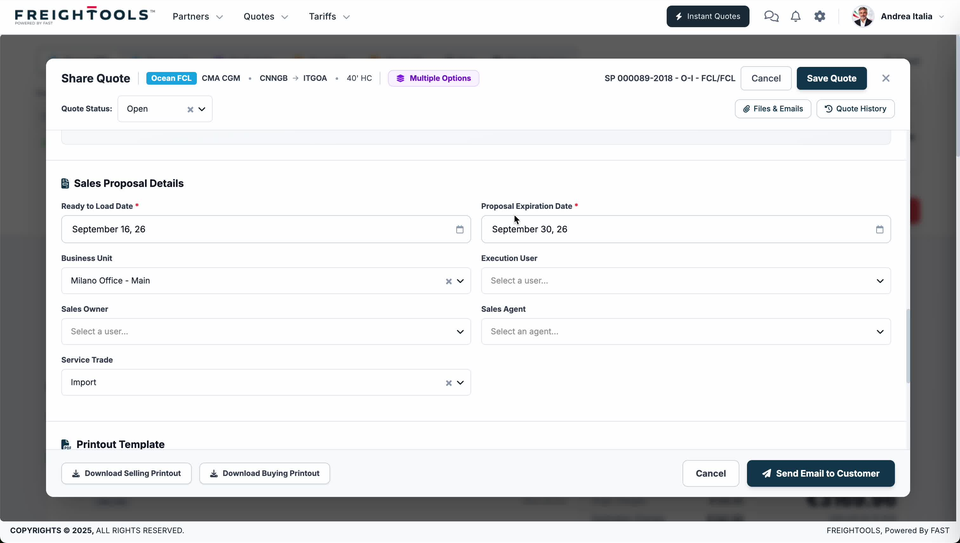
What each field holds
| Field | What is on screen |
|---|---|
| Ready to Load Date (red *) | A date field with a calendar picker at its right. |
| Proposal Expiration Date (red *) | The same kind of date field. |
| Business Unit | A list with a chevron to open it and an × to clear what is selected. |
| Execution User | A user list, reading "Select a user…" until you pick one, with a chevron. |
| Sales Owner | A user list, reading "Select a user…" until you pick one, with a chevron. |
| Sales Agent | An agent list, reading "Select an agent…" until you pick one, with a chevron. |
| Service Trade | A list with a chevron to open it and an × to clear what is selected. |
Important: Only the two dates carry a red *. Business Unit, Execution User, Sales Owner, Sales Agent and Service Trade are not marked required.
Sales Proposal Details is not the end of the screen — a Printout Template section sits below it.
Choose how the email is sent
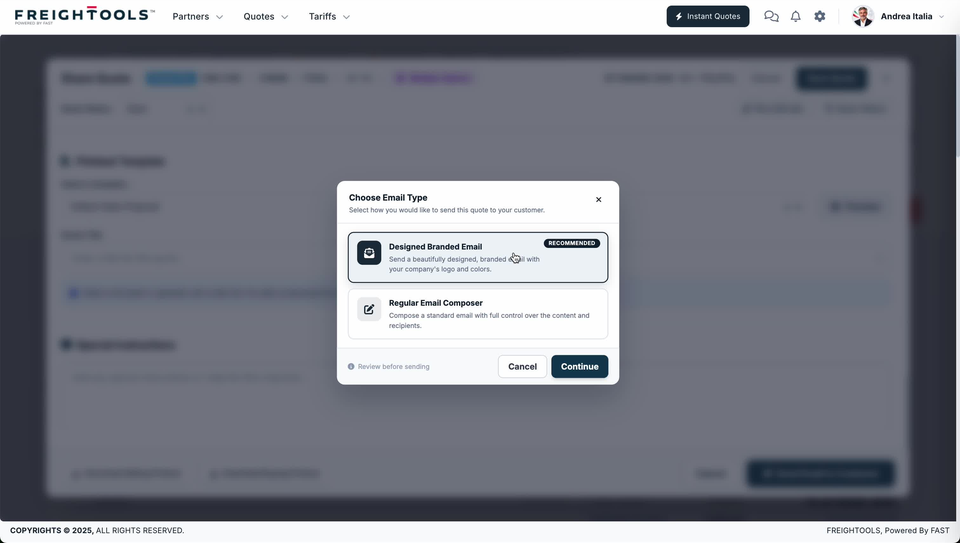
- Click Send Email to Customer, at the bottom right of Share Quote. Choose Email Type opens over the screen, with "Select how you would like to send this quote to your customer." under its title.
- Pick one of the two cards.
| Card | What it does |
|---|---|
| Designed Branded Email, badged RECOMMENDED | "Send a beautifully designed, branded email with your company's logo and colors." |
| Regular Email Composer | "Compose a standard email with full control over the content and recipients." | - Click Continue. On the branded path this opens the preview, so you can read the email before it goes. Cancel, and the × in the corner, close the dialog instead.
Read the branded email preview
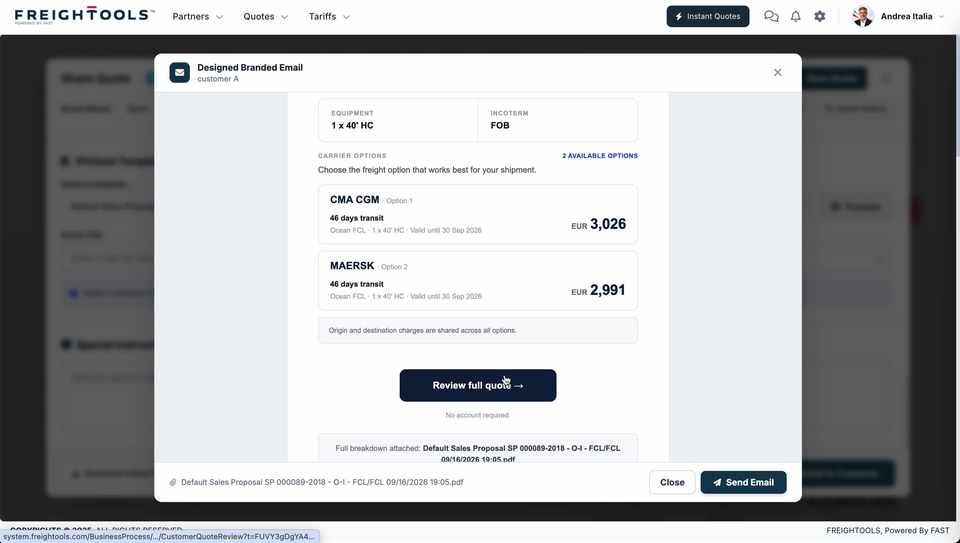
Continue on Designed Branded Email opens a preview titled Designed Branded Email, with the customer named under the title.
| Part of the preview | What it shows |
|---|---|
| EQUIPMENT and INCOTERM | The terms from the quotation itself, side by side. |
| CARRIER OPTIONS, with AVAILABLE OPTIONS at the right | The heading over the options, and at the right how many the customer is being given a choice between. The two sit on one row, above the line "Choose the freight option that works best for your shipment." |
| One card per option | The carrier, its number ("Option 1", "Option 2"), the transit in bold, then service, equipment and validity on one grey line, with the price at the right. |
| "Origin and destination charges are shared across all options." | A line under the cards, telling the customer the options differ on freight only. |
| Review full quote →, with "No account required." under it | The customer's way into the full quotation. The link carries its own token, so it opens without a login. See How customers accept a Freightools quotation. |
| "Full breakdown attached: …" | Names the PDF that travels with the email. |
Read the option cards
Read the option cards in the order your customer will read them. They are not sorted cheapest-first, so read the price on every card rather than taking Option 1 for the lowest.
The price on a card is that option's Total Selling Price from the quotation, rounded to the whole unit. See How to build a multi-option customer quotation.
Check these before you press Send Email
The preview's bottom bar names the attached PDF, with Close at the left of Send Email.
- Check the customer named under the dialog title is the one you meant to quote.
- Check every option card. Everything in CARRIER OPTIONS is something your customer may pick, including an option you added to make another one look good.
- Check each "Valid until" date against how long your customer takes to answer.
- Check the attachment name in the bottom bar. It is the breakdown the email promises.
- When it is right, press Send Email. Close leaves the preview instead.
If something goes wrong
| You see | What to do |
|---|---|
| Ready to Load Date or Proposal Expiration Date empty | Both are marked with a red *. Set them in Sales Proposal Details before you go to the email. |
| The preview names the wrong customer under its title | Close the preview and change the customer on the quotation — see How to select a customer and check the quotation margin. |
| CARRIER OPTIONS shows fewer options than the quotation carries | Check the option tabs on the quotation first — see How to build a multi-option customer quotation. |
| A price in the preview is not the price you agreed internally | Press Close, not Send Email, and fix the pricing — see How to edit quotation pricing before sending. |
| You want a plain email instead of the branded one | Press Close, then Send Email to Customer again, and pick Regular Email Composer in Choose Email Type. |
| The cargo, route or incoterm printed in the preview is wrong | Press Close and correct it on the quotation — see How to edit the routing of a quotation and How to edit cargo details on a quotation. |