
When a quotation goes out, your customer opens a page of their own to answer it. Know what that page shows them, and a question about it doesn't need a screen share.
This is your customer's screen, not yours: the page is where your customer reads the price and the validity date and answers.
Before you start
- The quotation has to have been sent. See How to send a quotation to your customer by email.
- Check the figures before they reach this page, not after. See How to select a customer and check the quotation margin.
- Ask your Freightools administrator about the sales contact details and the proposal wording shown on the page. Your Freightools contact helps when the page itself misbehaves.
How your customer opens the page
Your customer opens the page from the quotation email.
A card in the right-hand column, below the price card, tells your customer that no account is needed: "This page is securely shared by your company name. No account is required to review or respond."
Important: The page states that no account is required, so nothing on it asks the person answering to prove who they are. Treat the link the way you would treat the quotation.
Read the price and the shipment summary
The card in the right-hand column that carries the price is the quotation in six lines. Its dark header carries two of them: TOTAL SELLING PRICE, above Valid until. The other four sit on white beneath the header, above the buttons.
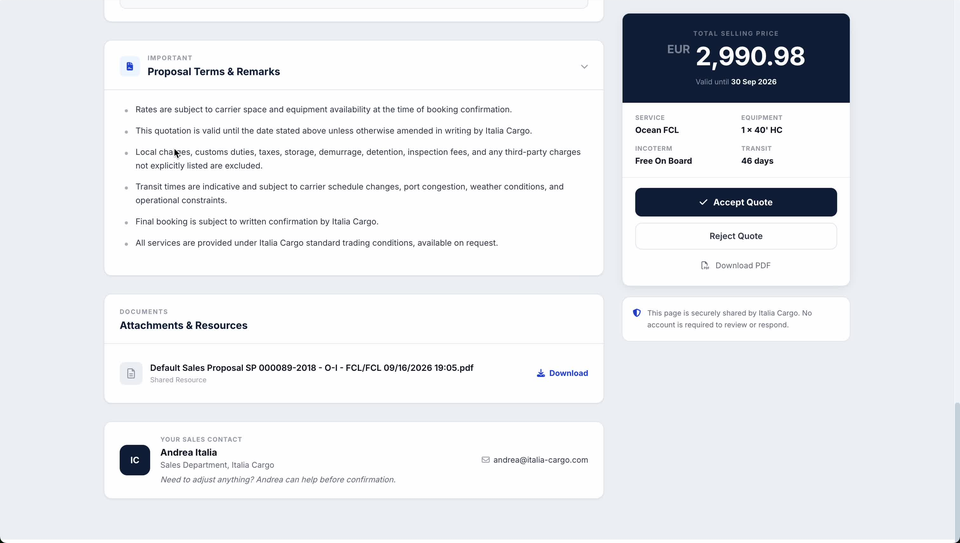
| Line | What your customer reads |
|---|---|
| TOTAL SELLING PRICE | The selling price and its currency. To change it, see How to edit quotation pricing before sending. |
| Valid until | The date the price is offered to. The terms below the price point back at this date. |
| SERVICE | The service quoted. |
| EQUIPMENT | What the price covers. |
| INCOTERM | The Incoterm the price is built on. This is the line that tells your customer which end of the journey they are paying for elsewhere. |
| TRANSIT | The transit time. |
Read the terms your customer is agreeing to
Proposal Terms & Remarks, under the IMPORTANT heading, is the list of conditions attached to the price. There is a chevron at the right of its header.
The list reads:
- "Rates are subject to carrier space and equipment availability at the time of booking confirmation."
- "This quotation is valid until the date stated above unless otherwise amended in writing by your company name."
- "Local charges, customs duties, taxes, storage, demurrage, detention, inspection fees, and any third-party charges not explicitly listed are excluded."
- "Transit times are indicative and subject to carrier schedule changes, port congestion, weather conditions, and operational constraints."
- "Final booking is subject to written confirmation by your company name."
- "All services are provided under your company name standard trading conditions, available on request."
Two of them are worth reading out when a customer asks what the price covers: the price is offered only to the Valid until date unless amended in writing, and the exclusions bullet names what the price does not carry — local charges, customs duties, taxes, storage, demurrage, detention, inspection fees, and third-party charges not explicitly listed. The terms describe the TRANSIT figure as indicative, not promised.
Point your customer at the attached proposal
Attachments & Resources, under the DOCUMENTS heading, lists the files shared with the quotation. Each file sits on a row of its own, named, and marked "Shared Resource".
Download, at the right of a row, is how your customer takes a copy of that file. There is a second download control, Download PDF, under the two answer buttons in the right-hand card.
Note: Neither download control is one of the two answer buttons — Accept Quote and Reject Quote sit apart from them.
Know who your customer replies to
YOUR SALES CONTACT, at the foot of the page, carries a name, a department and company line, and an email address. Under it, in italics: "Need to adjust anything? Name can help before confirmation."
That line is doing real work: a customer who wants a change is pointed at a person to write to rather than at either answer button.
Accept or reject
Three controls sit together under the shipment summary, in this order:
| Control | What it is |
|---|---|
| Accept Quote | The dark button, marked with a ✓ — the customer's yes. |
| Reject Quote | The outlined button below it — the customer's no. |
| Download PDF | A text link with a document icon, below the two answer buttons rather than among them. |
For what an accepted or rejected quotation then looks like on your side, see Understanding quotation statuses.
If something goes wrong
| You see | What to do |
|---|---|
| Your customer says the price on the page is not the one you discussed | Check the figure labelled TOTAL SELLING PRICE against the quotation you sent; if it is wrong, re-price and send again — see How to edit quotation pricing before sending. |
| Your customer wants a change rather than a yes or no | That is what the YOUR SALES CONTACT card is for. Ask them to email the contact instead of pressing Reject Quote. |
| Your customer wants to choose between prices | One quotation can carry more than one priced option. Read each option's price and margin before you send — see How to build a multi-option customer quotation. |
| The Valid until date has passed | The terms on the page offer the price only to that date, unless amended in writing. Re-price and re-send rather than letting the customer accept a stale figure. |
| Your customer asks for a login, or the link doesn't open the quotation | The page states that no account is required. Check they have the whole link from the quotation email — some email clients cut a long link short. |
| Your customer asks whether the price and transit time are guaranteed | Read them Proposal Terms & Remarks: rates depend on carrier space and equipment at booking, transit times are indicative, and final booking needs written confirmation. |
| The name on YOUR SALES CONTACT is not the right person | Ask your Freightools administrator where that card is populated from. |
Related articles
- How to send a quotation to your customer by email
- What the customer receives when you share a quotation
- Understanding quotation statuses
- How to edit quotation pricing before sending
- How to build a multi-option customer quotation