
Activity Details, the second tab of the Create Buying Agreement window, is where the supplier's money goes in: you pick an activity, load it, and fill one row for every amount the supplier charges you. This article covers adding the activity, pricing each container type, adding surcharges on top of the freight, and saving.
There is one Save, at the top right of the window, above the tabs.
Before you start
- The agreement has to be open already. If you have not created it yet, see How to create a buying agreement manually.
- Have the supplier's rate in front of you: the amount, the currency, and what each amount is charged per — per 20' box, per 40' box, per 40' high cube. Each row holds one amount, so every amount that differs needs a row of its own.
- Activity is marked with a red
*, and the foot of the window reads "* Required fields".
Add the activity
- Open the agreement and click the Activity Details tab.
- Click Activity ("Select activity"). The list opens with a search box at the top.
- Click the activity that matches what you are pricing. For a full-container ocean rate, that is Ocean Freight - Containers.
- Click Load Activity. Everything after this happens in the Activity Pricing panel below.
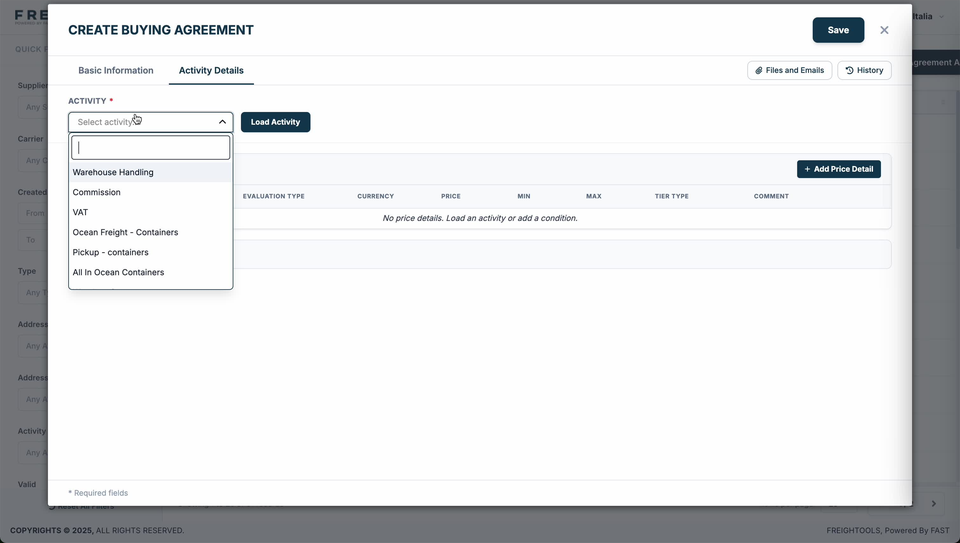
Until an activity is loaded, the table reads "No price details. Load an activity or add a condition."
Price each container type
Activity Pricing lists numbered rows. One row is one price, so a rate quoted at different amounts per container type needs one row per type.
- In Price Detail, pick the charge this row is for. For the freight itself, that is the activity's own name, Ocean Freight - Containers.
- In Evaluation Type, pick what the amount is charged per — Cntr 20' Box, Cntr 40' Box, Cntrs 40' HC.
- In Currency, pick the currency the supplier quoted, such as USD. Every row carries its own Currency field, so read it on every row.
- Type the Price — one amount per row, in the currency you picked on that row.
- Click + Add Price Detail when you need another row.
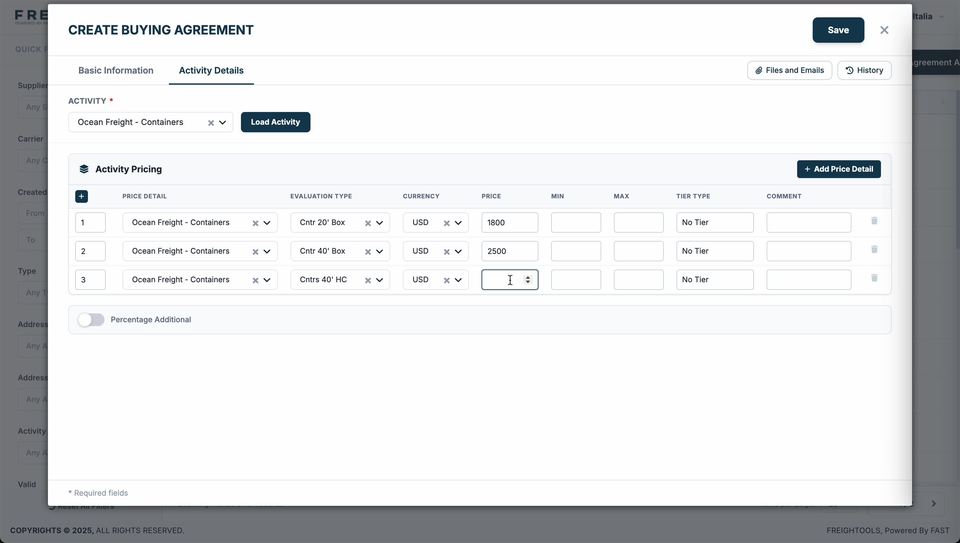
Each row also carries Min, Max, Tier Type and Comment columns, and a Percentage Additional toggle sits under the rows.
Add surcharges and other charges
The freight is rarely the whole cost. A surcharge goes on a row of its own in the same Activity Pricing panel, so the agreement carries more than the ocean leg alone.
- Click + Add Price Detail for each surcharge row you need.
- In Price Detail, pick the surcharge, such as BAF - Bunker adjustment factor.
- In Evaluation Type ("Select…"), pick the basis. Type in the search box at the top of the list to cut it down.
- Pick the Currency ("Select…") and type the Price. Evaluation Type, Currency and Price all need filling before the row says anything.
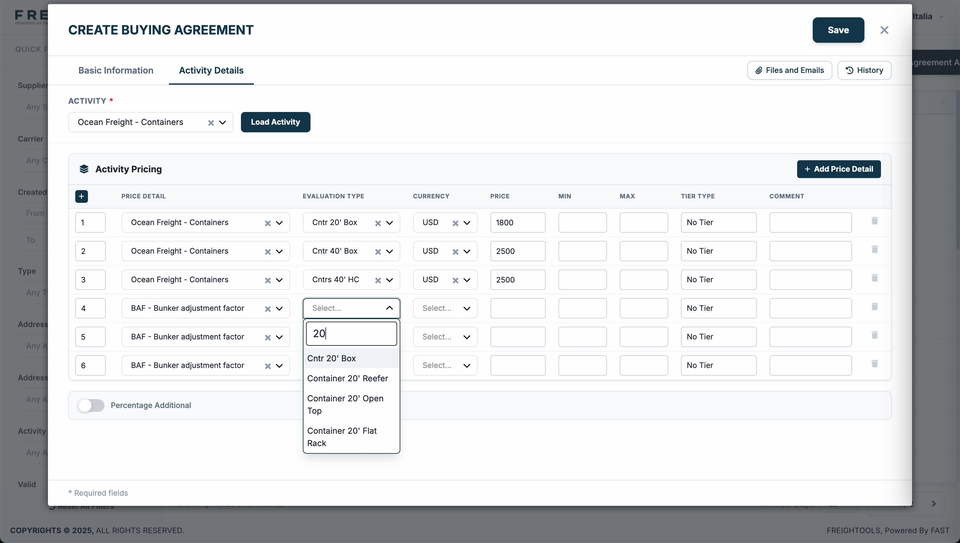
A surcharge charged at a different amount per container type needs one row per type, the same as the freight.
Save the agreement
Read down the Currency and Price columns one last time — a wrong currency on one row is the mistake that survives longest, because the number next to it still looks right.
Click Save, at the top right of Create Buying Agreement.
If something goes wrong
| You see | What to do |
|---|---|
| "No price details. Load an activity or add a condition." | No activity is loaded yet. Pick one in Activity and click Load Activity. |
| The activity you want is not in the Activity list | The list opens with a search box at the top; try part of the name there. |
| Evaluation Type or Currency still reads "Select…" on a row | The row is incomplete. Pick both, then type the Price. |
| The container type you need is missing from Evaluation Type | Type part of it in the search box at the top of the list. |
| The saved rate does not come back in Instant Quotes | See Why a buying agreement is not available in Instant Quote. |
Related articles
- How to create a buying agreement manually
- Understanding buying agreements
- Why a buying agreement is not available in Instant Quote
- Where Instant Quote prices come from