
This article covers finding invoices: the two invoice lists, their filters and columns, exporting what you found, and the two reports that list invoices and invoice lines across all your shipments. It does not cover changing an invoice's status — see Understanding invoice statuses in Freightools.
Where invoices are listed
| Page | What it lists |
|---|---|
| Invoicing → Selling Invoices | Every invoice to a customer, including credit, demurrage and commercial invoices. |
| Invoicing → Buying Invoices | Every invoice from a supplier. |
The two pages have the same toolbar, filters and columns.
On a shipment, the Invoices dialog lists the invoices of that file only. Open it from the menu on the Process Steps tab of a Shipping Order (SO) or Customer Shipment (CS), or from the + next to Total Invoices on the CS Basic Information tab. See How to issue a selling invoice from a shipment file.
Search and filter the list
Type in the quick search box to search the list, or narrow it with the filters above the grid:
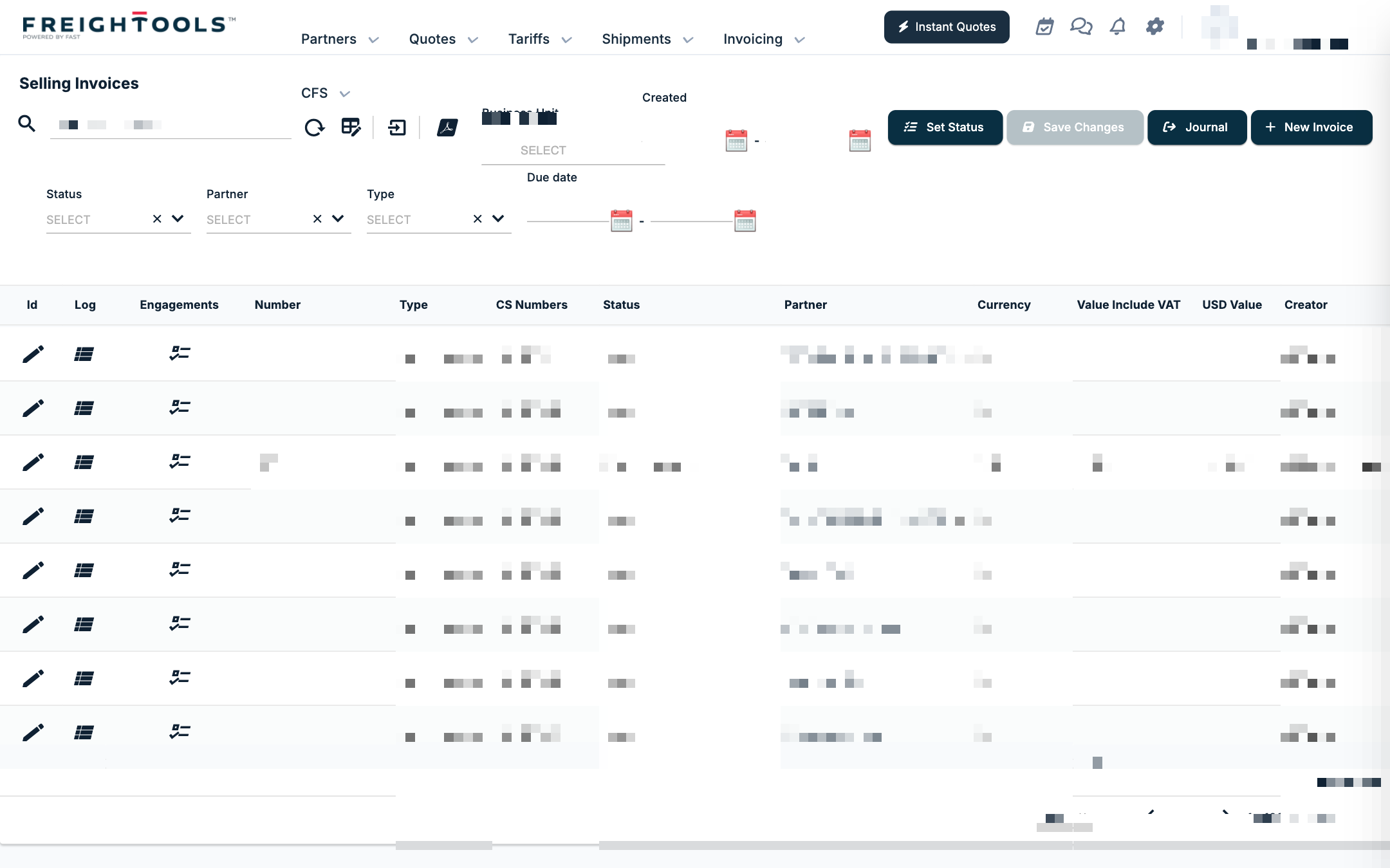
| Filter | Options |
|---|---|
| Business Unit | Your business units. |
| Created | A date range. |
| Status | New, Open, Pending, Operation Approved, Finance Approved, Paid (Closed), Canceled. |
| Partner | Look up a customer or supplier. Inactive partners carry "[NOT ACTIVE]" after their name. |
| Type | All nine invoice types, selling and buying: Selling Invoice, Buying Invoice, Credit Invoice, Demurrage invoice, Credit BUYING invoice, Commercial Invoice, Commercial BUYING Invoice, Credit Commercial invoice, Demurrage BUYING Invoice. |
| Due date | A date range. |
To list only credit invoices, set Type to Credit Invoice (or Credit BUYING invoice, Credit Commercial invoice). There is no separate credit column.
Note: A filter you choose on Selling Invoices is remembered and applied on Buying Invoices too. If a list shows "No records" when you expect invoices, check the filters and clear any you did not set on this page — a Type of Credit Invoice carried over from the selling list, for example, empties the buying list.
Read the columns
The default columns are: Id, Log, Engagements, Number, Type, CS Numbers, Status, Partner, Currency, Value Include VAT, USD Value, Creator, Created, Date, Finance Date, Finance ROE, Value, USD Value Include VAT, Files, Orders, Due date, Partner Comment, SO Numbers, Reference, Bank, Partner Info, Accounting Number and Tags.
- Id carries the pencil that opens the invoice.
- Log opens the row's log.
- Engagements opens the assignments of the invoice.
- CS Numbers shows the CS code when you point at it.
- Status is a dropdown you can change in the grid; click Save Changes to save grid edits.
Use the Column Picker icon to choose the columns — see How to show or hide grid columns and How to reorder the columns in a grid. Refresh reloads the list.
Export the list or download invoice files
- Export (tooltip "Export the grid content to Excel file") exports the grid content to an Excel file.
- Download (tooltip "Download all selected invoices files") downloads the files of the invoices you ticked.
Use the reports
Two reports list invoices and charge lines across all shipments, with more columns than the invoice lists.
Invoices Report
Open Reports → Invoices Report. The page heading shows when the report was last refreshed — "Invoices (Last Update: …)" — because it is a snapshot, not a live list. Refresh Data rebuilds the snapshot; Refresh reloads the grid.
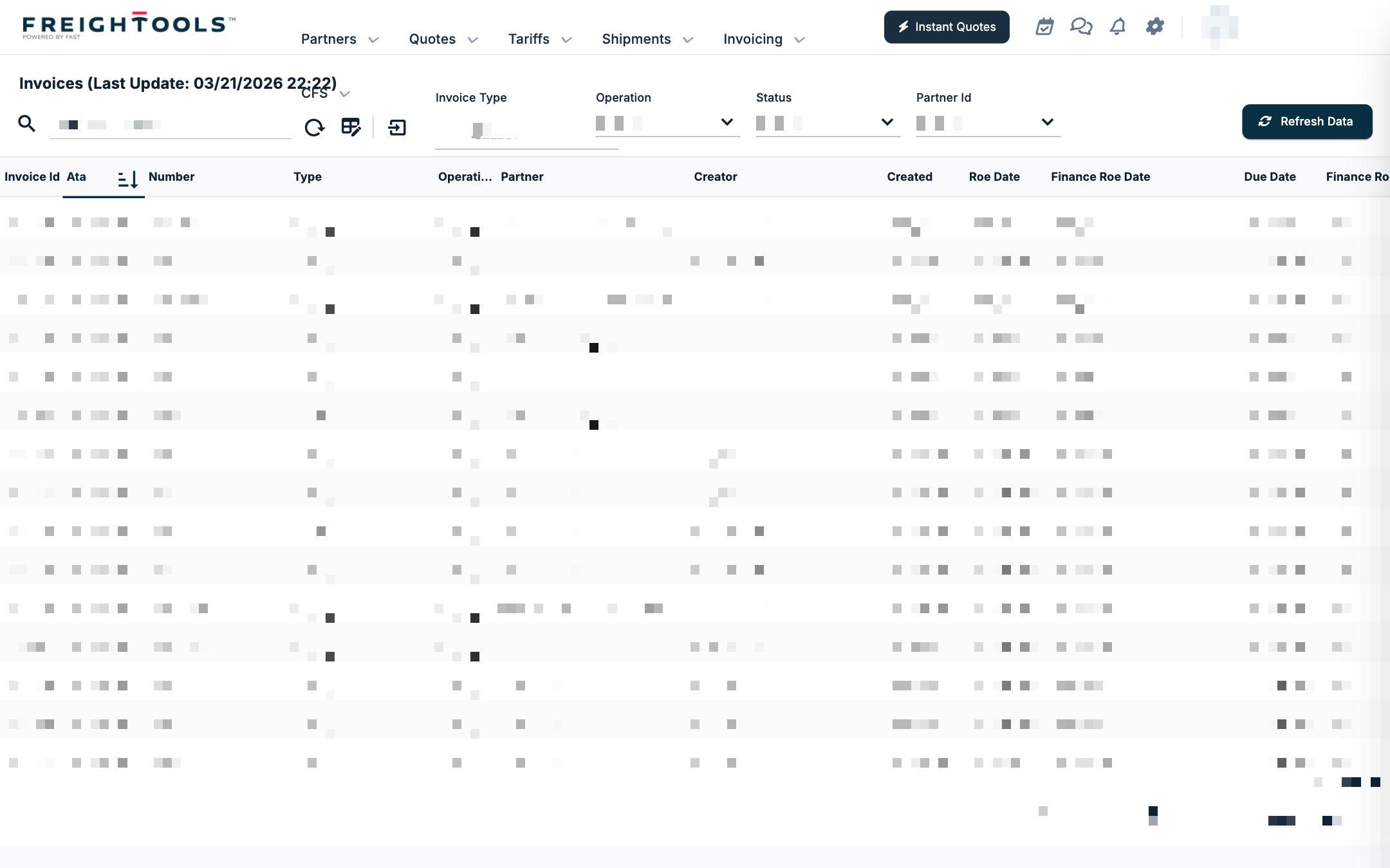
- Filters: Invoice Type (several of the nine types), Operation (Buying, Selling), Status and Partner Id.
- Columns include, besides the invoice's own number, type, partner, dates, rates and values: Total Files, Total Orders, Cs Numbers, So Numbers, So Master From, So Master To, Goods Container Numbers, So Mbl, Cs Hbl, Etd, Eta, Atd, Ata, SO Manifest, Approved User Name and Approved Date.
- Export (Excel) and PDF export the report.
Orders Report
Open Reports → Orders Report. It has one row per charge line ("order"), with the SO, CS, dates, partner, charge and the invoice it is on. The heading also shows "Last Update".
- Filters: Partner, Invoice Type, Operation, Invoice Status and Invoice Creation Date.
- Invoice Status includes Not linked to invoice. Choose it to find charges that are on no invoice yet.
- Export (Excel) and PDF export the report.
See also Which reports exist and how to run them.
If something goes wrong
| You see | What to do |
|---|---|
| "No records" on Buying Invoices or Selling Invoices | A filter set on the other invoice list carried over. Clear the filters. |
| An invoice you just issued is not in the Invoices Report | The report is a snapshot. Look at "Last Update" in the heading, and use the invoice list for current data. |