
This article covers registering an invoice you received from a supplier — a carrier, an agent, a trucker — against the costs of a shipment: where to start it, the fields that differ from a selling invoice, how to match it to the cost lines, and how to hand it over for approval. Issuing invoices to your customer is covered in How to issue a selling invoice from a shipment file.
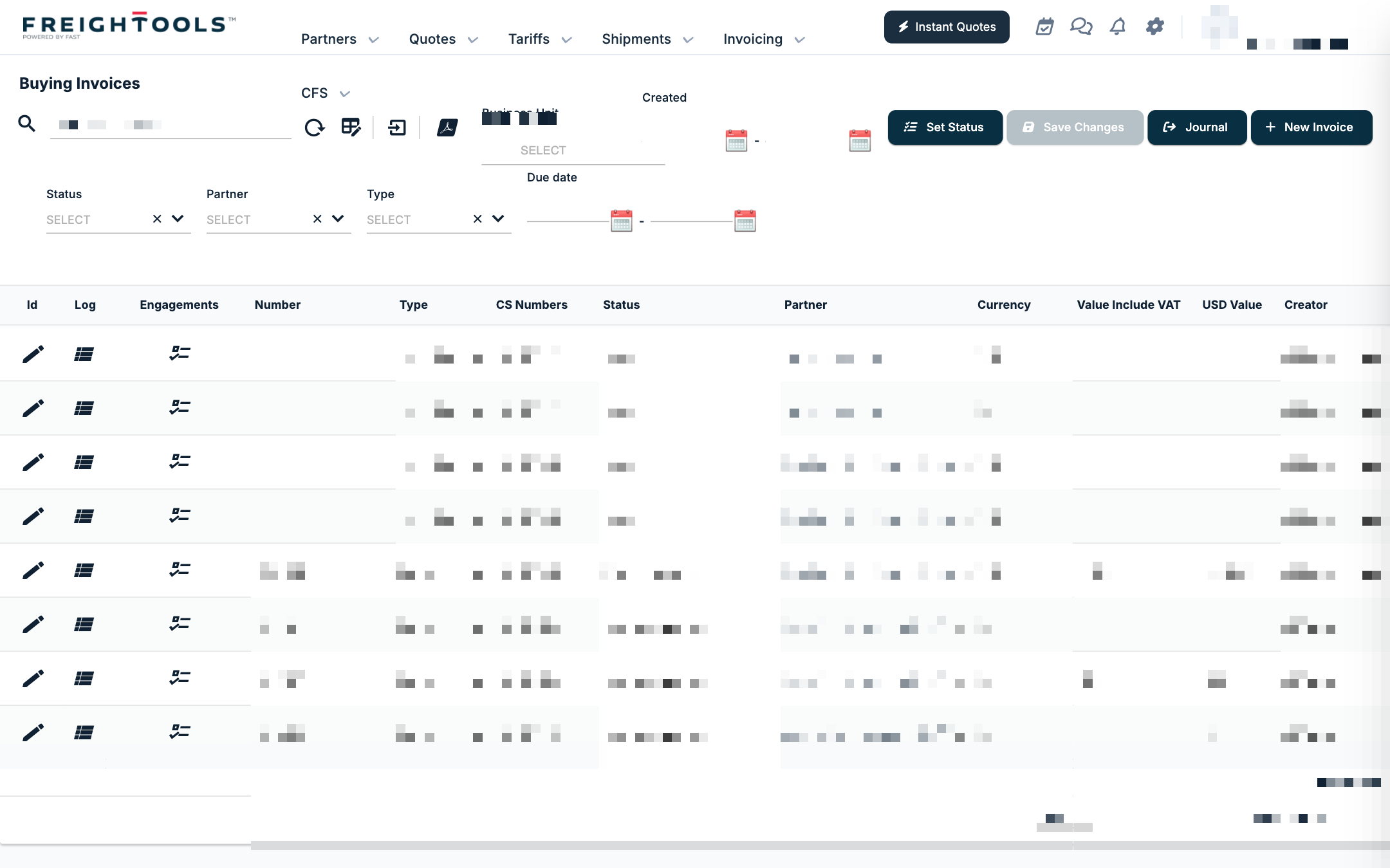
Supplier invoices are listed under Invoicing → Buying Invoices. The invoice window is titled New Invoice and then Edit Invoice, exactly as for selling invoices.
Before you start
- The costs must be on the shipment. A buying invoice is matched to the cost lines ("orders") of the Shipping Order (SO) or Customer Shipment (CS). See How to read the economics of a Shipping Order.
- The SO must be saved. Its Economics tab is disabled until the SO has been saved once.
- Have the supplier's invoice to hand. You type in the supplier's invoice number and total.
- Keep company exchange rates current. If no company rate is found for the last seven days, a Confirm box opens with the invoice window: "The system was unable to find the specified exchange rate in the past 7 days." Ok closes the box and leaves Exchange Rate for you to type; Use System Exchange Rates fills it from the system rates. See ROE (Rate of Exchange) in Freightools.
Start from the Shipping Order's Economics tab
- Open the SO and go to the Economics tab. The lines grid opens on Buying, with the lines grouped per supplier.
- In the supplier's group header, click Create Invoice. It is shown when the group has active orders.
- In the Create Invoice dialog:
- Type*: Buying Invoice, Credit BUYING invoice, Commercial BUYING Invoice or Demurrage BUYING Invoice.
- Billing Supplier*: pre-filled with the group's supplier.
- Payment Term*: pre-filled; the list is your company's payment terms.
- Click Create.
If the cost belongs to a different supplier than the one in the group header, change the partner in the header select. A Save button appears in the header when the partner has been changed and the group has no invoice yet.
Start from the Buying Invoices list
- Go to Invoicing → Buying Invoices and click New Invoice.
- Fill in the Basic Information tab and click Save Changes.
- Match the lines on the Orders tab (next section).
The Basic Information tab has the same General and Finance sections as a selling invoice, with these differences:
| Field | On a buying invoice |
|---|---|
| Type* | Buying Invoice, Credit BUYING invoice, Commercial BUYING Invoice or Demurrage BUYING Invoice. |
| Billing Supplier* | The supplier who sent the invoice (in place of Billing Customer). |
| Supplier Address | One of the supplier's addresses (in place of Customer Address). |
| Invoice Number | Editable. Enter the supplier's own invoice number. |
| Confirmation Number | Shown on the buying invoice. |
| Supplier Total Value | Editable. Enter the total printed on the supplier's invoice. It sits after Total Value Include VAT. |
The other fields — Business Unit, Bank, Payment Info, Reference, Accounting Number, Tags, Currency, Date, Exchange Rate, Finance Currency, Finance Date, Finance Exchange Rate and Payment Term* — work as described in How to issue a selling invoice from a shipment file.
Match the invoice to the shipment's cost lines
On the Orders tab of a saved buying invoice:
- Use the Add Order button, or tick Show available Orders and tick Select on the lines, to bring the cost lines onto the invoice.
- Check each line. The grid columns are Select, Edit, Split, Planned, Activity, Shipping Order, Original Value, Delta(Δ) Value, Unit Value, Total Value, Document Value, Supplier Total Value, Value Inc. VAT, VAT Code, Comment and Credit Order.
- Compare the invoice's totals on Basic Information with the Supplier Total Value you typed in from the supplier's document.
Add Order, Show available Orders and Select are shown only while the invoice is before Finance Approved. Match all the lines before the invoice reaches that status.
When the supplier charged a different amount
Record the difference as a delta on the line instead of changing the original cost. Click the Delta(Δ) Value link on the line (it reads, for example, "0 $ Δ"). The Order … Deltas dialog opens with the columns Id, Type, Value, Comment, Created, Created User and Remove, and the buttons Add Delta, Save and Cancel. Total Value is the Original Value plus the deltas. The delta types offered come from Settings → Accounting Configuration → Delta Types — see Invoice numbering, VAT and tax settings. For when to use a delta and when to split a charge, see Shipping Order - Split vs. Delta Features.
Hand the invoice over for approval
Set the status at the top left of the invoice window to Operation Approved and click Update. From Open, an operations user is offered Open, Pending and Operation Approved; the later statuses are greyed out.
Once the invoice is Finance Approved, Type, Billing Supplier, Invoice Number, Currency, Date, the exchange rates, the finance fields, Payment Term, the totals and Supplier Total Value become read-only. See Understanding invoice statuses in Freightools.
If something goes wrong
| You see | What to do |
|---|---|
| No Create Invoice button on a supplier group | The group has no active orders. |
| Economics is greyed out on the SO | Save the SO first. |
| No Add Order or Show available Orders on the Orders tab | The invoice is already Finance Approved or later. |
| The Split icon on a cost line is greyed out | The line already has an invoice. |
| The Buying Invoices list shows "No records" | A filter chosen on Selling Invoices carries over to Buying Invoices. Clear the filters. |