
Freightools list screens all use the same grid, and you can move its columns around. It is worth
two minutes: the column you check on every row belongs at the left, not off the right-hand edge
behind a horizontal scrollbar.
Move a column
- Open a list screen — Customers, Suppliers, Sales Proposals or any other grid.
- Put the pointer on the header of the column you want to move.
- Click and hold the header. It lifts off the row as a floating tag.
- Drag it sideways to where you want it.
- Release the mouse button. The column drops into place and the others close up around it.
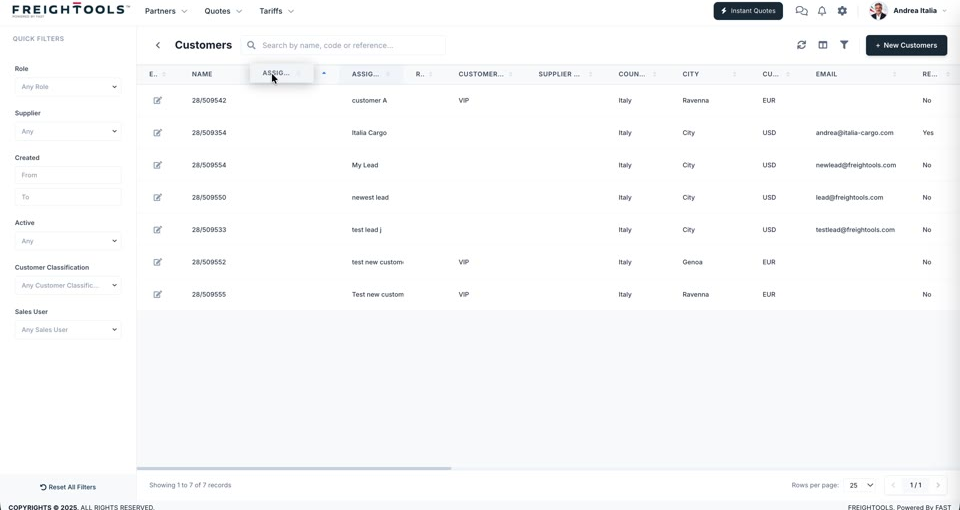
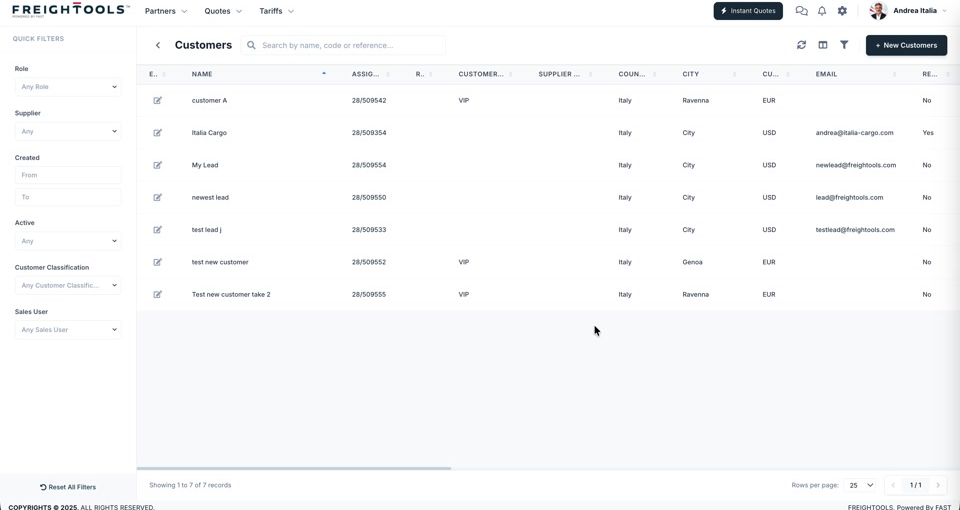
Note: Dragging a header moves the column. Clicking it sorts by it, and the small arrows at
the edge of a header are the sort control — so click, do not drag, when you want to sort.
To remove a column from the grid altogether rather than move it, use the Column Picker — see
How to show or hide grid columns.