
Every selling and buying invoice in Freightools carries one of seven statuses. This article explains the order of the statuses, the three places you can change one, and what changes on the invoice as it moves along — which fields lock, which buttons appear and which disappear. It does not cover creating the invoice; see How to issue a selling invoice from a shipment file and How to register a buying invoice against a shipment.
The seven statuses
The statuses are the same on selling and buying invoices, and always in this order:
- New
- Open — a new invoice window starts here.
- Pending
- Operation Approved
- Finance Approved
- Paid (Closed)
- Canceled
In the grid cells of the invoice lists, three of them are written without spaces or brackets: OperationApproved, FinanceApproved and Paid. They are the same statuses.
Who can set which status
The status list only offers the statuses you can move to from the invoice's current status; the others are greyed out. What is offered also depends on your user.
| Current status | Offered to an operations user |
|---|---|
| Open | Open, Pending, Operation Approved |
| Finance Approved (selling invoice) | Finance Approved only |
In practice, operations moves an invoice between Open, Pending and Operation Approved. Finance Approved, Paid (Closed) and Canceled are offered only to users with the finance permission; an operations user does not see them. If a status you need is greyed out, ask your finance team or your Freightools administrator.
Change a status
In the invoice window
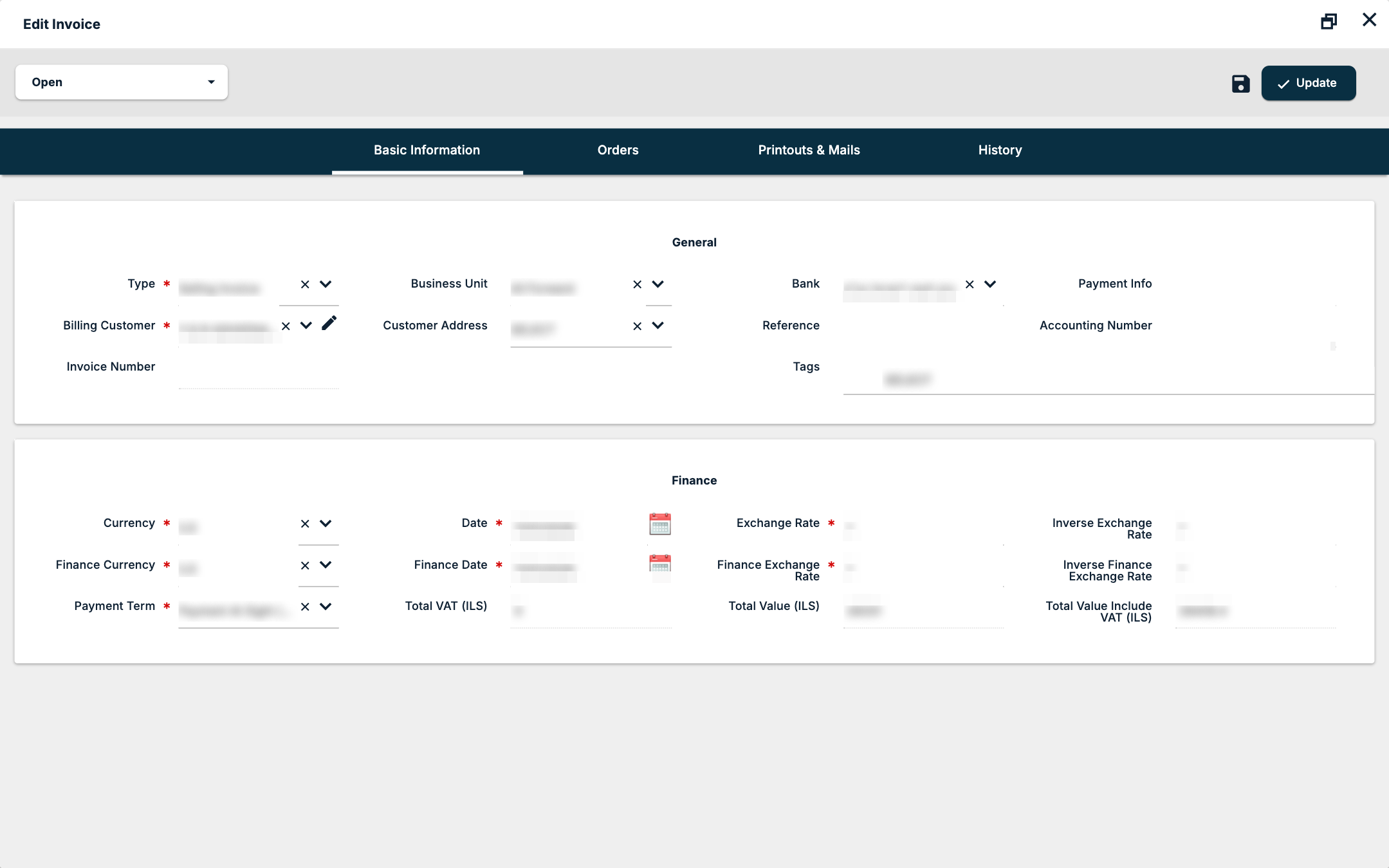
The status button is at the top left of the Edit Invoice window and shows the current status. Pick the new status from its list and click Update.
In the invoice grid
On Invoicing → Selling Invoices and Invoicing → Buying Invoices, the Status cell of each row is a dropdown. Change the status in one or more rows, then click Save Changes in the toolbar to save what you changed in the grid.
For several invoices at once

Tick the rows in the grid and click Set Status in the toolbar. If no row is ticked, Freightools answers "No invoices were selected." The Set status of selected invoices dialog lets you pick the New status and apply it with Update; each invoice moves only if the new status is allowed from its current one.
What changes at each stage
Before Finance Approved (New, Open, Pending, Operation Approved)
- The toolbar of the invoice window has Update and Apply Changes.
- The header fields are editable.
- On the Orders tab you can still add charge lines with Add Order (+), Show available Orders and Select. These controls are shown only before Finance Approved.
Finance Approved
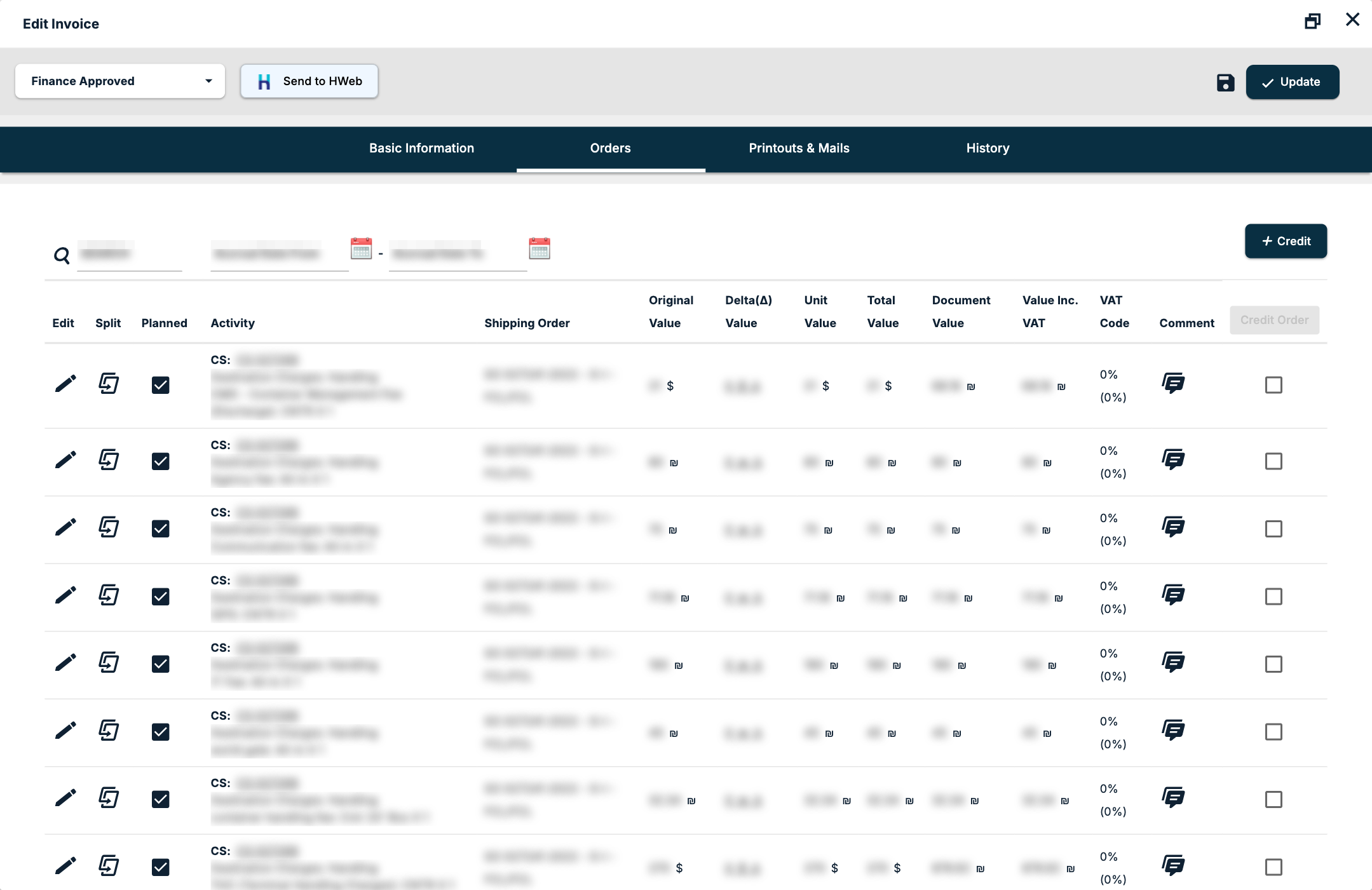
- The toolbar has Update, Apply Changes and Send to HWeb.
- These fields become read-only: Type, Billing Customer (or Billing Supplier), Currency, Date, Exchange Rate, Inverse Exchange Rate, Finance Currency, Finance Date, Finance Exchange Rate, Payment Term and the totals. On a buying invoice, Invoice Number and Supplier Total Value lock too.
- These stay editable: Bank, Payment Info, the customer or supplier address, Reference, Accounting Number, Confirmation Number and Tags.
- Add Order, Show available Orders and Select are gone: no more lines can be added.
- Credit, at the top of the Orders tab, is shown when the invoice has a number, its type is not a credit type and none of its lines has been credited yet. It creates the credit invoice at once, in status Open, with the original invoice's number in its Reference field.
- Credit Order, a column with a tick box on each line and a Credit Order button at its head, is shown under the same conditions while at least one line has not been credited. It creates a credit invoice for the ticked lines the same way.
Important: Check an invoice before it reaches Finance Approved. On a selling invoice at Finance Approved, the status list offers only Finance Approved.
Paid (Closed) and Canceled
- Both lock the invoice: nothing on it can be edited any more.
- On a Paid (Closed) invoice the Update button is gone and the toolbar shows only Send to HWeb.
Send to HWeb is shown when the invoice is Finance Approved or Paid (Closed) and has an invoice number.
Statuses on the shipment and in reports
- On a Customer Shipment (CS), the Business Unit field is locked once an approved invoice is bound to the CS.
- A demurrage record shows the Invoice Status of the invoice created from it — see How to manage container demurrage charges.
- The Invoices Report filters on Status, and the Orders Report filters on Invoice Status, which adds Not linked to invoice for charges that are on no invoice yet. See How to find and filter invoices.
If something goes wrong
| You see | What to do |
|---|---|
| A status is greyed out in the list | It cannot be reached from the current status by your user. Ask your finance team or your Freightools administrator. |
| Set Status answers "No invoices were selected." | Tick the rows first, then click Set Status again. |
| You changed Status cells in the grid | Click Save Changes in the toolbar to save the grid edits. |
| A field cannot be edited | The invoice is Finance Approved or later; the field is locked at that stage. |
| There is no Update button | The invoice is Paid (Closed) or Canceled; both lock it. |