
Every Freightools grid carries more columns than fit on a screen. The Column Picker is where
you decide which of them you actually want to see.
Open the Column Picker
- Open a list screen — Customers, Suppliers, Sales Proposals or any other grid.
- Above the grid on the right are three icons: refresh, columns and filter. Click the
columns icon, the middle one.
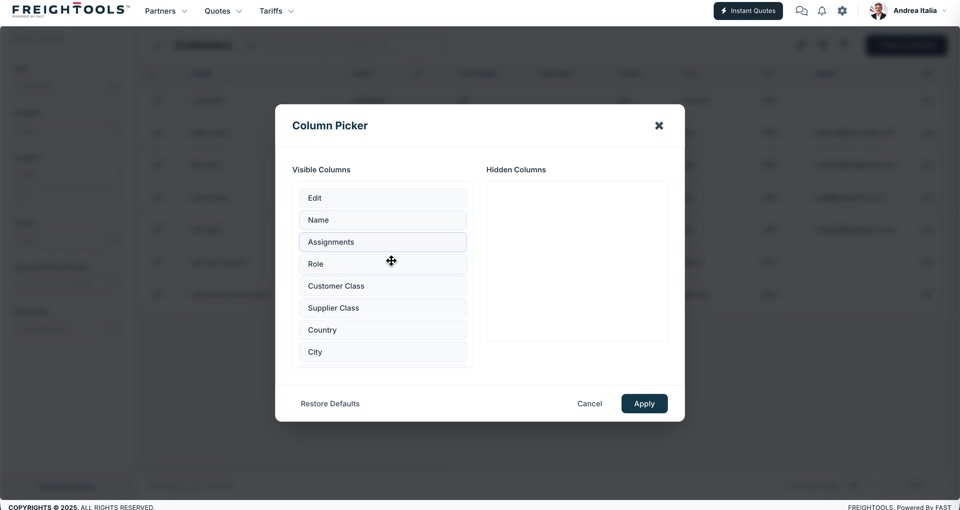
The picker opens with two lists side by side: Visible Columns on the left, Hidden Columns
on the right.
Choose your columns
- To hide a column, drag it from Visible Columns across to Hidden Columns.
- To show it again, drag it back the other way.
- To change the order, drag an entry up or down inside Visible Columns. The order top to
bottom is the order left to right in the grid. - Scroll the visible list to reach the columns further down — a grid can offer a long list,
including Currency, Email, Registered, Active, Logo, Last Update,
VAT, Sales User and Operations User.
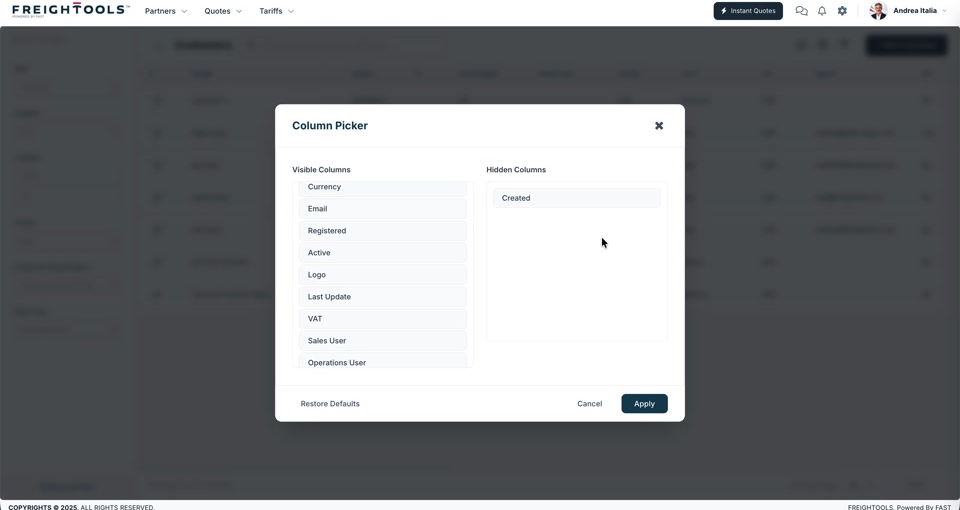
Click Apply to update the grid, or Cancel to close without changing anything.
Put it back
Restore Defaults, at the bottom left of the picker, returns the grid to the column layout it
started with.
Note: The columns on offer depend on the grid you opened — the Customers grid and the Sales
Proposals grid have different lists, because they hold different things.