
Process steps are the checklist of tasks on a shipment file: booking, documents, customs, invoicing and so on. This article covers working with the steps on one file — reading the list, opening a step, confirming it, editing it and adding one — on a Customer Shipment (CS) and on a Shipping Order (SO). It does not cover how the steps themselves are set up for your company; see Process Steps in Freightools.
Before you start
- The step names you see are your company's own steps, set up by your Freightools administrator under Settings → Process Configuration → Process Steps. See Process Steps in Freightools.
- On a CS, the Process Steps tab is disabled until the CS has been saved and has process steps from its SO. A CS that is not on an SO has no steps to show. See How to link Customer Shipments to a Shipping Order.
- On an SO, every tab except Basic Information is disabled until the SO has been saved once.
Open the Process Steps tab
- On a CS: open the CS from Shipments → Customer Shipments. The tabs are Basic Information, Routings, Goods, Economics, Process Steps, Printouts & Mails and History. Click Process Steps.
- On an SO: open the SO from Shipments → Shipping Orders. The tabs are Basic Information, Customer Shipments, Goods, Process Steps, Economics, Printouts, Integrations and History. Click Process Steps.
Read the step list
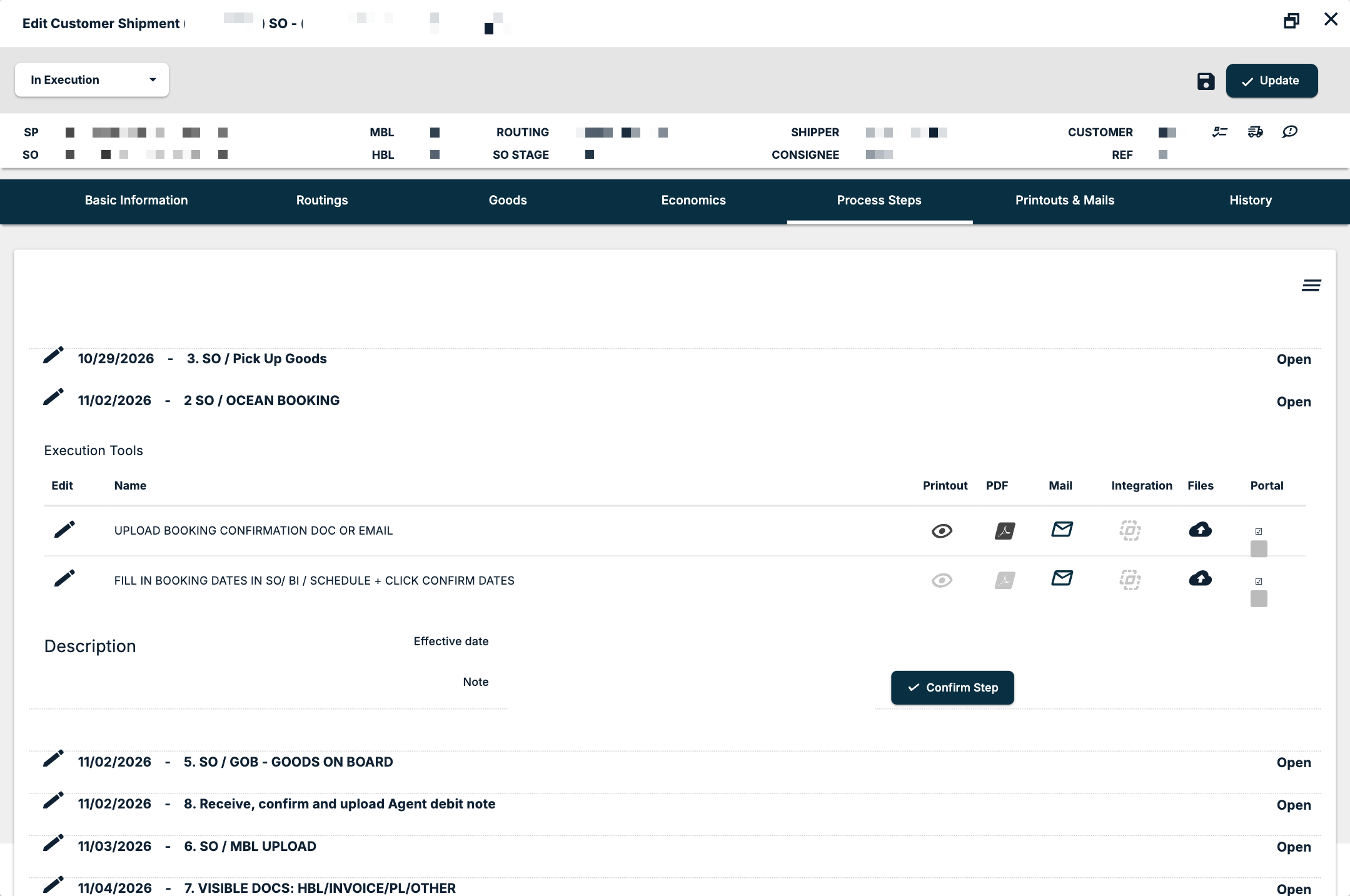
Each step is one line:
| Part of the line | What it shows |
|---|---|
| Pencil icon | Opens the step for editing. On an SO, its tooltip is the step's id. |
| Date | The step's date. On an SO, a step without one reads No Date. |
| Step name | The name your company gave the step, such as a booking or an invoicing step. |
| Status, at the right | The step's status, for example Open or Confirmed. |
On a Shipping Order: steps per CS
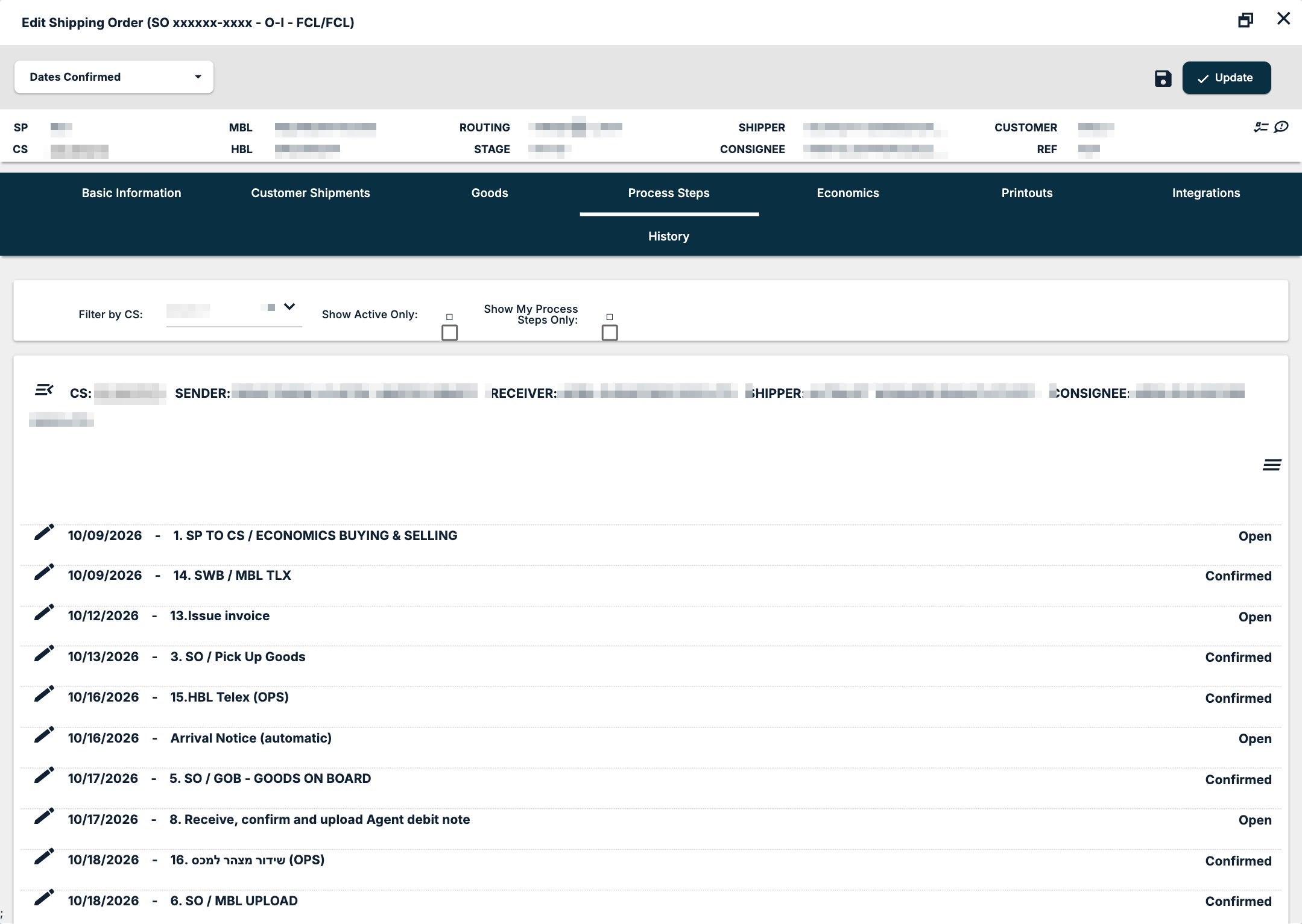
An SO can carry several CSs, so its steps are grouped per CS. Each group's header reads CS: with a link to the customer shipment, followed by the receiver, shipper and consignee. When the SO has several CSs, the groups start collapsed; click a header to expand it.
Three filters sit above the groups:
- Filter by CS: shows the steps of one CS.
- Show Active Only: a tick box.
- Show My Process Steps Only: a tick box that narrows the list to your own steps.
Open a step and confirm it
- Click the step's name. The step expands.
- Read the Execution Tools table. Its columns are Edit, Name, Printout, PDF, Mail, Integration, Files and Portal. Each row is one task for this step, written as an instruction — for example, to upload the booking confirmation document or email. The table brings the step's printout, email, integration and files together, so you work on the step without searching for them elsewhere.
- Read the Description.
- Set the Effective date. It is required: the step cannot be confirmed without it.
- Type a Note if you want to record anything about how the step was done.
- Click Confirm Step. The step's status becomes Confirmed, and Freightools records who confirmed it and when.
Which document and email template each execution tool uses is set up by your Freightools administrator. See Process Steps in Freightools.
Edit a step
Click the pencil icon on the step's line. On an SO, the Edit Step dialog opens with these fields:
| Field | What it holds |
|---|---|
| Customer Shipment (required) | The CS the step belongs to. |
| Step (required) | The step, from your company's step list. |
| Expected Date | The date the step is expected by. Change it when the real date differs. |
| Execution User | The user who carries out the step. |
| Exclude | A tick box to exclude the step on this file. Excluded is one of the step statuses the execution-steps report filters on. |
| Automatic update dates | A tick box for the step's dates. |
Click Save.
Use the menu on the tab
The menu icon at the top right of the tab (on an SO, one per CS group) holds:
- Add Process Step — adds a step to the file by hand.
- Refresh Dates — recalculates the expected dates of the steps from the shipment's dates. Shown once the file has steps.
- Invoices — opens the Invoices dialog for the file, with an Add Invoice button and the columns Edit, Number, Issued Date, Issued By, Currency, ROE, Value, Payment and Files. See How to issue a selling invoice from a shipment file.
- Export Customs — exports the customs file for the shipment.
- Reload — refreshes the step list. Shown once the file has steps.
Follow open steps across all files
To see steps across many shipping orders instead of one file, open the Shipping Order Execution Steps report from the Settings gear, column BI, Operations Reports. Its So Process Step Status filter offers Open, Confirmed and Excluded, and starts on Open. You can also filter by Expected Date, Execution User and Step. See Which reports exist and how to run them.
On the Customer Shipments list, the quick filter Execution Tool Exceptions (yes / no) narrows the list by execution-tool exceptions. See How to use the Customer Shipments list.
If something goes wrong
| You see | What to do |
|---|---|
| The Process Steps tab on a CS is greyed out | The CS is not saved yet, or it has no process steps from an SO. Save the CS and link it to an SO. See How to link Customer Shipments to a Shipping Order. |
| Every tab on an SO except Basic Information is greyed out | Save the SO once. The other tabs open after the first save. |
| Refresh Dates and Reload are not in the menu | They show only once the file has steps. Use Add Process Step first. |
| An SO's steps seem to be missing | Check Filter by CS, Show Active Only and Show My Process Steps Only, and expand the collapsed CS groups. |