
This article explains how to link a Customer Shipment (CS) to a Shipping Order (SO) that already exists, and how to unlink one. This is how you build a consolidation: one SO (the master) with several CSs (the houses). Creating the SO itself is covered in How to create SO (Shipment Order) in Freightools.
Before you start
- The SO must have been saved once. On a new SO, the Customer Shipments tab is disabled until then.
- The SO's status must be New, Open, Dates Confirmed or Pending. When the SO is Approved, Archived or Canceled, the Bind box is disabled.
- The CS must exist. If it does not, create it first — see How to create a CS (customer shipment) in Freightools.
- A CS belongs to one SO. In the Customer Shipments list, a CS that is already on an SO shows a disabled Create SO icon with the tooltip "This customer shipment already assigned to shipping order."
Link a CS to the SO
- Go to Shipments → Shipping Orders and open the SO with the pencil in the Edit column.
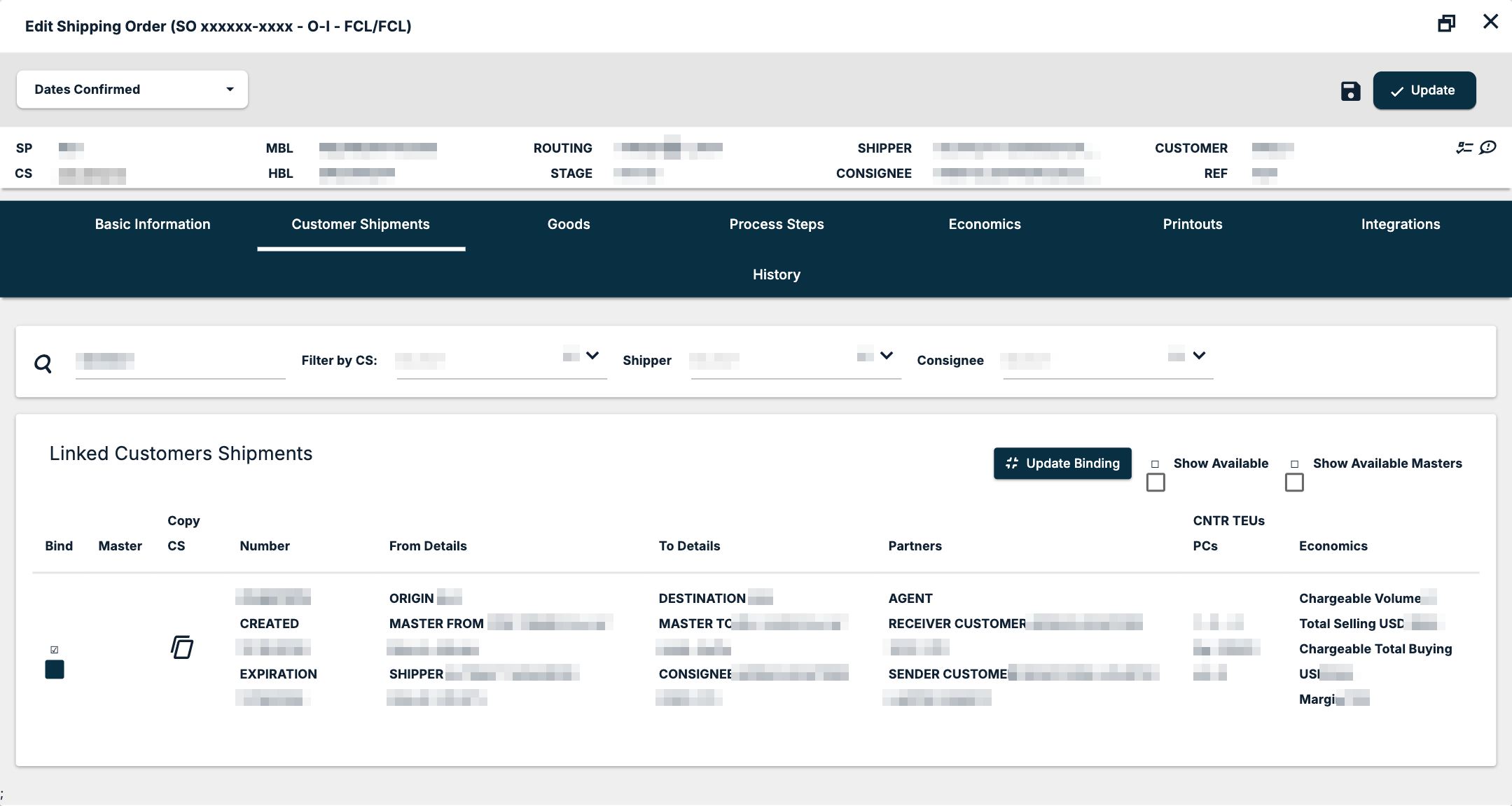
- Open the Customer Shipments tab. The grid Linked Customers Shipments shows the CSs already on this SO.
- Tick Show Available to add the CSs that are not linked to any SO to the grid. Tick Show Available Masters to list master CSs as well.
- Find the CS. Use Filter by CS, Shipper or Consignee above the grid to narrow the list.
- Tick its Bind box.
- Click Update Binding. The binding is saved at once; the SO's Update is not needed for it.
The tab has no Add button: ticking Bind and clicking Update Binding is the way to link a CS.
Unlink a CS from the SO
- Open the SO and go to Customer Shipments.
- Clear the Bind box of the CS.
- Click Update Binding. The change is saved at once.
The tab has no Remove button either. An unlinked CS returns to the status Open — see CS and SO Statuses in Freightools. Unlinking is also the first step when you need to cancel a CS that is on an SO.
Build a consolidation
A consolidation is one SO with several CSs on it. Create only one SO for it:
- Create the first CS and the SO together — Create CS and SO from this SP on the quotation, or the Create Shipping Order icon on the first CS in the Customer Shipments list.
- Create every further house as a CS only.
- Open the SO, go to Customer Shipments, tick Show Available, tick Bind on each further CS and click Update Binding.
Check the result in the N.CS column of the Shipping Orders list, which counts the CSs on each SO.
What the grid shows for each CS
| Column | What it shows |
|---|---|
| Bind | Whether the CS is linked to this SO |
| Master | Whether the CS is a master CS |
| Copy CS | A copy icon |
| Number | The CS number, its created date and its expiration date |
| From Details | Origin and master-from port |
| To Details | Destination, master-to port and consignee |
| Partners | Agent and receiver customer |
| CNTR TEUs PCs | Containers, TEUs and pieces, with weight in kg and volume in m3 |
| Economics | Chargeable Volume, Total Selling USD, Chargeable Total Buying USD and Margin |
The Economics cell shows how the master's cost is allocated to each house in a consolidation. A negative Margin means the allocated buying cost of that CS is higher than its selling.
After linking
Once a CS is on the SO:
- its goods appear on the SO's Goods tab, grouped under the CS;
- its process steps appear on the SO's Process Steps tab, grouped under the CS;
- its status becomes In Execution;
- the CS editor's title and summary strip show the SO, and the CS's Number cell in the Customer Shipments list shows the SO as a link.
If something goes wrong
| You see | What to do |
|---|---|
| The Customer Shipments tab is disabled | The SO has not been saved yet. Click Save Changes first. |
| The Bind box cannot be ticked or cleared | The SO is Approved, Archived or Canceled. Link the CS before the SO reaches those statuses. |
| The CS does not appear in the grid | Tick Show Available. If it still does not appear, check in the Customer Shipments list whether the CS is already on another SO: its Number cell shows that SO. |
| The Create SO icon on the CS is disabled with "This customer shipment already assigned to shipping order." | The CS is already on an SO. Open that SO from the CS's Number cell. |