
The Customer Shipments list is where you find, filter and open your customer shipments (CS). This article covers the toolbar, the quick filters, the Edit Filter dialog, what each column shows, and the actions you can take from a row: open the CS, create a Shipping Order (SO), open the linked SO or quotation, download files and read the schedule. Creating a CS is covered in How to create a CS (customer shipment) in Freightools.
Open the list
In the top bar, open Shipments → Customer Shipments. The page is titled Customers Shipments.
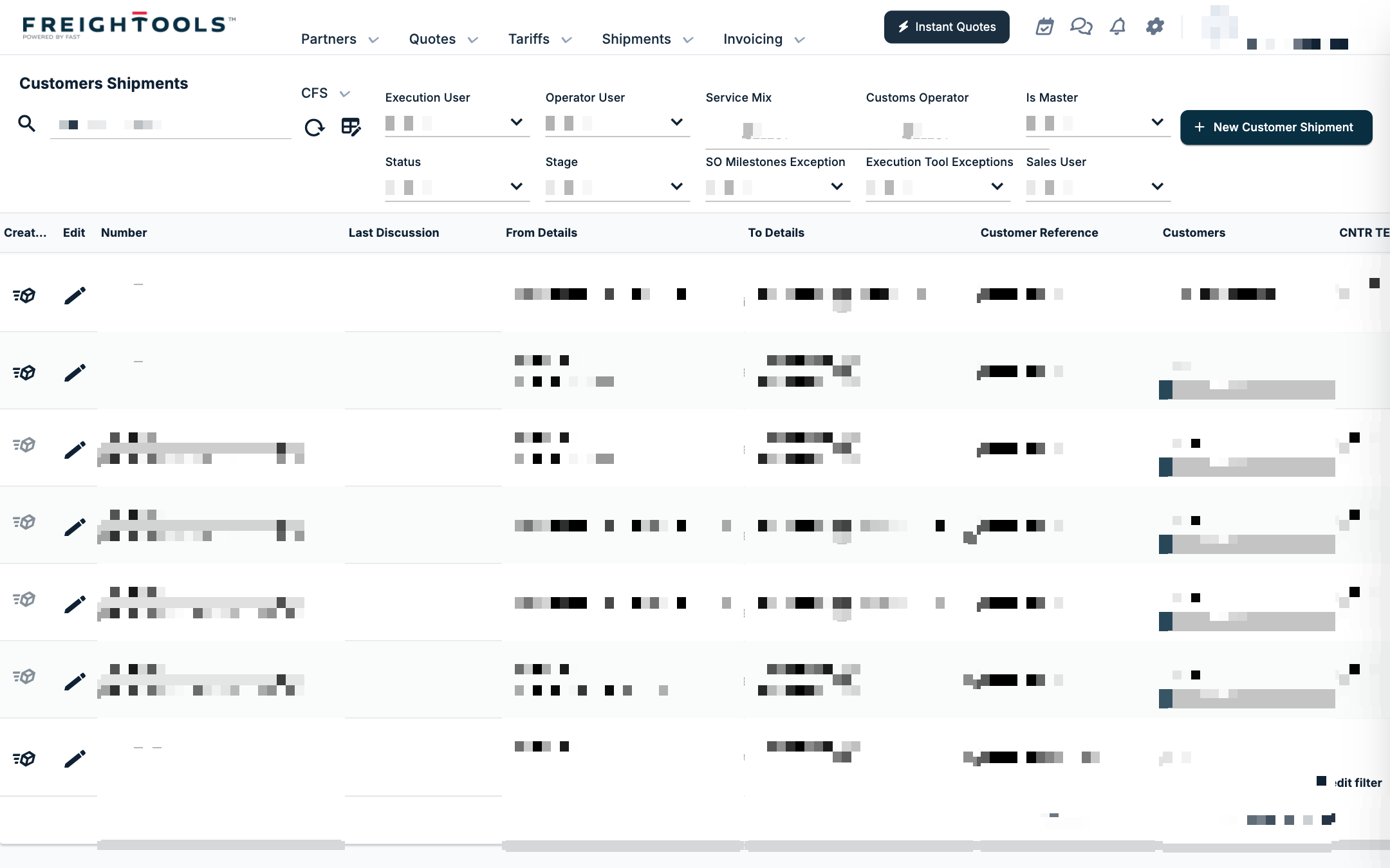
The toolbar holds:
- New Customer Shipment — creates a CS.
- Refresh — reloads the list.
- Column Picker — chooses the columns. See How to show or hide grid columns.
Filter with the quick filters
The quick filters run across the top of the list, from left to right. Each starts empty.
| Filter | Options |
|---|---|
| Execution User | The users of your company |
| Operator User | The users of your company |
| Service Mix | Air Service, General Cargo, Intermodal FCL, Ocean FCL, Ocean LCL, Project Cargo, Rail - General Cargo, Road FTL/FTL, Road LTL/LTL, Roll On Roll Of. You can choose several. |
| Customs Operator | Your partners. Inactive partners are marked [NOT ACTIVE]. You can choose several. |
| Is Master | yes, no |
| Status | New, Open, In Execution, Executed, Canceled |
| Stage | Not set, Pick Up, Cut Off, Departure, Arrival, Delivery |
| SO Milestones Exception | yes, no |
| Execution Tool Exceptions | yes, no |
| Sales User | The users of your company |
For example, to see your own shipments that are running, choose yourself in Execution User and In Execution in Status. See CS and SO Statuses in Freightools.
Build and save a filter
For a filter the quick filters cannot express, use edit filter, the link at the bottom left beside the pager. The clear filter icon beside it resets the filter.
- Click edit filter. The Edit Filter dialog opens.
- Click add criteria and choose a field. Combine criteria with and, and group them with ( and ).
- Click apply filter, or reset to start again.
- Click Save to keep the filter, or Load to open one you saved.
- Click OK to apply it, or Cancel to close the dialog.
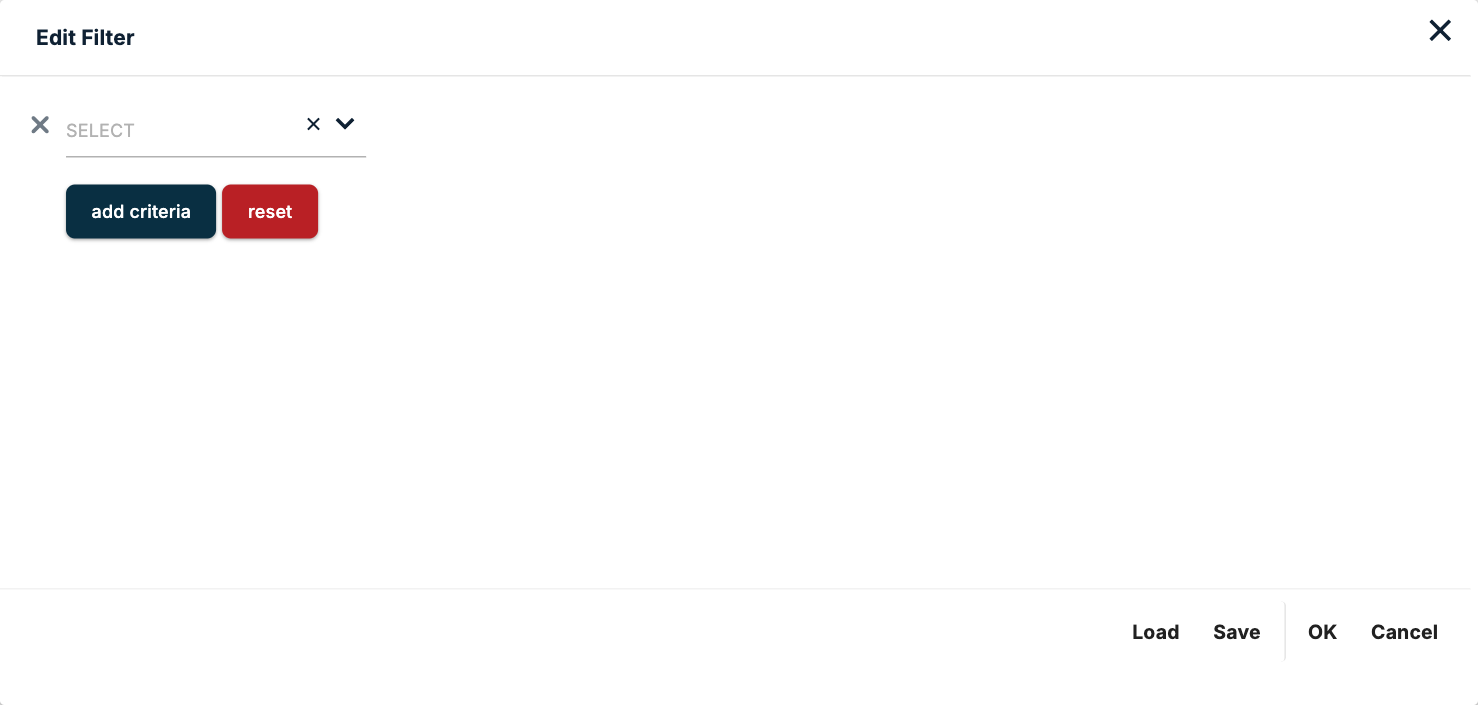
The fields you can filter on include Customers, Customer Reference, HBL/MBL, Carrier, Number, Status, Stage, Service Type, Created, Estimated Departure, Estimated Arrival, ATD, ATA, Accrual Date, Business Unit, Good Id Numbers, First Vessel, HBL Type, HBL Telex Status, SO Booking Number, SO Manifest Number, SO Transaction Number, SO Delivery Order Received, All Selling Invoices Issued, Invoiced Orders Buying USD, Invoiced Orders Selling USD, Suppliers, Terminal Delivery, Terminal Withdrawal and Updated Date.
Read the columns
| Column | What it shows |
|---|---|
| Create SO | An icon to create a Shipping Order from the CS (see below). |
| Edit | A pencil that opens the CS. |
| Number | The CS number, and — when linked — the SO and the quotation (SP) as links. |
| Last Discussion | The latest discussion message. |
| From Details | ORIGIN, MASTER FROM (the port) and SHIPPER. |
| To Details | DESTINATION, MASTER TO and CONSIGNEE. |
| Customer Reference | The SENDER and RECEIVER references. |
| Customers | The customer, with a margin bar. Hover it for "Margin $ (Margin %)". |
| CNTR TEUs PCs | Containers, TEUs and pieces, then Kg and m3. |
| HBL/MBL | The house and master bill numbers. |
| Created, Estimated Departure, Estimated Arrival | The dates. |
| Carrier, Execution User | Who carries and who runs the shipment. |
| Cargo Constraints | The number of goods and how many are stackable. |
| Service Type | Origin and destination flags, the incoterm and the trade, for example "FOB-R - Import". |
| Discussion | The message count. |
| Suppliers | The suppliers on the CS. |
| Download | Download the shipment's files. |
| Schedule | The SO status and stage. |
To change the column order, see How to reorder the columns in a grid.
Create a Shipping Order from a CS
The Create SO icon is the first column.
- On a CS with no SO, the icon is enabled with the tooltip "Create Shipping Order". Clicking it creates and saves the SO at once, with the CS bound to it.
- On a CS already on an SO, it is disabled with the tooltip "This customer shipment already assigned to shipping order."
See How to create SO (Shipment Order) in Freightools. To put several CSs on one SO, see How to link Customer Shipments to a Shipping Order.
Open the CS, its SO or its quotation
- Click the pencil in Edit to open the CS in the page.
- In Number, a linked CS shows two more lines: SO: with the SO number and SP: with the quotation number. Each is a link (tooltip "Edit") that opens the SO or the quotation.
Download a shipment's files
Click the folder icon in Download (tooltip "Download Files"). The icon is disabled when the CS has no files.
Read the SO status and schedule
The Schedule column shows the SO's status (for example New, Open or Dates Confirmed) and its stage (for example "Stage: Not set").
Click the clock icon to open Shipping Order … Status Summary, a read-only view of the schedule per good, for example per 40' HC container. When there is nothing to show, it reads "No good schedules to display." On a CS without an SO, the icon has nothing to open.
See SO Dates, Stages & Tracking in Freightools.
Discuss a shipment
Click the message icon in Discussion to open Customer Shipment Discussions.
The Recent Discussions panel on the right of the page holds "Comments on your sales proposals, customer shipments and shipping orders". Filter it by All, Mine, SP, CS or SO. Type a message and press Enter to send it, or Shift+Enter for a new line.
Page through the list
The pager at the bottom shows 50, 100, 500 or 2500 rows per page — 100 to start with — and the range you are looking at, for example "1 - 100 of …".
Related articles
- How to create a CS (customer shipment) in Freightools
- Customer Shipment (CS) Tabs Overview in Freightools
- CS and SO Statuses in Freightools
- How to create SO (Shipment Order) in Freightools
- How to link Customer Shipments to a Shipping Order
- SO Dates, Stages & Tracking in Freightools
- How to show or hide grid columns