
This article explains what the Economics tab of a Shipping Order (SO) shows and where you start invoicing from it. The SO's economics bring together the buying and selling orders of every Customer Shipment (CS) on the SO. Entering activities and prices is done on the CS — see How to manage the economics of a Customer Shipment. Splitting an order or recording a difference is covered in Shipping Order - Split vs. Delta Features.
Before you start
- Open the SO from Shipments → Shipping Orders with the pencil in the Edit column and go to the Economics tab.
- The tab is disabled on a new SO until the SO has been saved once.
- The orders come from the CSs on the SO. If a CS is missing, link it first — see How to link Customer Shipments to a Shipping Order.
The summary table
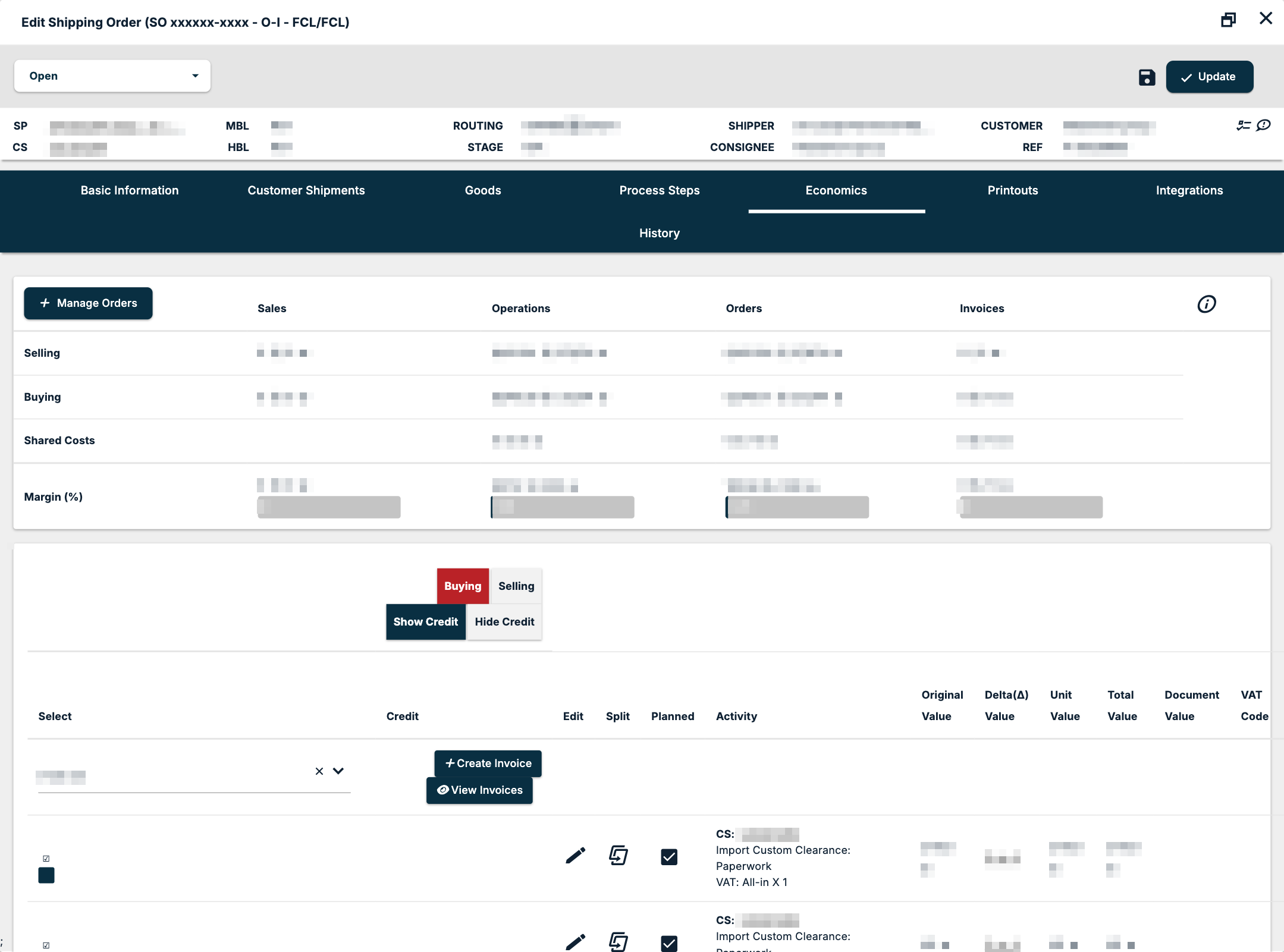
At the top of the tab is a table with four rows — Selling, Buying, Shared Costs and Margin (%) — and four columns — Sales, Operations, Orders and Invoices. Each cell shows two amounts: one in US dollars and one in the company currency, for example "… $ / … ₪". The margin row also carries a number beside the amounts. At the end of the header row is an info icon with the tooltip Economic Details.
The Manage Orders button sits at the start of the header row. It is disabled in some situations.
The order lines
Below the summary table are the orders, one line each.
Switch between buying and selling
- Buying / Selling — shows the buying orders, grouped per supplier, or the selling orders, grouped per customer. The tab opens on Buying.
- Show Credit / Hide Credit — shows or hides the credit orders. The tab opens on Show Credit.
The columns
| Column | What it shows |
|---|---|
| Select | A tick box to select the line |
| Edit | The pencil, which opens the order |
| Split | The icon that splits the order into payments; disabled once the line has an invoice |
| Activity | The CS the order belongs to (as a link, "CS: …"), the charge and its quantity, for example "All-in X 1" |
| Original Value | The order's value before any delta |
| Delta(Δ) Value | The delta, as a link that opens the order's deltas |
| Unit Value | Value per unit |
| Total Value | Original Value plus the delta |
| VAT Code | The VAT code of the line |
| Value Inc. VAT | The value including VAT |
| Comment | A comment icon, when the line has a comment |
| Invoice | The invoice the order is on |
The grid also has the columns Credit, Planned (a tick mark) and Document Value. A line with nothing in Invoice is an order that has not been invoiced yet.
The supplier and customer groups
Lines are grouped per supplier on the Buying side and per customer on the Selling side. Each group header holds:
- a partner select — the supplier or customer of the group. If you change it, a Save button appears; it appears only when the group has no invoice.
- Create Invoice — at the right, shown when the group has active orders. It opens the Create Invoice form.
- Credit — shown when the group has active credit orders.
- View Invoices.
Create an invoice from a group
- Switch to Buying or Selling.
- On the supplier or customer group, click Create Invoice.
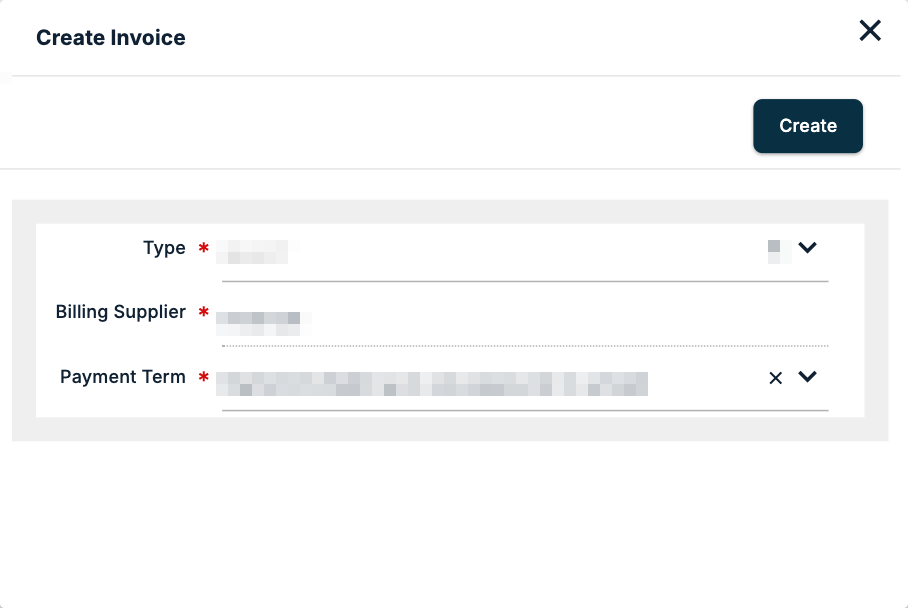
- In Create Invoice, choose the Type. On the Buying side the list holds Buying Invoice, Credit BUYING invoice, Commercial BUYING Invoice and Demurrage BUYING Invoice; on the Selling side it holds your selling invoice types.
- Check Billing Supplier (Buying) or Billing Customer (Selling), pre-filled with the group's partner, and Payment Term, pre-filled from the partner and chosen from your company's payment terms.
- Click Create. The new invoice opens in the Edit Invoice window, with the group's lines on its Orders tab.
The rest of the invoicing flow is in How to register a buying invoice against a shipment and How to issue a selling invoice from a shipment file.
Margin per house in a consolidation
The Economics tab shows the whole SO. To see how the master's buying is spread across the houses, open the Customer Shipments tab: its Economics cell shows, per CS, Chargeable Volume, Total Selling USD, Chargeable Total Buying USD and Margin. A CS whose margin is negative there sells for less than its share of the buying.
The Shipping Orders list also has the columns Total Selling USD, Total Buying USD and Margin, so you can compare SOs without opening them.
If something goes wrong
| You see | What to do |
|---|---|
| No Create Invoice button on a group | The group has no active orders. |
| The Split icon on a line is disabled | The line already has an invoice. See Shipping Order - Split vs. Delta Features. |
| No Save button after changing a group's partner | The group already has an invoice. |
| The Economics tab is disabled | The SO has not been saved yet. |
| A message appears when you create a selling invoice | If the customer has not been approved for invoicing, Freightools shows a message. See How to approve a new customer for invoicing. |