
Everything that shapes an invoice before anyone issues it — its number, its VAT, its payment term, its exchange rate, the bank on it — is set up once, at company level, by your Freightools administrator. This article is a map of those settings: one short section per page, with what the page is for and the fields of its New window, and a link to the full article where one exists. It does not cover issuing invoices; see How to issue a selling invoice from a shipment file.
How the settings pages work
The pages below are under Settings → Accounting Configuration. Each is a list with a New … button, Refresh, Column Picker and a quick search box, and a pencil on each row to edit it. A New window has Save Changes and Apply Changes (the icon); an existing record's window has Update, Apply Changes and Delete.
Invoice numbering: Invoice Types and number ranges
Invoice Types lists the types offered in the Type list of an invoice, such as Selling Invoice, Credit Invoice, Demurrage invoice and Buying Invoice. Each type says whether it is selling or buying, whether its invoices are numbered (Numbering), whether numbers are Automatic or Manual, which Number Range the numbers come from, whether it is a Credit type, and which printouts it uses.
- New Invoice Type fields: Name, Code, Selling/Buying (Buying, Selling), Print Out Id, Numbering, Credit, Credit Invoice Type, Numbering Method (Automatic, Manual), Number Range, Printouts, Description, Accounting Number, VAT Accounting Number, Trans Type, VAT Trans Type.
- See How to create invoice type in Freightools.
The format and sequence of the numbers themselves are set in number ranges. See How to Manage Number Ranges in Freightools.
On a selling invoice the Invoice Number is read-only and assigned by Freightools. On a buying invoice it is editable, for the supplier's own number.
Payment Terms
The terms offered in the Payment Term field of every invoice, such as "End Of Month" or a number of credit days. List columns: Code, Name, Payment At Sight, Credit Days, End Of The Month, Expected Date, Active.
- New Payment Term fields: Active (ticked by default), Expected Date, Name*, Code, Is Company Bank, Payment At Sight, Credit Days, End Of The Month, Comment.
- Expected Date options: SO Creation, Booking, Pickup, Cut Off, Master From (ETD), Master To (ETA), Delivery, First Transshipment, Second Transshipment, Third Transshipment, MBL, HBL, Release, Calculation, CS Creation.
- See Setting Up Payment Terms in Freightools.
Exchange Rates (ROE)
The menu entry is Exchange Rates; the page is titled ROE. It holds your company's rates of exchange against USD. Filter by Type: Internal, Customs or Finance. List columns: Type, Currency / USD, Rate, Date, System Rate.
- New ROE fields: Currency, Type (Internal, Customs, Finance), Rate, Date (today by default), Is Date Range.
- If no company rate is found for the last seven days, a new invoice opens with a Confirm box saying so, with the buttons Ok and Use System Exchange Rates. Keeping rates current here avoids it.
- See ROE (Rate of Exchange) in Freightools.
VAT Codes
The page is titled Vat Codes. Each code has a rate and says whether it applies to selling, buying or both. List columns: Code, Name, Rate (%), Selling Vat, Buying Vat, Active, Default.
- New Vat Code fields: Active (ticked by default), Default, Name, Country, Code, Selling VAT Accounting Number, Buying VAT Accounting Number, Rate (%), Selling Vat, Buying Vat, Description.
- An inactive code shows "[NOT ACTIVE]" wherever a VAT code is picked.
- See Setting Up VAT Codes in Freightools.
VAT Code Rules
The page is titled Vat Code Rules. The rules decide which VAT code a charge line gets: each line on an invoice shows the VAT Code that applies to it. A rule matches on the operation, the activity type, the activities, the charges (price details), the countries and the customer classification. List columns: Id, Copy (tooltip "Copy"), Vat Code, Operation, Activity Type, Countries.
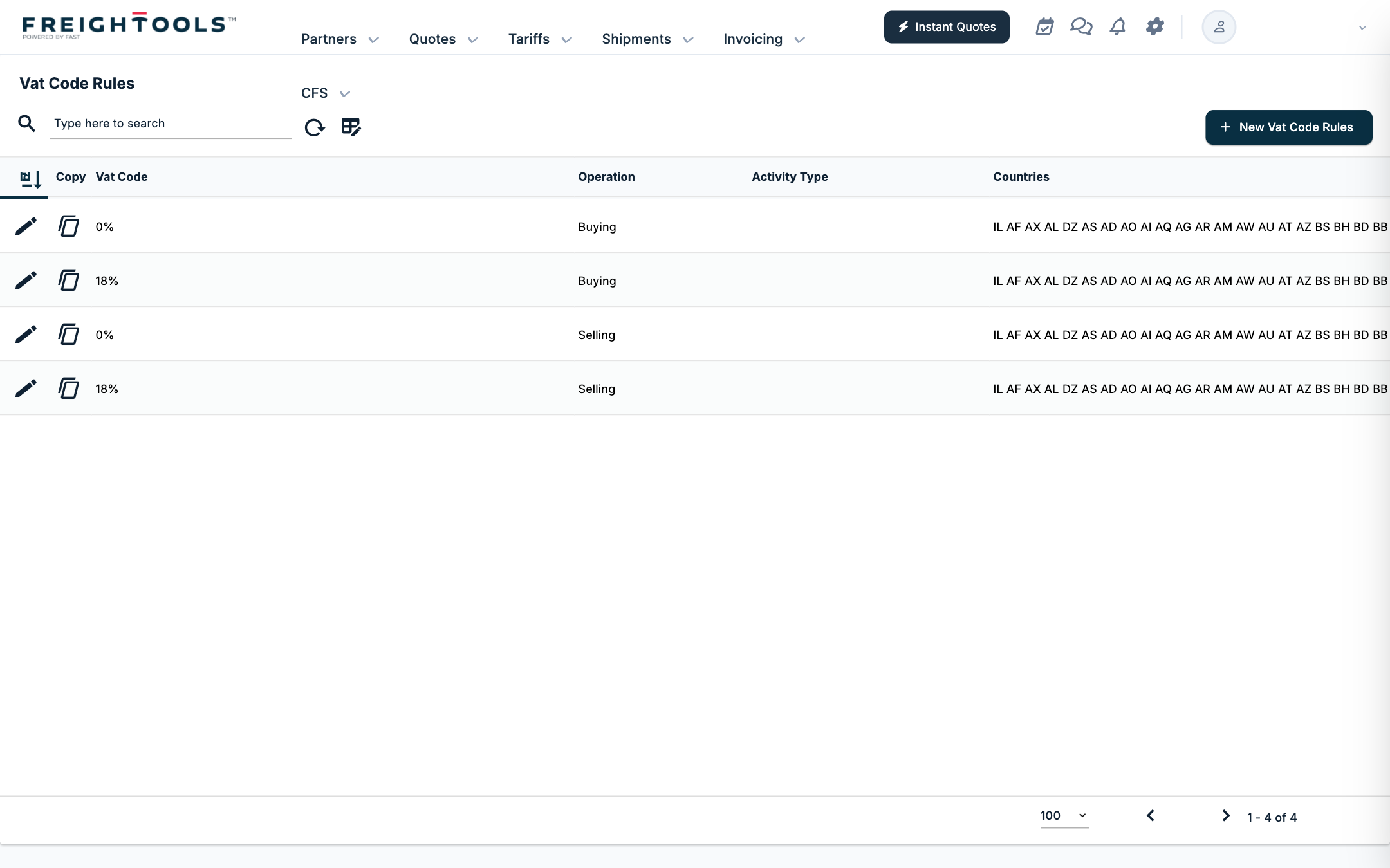
- New Vat Code Rules fields: Vat Code, Operation (Buying, Selling), Activity Type, Activities, Price Details, Countries*, Countries From, Countries To, Customers Classifications.
- Activity Type options: All-in, Commission, Duties & VAT, Freight, Handling, Insurance, Paperwork, Warehousing, Varius Services.
- Use Copy on an existing rule to start a similar one.
- See Setting Up VAT Code Rules in Freightools.
Banks
The banks you can choose in the Bank field of an invoice. List columns: Name, IBAN, Swift, Active.
- New Bank has two tabs. Bank: Active (ticked by default), Name, IBAN, Swift*, Legal Note, Description. Banks Accountings, on a saved bank: a list of Currency and Accounting Number per currency, added with New Banks Accountings.
- See Creating Banks in Freightools.
Delta Types
The types you can give a delta — a difference recorded on a charge line, which adds to its Original Value to make its Total Value. List columns: Name, Active.
- New Delta Type fields: Active (ticked by default), Is Credit, Name*.
- See Shipping Order - Split vs. Delta Features.
VAT LOI Exempts and their log
The page is titled Vatloi Exempts. It records a partner's VAT exemption certificate with a total amount, and tracks how much of that amount has been used. Filters: Partner, Vat Code. List columns: Id, Partner Name, Vat Code, Created, Validity Start, Expiration, Protocol Number, Total Amount, Amount Used, Amount Remained.
- New Vatloi Exempts fields: Partner, Vat Code, Validity Start, Expiration, Protocol Number, Total Amount*, Amount Used.
- Vatloi Exempt Logs is a read-only log with no New button. Columns: Id, Invoice Code, Finance Date, Invoice Vat, Invoice Vat Deduction.
Accrual Configuration
The page is titled Accrual Configurations. Each row says, for a service mix and service trade, which shipment date the accrual is based on. List columns: ID, Service Mixs, Service Trades, Date Type.
- New Accrual Configurations fields: the service mix field (spelled Seervice Mixs on screen), Service Trades (Export, Import, Domestic, Cross), Date Type* (the same date list as a payment term's Expected Date).
- See How to Configure Accruals in Freightools.
Partners Credits
Credit limits per partner. Filters: Partner, Created. List columns: Partner, Created, Customer Total Credit, Customer Partner Credit, Credit Used, Credit Overage.
- New PartnersCredits fields: Partner, Created, Supplier Total Credit, Supplier Partner Credit, Customer Total Credit, Customer Partner Credit.
Related articles
- How to create invoice type in Freightools
- How to Manage Number Ranges in Freightools
- Setting Up Payment Terms in Freightools
- ROE (Rate of Exchange) in Freightools
- Setting Up VAT Codes in Freightools
- Setting Up VAT Code Rules in Freightools
- Creating Banks in Freightools
- How to Configure Accruals in Freightools