
A System Administrator can change a colleague's details at any time from Team Members in Settings. This article covers opening a user, what you can change in the Edit User window, sending a password reset link, and what to do when a colleague's email address changes.
To add a colleague, see How to add a new user to your company. To change their access level or capabilities, see How to edit a user's role. When someone leaves, see How to deactivate a user when an employee leaves.
Before you start
- You must be a System Administrator. Only users with the System Administrator access level can edit users.
Open the user
- Click your name or avatar in the top-right corner and choose Company Settings.
- In the left-hand menu, click Team Members.
- Find the user. Type part of their name or email in the search box. The list shows Active users; to find an inactive user, set Status to Inactive or All.
- Click anywhere on the user's row. The Edit User window opens, with the user's number in its title.
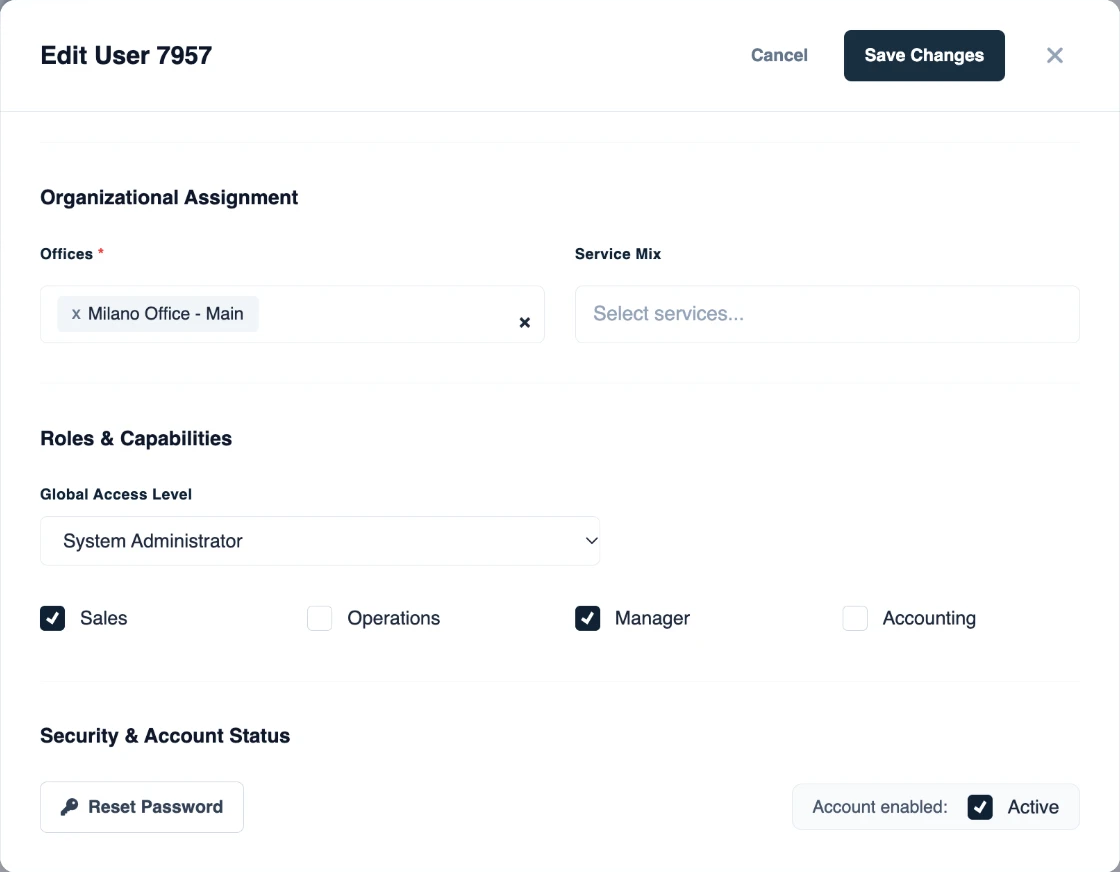
Change the details
| Section | Field | What you can do |
|---|---|---|
| Top of the window | Photo | Click Change photo to add or replace it. The image can be up to 10 MB. |
| Basic Information | First Name, Last Name | Change them. Both are required. |
| Display Name | Greyed out; you do not edit it. | |
| Cannot be changed. It is the user's login — see below if the address changes. | ||
| Organizational Assignment | Offices | Add an office from the list, or remove one with the x on its tag. At least one office is required. |
| Service Mix | Add or remove services. It is optional. | |
| Roles & Capabilities | Global Access Level and the capability tick boxes | See How to edit a user's role. |
| Security & Account Status | Reset Password | Emails the user a link to set a new password — see below. |
| Account enabled | See How to deactivate a user when an employee leaves. |
When you are done, click Save Changes. Freightools shows "User saved successfully." To close the window without saving, click Cancel or the X.
Send a password reset link
If a colleague cannot sign in, open their user and click Reset Password. Freightools emails them a link to set a new password and shows "Reset password link has been sent".
Colleagues can also do this themselves: on the sign-in page with Forgot your password?, or, once signed in, from their own profile with Send Password Reset Link — see How to manage your user profile.
If the colleague never activated their account, click Resend Invitation instead. It sends the activation email again.
When a colleague's email address changes
The email address cannot be changed after the user is created, because it is the user's login. When a colleague's address changes:
- Add a new user with the new address — see How to add a new user to your company.
- Deactivate the old user — see How to deactivate a user when an employee leaves.
If something goes wrong
| What you see | What to do |
|---|---|
| "Please fill in all required fields." | Fill in First Name, Last Name and at least one office under Offices. |
| "Failed to save user." | Save again. If it keeps failing, contact Freightools support. |
| "Failed to send reset link." | Click Reset Password again. If it keeps failing, contact Freightools support. |
| You cannot find the user | Set Status to All. The user may be inactive. |
| You cannot open the user or save your changes | Only a System Administrator can edit users. Ask one in your company. |