
Your profile holds your name, your photo, the capabilities assigned to your account, and the
two security actions for your login and your mailbox.
Edit your profile
- Open Settings → Profile.
- Use Upload Image to add or replace your profile photo.
- Update First Name and Last Name. Both are required.
- Under User Capabilities, tick the capabilities that apply to you — Sales,
Operations, or both. - Click Save Changes.
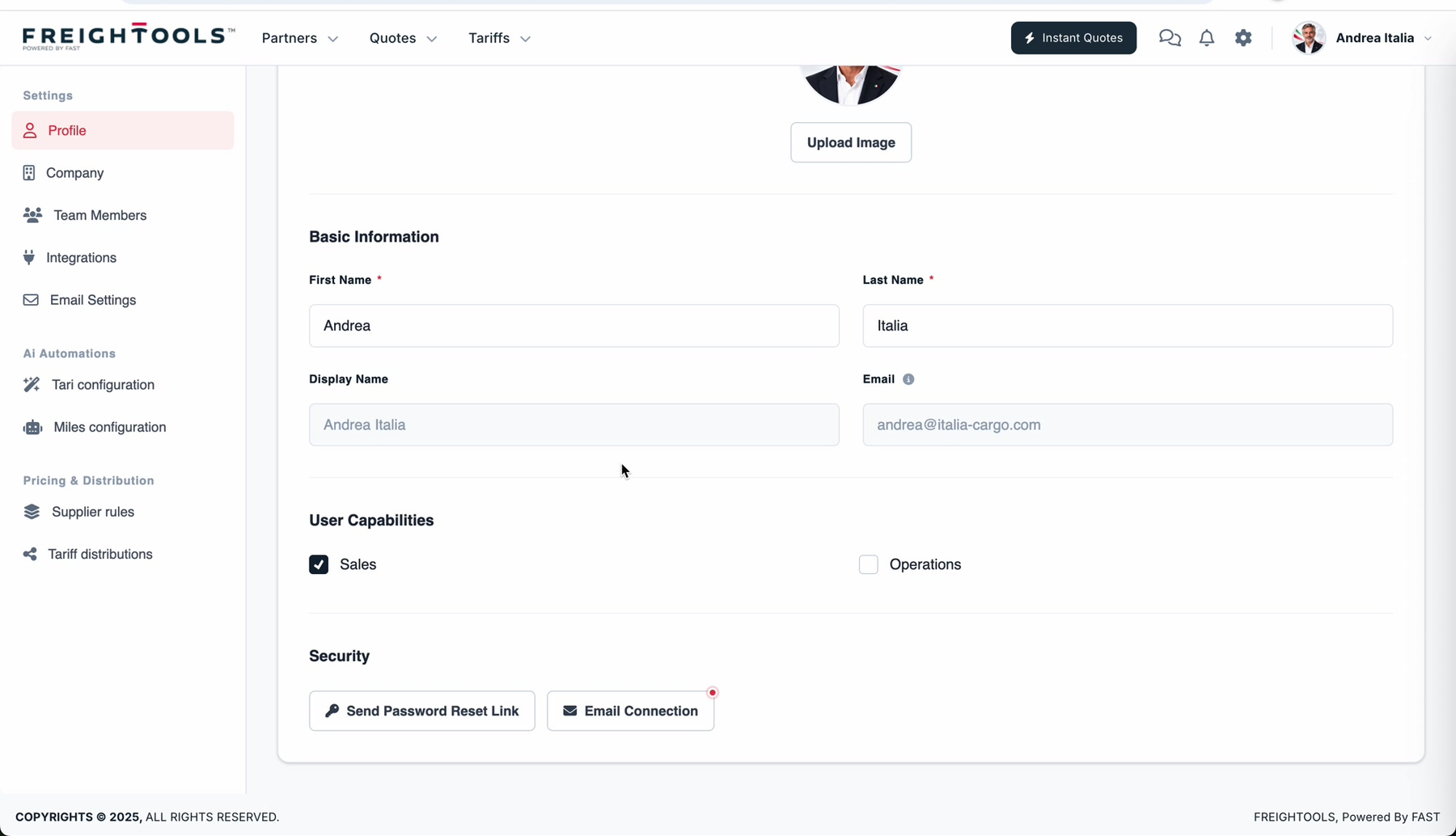
Note: Display Name and Email are shown greyed out. They come from your account and
are not edited here.
What User Capabilities do
A capability describes the work you do, and Freightools uses it to decide which users can be
picked in the places that ask for a person. A partner record carries a Sales User and an
Operations User, both of which you can show as columns on the Customers and Suppliers grids —
see How to show or hide grid columns.
Whether you can change your own capabilities depends on your permissions. If the tick boxes do
nothing, ask an administrator in your company to set them for you.
The two security actions
| Action | What it does |
|---|---|
| Send Password Reset Link | Sends a password reset email to the address on the account. |
| Email Connection | Opens the mailbox connection dialog. A red dot on the button flags that your mailbox connection needs attention — open it to check the connection or to set one up. |
Connecting a mailbox is covered in
How to connect your email to Freightools.