
Everything you can configure about yourself and about your company sits behind the user
menu in the top-right corner of Freightools. This article shows you how to get there, what each
part of Settings covers, and how to save what you change.
Open Settings
- From any Freightools screen, click your name or avatar in the top-right corner.
- Choose Profile for your own account, or Company Settings for the company
configuration.
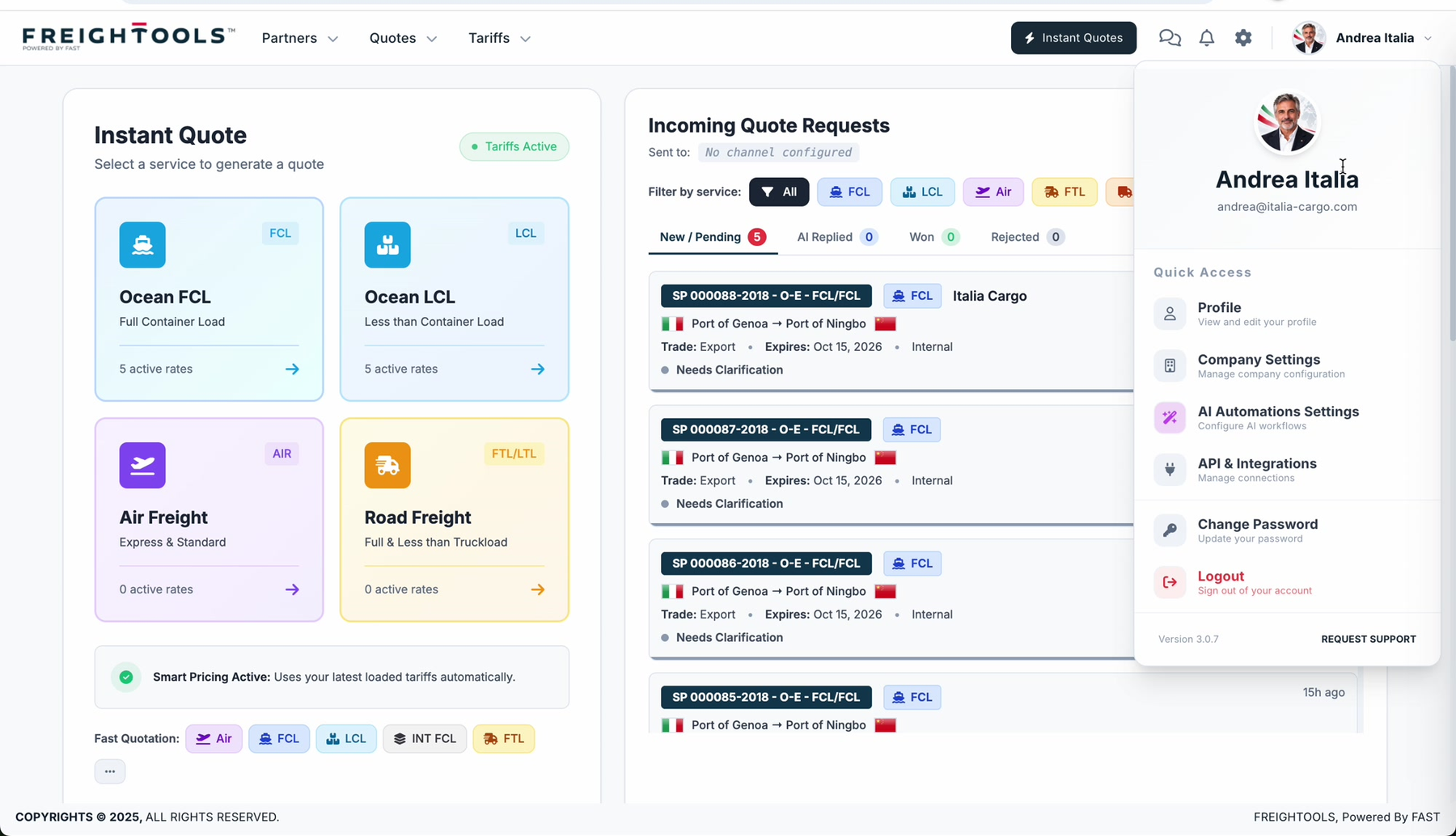
The same menu is a shortcut to AI Automations Settings, API & Integrations and
Change Password, and it shows your Freightools version number with a Request support
link at the bottom.
Find your way around
Inside Settings, the left-hand navigation groups the pages:
| Group | Pages |
|---|---|
| Settings | Profile · Company · Team Members · Integrations · Email Settings |
| Ai Automations | Tari configuration · Miles configuration |
| Pricing & Distribution | Supplier rules · Tariff distributions |
What you can open depends on your permissions, so your list may be shorter than the one above.
The Company page itself has two tabs — Basic Info and Offices — plus an
Advanced Settings button that opens the internal and Customer Portal controls in a dialog.
Save your changes
Important: Freightools does not save a setting as you type it. Use the save button on the
screen you are on before you navigate away.
| Where you are | The button |
|---|---|
| A Settings page, such as Profile or Company → Basic Info | Save Changes |
| The Advanced Company Settings dialog | Save Settings |
| The Office Details dialog | Save Office |