
This article walks through the eleven pages under Settings → General Setup: what each one holds, the fields of its New dialog where it has one, and which lists are read-only system data. It does not cover service types, freight types or incoterms (see Service configuration reference: service types, freight types and incoterms), or company and user settings (see Where to find your user and company settings).
Before you start
- Open the Settings gear at the top right. General Setup is the first group in the Configuration column. It lists, in order: Physical Addresses, Transport Equipment, Countries, Geo Areas, States, System Carriers, Currencies, Address Types, Equipment Types, Commodities and Commodity Groups.
- Every list has Refresh, Column Picker and a search box ("Type here to search"). A record opens as a dialog over the list.
- In a New dialog, fields marked with a red asterisk are required. The dialog's toolbar has Save Changes and Apply Changes.
- Much of this data is system data maintained by Freightools. A system record cannot be edited by anyone in your company, administrators included: it opens with its fields but no Update or Delete button. Where a list has a New button, an administrator can add records of your own. If a system value is missing or wrong, ask your Freightools contact.
Physical Addresses
The address book of ports, airports, warehouses, offices and other places used wherever you pick a location. Filters: Country and Address Type (Air Port, Customs Office, Drone Base, Factory, Office, Rail Station, River Port, Sea Port, VGM - Container weighing station, Warehouse). Columns: UN/LOCODE, Name, Country, Address Type, Partner.
New Physical Address asks for Address Type, Name and Country (required), and offers Partner, Active (ticked by default), Description, UN/LOCODE, State, Region, City, Address, Address Info, Zip Code, Geo Coordinates, the contact fields (Contact Person, Contact Cell, Contact Tel, Contact Mail), Business Hours, Comment and Available For Stock (not ticked by default). A sea port record also shows Related Ports. System ports open read-only.
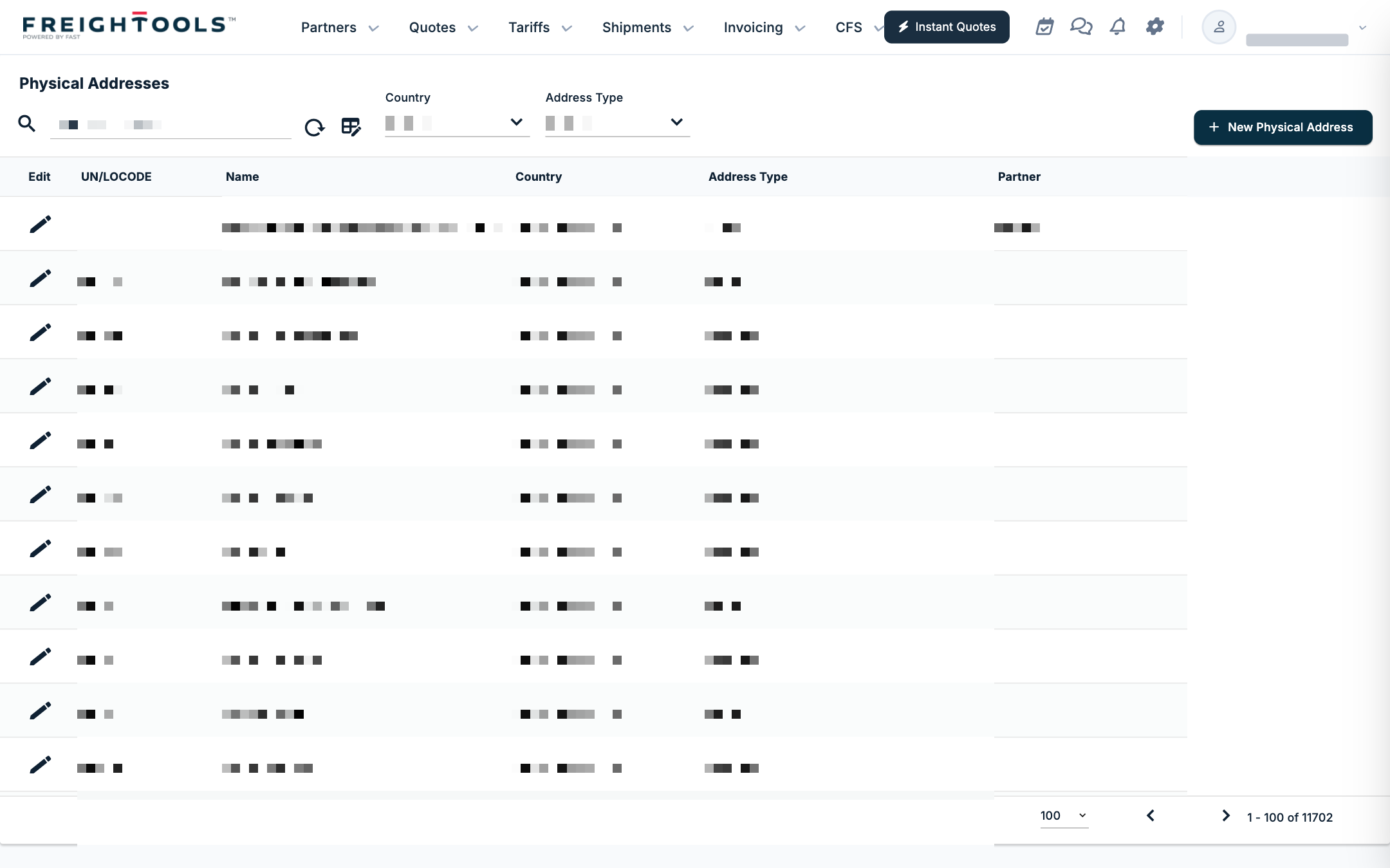
For the step-by-step, see How to manage physical addresses in Freightools.
Transport Equipment
Vessels, aircraft, trucks and other means of transport. The page title is "Transport Equipments". Columns: Flag, Equipment Type, Name (shown as name and MMSI), Number, Insurance, Build Year.
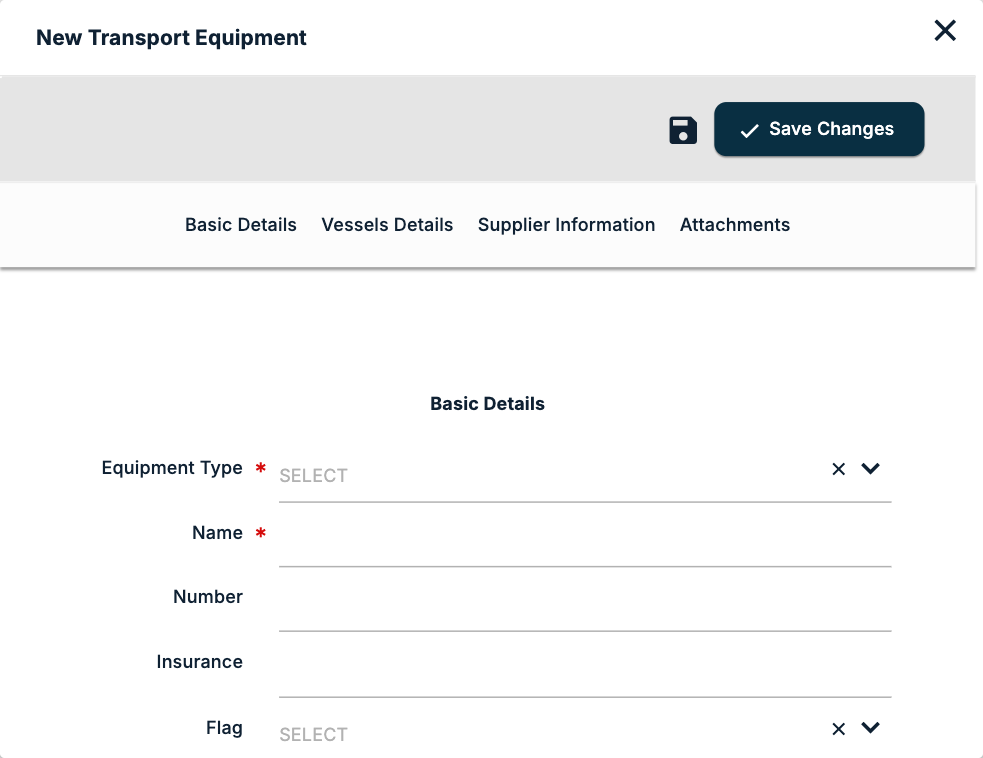
New Transport Equipment has four sections:
- Basic Details: Equipment Type and Name (required), Number, Insurance, Flag, Build Year, Brand Name, dimensions and Description. The Equipment Type list comes from Equipment Types.
- Vessels Details: Vessel Registry, Vessel Call Sign, Vessel MMSI, Vessel Gross Tonnage, Vessel Dead Weight, Vessel DWCC, Geared, Tracking Url, Route Tracking Url, IL Vessel Code.
- Supplier Information: User, KM, Partner, Contract Reference, Rent Monthly Fee, Date From, Date To, Contract KM, Comment.
- Attachments: Select File.
Countries
The country list, with Name, Code and Image. It has no New button; records are read-only.
Geo Areas
Your company's own geographic groupings. Toolbar: New Geo Area and Import GeoAreas. Columns: Name, Code, Group By, Active.
New Geo Area asks for Name, Code and Group By (Country, State, Address, ZIP Code, Coordinate Distance or City), with Active ticked by default. An area grouped by city lists its members under Geographic Cities', with a New GeoAreaCities button. An existing area has Update, Apply Changes and Delete. See Creating a New Geo Area.
States
States and provinces, with Name, Code and Country. No New button; read-only.
System Carriers
The shared list of airlines, shipping lines and truckers. Columns: Id, Freight Type, Name, Code, Shipsy Code, Tracking Name, Tracking URL, Image. A record also shows the IATA and ICAO codes, AWB Prefix, Scac Code and the road register fields. No New button; read-only. To tie one of your suppliers to a system carrier, see How to relate a supplier to a system carrier.
Currencies
The currency list, with Symbol, Name and Code (a record also shows IL Code). No New button; read-only.
Address Types
The kinds of place a physical address can be: Air Port, Customs Office, Drone Base, Factory, Office, Rail Station, River Port, Sea Port, VGM - Container weighing station and Warehouse. New Address Type asks for Name and Description, with Active (ticked by default), Is Partner Filter, SVG and Image. The existing types open read-only.
Equipment Types
The kinds of transport equipment, each tied to a freight type: Aircraft (Air), Rent Car (Road), Ship - Container vessel, Ship - General Cargo and Ship - Ro Ro Service (Ocean), Train (Rail) and Truck (Road). New Equipment Type asks for Freight Type (Air, Ocean, Rail, River or Road) and Name, with an optional Image. The existing types open read-only.
Commodities
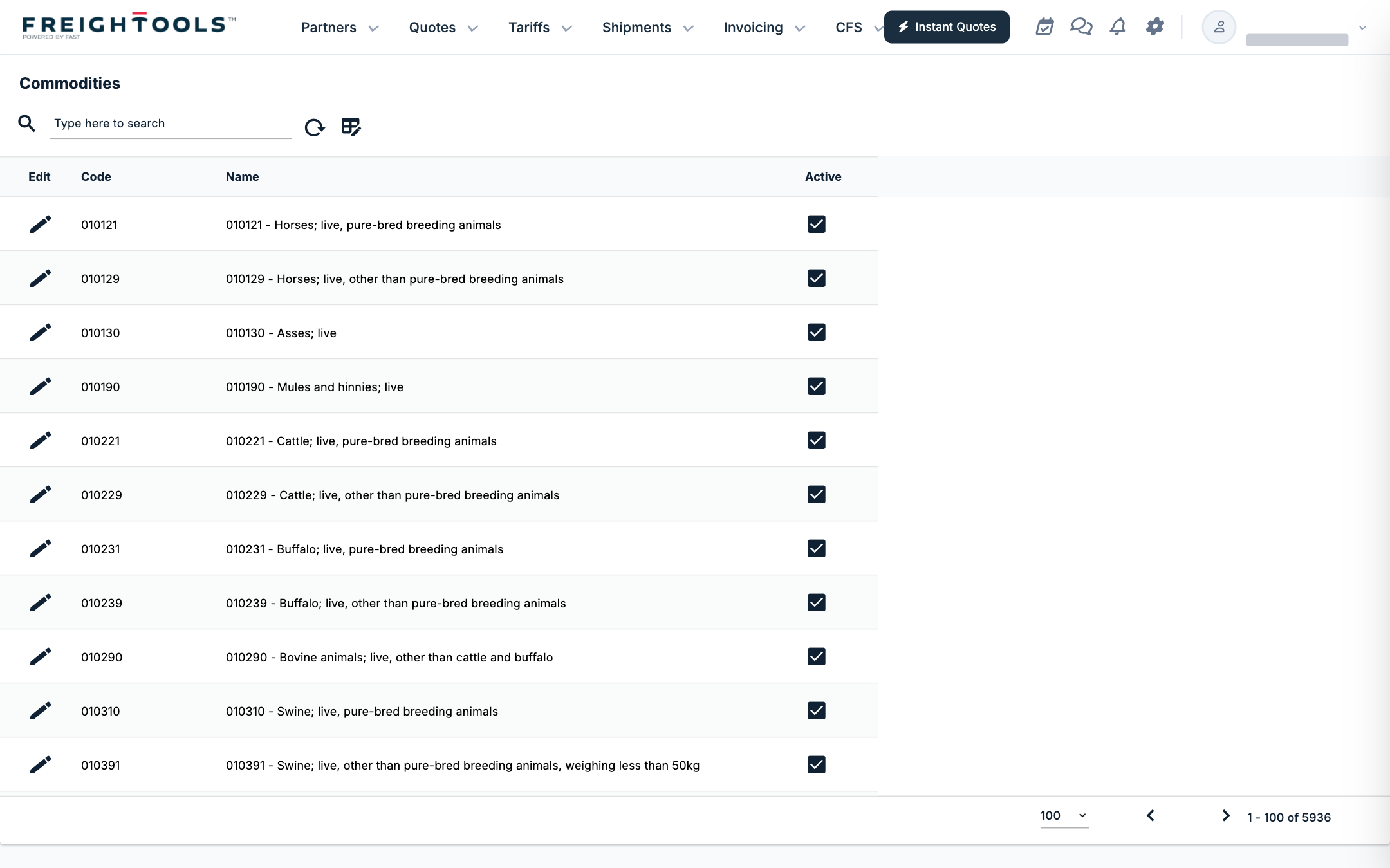
The HS-code commodity list, one 6-digit code per row with its description. Columns: Code, Name, Active. No New button; read-only.
Commodity Groups
The HS sections that group the commodities. The page title is "Commodity Group". Columns: Code, Name, Active. New Commodity Group asks for Code and Name, with an optional Description; an existing group also shows its Commodity Chapters. Existing groups open read-only. If the New Commodity Group dialog shows no Save Changes button, ask your Freightools administrator to add the group.
If something goes wrong
| You see | What to do |
|---|---|
| A list has no New button | The list is system data. Ask your Freightools contact if a record is missing. |
| A record opens but has no Update or Delete button | The record is system data; nobody in your company can edit it. Your administrator can add a record of your own where the list has a New button. |
| A new record will not save | Fill in every field marked with a red asterisk; its tooltip reads "this field is required". |