
Your supplier record is your company's version of a carrier. The System Carrier is the
carrier as Freightools knows it across the platform. Relating the two tells Freightools that
your supplier and that carrier are the same company, so rates, schedules and tracking line up.
Give the supplier the Carrier role
- Create or open the supplier and stay on the General tab.
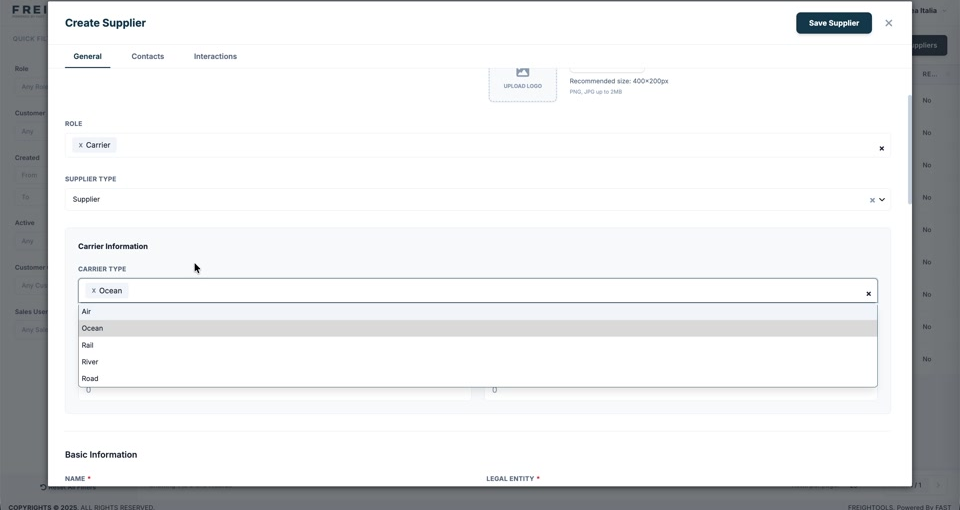
- In Role, select Carrier. A Carrier Information section appears.
- Choose the Carrier Type: Air, Ocean, Rail, River or Road.
Point it at the System Carrier
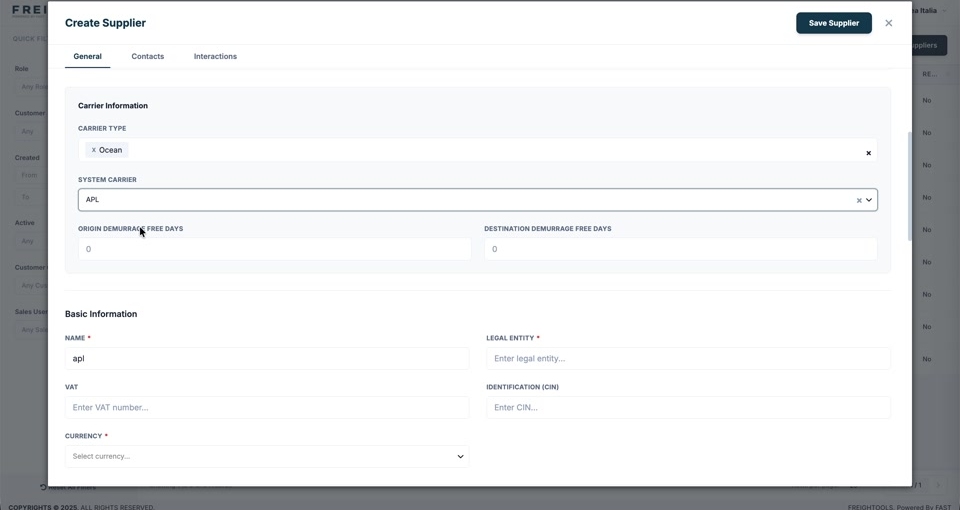
- Open System Carrier and pick the carrier that matches this supplier — for example
APL. - Set Origin Demurrage Free Days and Destination Demurrage Free Days if this carrier
grants free days. - Finish the rest of the supplier's details and click Save Supplier.
Important: Pick the System Carrier that really is the same company. A supplier mapped to
the wrong system carrier will be matched against the wrong schedules and rates, and the problem
shows up later as prices that do not match the agreement.
Note: Carrier Information only appears once Carrier is in the Role field. If you
cannot see the section, go back to Role.