
Freightools keeps one demurrage record per container on your shipments, so you can follow up demurrage days and bill them. This article covers the list, its filters and columns, and what you can correct on a single record. How the invoice is calculated from your selling agreement, and what has to be set up first, is explained in Container demurrage auto invoicing.
Before you start
- Records are not created by hand. The page has no New button: each row comes from a container on a shipment.
- To invoice demurrage, your demurrage activity and the customer's selling agreement must be in place. See Container demurrage auto invoicing.
Open the list
Go to Invoicing → Demurrage Charges. The page is titled Container Demurrage. Its toolbar has Refresh, Column Picker, Create Invoice and Export (to Excel).
Filter the list
| Filter | What it does |
|---|---|
| Service Mix | Air Service, General Cargo, Intermodal FCL, Ocean FCL, Ocean LCL, Project Cargo, Rail - General Cargo, Road FTL/FTL, Road LTL/LTL, Roll On Roll Of. |
| Receiver Customer | Look up the customer. Use it to gather all of one customer's containers before invoicing. |
| SO Master From, SO Master To | The master origin and destination port or location. |
| Country From, Country To | The origin and destination country. |
| Active | yes or no. |
| Actual Arrival | A date range. |
| Gate In | A date range. |
Note: Country To and Active open with a value already set. If the list shows fewer containers than you expect, check those two filters first.
Read the list
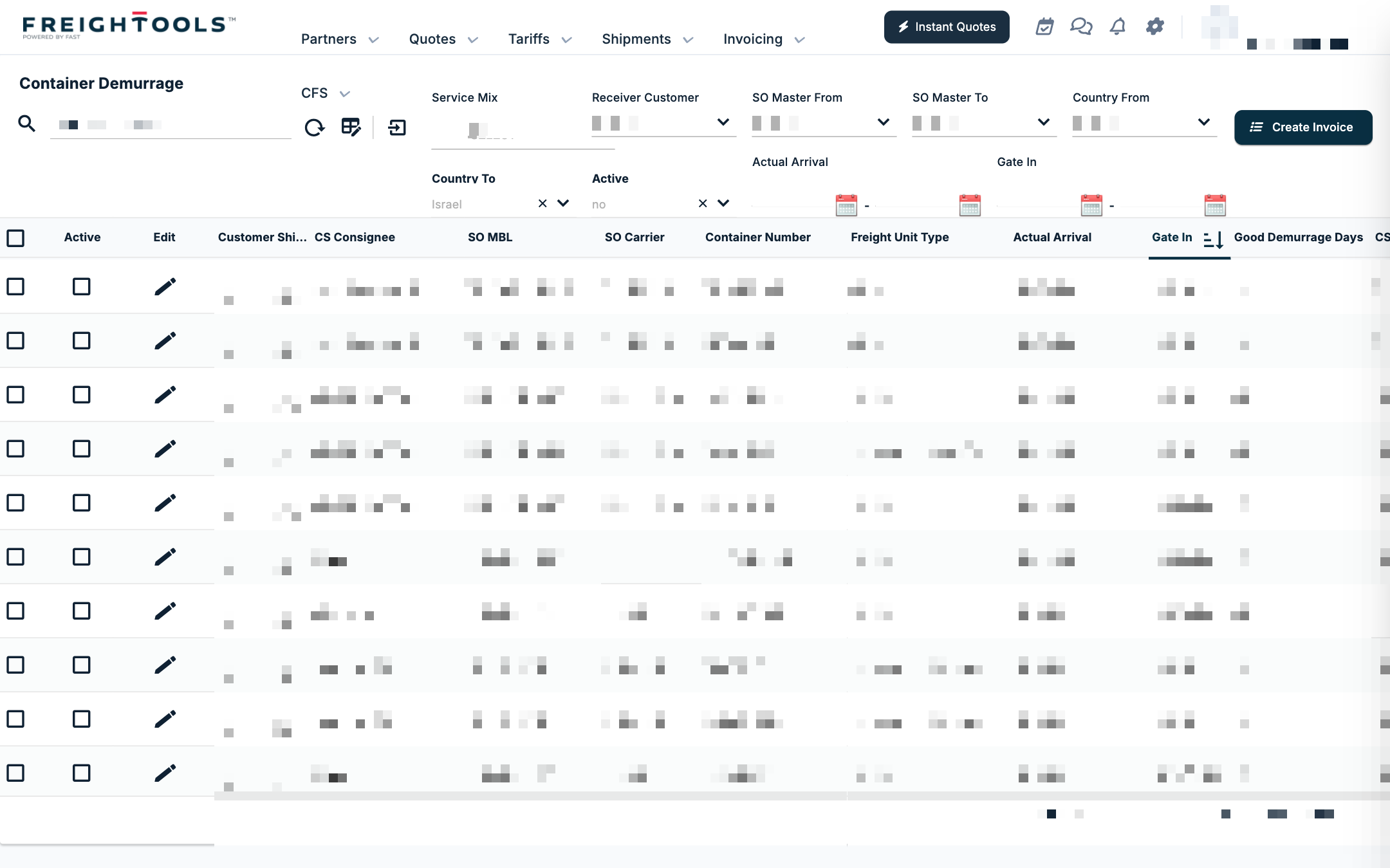
Each row is one container. The default columns are:
| Column | What it shows |
|---|---|
| Tick box | Selects the row for Create Invoice. |
| Active | Whether the record is active. |
| Edit | The pencil that opens the record. |
| Customer Shipment Code | The Customer Shipment (CS). The code is a link that opens the CS. |
| CS Consignee | The consignee on the CS. |
| SO MBL, SO Carrier | The master bill of lading and the carrier of the Shipping Order (SO). |
| Container Number, Freight Unit Type | The container and its type. |
| Actual Arrival, Gate In | The two dates the demurrage is followed on. |
| Good Demurrage Days | The demurrage days of the container. |
| CS Demurrage Destination Days | The destination demurrage days set on the CS. |
| Agreement Destination Free Days | The free days at destination. |
| Receiver Customer | The customer to be billed. |
| CS Sales Agent | The sales agent on the CS. |
Use Column Picker to change the columns shown — see How to show or hide grid columns.
Correct a demurrage record
- Click the pencil in the Edit column. The Edit Container Demurrage window opens; it has no tabs.
- Correct what you need. You can edit:
- Active (tick box)
- Actual Arrival
- Gate In
- Agreement Destination Free Days
- Demurrage Comment
- Click Update to save, or Apply Changes.
Everything else on the record is read-only and comes from the shipment: Receiver Customer, CS Demurrage Origin Days, CS Demurrage Destination Days, Invoice Status, Good Demurrage Days, Invoice Code, CS Code, SO MBL, CS HBL, SO Carrier, CS Consignee, CS Shipper, PO Number, CS Transaction Number, SO Master From, SO Master To, Destination Customs Agent and SO Manifest. Invoice Code and Invoice Status show the invoice created from the record. To change one of these values, change it on the CS or SO.
The window also has a Delete button.
See the other containers of the same shipment
In the Edit Container Demurrage window, click View Shipment Related Containers to see the containers that belong to the same shipment. This helps when one shipment has several containers that you want to review or invoice together.
Invoice demurrage
- Tick the containers you want to bill.
- Click Create Invoice in the toolbar.
- A confirmation asks whether to create the invoice. Answer YES. Freightools creates a selling invoice of the type Demurrage invoice.
The invoice that is created, and how its amount is worked out, are described in Container demurrage auto invoicing. The invoice is listed in Invoicing → Selling Invoices — see How to find and filter invoices. Its Invoice Code and Invoice Status then show on the demurrage record.
Export the list
Click Export to export the list to Excel.
If something goes wrong
| You see | What to do |
|---|---|
| A container you expect is missing | Check Country To and Active, which open pre-set, and the date filters. |
| There is no New button | Records come from the containers on your shipments; there is nothing to create by hand. |
| A read-only value is wrong | Correct it on the CS or SO it comes from. |