
The Economics tab of a Customer Shipment (CS) is its financial structure: which activities the shipment carries, who supplies each one and at what cost, which customer pays for it and at what price, and the margin that leaves. This article covers the header, adding activities, the buying and selling sides of an activity, and the price details underneath. Invoicing is covered in How to issue a selling invoice from a shipment file.
Before you start
- Open the CS from Shipments → Customer Shipments with the pencil in the Edit column, then click Economics. The tab is enabled when economics are enabled for the CS.
- Set the route first. Activities are grouped by routing point, so the routing points you see on Economics are the ones on the Routings tab. See How to edit the routing of a Customer Shipment.
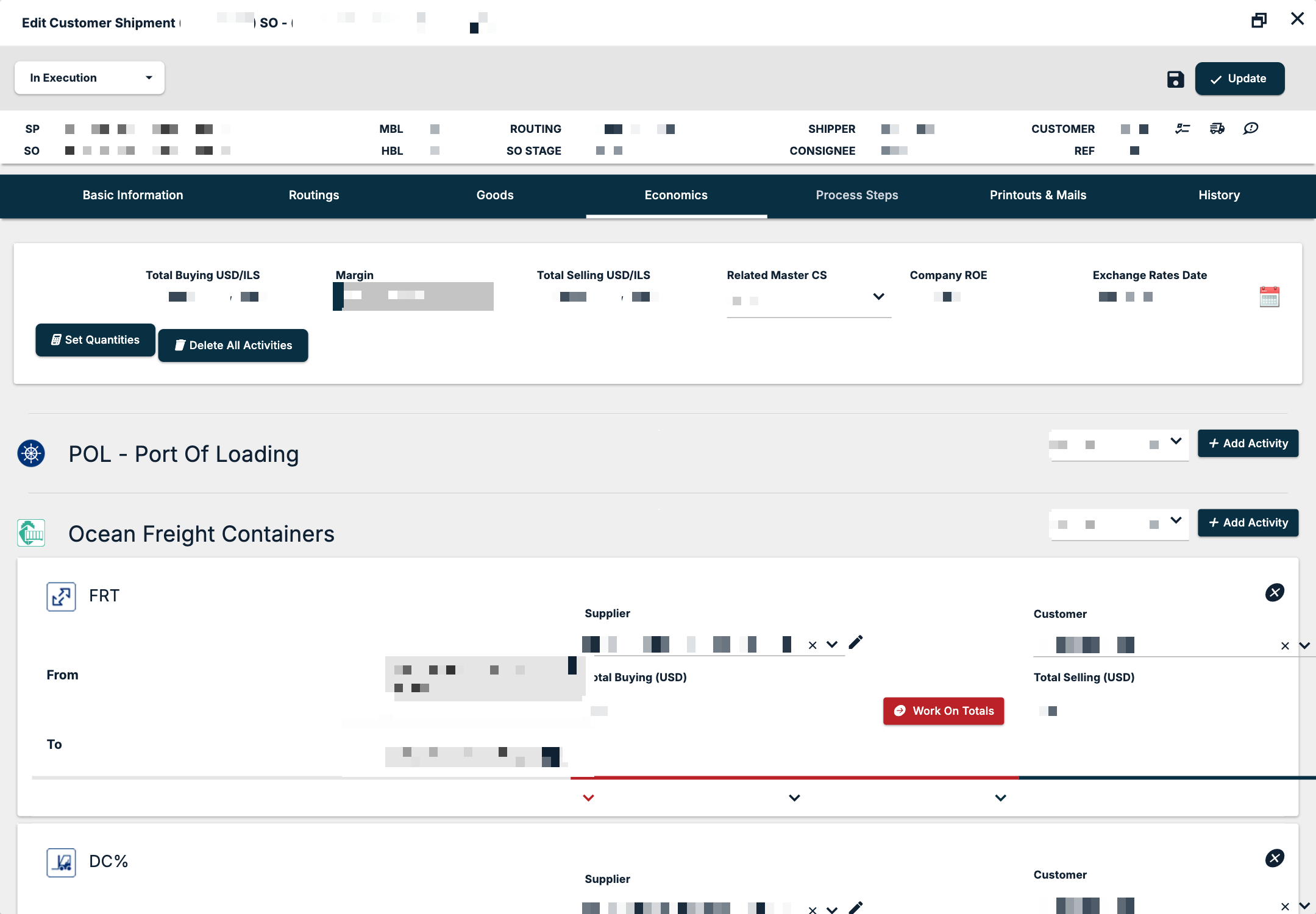
Read the header
| Field | What it shows |
|---|---|
| Exchange Rates Date | The date of the exchange rates used to convert amounts. |
| Company ROE | Your company's rate of exchange. |
| Related Master CS | A select for the related master CS. |
| Total Selling | The selling total of the CS, shown in two currencies. |
| Margin | The margin as an amount and as a percentage. |
| Total Buying | The buying total of the CS, shown in two currencies. |
See ROE (Rate of Exchange) in Freightools.
Two buttons sit under the header:
- Set Quantities — recalculates the activity quantities from the goods. Use it after you change the goods, once the CS is saved.
- Delete All Activities — clears the activities of the CS and opens search fields in their place, where you search for and link the quotation (SP) the economics should come from. Use it to change the linked quotation or to rebuild the economics.
Add an activity
The body of the tab is grouped by routing point — for example POL - Port Of Loading, Ocean Freight Containers, TRN (Transshipment) and POD - Port of Discharge.
- Find the group for the routing point where the service happens.
- Choose the activity in the activity select of that group. The list holds the activities set up for your company, such as Ocean Freight - Containers, Pickup - containers, All In Ocean Containers, Origin and Destination Terminal Handling Charges, Import and Export Custom Clearance, Customs Duties, VAT, Commission, Storage and Fumigation.
- Click Add Activity.
Fill in an activity
Each activity is a card headed by its code (for example FRT or DC). It shows From and To — or At for a charge at one point — with the routing addresses.
Supplier side (buying)
- Supplier — who you buy the service from.
- Total Buying (USD) — the cost of the activity.
- Work On Totals — removes the buying price conditions so you type the buying total directly.
Customer side (selling)
- Customer — who pays for the activity.
- Selling Currency and Selling Value.
- Total Selling (USD) — the selling price of the activity.
- Work On Totals — removes the selling price conditions so you type the selling total directly.
The rest of the card
- Description — the text of the activity.
- Goods — the goods the activity applies to, for example "(#1) 1 40' HC".
- Remove — removes the activity from the CS.
Fill in the price details
Under each side of an activity is a price-detail table, collapsed until you open it. Its columns are:
Order · Price Detail · Evaluation · Currency · Quantity · Price · Total Value · USD Total · Tier Type · Minimum Value · Maximum Value · Comment
Tier Type is No Tier, Fixed or Progressive. See Tiers.
Load prices from an agreement or a structure
When an activity is not bound to an agreement, each side has its own options menu.
Buying Conditions Options:
- Import From Agreement — take the buying conditions from a buying agreement.
- Load Buying Structure
- Add Buying Condition — add a price-detail line by hand.
- Create Buying Agreement
Selling Conditions Options:
- Import From Agreement — take the selling conditions from a selling agreement.
- Copy Buying Structure — copy the buying structure to the selling side.
- Load Selling Structure
- Add Selling Condition — add a price-detail line by hand.
- Create Selling Agreement
See How to Create or Edit Buying Agreements in Freightools.
Save your changes
Click Update at the top of the editor to save the CS and close it.
If something goes wrong
| You see | What to do |
|---|---|
| The Economics tab is greyed out | Economics are not enabled for this CS. Ask your Freightools administrator. |
| No group for the routing point you need | Add the point on the Routings tab first. |
| No Buying Conditions Options or Selling Conditions Options menu on an activity | The activity is bound to an agreement; the menus show only on activities that are not. |
| The quantities no longer match the goods | Save the CS and click Set Quantities. |
| Printouts & Mails is still greyed out | Save at least one activity on the CS. |