
The Goods tab of a Customer Shipment (CS) holds the cargo: every good with its freight unit, quantity, weights, dimensions, container and seal numbers, plus a totals line for the whole shipment. This article covers adding goods, filling in each good's sub-tabs, and the per-good actions. Pricing the goods is on the Economics tab — see How to manage the economics of a Customer Shipment.
Before you start
- The Goods tab is enabled once the CS has been saved. On a new CS, save it first. See How to create a CS (customer shipment) in Freightools.
- Open the CS from Shipments → Customer Shipments with the pencil in the Edit column, then click Goods.
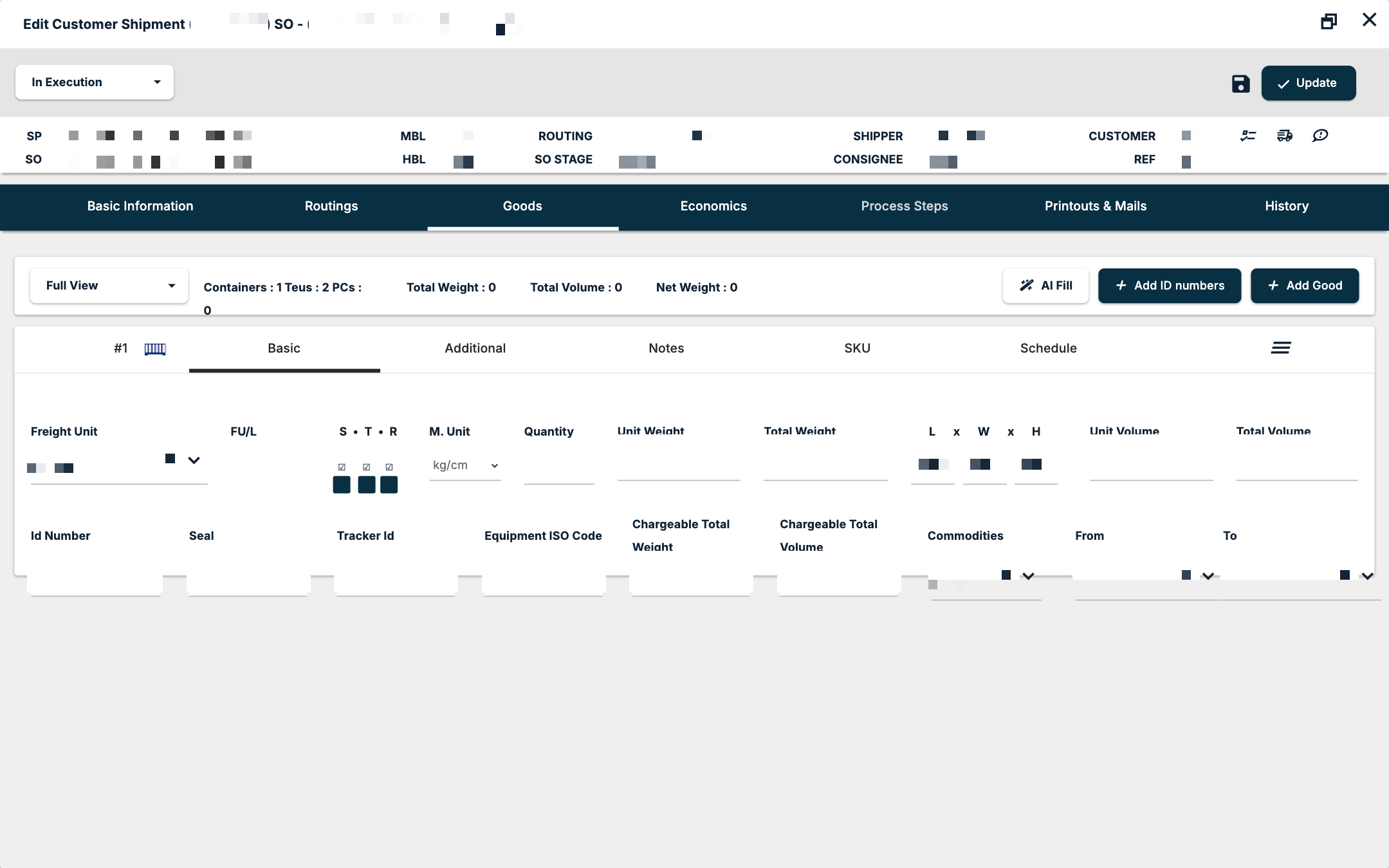
Read the totals
The line at the top of the tab totals the shipment:
- Containers, Teus and PCs
- Total Weight, Total Volume and Net Weight
The view select beside it switches between Full View and Slim View.
Add goods
Three buttons sit above the goods:
| Button | Use it to |
|---|---|
| Add Good | Add a new good card. |
| Add ID numbers | Enter the ID numbers of the goods. |
| AI Fill | Fill goods with AI. |
Each good is a card numbered #1, #2 and so on, with five sub-tabs: Basic, Additional, Notes, SKU and Schedule.
Fill in the Basic sub-tab
The first row describes the unit and its size:
| Field | What to enter |
|---|---|
| Freight Unit | The unit, from the list below. |
| S • T • R | Three tick boxes: Stackable, Tiltable and Rotatable. Ticking Stackable opens a cargo-constraints dialog. |
| M. Unit | kg/cm or lb/inc. |
| Quantity | How many units. |
| Unit Weight and Total Weight | Weight per unit and in total. |
| L x W x H | The dimensions of one unit. |
| Unit Volume and Total Volume | Volume per unit and in total. |
The second row identifies the unit and places it on the route:
| Field | What to enter |
|---|---|
| Id Number | The container or unit number. |
| Seal | The seal number. |
| Tracker Id | The tracker on the unit. |
| Equipment ISO Code | The ISO code of the equipment. |
| Chargeable Total Weight and Chargeable Total Volume | The chargeable figures. |
| Commodities | What the cargo is. |
| From and To | The routing points the good travels between. |
Freight units
The Freight Unit list covers containers and loose cargo:
- Containers: 20' GP, 40' GP, 40' HC, Container 45' HC, Container 45'RH, and the 20' and 40' Flat Rack, Open Top, Reefer, Tank and Tank SOC, HC Flat Rack, HC Open Top, HC Reefer, Non Operating Reefer, Box Soc ISO, HC Soc ISO, Pallet Wide and Pallet Wide HC variants.
- Loose and other cargo: Bag, Barrel, Box, Break Bulk Cargo, Cartons, Case, Crate, Drum, Package, Pallet, PCS UNIT, Skid, Tank, General Cargo, Full Truck, Car.
- RoRo and vehicles: RoRo Vessel, Self Propelled Tracked Unit, Self Propelled Wheeled Unit, Trailer - RoRo, Truck - RoRo.
Fill in the other sub-tabs
Additional (Additional Information): PO Number, Packages QTY, AWB Rate, Tare, Payload, Capacity, Demurrage Days, Shipping Terms, Marks and Numbers, Kind Of Package, Goods Description and Said To Contain.
Notes: an Internal Note for your team and an External Note.
SKU: a grid of the stock-keeping units in the good. Click New SKUs to add lines. The columns are Id, PO Number, Freight Unit Type, Quantity, Invoice Reference, Invoice Date, Part Number, Delivery/Wagon Number, Measurement Unit, Total Weight and Total Volume.
Schedule: the tracking events of the good. Click New Customer Shipment Good Schedules to add one. Filter by User or Container Event. The columns are Id, Name, User, Container Event, Country Name, Estimated Time, Actual Time, Voyage, Vessel Name, Vessel Mmsi, Vessel Call Sign and Transport Equipment Name.
Remove, move, export or split a good
Each good card has its own menu (☰) with four items:
| Item | Use it to |
|---|---|
| Remove | Delete the good from the CS. |
| Move to a different CS | Move the good to another customer shipment. |
| Good Export | Export the good. |
| Split | Split the good into more than one. |
After you change the goods
Changing the goods can change what the shipment costs and sells for. Save the CS, then open Economics and click Set Quantities so the activity quantities follow the goods. See How to manage the economics of a Customer Shipment.
If something goes wrong
| You see | What to do |
|---|---|
| The Goods tab is greyed out | Save the CS first. |
| The goods changed but the economics did not | Save the CS and click Set Quantities on Economics. |