
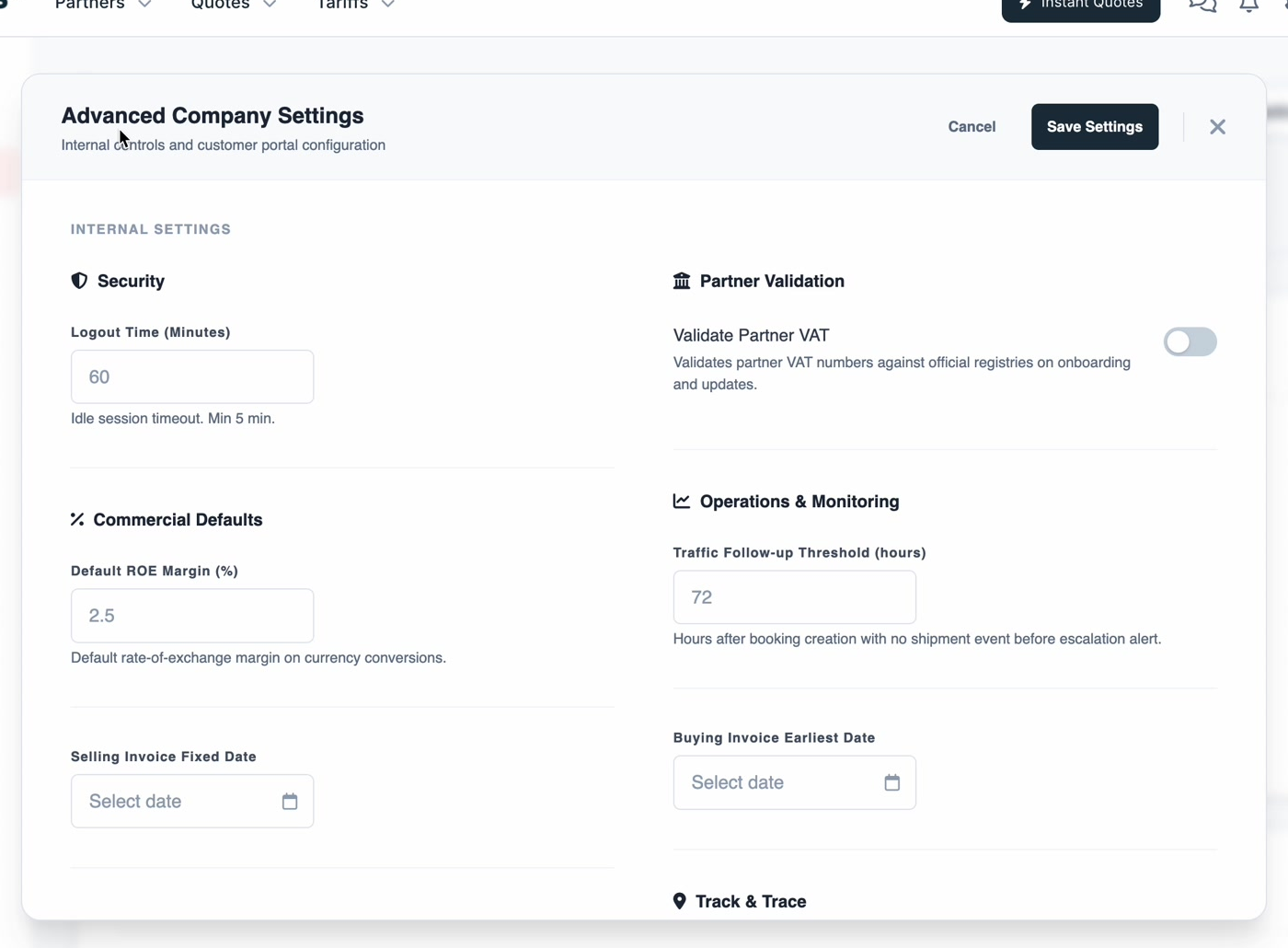
Advanced Company Settings is one dialog holding the controls that change how Freightools
behaves for everyone in your company. It opens from Settings → Company → Advanced Settings
and saves with Save Settings.
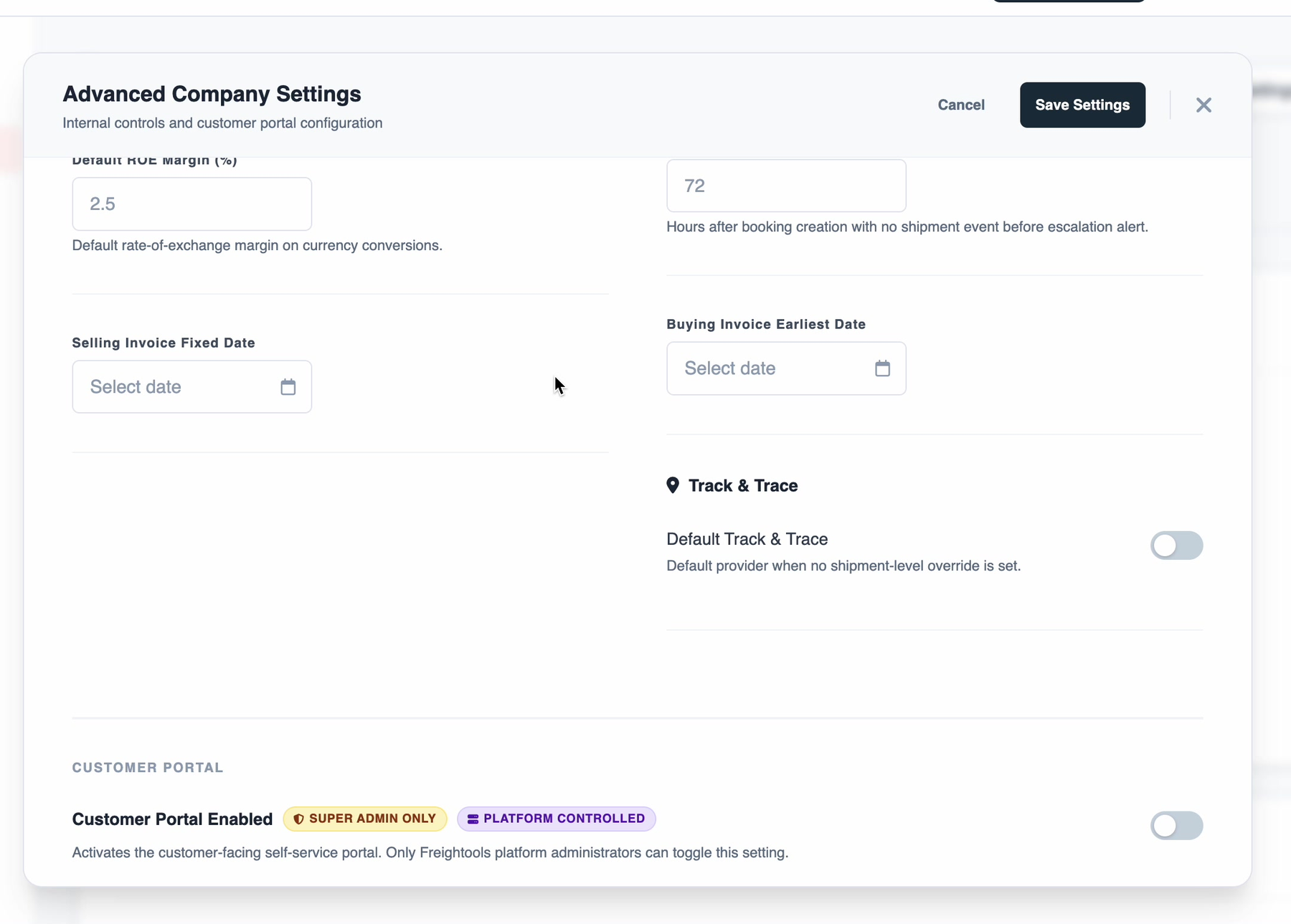
The dialog has two halves. This article covers Internal Settings; the Customer Portal
half is covered in
How to configure Customer Portal rules, branding and service mixes.
Security and partner validation
| Setting | What it does |
|---|---|
| Logout Time (Minutes) | The idle-session timeout: how long a user can be inactive before Freightools signs them out. The minimum is 5 minutes. |
| Validate Partner VAT | When on, Freightools checks partner VAT numbers against official registries as partners are onboarded and updated. |
Commercial defaults
Default ROE Margin (%) is the rate-of-exchange margin Freightools applies by default when it
converts between currencies. It is a percentage, for example 2.5.
Selling Invoice Fixed Date sets a fixed date for selling invoices when your accounting
process needs one.
Important: The ROE margin is applied to every conversion that does not override it, so it
moves the price of anything quoted in a currency other than your company currency. Change it
deliberately.
Operations and monitoring
Traffic Follow-up Threshold (hours) is the number of hours after a booking is created with no
shipment event before Freightools raises an escalation alert — for example 72.
Buying Invoice Earliest Date sets the earliest date a buying invoice may carry.
Track and trace
Default Track & Trace sets the provider Freightools uses when a shipment has no override of
its own.
Click Save Settings when you are done.