
The top of Settings → Company → Basic Info holds two sections that look similar and behave
very differently. Company Branding is yours to change. Legal Information is locked, and
changing it is a request.
Set your logo and brand colour
- Open Settings → Company and stay on the Basic Info tab.
- Under Company Branding, click Upload Logo, or drag the file onto the upload area.
The recommended size is 400 × 200 px. - Set the Primary Brand Color: type a HEX code such as
#1F3A8A, or click the colour
square to use the colour picker. - Click Save Changes.
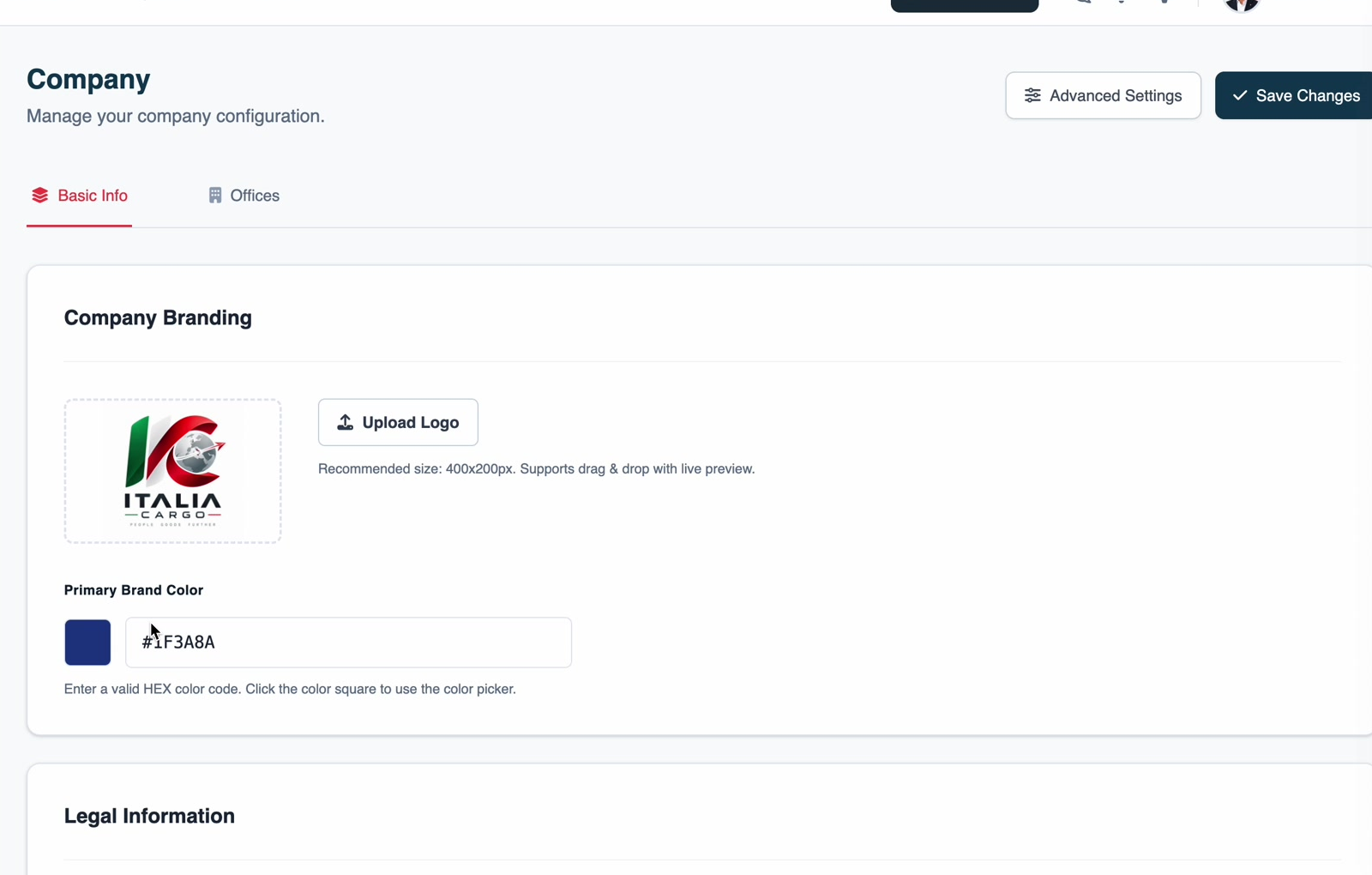
Note: This is the logo your customers see in Freightools. The logo used on printed and
PDF documents is set separately — see
How to configure branding in quotation printouts.
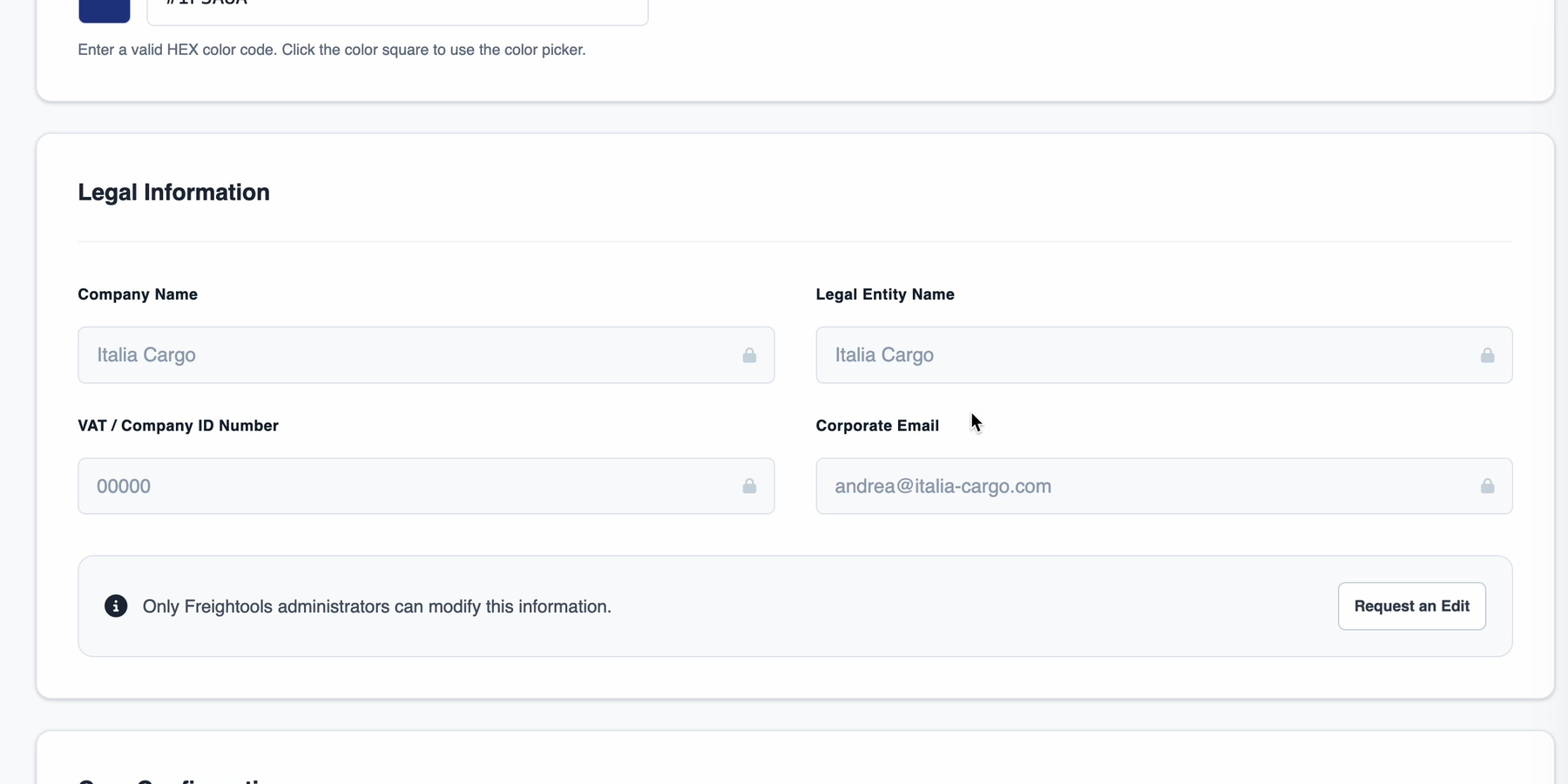
Why the legal fields are locked
Legal Information holds Company Name, Legal Entity Name,
VAT / Company ID Number and Corporate Email. Each one shows a padlock, and the section
says: Only Freightools administrators can modify this information.
These fields identify your company on invoices and contracts, so they are changed through a
request that leaves a record, not by typing over them.
Request a change to a legal field
- In the Legal Information section, click Request an Edit.
- Choose the Field to Modify.
- Enter the New Value exactly as it should appear.
- In Comment, explain why the change is needed. All three are required.
- Click Submit Request.
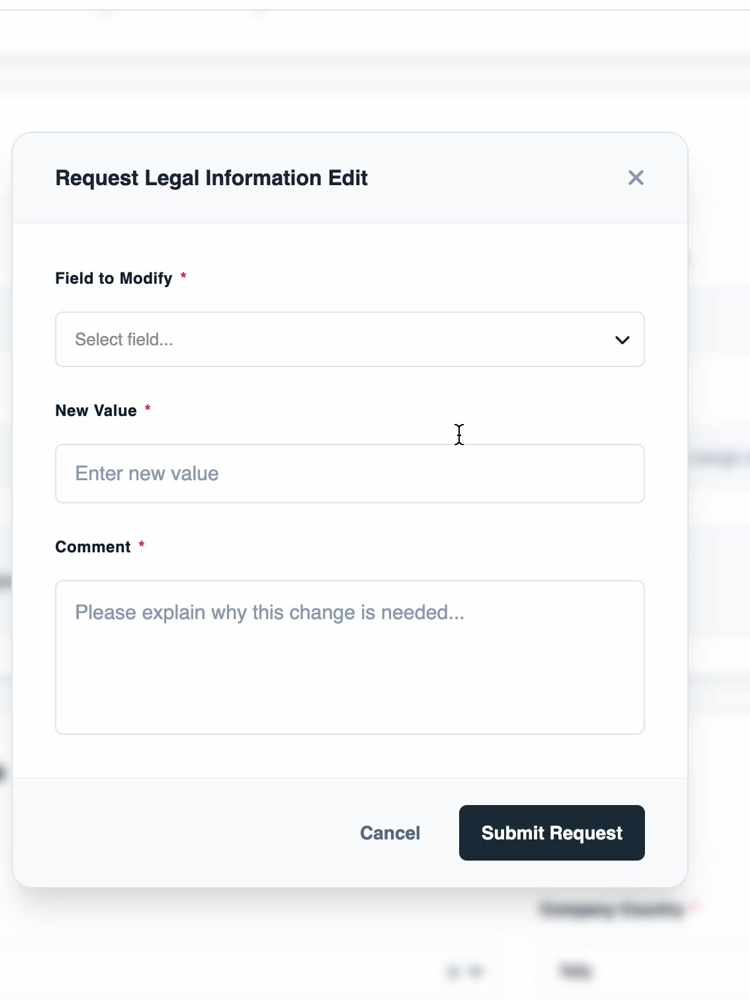
A Freightools administrator reviews the request and applies the change.