
The people you email at a supplier live on the supplier record, in the Contacts tab. A
supplier with no contacts is a supplier nobody can send an RFQ to.
Open the contacts
- Open Partners → Suppliers and open the supplier.
- Select the Contacts tab.
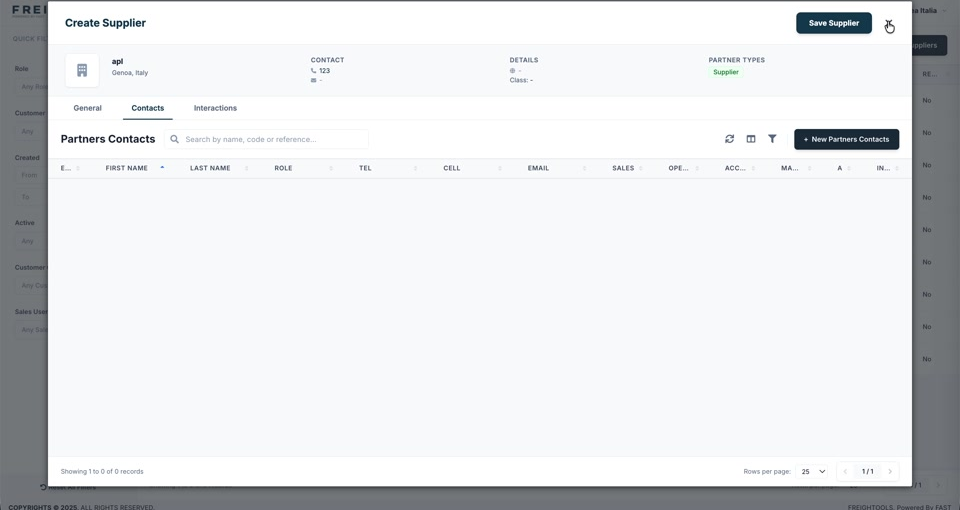
The Partners Contacts grid lists First Name, Last Name, Role, Tel, Cell
and Email, followed by columns marking which contact is the sales, operations and accounting
contact. A supplier with nothing yet reads Showing 1 to 0 of 0 records.
Find and add contacts
- Search by name, code or reference above the grid finds a contact on a long list.
- The icons above the grid refresh the list, choose the columns and filter it, the same as any
other Freightools grid — the columns icon is covered in
How to show or hide grid columns. - + New Partners Contacts adds a contact to this supplier.
Note: The summary band at the top of the record shows the supplier's name, city and
Partner Types, so you can confirm you are on the right partner before you email anyone.