
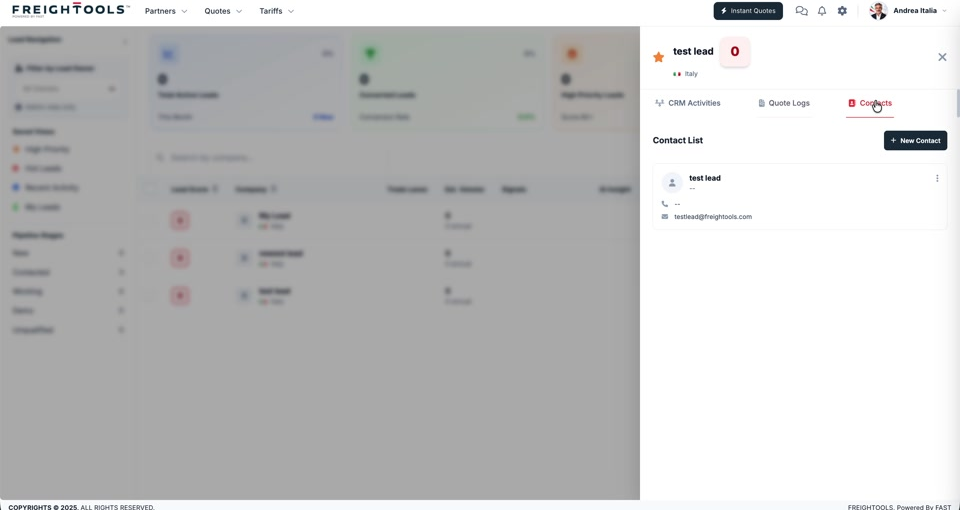
The contact you entered when you created the lead is its first contact. The Contacts tab is
where you see that person and anyone else attached to the same lead.
Open the contacts
- Open Partners → Leads and click the lead.
- In the side panel, select Contacts.
Contact List shows each contact as a card with their name, job title, phone number and email
address. A dash means that detail has not been filled in.
Add or change a contact
- + New Contact, at the top right of the list, adds another contact to this lead.
- The menu at the right of a contact card holds the actions for that contact.
Note: A lead can hold more than one contact — the person who asked for the rate, and the
person who signs. Keeping both on the lead means the quotation goes to the right one.